
How to Repair Windows 10 with In-Place Upgrade.
This tutorial will guide you through the process of performing an in-place upgrade to repair your Windows 10 installation without losing personal files and settings. This method allows you to resolve numerous Windows 10 issues and update your system with the latest features without the need for a complete reformat.
How to Perform a Repair Upgrade in Windows 10
Note: For Windows 11, refer to this article: How To Repair Windows 11 With In-Place Upgrade.
Suggestions: To minimize potential issues during the upgrade, consider the following preparatory steps:
- Ensure you have at least 32 GB of free space on your disk. This space is crucial for the upgrade process to store temporary files and ensure a smooth installation.
- Run Disk Cleanup to remove unnecessary files. This tool helps optimize disk space by deleting temporary files and system cache.
- Disconnect all non-essential external USB devices. This prevents hardware conflicts during the installation.
- Temporarily disable or uninstall any non-Microsoft Antivirus/Security software. Such software can interfere with the upgrade process, causing it to fail or corrupt.
- Disable BitLocker drive encryption if enabled. BitLocker can prevent the installation media from accessing the drive properly.
Step 1. Create a Windows 10 Install Media
1. Use the Media Creation Tool provided by Microsoft to create a Windows 10 USB or DVD installation media. Detailed instructions can be found in the following articles:
Step 2. Perform a Windows 10 Repair
1. Insert the Windows 10 installation media into your computer.
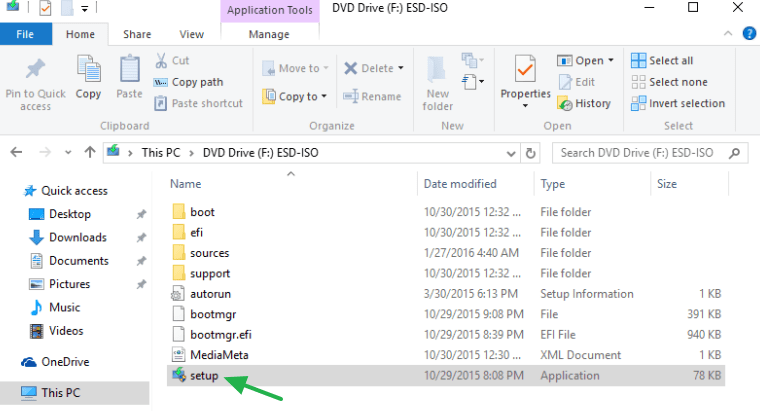
2. Open Windows Explorer and double-click the Setup application from the installation media. This action initiates the Windows Setup process, which prepares your system for the upgrade.
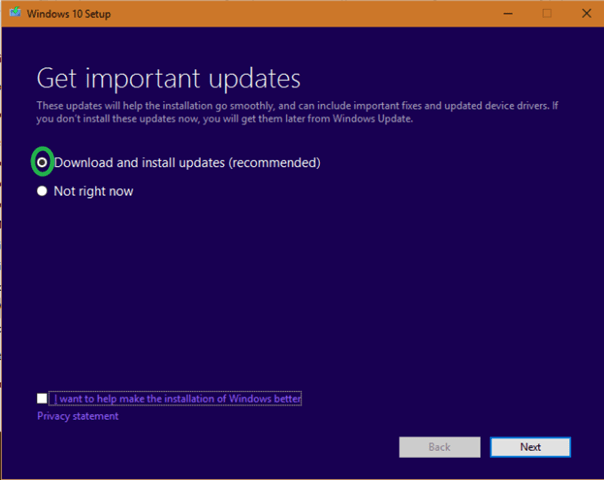
3. Choose to Download and install updates (recommended) when prompted and click Next. This step ensures that your installation media has the latest updates and drivers, which can prevent compatibility issues.
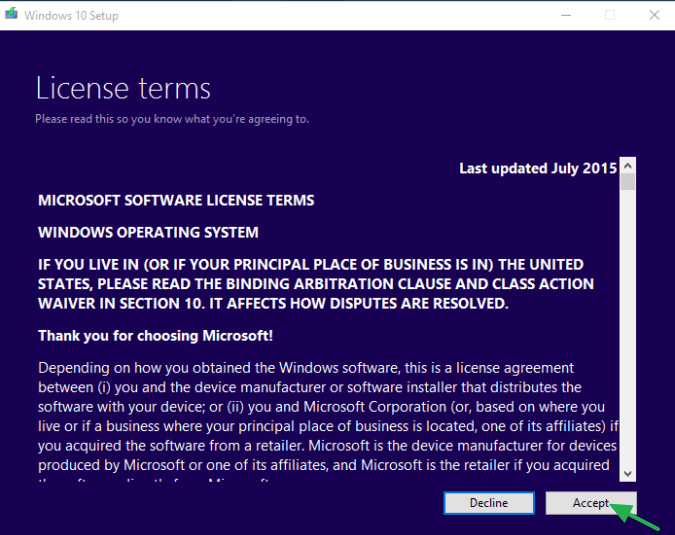
4. Accept the license terms. This is a mandatory step to proceed with the installation, acknowledging Microsoft's terms and conditions.
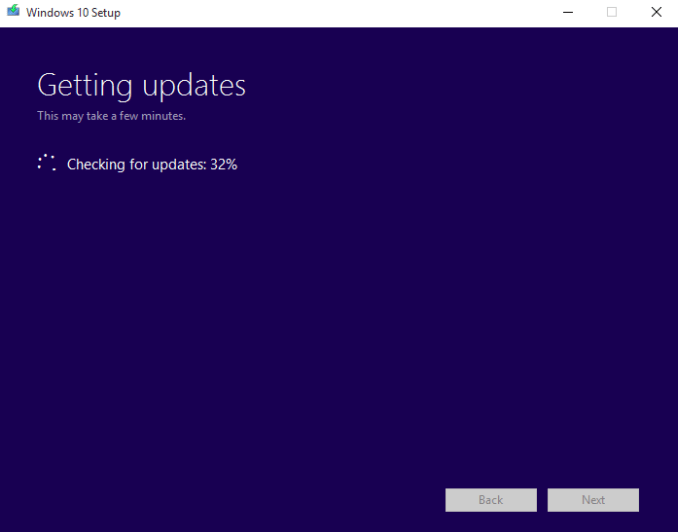
5. Wait while Windows retrieves all available updates. This process may take some time, depending on your internet speed and the number of updates required.
6. Click Install to begin the repair process. This step initiates the actual upgrade, where Windows will replace system files and update your system without affecting personal data.

7. Be patient as the Windows 10 Setup upgrades and repairs your system. This process can take a significant amount of time, depending on your system's specifications and the extent of updates required.

8. After the repair installation, log in to your account as usual. Your system should now be repaired and updated, with all personal files and settings intact.
Additional Solutions
In addition to the in-place upgrade, consider the following methods to repair Windows 10:
- System File Checker (SFC): Run the
sfc /scannowcommand in Command Prompt to scan and repair corrupted system files. This tool checks the integrity of system files and replaces any that are damaged or missing. - DISM Tool: Use the Deployment Imaging Service and Management Tool by running
DISM /Online /Cleanup-Image /RestoreHealthin Command Prompt. This command repairs the Windows image and can resolve deeper corruption issues that SFC cannot fix alone.
Summary
Repairing Windows 10 with an in-place upgrade is an effective way to resolve system issues without losing personal data. By preparing your system with sufficient disk space, disabling security software, and using the Media Creation Tool, you can ensure a smooth upgrade process. Additionally, utilizing tools like SFC and DISM can further enhance your system's stability and performance.
That’s all folks! Did it work for you?
Please leave a comment in the comment section below or even better: like and share this blog post in the social networks to help spread the word about this.
Frequently Asked Questions
What should I do to prepare for an in-place upgrade on Windows 10?
To prepare for an in-place upgrade, ensure you have at least 32 GB of free space, run Disk Cleanup, disconnect non-essential USB devices, temporarily disable non-Microsoft antivirus software, and disable BitLocker if it's enabled.
How do I begin the Windows 10 repair process using an in-place upgrade?
Start by creating a Windows 10 installation media using Microsoft's Media Creation Tool. Insert the media into your computer, open Windows Explorer, and double-click the Setup application to initiate the upgrade process.
What steps are involved in performing a Windows 10 repair upgrade?
After inserting the installation media, run the Setup application, choose to download and install updates, accept the license terms, wait for updates to download, and click Install to begin the repair process. Be patient as the setup updates your system without affecting personal data.
Are there additional methods to repair Windows 10 aside from an in-place upgrade?
Yes, you can use the System File Checker (SFC) by running sfc /scannow in Command Prompt to fix corrupted files, or the DISM Tool by executing DISM /Online /Cleanup-Image /RestoreHealth to repair deeper system issues.




April 29, 2017 @ 8:42 am
Just wondering how I run setup on a computer that won't boot? I can't restore, reset, cant sfc/scannow or I can and it gets to 100% but get a windows resource error, on restore get a Windows Apps error, also have a 0x0 error and even with the win 10 iso media file I get an error re windows pe (can't remember)error when I tried to do an install and keep files it wasn't happy. In a world of pain at the moment, nothing is working every which way.
April 30, 2017 @ 10:27 am
Paul McCosker: Follow the instructions in this article: https://www.repairwin.com/clean-install-windows-10/
July 15, 2017 @ 6:32 pm
I am so happy with your instructions above. I have done exactly what you have suggested and my computer and scanner are back to normal. I worked all day yesterday trying different solutions and yours above is the ONE and only.
Thank you for helping me because today is also my Birthday and its a gift.
July 18, 2019 @ 9:36 am
Unfortunately, after doing this, I got "Windows 10 installation failed." Something interesting to note was that it says "Sorry, there was a problem mounting the file" whenever I try to mount the ISO. I tried redownloading it (from the official website), but the error was present on the new ISO, too (so it couldn't be a corrupt ISO file…). Do you have any suggestions?
July 18, 2019 @ 12:13 pm
1. Burn the Windows ISO file to USB.
2. Then run the setup.exe from USB or
a. Reboot your computer and boot from the Windows USB media.
b. At Windows Setup wizard, press Next and then click Install Now.
c. Accept the 'License agreement'.
d. When asked, select Upgrade: Install Windows and keep files, settings, and applications.
July 20, 2019 @ 4:41 am
Thank you for your help! :)
1. I used Rufus to make a UEFI bootable USB
2. I ran setup.exe with and without the "Download and install updates (recommended)" option enabled. Both ended with "Windows 10 installation failed"
a. I then rebooted into the USB using EFI boot and it says:
"It looks like you started an upgrade and booted from installation media. If you want to continue with the upgrade, remove the media from your PC and click Yes. If you want to perform a clean install instead, click NO."
When I click Yes, it just reboots and if I try to run setup.exe again, I once again get "Windows 10 installation failed."
When I click No:
b. There was no "Next" button; I just clicked Install Now.
c. Accepted it.
d. After selecting Upgrade, a dialog called "Compatibility Report" pops up, saying:
"The upgrade option isn't available if you start your computer using installation media.
If a copy of Windows is already installed on this computer and you want to upgrade, remove the installation media and restart your computer. After Windows has started normally, insert the installation media and run Windows Setup."
Do you have any advice on how to go from here?
Thanks again for your help! :D
July 20, 2019 @ 9:36 am
1. Apply the steps 1 & 2 at method-1 in this article: FIX Error 0x8007000e in Windows 10 1903 Update and delete the "SoftwareDistribution" folder.
2. Reboot your computer.
3. Run Disk Cleanup and remove these files:
Windows Update Cleanup.
Windows Defender Antivirus.
Downloaded Program Files.
Temporary Internet files.
Previous Windows Installations.
Recycle bin.
Temporary Files.
Temporary Windows Installation files
4. Reboot you computer and boot from the USB installation media and upgrade Windows 10
July 22, 2019 @ 12:53 am
1. I did the prerequisites, except for updating my drivers, since my configuration registry database corrupt, hence why I want to do an in-place upgrade. I did successfully update my BIOS, though.
2. Did that.
3. There was no "Windows Defender Antivirus" on the list, but I cleaned everything else.
4. I got the same message (it says "It looks like you started an upgrade and booted from installation media. If you want to continue with the upgrade, remove the media from your PC and click Yes. If you want to perform a clean install instead, click NO." and after clicking no, it says "The upgrade option isn't available if you start your computer using installation media.")
Any suggestions?
Thanks a lot :D
July 22, 2019 @ 4:34 pm
Mateo Wang: Let's try the following:
1. Boot from the Windows media
2. Follow all the instructions in this post to revert the pending actions and to delete the following folder/files: "SoftwareDistribution", "cleanup.xml" & "pending.xml"
3. Remove the USB media and let the system to boot to Windows.
4. Boot again from the installation media and try to upgrade.
July 23, 2019 @ 9:03 am
Lakonst2013, for some reason, it wouldn't let me reply directly to you. Just wanna let you know that I got help from the sysnative forums and they helped me solve the problem (for visitors stuck in the same situation, here's a link to the thread: https://www.sysnative.com/forums/threads/device-manager-the-configuration-registry-database-corrupt.28771/)
Thanks again for your help! :)
June 17, 2021 @ 10:33 pm
Hi
I am struggling to update Windows 10 home.
I am on Windows 10 version 1909 on a 64 bit Desktop PC.
I can't update. Troubleshooter says I have a problem with the BITS service. "The requested service has already been started System.Management.Automation.RemoteException"
Microsoft Support created a Windows 10 USB which I ran today but had the message
"We couldn't install Windows 10
We've set your PC back to the way it was right before you started installing Windows 10.
OxC1900101 – Ox20017
The installation failed in the SAFE_OS phase with an error during BOOT operation."
My question is whether it failed because I left the USB in place? Should I have removed it? Or is it something completely different?
I am not confident about playing around with registry etc. as I am terrified of clicking on the wrong thing so please can any reply be as simple as possible.
Thank you for any suggestions/ideas.
vg
June 18, 2021 @ 8:49 am
At your case follow the instructions in this article: https://www.repairwin.com/fix-windows-10-upgrade-error-0xc1900101-0x20017-installation-failed-in-the-safe_os-phase-during-boot-operation/
April 30, 2026 @ 9:41 pm
There used to be an article about doing a Windows 10 in-place upgrade from a bootable USB Windows recovery if one cannot boot normally in to Windows. I've searched and searched but can't find the article anywhere. Please Konstantinos can you share the link or the method again. I need to perform that process again on my laptop.
May 4, 2026 @ 1:10 pm
https://www.repairwin.com/how-to-repair-windows-11-10-if-windows-cannot-start-normally-all-methods/