Ultimate CoD Warzone Settings for Enhanced FPS and Visibility
If you're struggling with low FPS in Call of Duty (CoD) Warzone—even with a capable GPU like the RTX 3060—you're not alone. Many players use high settings that look good but reduce performance, especially in CPU-intensive scenarios.
Below, you'll find the best Windows & Warzone settings to boost FPS, reduce input lag, and improve visibility.
IMPORTANT:
Overall performance (FPS) in games depends on the good performance/power of the processor (CPU), the available memory (RAM), and the capabilities of the graphics card (GPU).
If your system has sufficient features and still, even after applying the recommended settings below, the FPS performance remains low, then the problem may be related to the speed of the hard drive/disk. In this case, it is recommended to replace the HDD/SSD and perform a clean installation of Windows.
A problematic disk, or a disk whose performance has decreased (as usually happens over time, with SSD disks), can significantly affect the overall performance of the system.
How to Set Up your PC & Call of Duty Warzone for Best Performance (Max FPS).
Step 1. Set the Windows Power Plan to High Performance.
By adjusting the Windows power settings to "High Performance," you ensure that your computer is using its full power potential. This setting configures the CPU to run at its maximum frequency, preventing any power-saving features from throttling performance during intensive tasks.
- Press Windows
 + R keys to open the Run command box.
 - Type
control powercfg.cpland press OK (or Enter)


- In Power Options, select (check) the High Performance. (If you don't see the High Performance plan, click on the drop-down arrow next to "Hide additional plans").

Step 2. Set the GPU Power to Maximum.
Setting the GPU power to "Maximum Performance" ensures that the graphics card operates at its highest clock speeds, preventing downclocking during demanding tasks. This adjustment is crucial for maintaining consistent frame rates in graphically intensive games.
- On NVIDIA Graphics Cards, open the NVIDIA Control Panel and in the Manage 3D settings section, set the Power Management mode to Prefer maximum performance and hit Apply > OK.

- On AMD Radeon Graphics Cards, open the AMD Radeon Software and in the Performance tab, select Tuning from the sub-menu. Then set Power Tuning to Enabled and adjust the power limit using the Power Limit (%) slider. Click Apply Changes to save the setting.
Note: For more instructions on how to optimize your gaming performance with the AMD Radeon Software, read this article: How to Tune GPU Performance Using Radeon Software.

Step 3. Adjust Display & Quality Settings in COD (Warzone/Black Ops.)
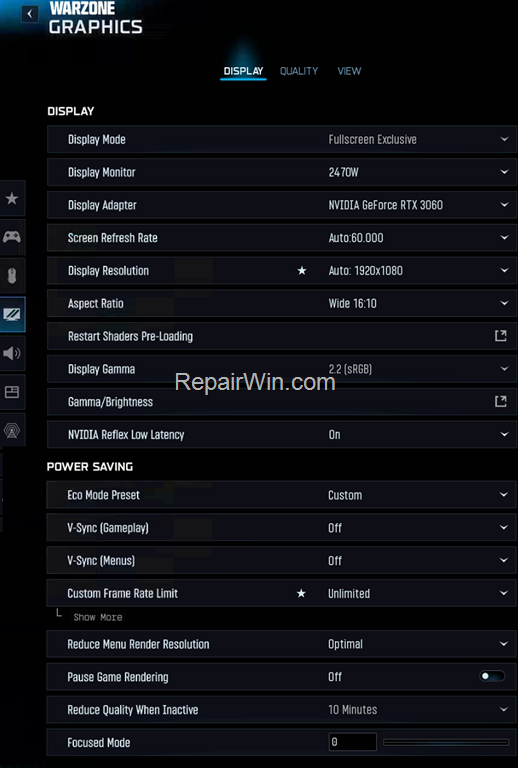
COD Display Settings for Maximum Performance.
DISPLAY
- Display Mode: Fullscreen Exclusive
- Display Monitor: 2470W
- Display Adapter: NVIDIA GeForce RTX 3060
- Screen Refresh Rate: Auto: 60.000 -> MAX (set 144/165 if monitor supports it)
- Display Resolution: Auto: 1920×1080
- Aspect Ratio: Wide 16:10
- Display Gamma: 2.2 (sRGB)
- Gamma/Brightness
- NVIDIA Reflex Low Latency: On (or "On + Boost")
POWER SAVING
- Eco Mode Preset: Custom
- V-Sync (Gameplay): Off
- V-Sync (Menus): Off
- Custom Frame Rate Limit: Unlimited
- Reduce Menu Render Resolution: Optimal
- Pause Game Rendering: Off
- Reduce Quality When Inactive: 10 Minutes
- Focused Mode: 0
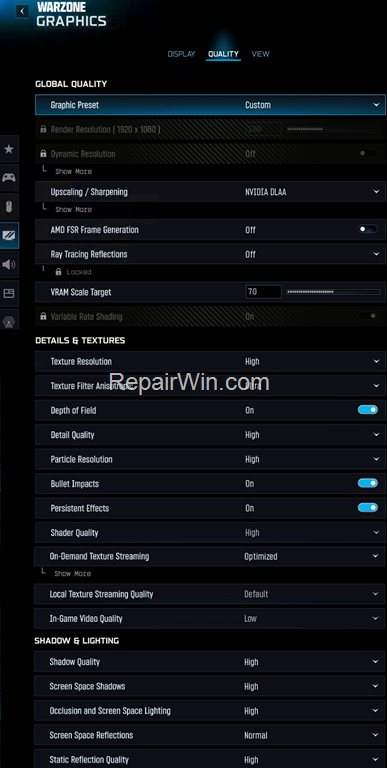
COD Quality Settings for High FPS
GLOBAL QUALITY
- Graphic Preset: Custom
- Render Resolution (1920×1080): 100
- Dynamic Resolution: Off
- Upscaling / Sharpening: NVIDIA DLAA or better: FidelityFX CAS
- AMD FSR Frame Generation: Off
- Ray Tracing Reflections: Off
- VRAM Scale Target: 70
- Variable Rate Shading: On (Locked)
DETAILS & TEXTURES
- Texture Resolution: High
- Texture Filter Anisotropic: Ultra
- Depth of Field: On
- Detail Quality: High
- Particle Resolution: High
- Bullet Impacts: On
- Persistent Effects: On
- Shader Quality: High
- On-Demand Texture Streaming: Optimized
Show More:
- Local Texture Streaming Quality: Default
- In-Game Video Quality: Low
SHADOW & LIGHTING
- Shadow Quality: High -> Low or Off
- Screen Space Shadows: High -> Low
- Occlusion and Screen Space Lighting: High
- Screen Space Reflections: Normal
- Static Reflection Quality: High
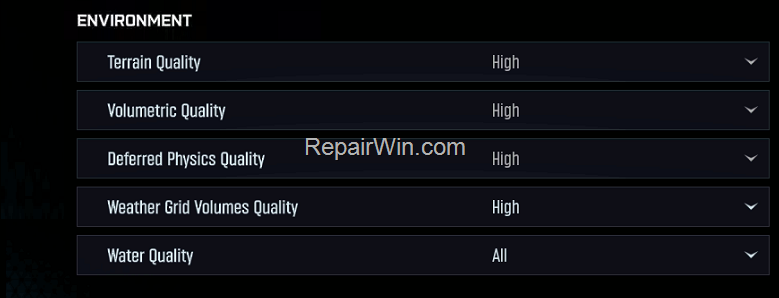
ENVIRONMENT
- Terrain Quality: High
- Volumetric Quality: High
- Deferred Physics Quality: High
- Weather Grid Volumes Quality: High
- Water Quality: All
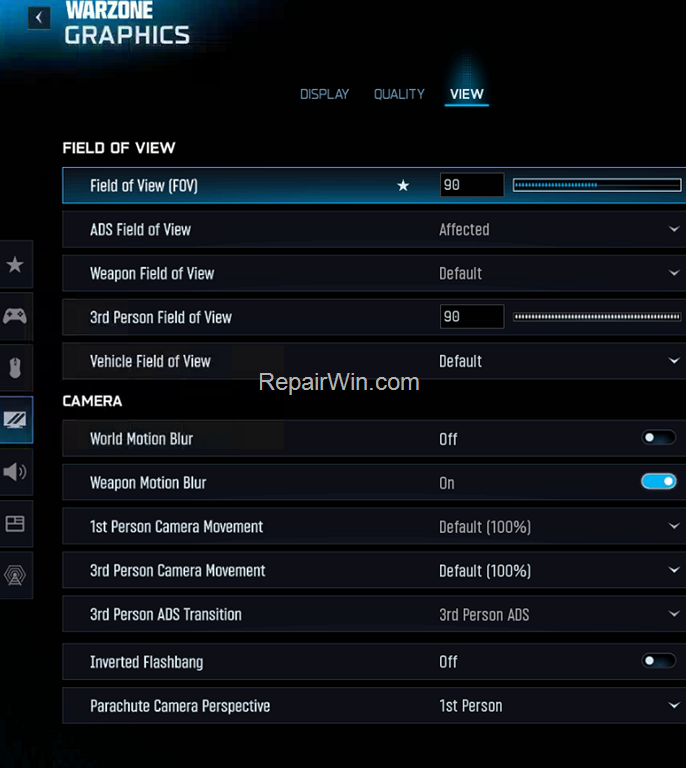
COD VIEW SETTINGS
FIELD OF VIEW
- Field of View (FOV): 90-100
- ADS Field of View: Affected
- Weapon Field of View: Default or Wide
- 3rd Person Field of View: 90
- Vehicle Field of View: Default
CAMERA
- World Motion Blur: Off
- Weapon Motion Blur: On
- 1st Person Camera Movement: Default (100%)
- 3rd Person Camera Movement: Default (100%)
- 3rd Person ADS Transition: 3rd Person ADS
- Inverted Flashbang: Off
- Parachute Camera Perspective: 1st Person
Additional Optimization Techniques
Beyond the settings above, consider these additional optimizations:
- Update Graphics Drivers: Ensure your GPU drivers are up-to-date. This can resolve compatibility issues and improve performance. Visit the official NVIDIA or AMD website for the latest drivers.
- Disable Unnecessary Background Applications: Use
Task Manager(Ctrl + Shift + Esc) to close any non-essential applications that may be consuming system resources. - Enable Game Mode: Windows 10 and 11 have a built-in Game Mode that optimizes your PC for gaming. Enable it through
Settings > Gaming > Game Mode.
Summary
Optimizing Call of Duty Warzone for maximum FPS and visibility involves a comprehensive approach. By adjusting Windows power settings, configuring GPU power management, and fine-tuning in-game display and quality settings, you can significantly enhance your gaming experience. Additionally, keeping your system updated and free of unnecessary processes will ensure smoother gameplay.
Please leave a comment in the comment section below or even better: like and share this blog post on social networks to help spread the word about this solution.
Frequently Asked Questions
Why is my FPS low in Warzone even with a powerful GPU like RTX 3060?
Low FPS in Warzone can often be due to high settings that impact performance, particularly in CPU-intensive scenarios. The GPU might also throttle its clock speeds incorrectly. It's crucial to optimize settings both in the game and in Windows to maximize performance.
How can I set my Windows Power Plan to High Performance for better gaming?
To set the Windows Power Plan to High Performance, press Windows + R to open the Run command box, type 'control powercfg.cpl' and press Enter. In Power Options, select High Performance. If it's not visible, expand by clicking 'Hide additional plans'.
What settings should I adjust in the NVIDIA Control Panel for better performance in Warzone?
In the NVIDIA Control Panel, navigate to Manage 3D settings and set the Power Management mode to 'Prefer maximum performance'. Apply the changes to ensure the GPU operates at its full potential during gaming sessions.
What display settings in Warzone can help improve FPS?
To enhance FPS in Warzone, set the Display Mode to Fullscreen Exclusive, disable V-Sync, and set NVIDIA Reflex Low Latency to 'On' or 'On + Boost'. Additionally, ensure that the Screen Refresh Rate matches your monitor's capability for optimal performance.