
FIX "BitLocker Recovery" Loop after installing KB5083769
Learn how to resolve the BitLocker Recovery loop issue caused by KB5083769 with our detailed, step-by-step guide. Ensure your Windows device operates smoothly by following our expert instructions.
BitLocker is a robust disk encryption program integrated into Windows to protect data from unauthorized access. However, users have reported a recurring issue known as the "BitLocker Recovery Loop" after installing the KB5083769 update. If you're stuck in this loop, this guide provides a detailed, step-by-step solution to resolve the problem efficiently.
Understanding the BitLocker Recovery Loop
After installing the KB5083769 update, some users experience a situation where their system repeatedly asks for the BitLocker recovery key, preventing regular access to their device. This loop can be frustrating and disruptive, especially for users relying on timely access to their systems.
How to Resolve the BitLocker Recovery Loop after Installing KB5083769 on Windows 11.
Method 1. Uninstall KB5083769 Update from WinRE.
Step 1: Retrieve Your BitLocker Recovery Key
Before proceeding, ensure you have your BitLocker recovery key. You can find it in:
-
- Microsoft Account: Log in to account.microsoft.com to find your recovery key.
- Printouts or USB Drive: If you saved it when enabling BitLocker, check these locations.
- Active Directory (AD): Contact your system administrator if your device is part of a domain.
Retrieving your recovery key is essential as it serves as a critical authentication factor for unlocking your encrypted drive, ensuring that only authorized users can gain access.
Step 2: Enter the BitLocker key in Recovery Mode
1. Restart your computer to access Recovery Options.
2. Type the BitLocker Recovery Key and click Continue.
Step 3. Uninstall KB5083769 Update.
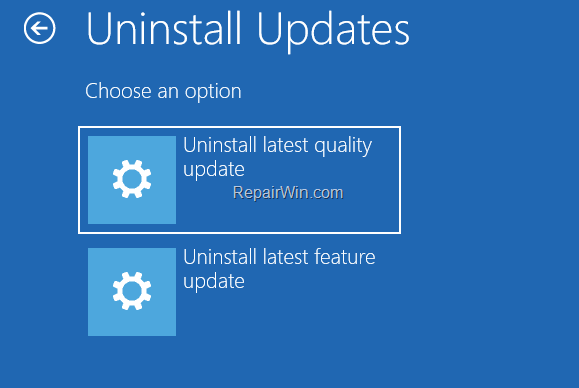
1. Go to Troubleshoot > Advanced Options and choose Uninstall Updates.

2. At the next screen click to "Uninstall latest quality update" and, after uninstall, reboot your computer.
2. Select Troubleshoot > Advanced options > Command Prompt.
3. Type the BitLocker Recovery Key and click Continue.
Method 2. Disable BitLocker Protection & Uninstall KB5083769 from Windows.
Step 1. Enter in Recovery Mode.
1. Follow the step 1 & 2 above to enter in Recovery Mode.
Step 2: Disable BitLocker Protection.
1. Select Troubleshoot > Advanced options > Command Prompt.
2. In the Command Prompt, type the following command* and press `Enter`:
manage-bde -protectors -disable C:
- Note: This command temporarily disables BitLocker protection, allowing you to proceed with system modifications. Disabling protection is necessary to ensure the system does not inadvertently lock you out while making changes.
Step 3: Uninstall the KB5083769 Update
1. Close Command Prompt and select Continue to Windows or reboot your computer.
2. In Windows go to Settings > Windows Update > Update History.
4. Scroll down and under Related Settings choose Uninstall Updates.
3. Locate KB5083769 and select Uninstall.
Uninstalling the KB5083769 update is crucial because it addresses the root cause of the recovery loop issue.
Step 4: Restart Your Computer
After uninstalling the update, restart your computer normally. Restarting ensures that any pending changes are applied effectively, resetting system states and verifying stability.
Step 5: Re-enable BitLocker Protection
Once your system starts, open Command Prompt with administrative privileges and type:
manage-bde -protectors -enable C:
This command re-enables BitLocker protection on your drive. Re-enabling encryption restores data protection, ensuring your drive remains secure against unauthorized access.
Summary
The BitLocker Recovery Loop caused by the KB5083769 update can be a significant disruption. By following the outlined steps—retrieving your recovery key, disabling BitLocker, uninstalling the problematic update, and re-enabling BitLocker—you can restore normal access to your system. Always ensure your recovery key is accessible and consider keeping your system software updated to prevent future issues.
Tags: BitLocker, KB5083769, Windows, Recovery Loop, Disk Encryption, Troubleshooting, Windows Update, System Security
Frequently Asked Questions
What is the BitLocker Recovery Loop caused by KB5083769?
The BitLocker Recovery Loop is a recurring issue where a system repeatedly asks for the BitLocker recovery key following the installation of the KB5083769 update, preventing regular access to the device.
How can I retrieve my BitLocker recovery key?
You can find your BitLocker recovery key by logging into your Microsoft account, checking printouts or a USB drive where it might have been saved, or contacting your system administrator if your device is part of a domain under Active Directory.
What temporary measure can be taken to resolve the BitLocker loop issue?
You can temporarily disable BitLocker protection by entering the command 'manage-bde -protectors -disable C:' in the Command Prompt while in Recovery Mode. This allows you to make system modifications without being locked out.
What should be done after uninstalling the KB5083769 update to ensure system stability?
After uninstalling the KB5083769 update, you should restart your computer to apply pending changes, and then re-enable BitLocker protection to restore data security on your drive.



