
How to Upgrade Windows 10 to Windows 11 Using an ISO File
If your Windows 10 PC meets the minimum hardware requirements for Windows 11 but you encounter issues upgrading via the Windows 11 Installation Assistant, this guide will walk you through upgrading to Windows 11 using an ISO file.
Upgrading Windows 10 to Windows 11 using an ISO file is a dependable method that allows you to install Windows 11 while retaining your files and settings. This guide provides comprehensive instructions on how to accomplish this.
How to Upgrade from Windows 10 to Windows 11 Using a Windows.ISO file
* Important Notes:
- The instructions below can be used to update your Windows 10 PC to Windows 11 or to upgrade your Windows 11 PC to the latest version (e.g., Windows 11 23H2).
- If you are currently running Windows 10 and wish to upgrade to Windows 11, first download and run the PC Health App to verify that your system meets the requirements for Windows 11. If your PC does not meet these requirements, follow the instructions in this guide: How To Update To Windows 11 22H2 On Unsupported Hardware.
- Your computer must have at least 64 GB of free disk space to upgrade to Windows 11.
- The Windows 11 upgrade process can be time-consuming. Ensure you have ample time and, if using a laptop, connect it to a power supply. (Average install time: about 1-2 hours).
- By upgrading using a Windows 11 ISO file, your files and settings will be preserved. However, as a precaution, back up your data to an external storage device, such as a USB disk, before starting the upgrade process.
- To ensure a smooth upgrade, it is recommended to uninstall any third-party security programs and reinstall them after the upgrade.
- Before upgrading, press CTRL + SHIFT + ESC to open Task Manager. In the Startup tab, disable all third-party programs that open with Windows. Then reboot the PC and proceed with the steps below.
To upgrade your Windows 10/11 PC from a Windows 11 ISO file:
Step 1. Download Windows 11 ISO file.
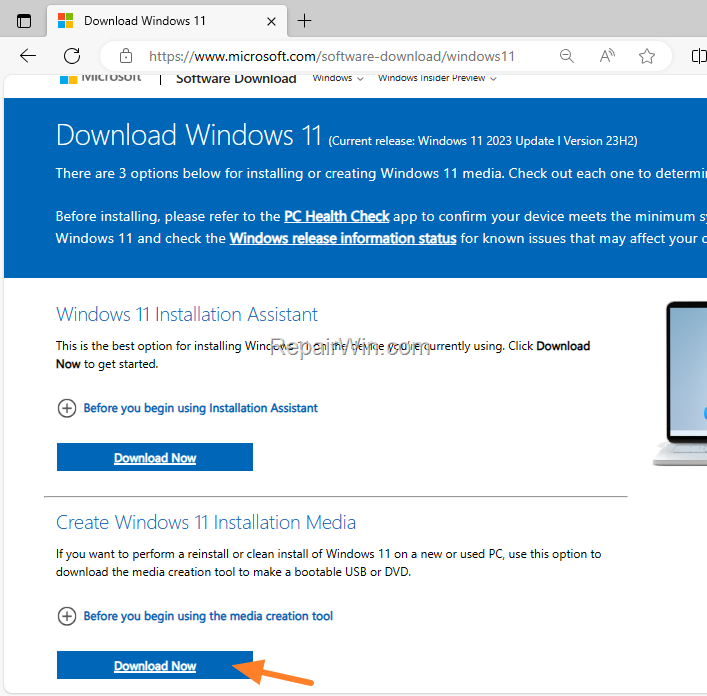
1. Navigate to the Windows 11 Download site and download the 'Windows 11 Media Creation Tool'.
 .
.
2. Run the downloaded "MediaCreationTool.exe" file and Accept the terms. This tool facilitates the creation of installation media, ensuring compatibility with your system architecture.
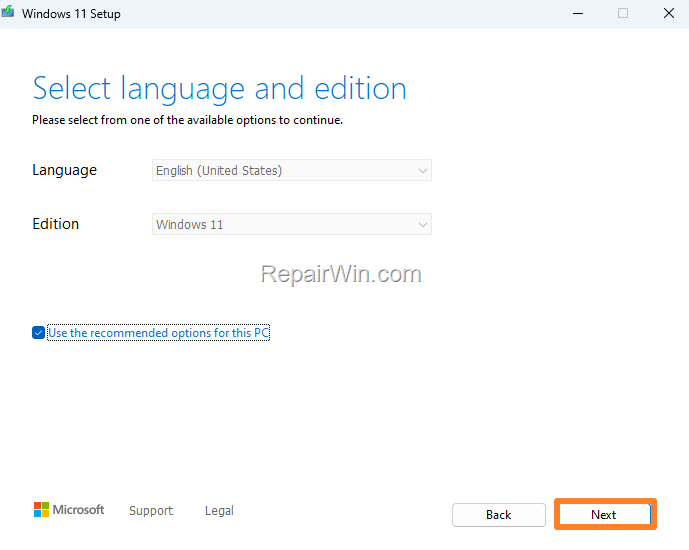
3. In the 'Select Language and Edition' window, leave the recommended options for your PC and click Next. This ensures that the ISO file matches your system's current configuration.
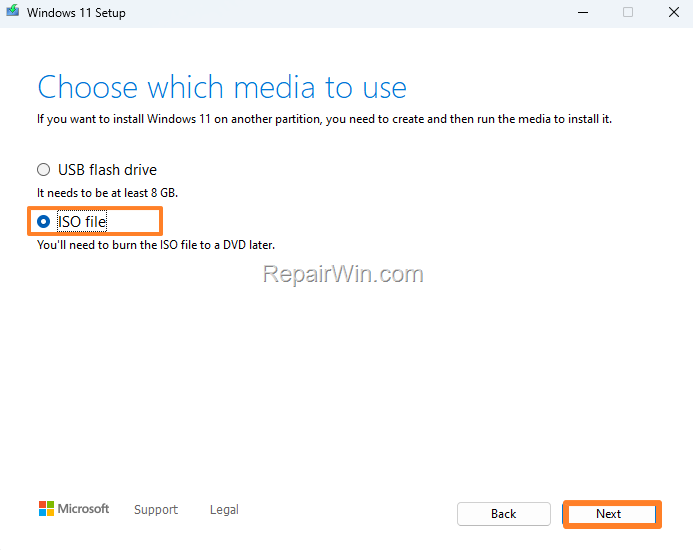
4. At the next screen, choose the ISO file option and click Next again. This step is crucial for downloading the Windows 11 installation files directly to your system.
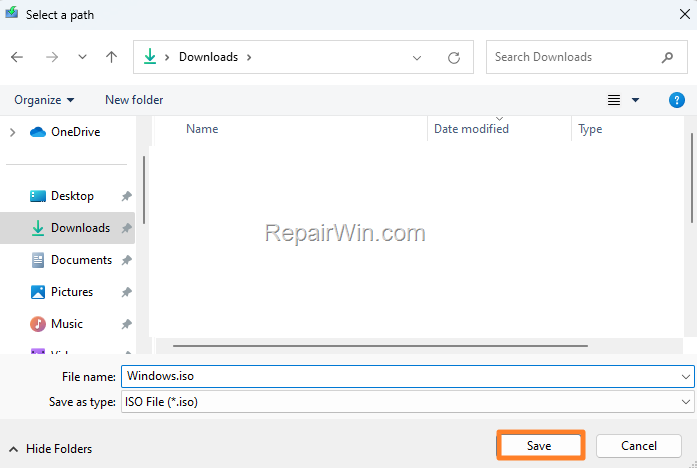
5. Click Save to save the Windows.iso file to your Downloads folder. This file contains all necessary components for the Windows 11 upgrade.
6. Wait for the Windows.iso to download and, once completed, click Finish.
Step 2. Install Windows 11 from Windows.iso file.
1. Save your work and close all running programs to prevent data loss during the upgrade process.
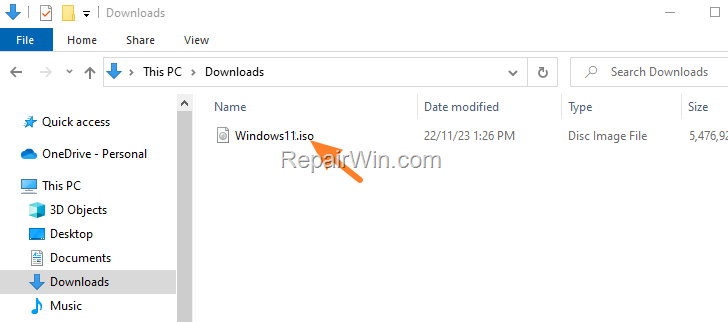
2. Open File Explorer and navigate to the location where you saved the "Windows.iso" file (e.g., in the "Downloads" folder).
3. Double-click on the Windows.iso file to open it in File Explorer. This mounts the ISO file, making its contents accessible as a virtual drive.
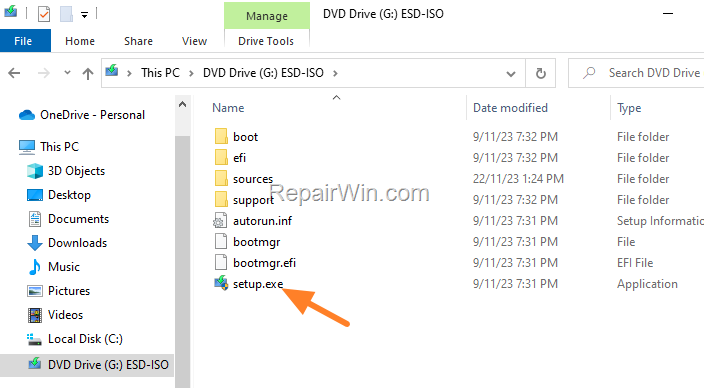
4. Double-click to open the setup.exe application. This initiates the Windows 11 installation process.
5. Click Next at the "Install Windows 11" window. This step confirms your intent to proceed with the upgrade.
6. Wait for the installation wizard to check for updates, then click Accept when prompted to accept the 'License Terms'. This ensures compliance with Microsoft's licensing agreement.
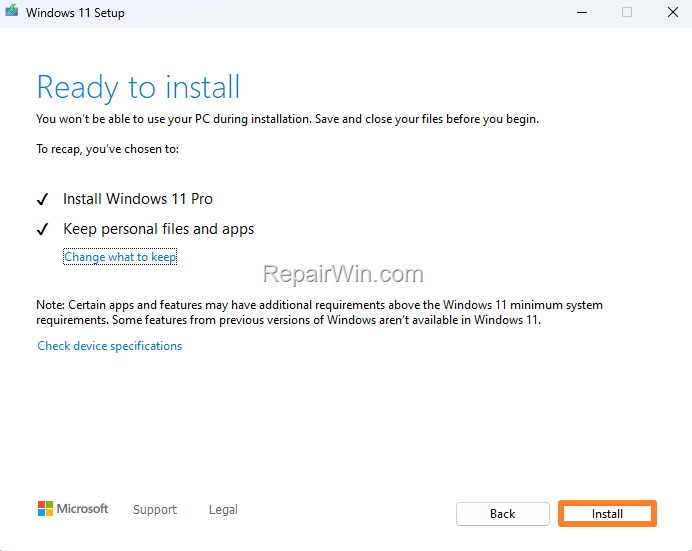
7. Finally, click Install to install Windows 11 while keeping your personal files and apps intact.
8. The Windows 11 installation will commence. Wait for it to finish without interruptions. Your computer will restart multiple times during this process.
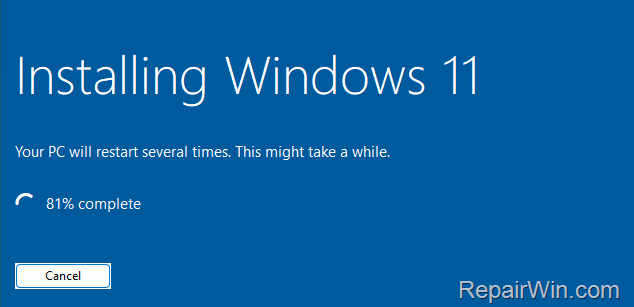
9. If all goes well, within 20-30 minutes, your Windows 10 PC should be successfully updated to Windows 11.
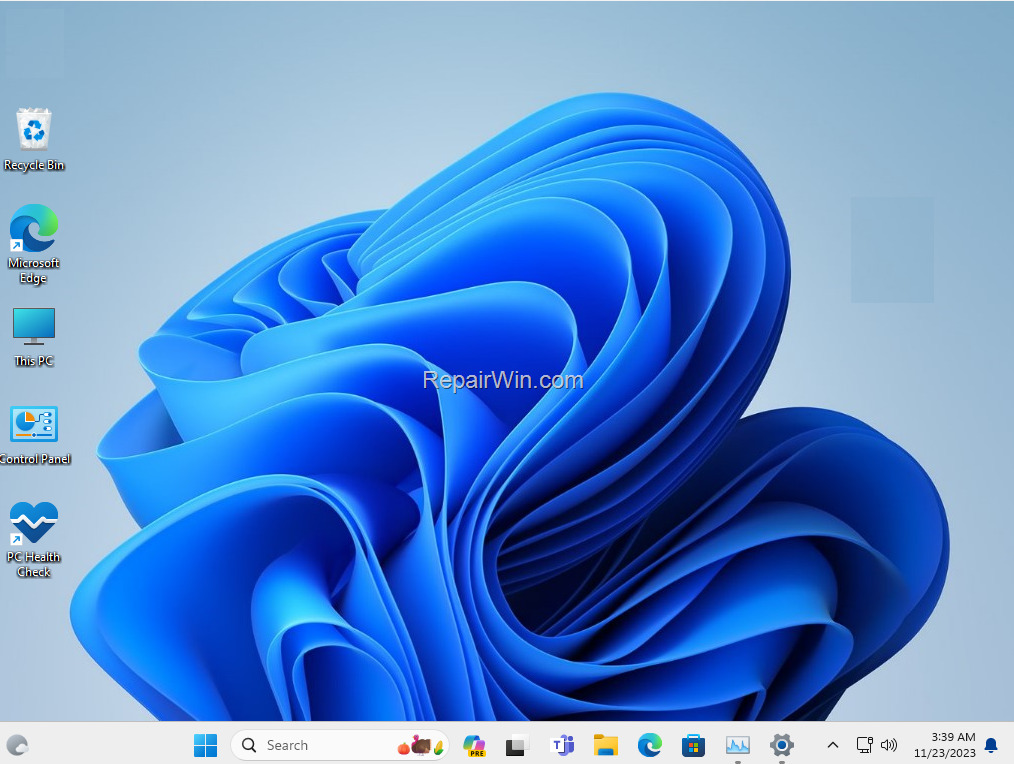
10. After installing Windows 11, install all available updates by navigating to Start > Settings > Windows Update and clicking Check for updates. Once all updates are installed, your system is fully upgraded!
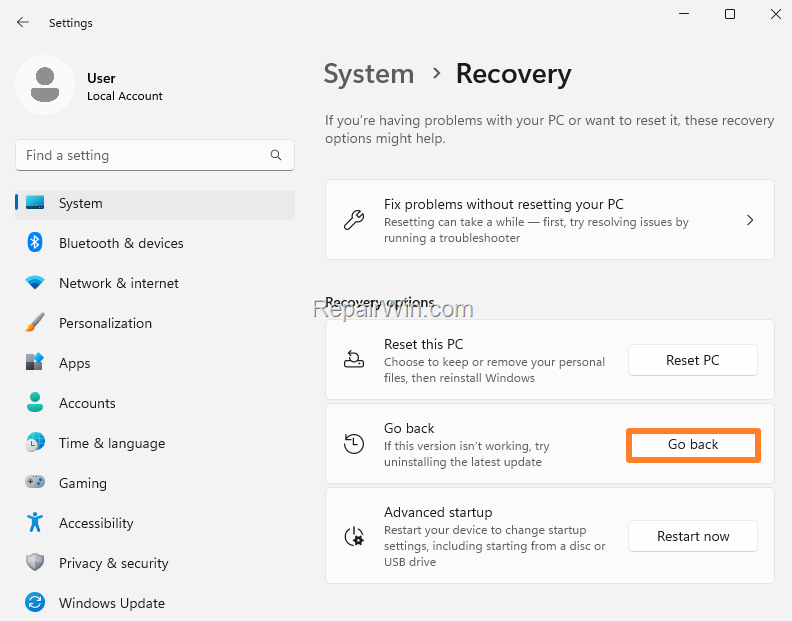
Note: If Windows 11 does not perform as expected or you prefer the previous operating system, you can revert to the previous version (e.g., Windows 10) within 10 days by going to Windows Update > Advanced Options > Recovery and clicking Go back.
Summary
Upgrading from Windows 10 to Windows 11 using an ISO file is a robust method that ensures your files and settings remain intact. By following the steps outlined, including downloading the ISO via the Media Creation Tool and executing the setup, you can transition smoothly to the new operating system. Don't forget to back up your data and check for updates after installation.
We hope this guide has been helpful. If you have any questions or feedback, please leave a comment below.
Don't forget to share this article with others who might benefit from it!
Frequently Asked Questions
What should I do before upgrading my Windows 10 PC to Windows 11 using an ISO file?
Before upgrading, ensure your PC meets the Windows 11 system requirements by running the PC Health App, and make sure you have at least 64 GB of free disk space. It's also advisable to back up your data, uninstall any third-party security programs, and disable third-party startup programs via Task Manager.
How do I download the Windows 11 ISO file for the upgrade?
Navigate to the Windows 11 Download site, download the 'Windows 11 Media Creation Tool', and run the MediaCreationTool.exe file. Follow the prompts to select the ISO file option and save it to your Downloads folder.
What precautions should I take during the Windows 11 installation process from an ISO file?
Ensure to save your work and close all running programs before starting the installation. Make sure you are connected to power if you are using a laptop and expect the installation process to take about 1-2 hours with multiple restarts.
Can I revert back to Windows 10 after upgrading to Windows 11?
Yes, if you're not satisfied with Windows 11, you can revert to your previous version of Windows, such as Windows 10, within 10 days of the upgrade.



