
How to Resolve Inaccessible Boot Device BSOD After Windows or BIOS Update
Troubleshooting Overview: This comprehensive guide provides detailed instructions to resolve the "Inaccessible Boot Device" Blue screen of Death, a common issue that may arise after updating your BIOS or Windows 10/11. This Blue Screen of Death (BSOD) error typically signifies that the system cannot access the primary hard drive. Follow this guide to troubleshoot and effectively fix the error.

Common Causes of the "Inaccessible Boot Device" BSOD error:
- Incorrect Boot Order configuration.
- Incorrect Disk Controller Configuration.
- Damaged Drive.
- Damaged File System.
How to FIX: Inaccessible Boot Device error after updating/upgrading Windows 10/11 or BIOS.
* Note: The problem may also occur after resetting the BIOS/UEFI settings to their defaults.
1. Check Boot Order in BIOS/UEFI.
Enter your system's BIOS or UEFI settings and verify that the correct drive is set as the Primary Boot device. Ensuring the correct boot order allows the system to locate and boot from the correct storage device, preventing boot errors.
- Power On your system and press the corresponding key* to enter into BIOS/UEFI SETUP. * Usually, this is the DEL, F1, F2, or F10 key, depending on the device/motherboard manufacturer.
- Go to the Boot Order settings and make sure that the drive with the operating system is set as the first boot device in the list. * * Note: In UEFI systems, set the first boot device to "Windows Boot Manager".
- Save and exit the BIOS settings and let Windows boot normally. If you get the "Inaccessible Boot Device" BSOD again, continue to the next solution.
2. Disable RAID mode in BIOS/UEFI.
Disabling RAID mode can resolve conflicts between the operating system and the storage controller. RAID configurations can sometimes cause the system to misinterpret the boot drive.
- Power On your system and enter into BIOS/UEFI SETUP.
- After entering BIOS/UEFI settings, do one of the following:
- If you have a pre 6th Gen/Series CPU (e.g., Intel i5 5xxx), find and change the SATA Mode setting from RAID to AHCI or disable* the Intel Rapid Storage controller (Intel RST).
- If you own a CPU from 6th Gen/Series and above (e.g., Intel i5 6xxx), find and disable* the Intel VMD controller under Advanced settings > VMD Setup menu (or VMD Configuration).
* Note: If Windows was installed with RAID mode enabled, change the 'SATA Mode' from 'AHCI' to 'RAID' or enable the VMD Controller.
3. Fix Hard Disk Errors with CHKDSK.
Requirements: A Windows Installation Media on a USB disk. CHKDSK checks and repairs file system errors and bad sectors on the disk, which can prevent boot issues.
- How to Create a Windows 10 USB Installation Media.
- How to Create a Windows 11 USB Installation Media.
- Boot your computer from the USB Windows Installation media.
- Press Next at the Language options screen.
- Choose Repair your computer.
- Then choose Troubleshoot -> Advanced Options -> Command Prompt.
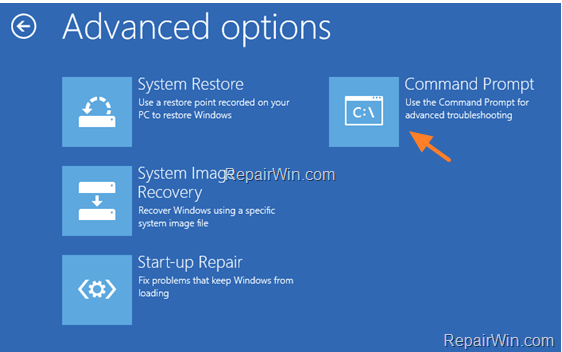
- In command prompt type:
diskpart& press Enter. - In “DISKPART” prompt, type:
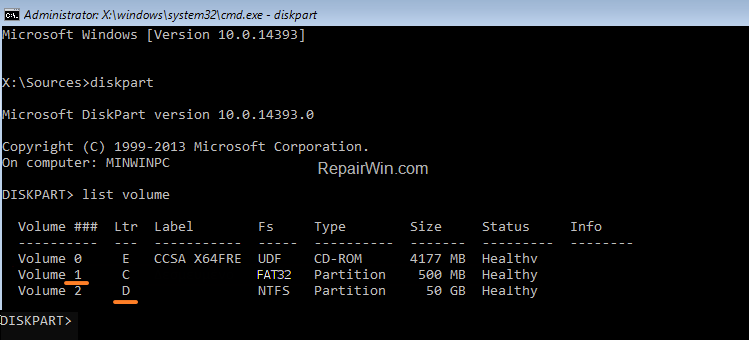
list volume& press Enter. - Now find out the Drive letter of the Operating System (OS) volume.
* Note: The OS Volume is usually the biggest volume in size (GB) and contains the Windows Operating System.
e.g. At the example screenshot below, the OS volume is located at drive "D".

- Type
exitto close the DISKPART tool. - Then give the following command to repair the OS drive and press Enter:
chkdsk X: /R
* Note: Replace the letter "D" according to your case. (e.g., In this example the command is: "chkdsk D: /R".
- Now wait for the disk check process to finish. (it may take several hours).
- When the check disk process is completed, close all open windows and restart your computer. If Windows fails to boot again, then continue to the next step.
4. Repair System Files and Windows with the SFC & DISM Tools.
The SFC and DISM tools are crucial for repairing corrupted system files and restoring the integrity of the Windows image, which can resolve boot issues.
- Boot your computer from the Windows Installation media.
- Press Next at the Language options screen.
- Choose Repair your computer.
- Then choose Troubleshoot -> Advanced Options -> Command Prompt.
- Give this command to repair the offline Windows image: *
dism.exe /Image:D: /Cleanup-Image /Restorehealth
* Notes:
- Where "D" = the Windows OS drive. (See method 2 above to find the OS drive letter, and change it according to your situation).
- Don't forget the space between & /
- If the above DISM command cannot run with "error 5: The scratch directory size might be insufficient to perform this operation", then give the following commands:
mkdir D:Scratchdism.exe /Image:D: /ScratchDir:D:Scratch /Cleanup-Image /Restorehealth
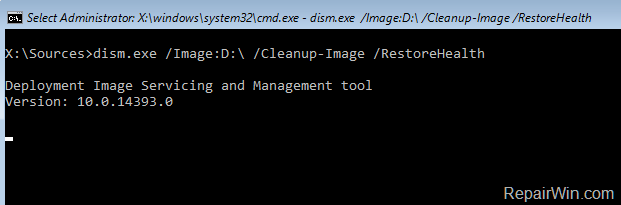
- When the DISM operation is completed, give the following SFC command to complete the repairs. *
SFC /SCANNOW /OFFBOOTDIR=D: /OFFWINDIR=D:Windows
* Notes:
- Where "D" = the Windows OS drive. (Change it according to your situation)
- Don't forget the space between & /
- When the operation is completed, reboot your computer. If your system fails to boot again, proceed to the next method.
5. Repair Boot Configuration Data (BCD).
Repairing the Boot Configuration Data (BCD) is essential for resolving boot issues as it ensures the system can locate and load the operating system correctly.
- Boot your computer from the Windows recovery media.
- Press Next at the Language options screen.
- Choose Repair your computer.
- Then choose Troubleshoot -> Advanced Options -> Command Prompt.
- In command prompt type:
diskpart& press Enter. - In “DISKPART” prompt, type:
list volume& press Enter. - Now, according to your case…
a. If you see a FAT32 (FS) partition, then you own a UEFI-based system. In this case, follow the instructions at Case A. Repair BCD on UEFI Based Systems.
b. If you don't see a FAT32 (FS) partition, and all partitions are NTFS, then you own a BIOS/MBR/Legacy-based system. In this case, follow the instructions at Case B. Repair BCD on LEGACY Based Systems.
e.g. At the example screenshot below, the system is UEFI-based.

Case A. How to Repair BCD on a UEFI-Based System.
- If your system is UEFI, then notice the Volume number of the FAT32 * partition and the drive letter of the Operating System (OS) volume.
e.g. At the example screenshot below, the FAT32 partition is located at “Volume 1” and the OS volume has the drive letter "D".
- Now select the FAT32 volume, with the following command and press Enter. *
select volume 1
* Note: Replace the number "1", with whatever volume number is your System drive.
- Then assign the drive letter "Z" at the selected volume with this command:
assign letter=Z
- Type
exit& press Enter to close DISKPART utility.

- Finally, give the following command to fix the boot configuration data and press Enter. *
bcdboot D:windows /s Z: /f ALL
* Note: Replace the letter "D" with whatever drive letter it is for your OS Volume.
- Type
exit& press Enter to close command prompt. - Remove the recovery media and Restart your PC.
- Test if your system can boot to Windows normally. If your system still does not start, then continue to the next method.
Case B. How to Repair BCD on LEGACY Based Systems.
- Type
exitto close the DISKPART utility. - Then give the following commands in order:
bootrec /fixmbrbootrec /fixbootbootrec /rebuildbcd
- If after executing the last command, you receive that “Total Windows installations: 0”, then continue to the next step (4), otherwise skip to step 5.
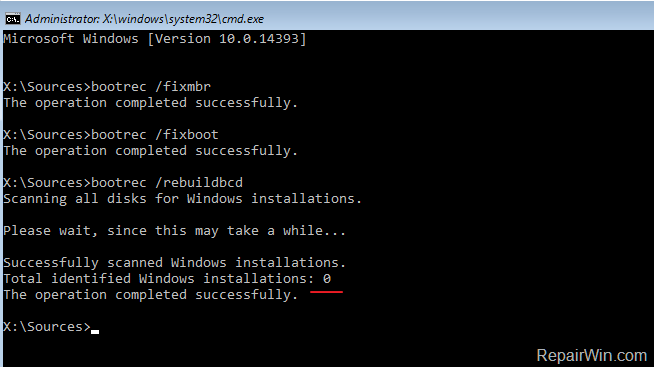
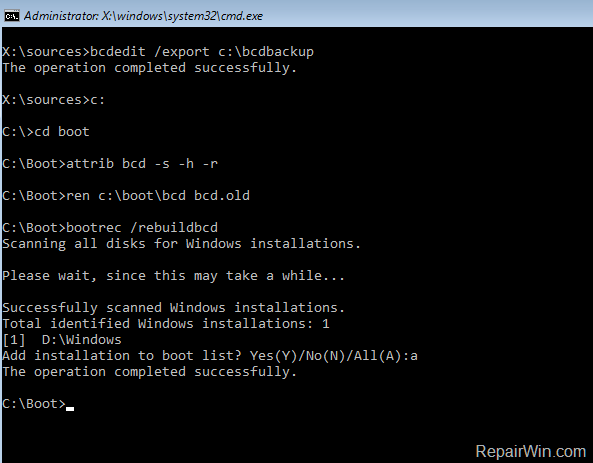
- If you receive that”Total Windows Installations=0” then give the following commands in order:
bcdedit /export C:bcdbackupC:cd bootattrib bcd -s -h –rren C:bootbcd bcd.oldbootrec /rebuildbcd
- Press “A” to add the installation to boot list and press Enter. Then restart your system.
- Close command prompt window.
- Restart your computer and if the boot problem persists, then continue to the next step.
6. Diagnose Hard Disk's Health.
If none of the above methods work for you, then your hard disk probably is damaged and you should replace it. To diagnose your hard drive's health, connect your hard disk to another working computer* and use the diagnostic utilities mentioned on this article to find out if it's healthy: Best Hard Drive Test & Diagnostic Tools to Check Hard Disk’s Health.*
* Note: If you do not have another computer available to check the hard drive for problems, or if the hard drive is healthy, proceed to the next step.
7. Perform a Clean Windows Installation.
The final step to resolve the "Inaccessible Boot Device" issue is to back up your files and perform a clean install of Windows 10/11 using the instructions in one of the articles below.
Summary
In summary, resolving the "Inaccessible Boot Device" BSOD involves checking and adjusting BIOS/UEFI settings, disabling RAID mode, repairing disk errors with CHKDSK, using SFC and DISM tools to fix system files, and repairing the Boot Configuration Data. If these methods do not resolve the issue, consider diagnosing your hard disk's health or performing a clean installation of Windows.
Frequently Asked Questions
What causes the "Inaccessible Boot Device" Blue Screen of Death (BSOD) error in Windows?
The "Inaccessible Boot Device" BSOD error is typically caused by an incorrect boot order configuration, incorrect disk controller configuration, a damaged drive, or a damaged file system.
How can I resolve the "Inaccessible Boot Device" error after a BIOS or Windows update?
To resolve this error, ensure the correct boot drive is set as the primary boot device in BIOS/UEFI settings, disable RAID mode if enabled, fix hard disk errors with CHKDSK, and repair system files using the SFC & DISM tools.
What should I do if my hard disk is detected in RAID mode and I'm experiencing the BSOD error?
If you initially installed Windows with RAID mode enabled and encounter the BSOD error, you may need to change the SATA mode from RAID to AHCI or disable the Intel VMD controller in BIOS/UEFI settings, depending on your CPU generation.
How can I use CHKDSK to fix hard disk errors related to the "Inaccessible Boot Device" error?
To use CHKDSK, boot from Windows installation media, open Command Prompt via Troubleshoot options, use 'diskpart' to list volumes and identify the OS volume letter, and run 'chkdsk X: /R' to repair the drive, replacing 'X' with your OS volume letter.



