
FIX: Startup apps menu is missing in App settings on Windows 11/10 (Solved)
If the Startup Apps menu settings are missing on Windows 11/10, continue reading this guide to fix the problem.
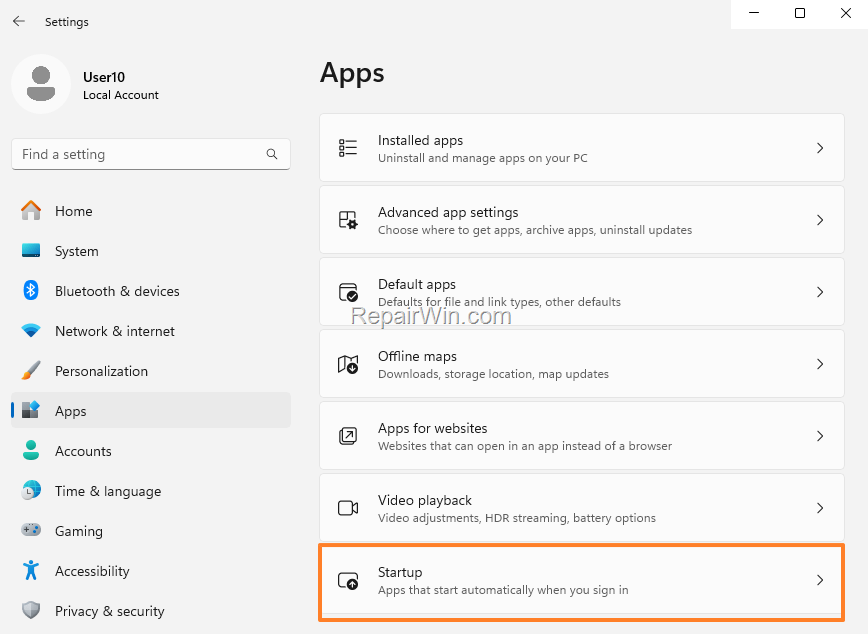
**Problem Description:** After updating Windows 10 to Windows 11 or for some other reason, the Startup menu is missing from the Apps options menu. (Start > Settings > Apps).
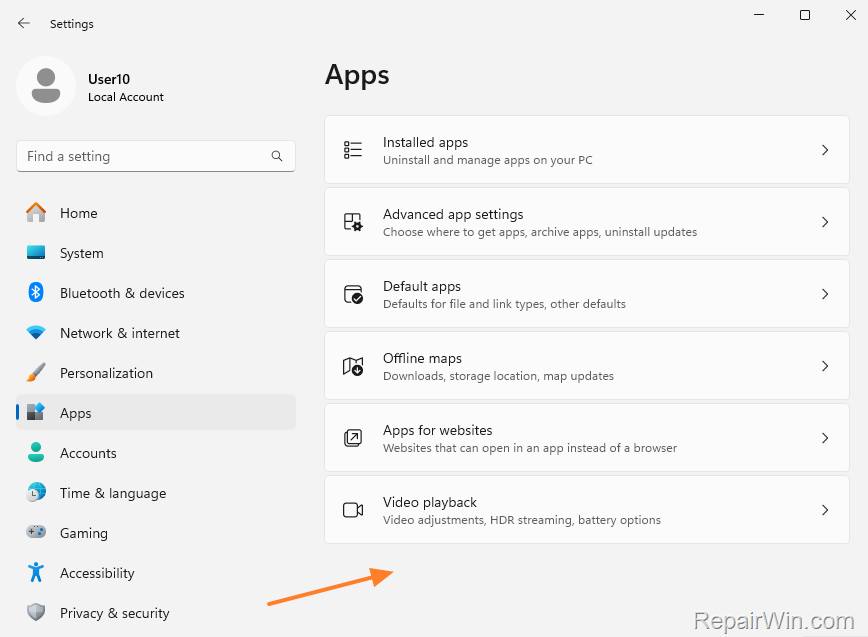
This tutorial contains instructions to restore the "Startup" menu in "Apps" settings on Windows 10/11.
How to FIX: Startup Apps Menu is Missing on Windows 11/10.
Method 1. Restore Missing Startup Menu Using Registry.
The first method to force Windows to display the Startup apps menu settings is to modify the registry according to the instructions below:
* CAUTION: This method contains steps to modify the Windows Registry. However, serious problems might occur if you modify the registry incorrectly. As a precaution, it is recommended to back up the Windows registry or the registry key you want to modify before proceeding with further.
1. Press the Windows  + R keys to open the run command box.
2. Type regedit & click OK.

3. Now, navigate to the following path in the registry:
HKEY_LOCAL_MACHINE\SOFTWARE\Microsoft\Windows\CurrentVersion\Policies\System
Explanation: Navigating to this registry path allows you to access system policies that control startup tasks. Modifying these keys can influence whether certain startup features are enabled or disabled.
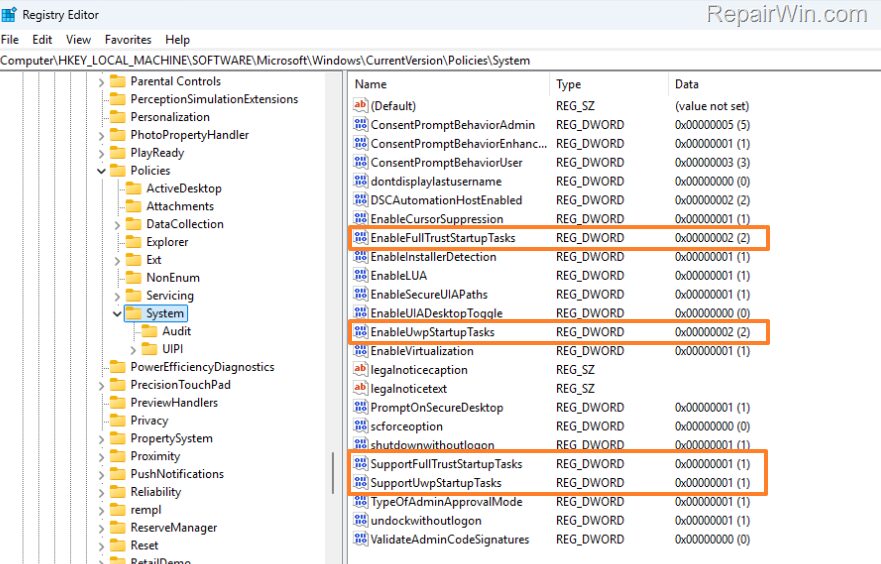
4. In the right part of the window, check if the following four (4) REG_DWORD values are present and have the value data indicated in each of them:
- EnableFullTrustStartupTasks: 00000002 (2)
- EnableUwpStartupTasks: 00000002 (2)
- SupportFullTrustStartupTasks: 00000001 (1)
- SupportUwpStartupTasks: 00000001 (1)
Explanation: These DWORD values determine the allowance and support for various types of startup tasks, both traditional full-trust applications and modern UWP (Universal Windows Platform) apps. Setting these values ensures a comprehensive startup environment available to users.
5. Then, according to the result, proceed as follows:
-
If all of the above listed values are present and have the value data indicated in each of them, go to Method 2.
-
If one or more of the above values exist but do not have the correct value data, open these value(s) and modify the value data accordingly.
-
If one or all of the above-mentioned values are missing, follow the instructions in sections A or B below to add them to the registry:
A. Create the Missing Values Manually.
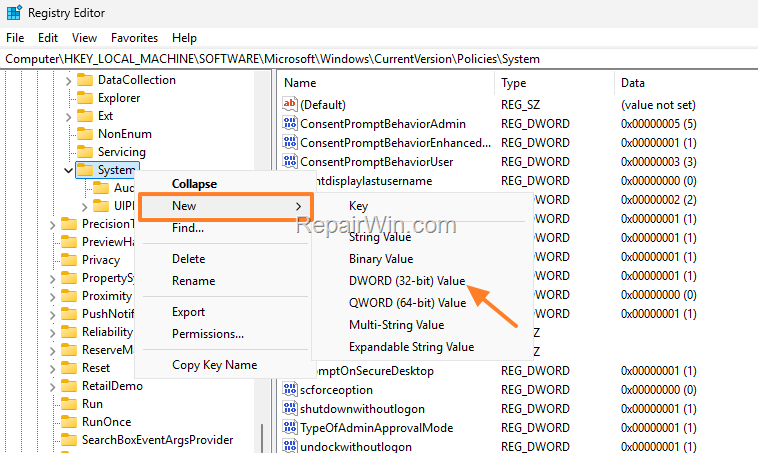
1. Right-click on the System key on the left and select NEW > DWORD (32-bit) Value.
2. Then, rename "New Value #1" with the name of the missing value and hit Enter.
3. Finally, open the created value and type in the value data the value mentioned above (1 or 2).
Explanation: Creating these values manually ensures absolute control over how the system and UWP tasks launch during startup, enhancing system performance customization to meet user requirements.
B. Add the Missing Values Using a REG File.
1. Close Registry Editor.
2. Open Notepad.
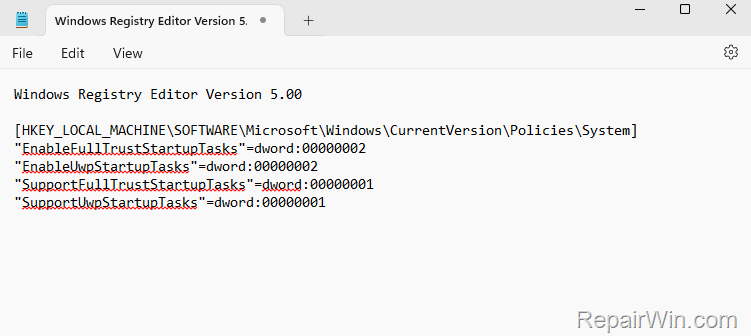
3. Copy and paste the below text in Notepad.
Windows Registry Editor Version 5.00
[HKEY_LOCAL_MACHINE\SOFTWARE\Microsoft\Windows\CurrentVersion\Policies\System]"EnableFullTrustStartupTasks"=dword:00000002"EnableUwpStartupTasks"=dword:00000002"SupportFullTrustStartupTasks"=dword:00000001"SupportUwpStartupTasks"=dword:00000001
4a. Then, click on File menu and select Save as.
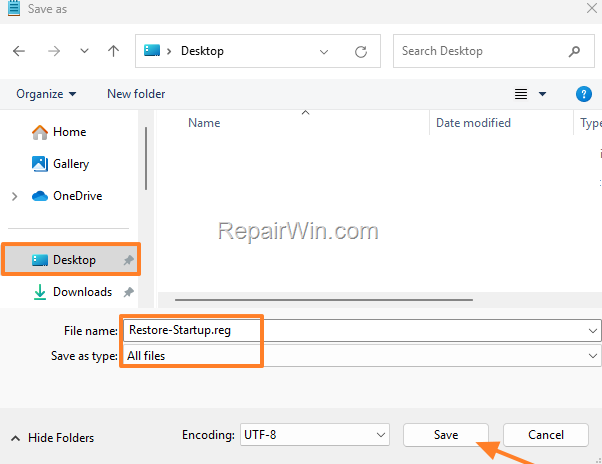
4b. Now, choose to save the file to your desktop, then select Save as type: All Files and type "Restore-Startup.reg" as file name. When done, click Save.
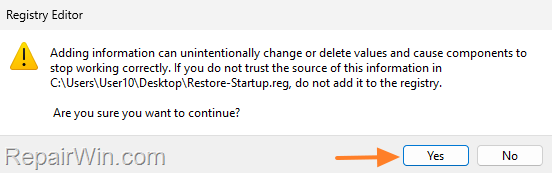
5. Finally, double-click the Restore-Startup.reg file on your desktop, click Yes at the UAC warning and click Yes again to merge its information into the registry.
Explanation: Using a REG file simplifies importing multiple registry entries, reducing the risk of human error and ensuring batch modifications are consistent and apply correct values.
6. That's it! Navigate to Start > Settings > Apps and the Startup menu should be there.
Method 2. Repair Windows with an In-Place Upgrade.
If the above method did not help you restore the "Startup" menu in "Apps" settings, then depending on your operating system version, follow the instructions in one of the following articles to repair Windows:
**Explanation:** An in-place upgrade repairs system files without affecting personal files or settings. This comprehensive restoration method is often the final step to resolving persistent OS issues, including menu inconsistencies.
Method 3. Use Group Policy Editor to Configure Startup Apps.
1. Press the Windows + R keys to open the Run dialog.
2. Type gpedit.msc and press Enter.
3. Navigate to Local Computer Policy > Computer Configuration > Administrative Templates > System > Logon.
4. Double-click on the "Run these programs at user logon". Ensure this policy is correctly configured to enable particular applications at startup.
**Explanation:** Group Policy Editor lets IT Administrators set policies for computers in a domain. Configuring this policy controls which applications run at startup, further enhancing system control and security.
**Official Link:** https://docs.microsoft.com/en-us/windows/security/threat-protection/security-policy-settings/run-these-programs-at-user-logon
I hope this guide helps restore the missing Startup menu in Windows. Please leave a comment in the comment section below or even better: like and share this blog post in the social networks to help spread the word about this solution.
Frequently Asked Questions
Why is the Startup Apps menu missing on Windows 11/10?
The Startup Apps menu may be missing after updating from Windows 10 to Windows 11 or due to other configuration changes.
How can I restore the missing Startup Apps menu on Windows 11/10 using the Registry?
To restore the missing Startup Apps menu, access the Registry Editor and navigate to HKEY_LOCAL_MACHINE\SOFTWARE\Microsoft\Windows\CurrentVersion\Policies\System. Check and adjust the REG_DWORD values: EnableFullTrustStartupTasks, EnableUwpStartupTasks, SupportFullTrustStartupTasks, and SupportUwpStartupTasks according to the given instructions.
What should I do if the Registry method doesn't restore the Startup Apps menu?
If modifying the Registry doesn't work, attempt a Windows repair using an In-Place Upgrade. Follow respective guides for repairing Windows 11 or Windows 10 based on your operating system version.
Is there a way to automate adding missing Registry values for the Startup Apps menu?
Yes, you can automate this by creating a REG file with the necessary entries and merging it into the Registry. Copy the provided text into Notepad, save it as 'Restore-Startup.reg', and execute the file to add the values.



