
How to Resolve Outlook Error 0x80040201 When Sending Emails.
In this comprehensive guide, you'll discover step-by-step instructions to resolve the Outlook error 0x80040201 that occurs during the email sending process. This error is often indicated by the message: Task Sending reported error 0x80040201 – Unknown error 0x80040201.
Error code 0x80040201 in Microsoft Outlook can be triggered by multiple issues, typically involving a corrupted PST or OST data file, or incorrect recipient email addresses. Additionally, misconfigured email settings, antivirus software, or third-party firewalls blocking email send/receive operations can be culprits.
Steps to Fix Sending Reported Error 0x80040201 in Microsoft Outlook
Important: Before proceeding with the detailed methods below, ensure these basic steps are completed:
Step 1. Verify Account Settings.
If the error 0x80040201 occurs upon initially setting up your Outlook email account, ensure that all email account settings are accurate. Double-check the incoming and outgoing server details, email address, username, and password to ensure proper configuration. This verification ensures that Outlook can communicate effectively with the email server.
Step 2. Temporarily Disable Antivirus/Firewall.
If you have a third-party antivirus or firewall installed, temporarily disable it, restart Outlook, and attempt to send your email again. These security programs can sometimes erroneously block legitimate email traffic, mistaking it for a potential threat.
Method 1. Clear the Auto-Complete List
Outlook's Auto-Complete feature stores email addresses to suggest them as you type. If an incorrect or corrupted address is saved, it may cause the error. You can resolve this by removing the erroneous entry from the AutoComplete list.
- Click New Mail in Outlook.
- Start typing the recipient's name or email address in the "To" field. If the error occurs when sending, proceed to remove the saved contact.
- When the saved contact appears, click the X next to the contact's name to delete it from the list.
- Manually type the recipient's email address and attempt to resend the email. If issues persist, proceed to the next steps.

- Go to the File menu in Outlook and select Options.

- In the Outlook Options window, select Mail from the left sidebar. Scroll to the "Send messages" section and uncheck Use Auto-Complete to suggest names when typing in the To, Cc, and Bcc lines. Click OK to apply changes.

- Try sending a new email again to see if the error persists. If it does, proceed to delete all contacts from the Auto-Complete list.
- Reopen the Outlook Options, navigate to Mail, and in the "Send messages" section, click Empty Auto-Complete List. Confirm with Yes and click OK.

- Send a new email once more to check if the problem is resolved. If not, continue with the next method.
Method 2. Repair Outlook Data Files
The second approach involves repairing the Outlook PST file using the Inbox Repair Tool (SCANPST.EXE). This utility checks and repairs structural issues in the PST/OST files, potentially resolving the error. For detailed steps, follow this tutorial: How To Repair PST or OST Outlook Data Files With Inbox Repair Tool (SCANPST.EXE).
Method 3. Create a New Outlook Profile
If repairing the data file does not resolve the error, creating a new Outlook profile might. This method involves setting up a new profile to eliminate any profile-specific issues that may cause the error.
- Close Outlook.
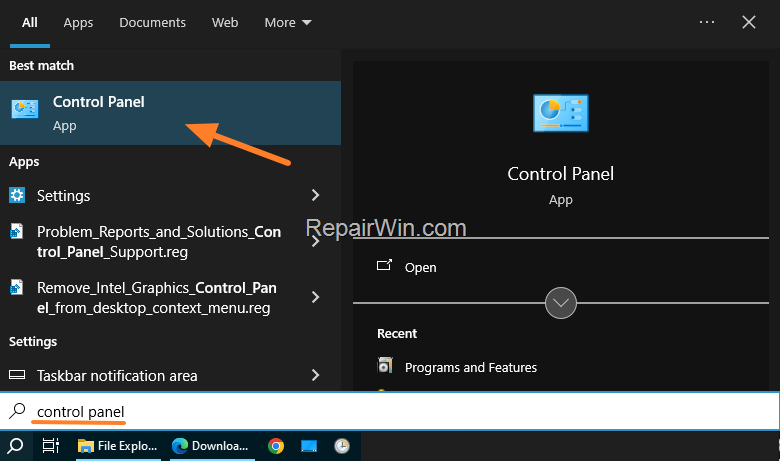
- Type "control panel" in the search box and open the Control Panel app.
- Switch the View By: to Small icons and click on Mail (Microsoft Outlook).

- In the "Mail Setup – Outlook" window, click Show Profiles.

- Click the Add button.

- Enter a name for the new profile (e.g., "Secondary") and click OK.

- In the 'Add Account Setup' wizard, fill in the necessary fields (Name, Email Address, Password, etc.) to set up your email account.

- Once completed, select the option Prompt for a profile to be used in the "Mail" window and click OK.

- Open Outlook, select the new profile, and send a new email. The error 0x80040201 should be resolved.
- Close Outlook, return to Mail settings in the Control Panel, and remove the old profile.
* Note: If using a POP3 account, follow the next steps to restore your emails and data from the old Outlook PST file. (For IMAP accounts, all emails will be re-synced automatically)
- From Outlook's File menu, choose Open & Export > Import/Export.

- In the "Choose an action to perform" options, select Import from Another Program or File and click Next.

- Under "Select file type to import from," choose Outlook Data File (.pst) and click Next.

- In the 'File to import' screen, click Browse to select the old Outlook PST file, and click Open.
- Finally, click Next & Finish to initiate the import of your emails and data. Wait for the process to complete and continue your tasks.
Additional Solutions
Consider updating Outlook to the latest version, as updates often contain bug fixes and improvements that could resolve the error. For further assistance, consult Microsoft Support.
Summary
In summary, error 0x80040201 in Outlook can be resolved through several methods such as verifying account settings, disabling antivirus/firewall, clearing the Auto-Complete list, repairing data files, or creating a new profile. Updating Outlook and consulting official support resources are also recommended for persistent issues.
Which solution proved effective for you? Share your experience or any additional insights in the comments. If this guide was beneficial, consider liking and sharing to help others fix similar issues.
Tags: Outlook error 0x80040201, fix sending error, troubleshoot Outlook email, repair PST file, Outlook error resolution
Frequently Asked Questions
What causes error code 0x80040201 in Microsoft Outlook?
Error code 0x80040201 in Microsoft Outlook usually appears when the PST (or OST) data file is corrupted, when there is an incorrect address in the recipient field of an outgoing email, or due to incorrect email settings. It can also occur if sending and receiving mail is blocked by an antivirus program or a third-party firewall.
How do I resolve error 0x80040201 in Outlook?
To resolve error 0x80040201, ensure your email account settings are correct, disable any third-party antivirus/firewall, and clear your Outlook Auto-Complete list. If the error persists, repair the Outlook PST file using the Inbox Repair Tool or create a new Outlook profile.
What is the Auto-Complete feature in Outlook, and how can it cause errors?
The Auto-Complete feature in Outlook suggests emails and names while typing to help fill in the 'To' field. Errors can occur if there's a corrupted or incorrect email address saved in the Auto-Complete list. To fix this, you can remove the incorrect contact from the list or clear the entire list.
How can I repair the PST file in Outlook to fix error 0x80040201?
You can repair the PST file in Outlook to fix error 0x80040201 by using the Inbox Repair Tool (SCANPST.EXE). Follow the steps provided in a detailed tutorial to guide you through the process of repairing the data file.



