
How to Backup and Restore Windows Registry. (A Comprehensive Guide)
It is always good practice to take a backup of the Windows Registry before making changes to it, and in this guide, we will show you how to do this.
The Windows registry is a central database that stores important information about your computer's configuration and settings. Backing up the Windows registry is one of the best practices to ensure that you will be able to restore your system to a working state if you install a new program that may affect its operation or if you incorrectly modify the registry settings.
In this guide, you will learn how you can create a full registry backup or how to back up a specific registry key on Windows 11/10/8 or 7 operating systems. At the end of this article, you will also learn how to restore the Windows Registry from the registry (.reg) backup file.
How to Back up the Entire Windows Registry or a Registry Key
To back up the registry, open the Registry Editor using these steps:
- Press Windows
 + R keys to open the run command box.
 - Type
regeditand press Enter. This command opens the Registry Editor, a powerful tool that allows you to view and edit the registry, which is crucial for system configuration and operation.


3. Now proceed to the corresponding set of instructions below, depending on whether you want to back up the entire registry or a specific registry key.
A. How to Back up the Entire Windows Registry
If you want to take a backup of the entire Windows registry:
- Select the Computer at the top left. This action ensures that you are selecting the root of the registry hierarchy, which is necessary for a complete backup.

- Now click the File menu and choose Export to save the Registry to a ".reg" file. This operation creates a comprehensive snapshot of the registry, which can be restored in case of a system failure or corruption.

- Select a location to save the backup registry file (e.g., your "Desktop"), then type a name for the file and click Save. Ensure the file is saved in a secure location to prevent unauthorized access.

- Save the .reg file in a safe place and use it any time you want to restore the registry settings on your system to their original values, using the instructions at the end of this article.
B. How to Back up a Specific Registry Key
If you want to back up a certain registry key:
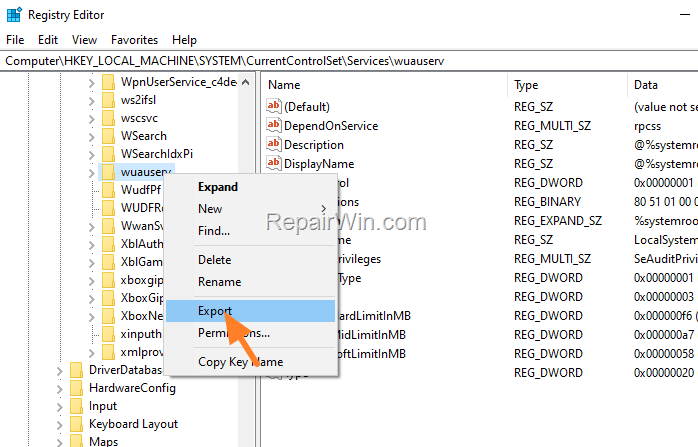
- Right-click on the registry key that you want to back up and click Export. This action allows you to save only the selected key and its subkeys, which is useful for targeted troubleshooting or configuration.
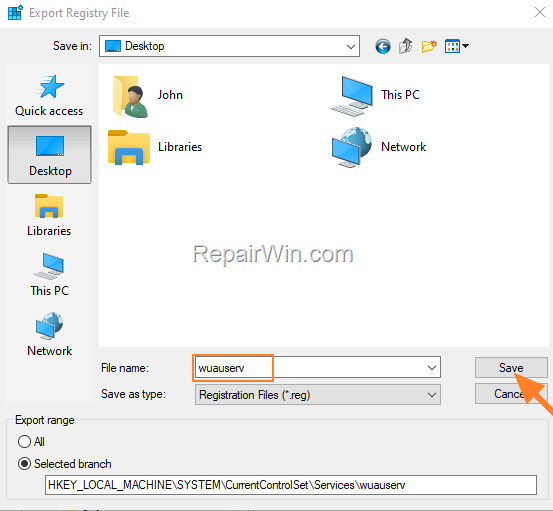
- Select a location to save the backup file (e.g., your "Desktop"), then type a name for the file and click Save. This ensures the backup is readily accessible for future restoration.
- That's it! To restore the registry if needed, follow the instructions below.
How to Restore Windows Registry from Backup
In case you want to restore the entire registry or a registry key from a registry (.reg) backup file:
- Navigate to the location you exported/saved the registry backup file (.reg) file (e.g., on the 'Desktop' in this example).
- Double-click at the .reg backup file and select Yes to import the information it contains into the Registry. This action merges the backup data into the current registry, effectively restoring previous settings.

- Then, close the Registry Editor and restart the computer to apply the change. Restarting ensures that all system processes recognize the updated registry settings.
Summary
Backing up and restoring the Windows Registry is a critical task for maintaining system stability and recovering from configuration errors. By following the steps outlined, you can ensure that your registry settings are safe and can be restored when needed.
That’s all folks! Did it work for you? Please leave a comment in the comment section below or even better: like and share this blog post in the social networks to help spread the word about this solution.
Frequently Asked Questions
Why is it important to back up the Windows Registry?
Backing up the Windows Registry is crucial because it stores essential information about your computer's configuration and settings. It ensures you can restore your system to a working state if a new program affects its operation or if registry settings are modified incorrectly.
How do I back up the entire Windows Registry on my computer?
To back up the entire Windows Registry, open the Registry Editor by pressing Windows + R, typing 'regedit', and hitting Enter. Select 'Computer' at the top left, click 'File', choose 'Export', select a save location, name the file, and click 'Save' to create a .reg backup file.
Can I back up just a specific registry key instead of the entire registry?
Yes, you can back up a specific registry key by right-clicking on the desired key in the Registry Editor, selecting 'Export', choosing a save location, naming the file, and clicking 'Save' to back up that specific registry key.
How do I restore the Windows Registry from a backup file?
To restore the Windows Registry from a .reg backup file, locate the file saved on your computer, double-click it, and confirm by selecting 'Yes' to import the information back into the Registry. Afterward, close the Registry Editor and restart your computer to apply the changes.



