
FIX: sppsvc.exe high CPU usage in Windows 10. (Solved)
On a Windows 10 computer the process "sppsvc" causes CPU high usage. The "sppsvc" process, belongs to "Software Protection Platform" service which is responsible for the download, installation and enforcement of digital licenses for Windows and Windows applications.
In this tutorial you will find instructions to resolve the Software Protection Platform (sppsvc.exe) high CPU usage problem on Windows 10.
How to FIX: High CPU usage caused by sppsvc.exe in Windows 10.
Method 1. Remove any Microsoft Software Activator/Crack.
Commonly, the issue of high CPU utilization by the Software Protection platform (sppsvc. exe) service is caused in the case where you are not using a legitimate version of a Microsoft software, and you are using an activator (crack) to "make" the software genuine.
For example, if you are running a pirated version of Windows or Office, with the KMS activator, then the KMS activator tries to prevent the Windows activation service from checking the license of the MS product, and that's why the process "SPPSVC " causes the CPU to operate at 100%.
So, if you 're using a pirated MS software with an activator, then uninstall the activator (crack), and check if the problem has fixed.
Method 2. Scan your system for Viruses and Malware.
The second step to resolve the “Software Protection Platform” service high CPU usage problem, is to ensure that your system is virus/malware free. For that task follow the instructions in this guide: How To Scan Your Computer for Viruses and other Malicious Programs.
Method 3. Install all available Updates.
The next method to fix the "sppsvc.exe" high CPU usage in Windows 10, is to install all available Windows updates. To do that:
1. Go to Start menu ![image_thumb[2]_thumb](https://www.repairwin.com/wp-content/uploads/2019/02/image_thumb2_thumb-1.png "image_thumb[2]_thumb") –> Settings
–> Settings  –> Update & Security –> and Check for Updates.

Method 4. Run System Maintenance.
1. Navigate to Control Panel -> System and Security -> Security and Maintenance
2. At 'Maintenance' section, click Start Maintenance.
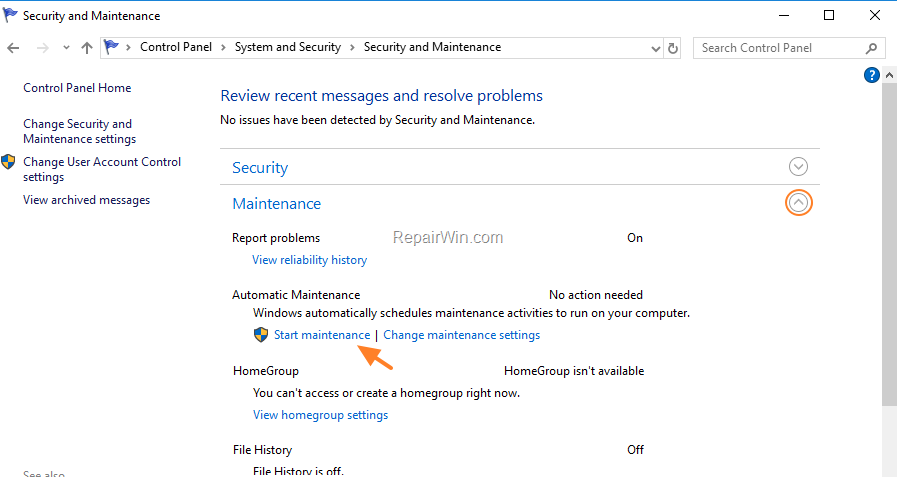
3. When the maintenance is completed, restart your computer and check if the high CPU usage problem, caused by the sppsvc.exe has resolved.
Method 5. Disable the Software Protection service.
The last solution to resolve the "sppsvc.exe High CPU usage" issue, is to completely disable the "Software Protection" service, but I don't recommend to do that, because you may face problems with your Windows activation.
To disable the Software Protection (SPPSVC) service:
1. Press Windows  + R keys to open the run command box.
2. Type regedit and press Enter.

3. In Windows registry editor locate the following key:
- HKEY_LOCAL_MACHINE\SYSTEM\CurrentControlSet\Services\sppsvc
4. At the right pane, double click at Start REG_DWORD value.
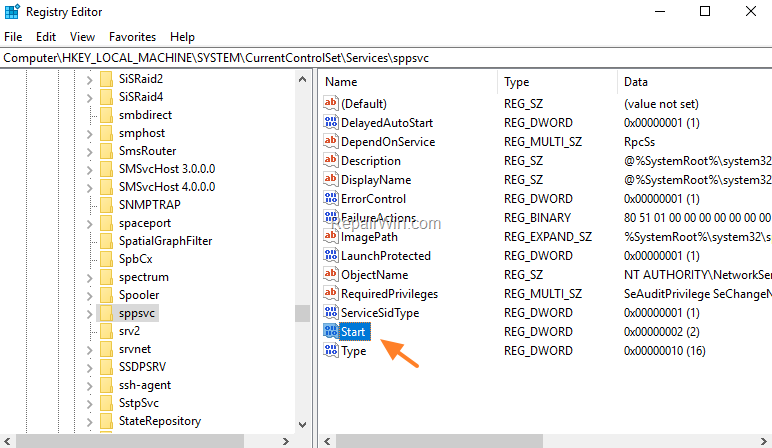
5. Change the value data from 2 to 4 to disable the "Software Protection" service and click OK.

6. Close Registry Editor and restart your PC and check if the problem has resolved.
That’s all folks! Did it work for you? Please leave a comment in the comment section below or even better: like and share this blog post in the social networks to help spread the word about this solution.
Frequently Asked Questions
What is the 'sppsvc' process on Windows 10?
The 'sppsvc' process belongs to the 'Software Protection Platform' service, which is responsible for the download, installation, and enforcement of digital licenses for Windows and Windows applications.
How can I fix high CPU usage caused by 'sppsvc.exe'?
To resolve high CPU usage caused by 'sppsvc.exe', you can try the following methods: remove any software activators or cracks, scan your system for viruses and malware, install all available Windows updates, run system maintenance, or disable the Software Protection service (not recommended).
Why should I avoid using software activators or cracks?
Using software activators or cracks can cause high CPU utilization because they attempt to interfere with the Windows activation service, which can lead to problems such as 'sppsvc' running at 100% CPU. Additionally, using pirated software is illegal and can expose your system to security risks.
Is disabling the Software Protection service in Windows 10 advisable?
It is not recommended to disable the Software Protection service, as it can lead to problems with Windows activation. Proceed with caution and consider it as a last resort if other methods do not resolve the high CPU usage issue.




April 3, 2020 @ 10:03 pm
the 5 method resolves my CPU problem. but, like you said, the Windows ask for Activation….
so what you advice me more?
April 4, 2020 @ 9:52 am
Revert back the value to 2. Is Windows legal?
May 5, 2023 @ 7:50 am
The 5 method resolves my CPU problem too. Because this service is linked to windows activation, this is only a temporary fix, because after some time windows will say that it is not activated, so the sppsvc must be started.
Please note that my Win10 Pro is legal.
Thans MS for this shit.