
BitLocker Recovery Key: What You Need to Know in 2026
Most users never think about their BitLocker recovery key until Windows suddenly asks for it. BitLocker is built into Windows 10 and Windows 11 to encrypt and protect data on your PC. The BitLocker recovery key—a long string of numbers—is your last line of defense if you’re locked out of your encrypted drive. In 2026, however, relying on BitLocker and its recovery key has become more complex.
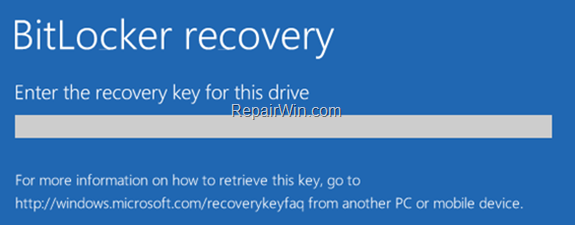
Why the BitLocker Recovery Key Matters
When BitLocker is enabled, your data is encrypted and inaccessible without proper authentication. If the system detects a security risk, hardware change, or failed login attempts, it may require the recovery key to unlock the drive. Without it, your data is lost.
On most Windows 11 PCs, the recovery key is often saved automatically to a Microsoft account, Active Directory, or Azure AD. This eases recovery for users and IT admins but means anyone with access to those accounts could retrieve the key.
Security Risks: The YellowKey Zero-Day Exploit
In 2026, a zero-day exploit known as 'YellowKey' changed the landscape for BitLocker users. This vulnerability allows attackers to bypass BitLocker’s default protections on Windows 11 systems—potentially unlocking drives without the recovery key.
This exploit challenges assumptions about BitLocker's default protections, especially for organizations that rely on it for compliance or data protection. If an attacker can bypass the encryption, the recovery key is no longer a significant barrier. Security-conscious environments should not treat BitLocker as the only line of defense.
Practical Implications
- Organizations: Should urgently review endpoint security and implement layered protections, including rapid patch deployment and monitoring for exploit attempts.
- Individuals: Should keep systems updated, but understand that BitLocker’s protection is not absolute—especially on Windows 11.
Privacy and Compliance Concerns: Microsoft and Law Enforcement Access
Recent disclosures confirm that Microsoft has provided the FBI with access to BitLocker recovery keys. This raises significant privacy and compliance questions, especially for businesses handling sensitive or regulated data.
Storing recovery keys in the cloud (Microsoft account, Azure AD) is convenient but increases risk: if those accounts are compromised, so are the keys. The possibility of third-party access—whether by law enforcement or attackers—should be factored into risk assessments and compliance strategies.
Operational Fragility: Recovery Loops and Update Issues
BitLocker’s reliance on system integrity can sometimes backfire. HP confirmed that a faulty BIOS update caused Windows 11 PCs to trigger BitLocker recovery loops, locking users out. Earlier Windows 11 updates also forced unnecessary recovery screens, though Microsoft has since addressed this issue.
These incidents show that routine updates or hardware changes can unexpectedly require the recovery key, disrupting operations and causing data loss if the key is unavailable.
How to Avoid BitLocker Recovery Problems?
- Always back up your recovery key to a secure, offline location—not just your Microsoft account.
- IT admins: Make sure that BitLocker Recovery keys for managed devices are stored in Active Directory or Microsoft account, Azure AD
- Before applying BIOS or major Windows updates, ensure recovery keys are accessible and test recovery processes in advance.
Who Should Rely on BitLocker—and Who Should Reconsider?
BitLocker Remains Useful For:
- Everyday Windows users seeking basic protection against device theft.
- Organizations with strong update and key management practices, but without the highest security or compliance demands.
BitLocker May Not Be Sufficient For:
- Enterprises with strict regulatory requirements or high-value targets, due to the YellowKey exploit and potential third-party key access.
- Privacy-focused users uncomfortable with recovery keys being accessible to Microsoft or law enforcement.
Alternatives and Supplementary Strategies
- Consider third-party encryption tools that do not automatically share keys with the operating system vendor.
- Implement layered security: device attestation, endpoint monitoring, and regular vulnerability assessments.
- For critical systems, isolate recovery keys from online accounts and restrict access to a small set of trusted administrators.
Where BitLocker Fits in a Modern Security
The BitLocker recovery key is still a vital safeguard against accidental lockouts, but its security value has been diminished by technical exploits and policy realities. For most users, BitLocker offers a convenient safety net. For organizations or individuals with higher stakes, however, it should be viewed as just one part of a comprehensive security plan—not a silver bullet.
Summary
BitLocker remains a useful encryption tool, but recent security and recovery challenges highlight the importance of proper recovery key management and layered protection.
Related articles
Frequently Asked Questions
What is the purpose of a BitLocker recovery key?
The BitLocker recovery key is a long string of numbers used as a last resort to unlock your encrypted drive if you're locked out due to security risks, hardware changes, or failed login attempts.
Where can I find my BitLocker recovery key?
On Windows 11, check your Microsoft account, Active Directory, or Azure AD. If you saved it offline, look for a printed copy or USB backup. IT admins should ensure the proper RSAT components are installed to view recovery keys in Active Directory.
What should I do if a BIOS or Windows update triggers BitLocker recovery?
Retrieve your recovery key and unlock the drive. If updates frequently trigger recovery, consult your device manufacturer and ensure your system firmware and drivers are up to date.
Can I bypass BitLocker without the recovery key?
No. If the recovery key is unavailable, there is no supported way to unlock an encrypted BitLocker drive.



