
FIX: Windows Search exited without properly closing your Outlook *.OST or *.PST file (Solved)
This tutorial provides comprehensive instructions to resolve the Outlook error "Windows Search exited without properly closing Outlook OST or PST file." This issue often arises after an unexpected shutdown of Microsoft Outlook, such as during a power failure. While a simple restart of Outlook can sometimes resolve the issue, there are instances where the error persists, hindering productivity.

How to FIX: Windows Search Exited Without Properly Closing Outlook .PST or .OST File
Method 1. Repair/Recreate Outlook Data File
The first method to address this error involves repairing or recreating the Outlook data file, depending on whether your email account is configured as IMAP or POP3. This process ensures that any corruption within the data file is corrected, or a new file is created if necessary.
- Close Outlook.
- Type "control panel" in Search and open the Control Panel app from the results.
- In Control Panel, set 'View by' to Small icons to display all items, then open the Mail applet.

- Click the Data Files button.
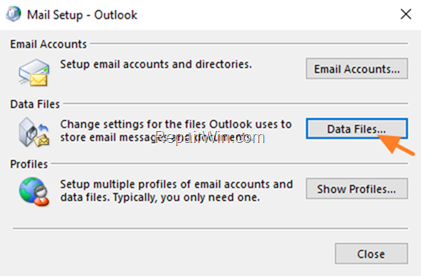
- Depending on your account type (IMAP or POP3), note the name of the Outlook data file (e.g., "youraccountname@domain.com.ost" for IMAP or "youraccountname@domain.com.pst" for POP3).
- Click Open File Location to navigate to the disk location where the Outlook data file (.OST or .PST) is stored.

- Close "Account settings" and "Mail setup" and proceed according to your email account type (IMAP or POP3).
A. For Exchange (IMAP) Accounts (.OST)
If you are using an IMAP, Microsoft Exchange, or Office 365 account, you can force Outlook to recreate the corrupted .OST file. This process involves renaming or deleting the existing file, prompting Outlook to generate a new one upon restart.
- In the Explorer window that opens, locate and Rename or Delete the .OST file (e.g., change "youraccountname@domain.com.ost" to "youraccountname@domain.com.ost.bak").
- Open Outlook and verify if the issue persists. If it does, proceed to Method 2.
Note: After launching Outlook, it will recreate the Outlook .OST data file and re-download all messages from the mail server.
B. For POP3 Accounts (PST)
If you are using a POP3 account, you need to repair the corrupted .PST file using the Inbox Repair Tool, also known as scanpst.exe. This tool checks the integrity of the .PST file and repairs any detected issues.
- Open a new Explorer window and run the "scanpst.exe" from the following location:
C:\Program Files\Microsoft Office\%OfficeVersion%\SCANPST.EXE

Note: The location of "SCANPST.EXE" varies based on your Windows and Office version:
- Office 2019 & 2016 & Office 365:
- Windows 32-bit:
C:\Program Files\Microsoft Office\Office16 - Windows 64-bit & Office 32-bit:
C:\Program Files (x86)\Microsoft Office\Office16 - Windows 64-bit & Office 64-bit:
C:\Program Files\Microsoft Office\Office16 - Click-to-Run Office 32-bit:
C:\Program Files (x86)\Microsoft Office\root\Office16 - Click-to-Run Office 64-bit:
C:\Program Files\Microsoft Office 16\root\office16
- Windows 32-bit:
- Office 2013:
- Windows 32-bit:
C:\Program Files\Microsoft Office\Office15 - Windows 64-bit & Office 32-bit:
C:\Program Files (x86)\Microsoft Office\Office15 - Windows 64-bit & Office 64-bit:
C:\Program Files\Microsoft Office\Office15 - Click-to-Run Office 32-bit:
C:\Program Files (x86)\Microsoft Office\root\Office15 - Click-to-Run Office 64-bit:
C:\Program Files\Microsoft Office 15\root\office15
- Windows 32-bit:
- Office 2010:
- Windows 32-bit:
C:\Program Files\Microsoft Office\Office14 - Windows 64-bit & Office 32-bit:
C:\Program Files (x86)\Microsoft Office\Office14 - Windows 64-bit & Office 64-bit:
C:\Program Files\Microsoft Office\Office14
- Windows 32-bit:
- Office 2007:
- Windows 32-bit:
C:\Program Files\Microsoft Office\Office12 - Windows 64-bit:
C:\Program Files (x86)\Microsoft Office\Office12
- Windows 32-bit:
- In the 'Microsoft Outlook Inbox Repair' tool, click Browse.

- Navigate to the location of the Outlook PST data file on disk, select the PST file (e.g., "youraccountname@domain.com.pst") and click Open.

- Press the Scan button and wait for the 'Inbox Repair Tool' to repair the corrupted Outlook data file.
Note: During the repair process, you will be prompted to create a backup. Select "Yes" to proceed.

- Once the repair process is complete, open Outlook to check if the issue is resolved. If not, proceed to Method 2.
Method 2. Rebuild the Search Index
If the error persists after repairing the Outlook data file, rebuilding the Windows Search Indexing database can help. This process involves clearing and rebuilding the index, which can resolve issues related to search functionality.
- Close Outlook.
- Type "control panel" in Search and open the Control Panel app from the results.
- In Control Panel, set 'View by' to Small icons and open Indexing Options.

- Click the Advanced button in Indexing Options.

- In the 'Index settings' tab, click the Rebuild button.

- Click OK to rebuild the Index.

- Wait for the index rebuilding process to complete, then restart your computer.
- After restarting, open Outlook and check if the problem is resolved.
Method 3. Run Outlook Without Add-Ins
Third-party add-ins can sometimes cause Outlook to behave unexpectedly. Running Outlook in Safe Mode disables these add-ins, allowing you to identify if they are the source of the problem.
- Press Windows
 + R keys to open the Run command box.
 - Type: outlook /safe and click OK.

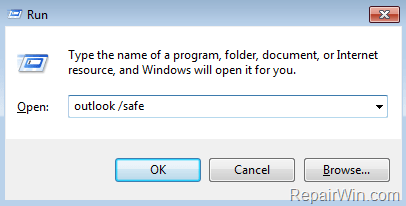
- If Outlook opens without issues, proceed to disable add-ins as follows:
To Disable Outlook Add-ins:
- Click the File menu and select Options.
- Select Add-ins in the left pane.
- In the right pane, select COM Add-ins and click Go…
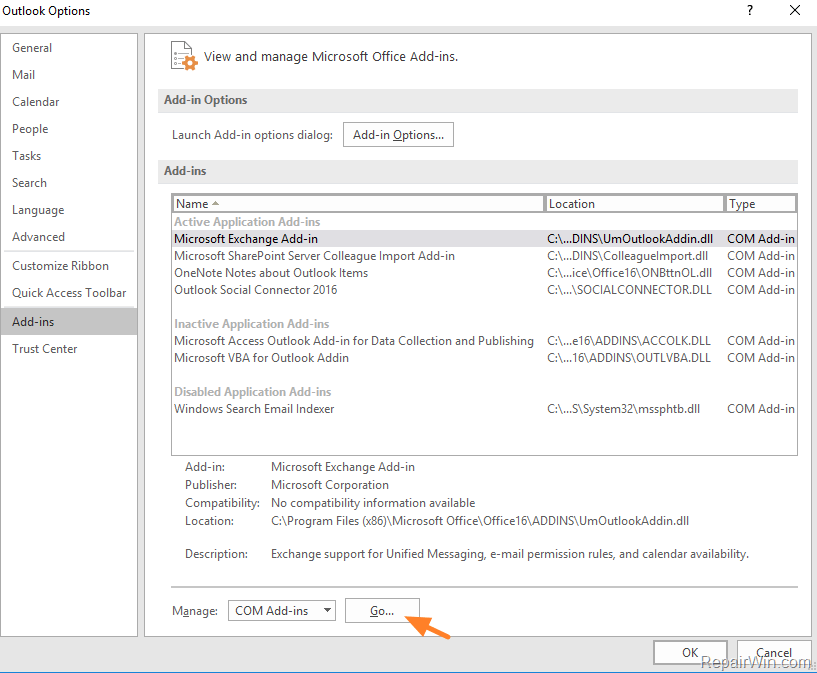
- Uncheck all checkboxes to disable all Add-ins and click OK.

- Restart Outlook.
Method 4. Repair Windows System Files
Corrupted system files can lead to various issues, including Outlook errors. Using the DISM and SFC commands, you can repair these files and restore system integrity.
- Open Command Prompt as Administrator. To do this:
- Press the Windows
- Type CMD and then press CTRL + SHIFT + ENTER.


- In the command prompt, enter the following command and press Enter:
DISM.exe /Online /Cleanup-image /Restorehealth
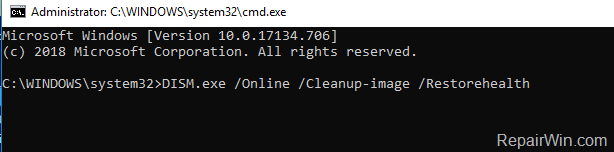
- After the DISM operation completes, type the following command and hit Enter:
sfc /scannow

- Wait for the System File Checker to repair the Windows System Files.
- Once completed, restart your computer.
Method 5. Check Your PC for Viruses & Malware
Viruses or malware can disrupt normal operations in Windows and other applications. Use this Malware Scan and Removal Guide to detect and remove any malicious software running on your computer. Additionally, if you have a third-party antivirus program installed, consider uninstalling it to see if the issue persists.
Additional Solutions
If the above methods do not resolve the issue, consider the following:
- Create a new Outlook profile and re-add your email account in the new profile.
- Repair Microsoft Office.
Summary
To resolve the "Windows Search exited without properly closing your Outlook *.OST or *.PST file" error, you can repair or recreate the Outlook data file, rebuild the search index, run Outlook without add-ins, repair system files, and check for malware. If these steps do not work, consider creating a new Outlook profile or repairing Microsoft Office. These solutions should help restore Outlook functionality and prevent further disruptions.
We hope these methods have helped you resolve the issue. Please share your experience in the comments below or share this guide on social networks to help others.
Frequently Asked Questions
What causes the 'Windows search exited without properly closing Outlook OST or PST file' error?
The error usually occurs after a forced shutdown of Microsoft Outlook, such as after a power failure. Although simply restarting Outlook usually resolves the issue, the error can persist, preventing you from being able to work effectively.
How can I fix the Outlook error if I have an IMAP or Exchange account?
If you are using an IMAP, Microsoft Exchange, or Office 365 account, you can fix the error by forcing Outlook to recreate the corrupted .OST file. You should rename or delete the .OST file located in the Outlook data file directory. When you restart Outlook, the program will recreate the file and download all messages from the server again.
What steps should I follow to repair the Outlook error for a POP3 account?
To repair the error for a POP3 account, you need to use the 'scanpst.exe' tool (Inbox Repair Tool). Open a new Explorer window and run the tool from its appropriate directory location depending on your version of Office and Windows. This tool will help to repair your corrupted .PST file.
Where can I find the 'SCANPST.EXE' file to repair a .PST file?
The 'SCANPST.EXE' file, known as the Inbox Repair tool, can be found in different locations depending on the version of Microsoft Office and Windows you are using. For instance, in Office 2019 and Office 2016, it might be located in 'C:\Program Files\Microsoft Office\Office16'. The exact path varies for different configurations.



