
FIX: We couldn't connect to the update service. Make sure you're connected to the Internet in Windows 10 (Solved)
This tutorial contains instructions to fix the following error in Windows update: "We couldn't connect to the update service. We'll try again later, or you can check now. If it still doesn't work, make sure you're connected to the Internet".

Microsoft is aware of the above Windows Update issue which is usually caused by external DNS service providers because their servers have not yet been updated with the corrected Windows Update DNS entries.
Since many users periodically report that they are facing the same issue that also affects Windows Defender (unable to update Defender definitions) and Microsoft Store (Store not working), please read the instructions below to resolve update issues in Windows 10 /11 or in Windows Defender and Windows Store.
How to FIX: Windows Update "Could Not Connect to the Update Service" in Windows 10/11.
Method 1. Change DNS Settings.
1. Press Windows  + R keys to open the run command box.
2. Type ncpa.cpl to open Network Connections.

3. Right click on the active (connected) Network Adapter (Ethernet or Wi-Fi) and select Properties.
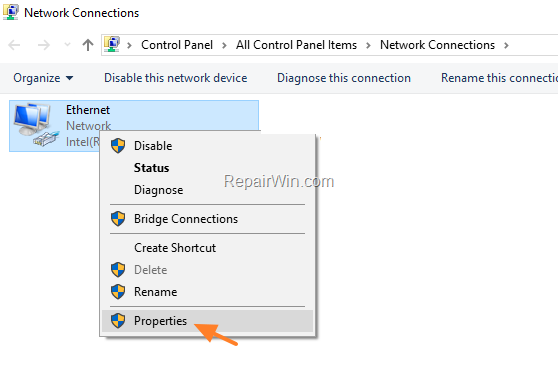
4. Select the ‘Internet Protocol Version 4 (TCP/IPv4)’ and click Properties

5. At Internet Protocol Version 4 (TCP/IPv4) properties:
a. Check the Use the following DNS server addresses: radio button.
b. Then, type the following DNS server addresses (Google’s public DNS Servers) and click OK.
- 8.8.8.8
- 8.8.4.4

6. Restart your computer and check for updates.
Method 2. Disable ‘Internet Protocol Version 6 (TCP/IPv6)’
1. Follow steps 1-3 in the method above to reopen the Properties of the active network adapter.
2. Scroll down to find and uncheck the Internet Protocol Version 6 (TCP/IPv6). Then click OK, restart your PC and try to install updates,

Method 3. FIX 'You aren't connected to the Internet" error, by Clearing DNS Cache.
The second method to solve the Windows Update error "We couldn't check for updates, because you aren't connected to the Internet", is to clear the DNS cache. To do that:
1. Type cmd in search box and hit enter to open Command Prompt:
2. Give the following command to clear the cache:
- ipconfig /flushdns

3. Close the Command Prompt window and hen check if the problem resolved.
Method 4. Run the Windows Update Troubleshooter.
1. Navigate to Start > Settings > Windows Update and select Troubleshoot from the left pane. Then click Additional troubleshooters on the right pane.

2. In Additional troubleshooters, click on Windows Update and then Run the troubleshooter.

3. Let the troubleshoot to identify and fix the Windows Update problems and then close the troubleshooter and restart your PC.
6. Finally proceed to check for updates again.
Method 5. Delete the Update Store Folder.
The “C:\Windows\SoftwareDistribution“, is the location where Windows stores the Windows Updates. Many times this folder becomes corrupted and you must re-create it in order to download updates and install from scratch. To rebuild (re-create) the “SoftwareDistribution” folder follow the steps below:
Step 1: Stop the Windows Update Service.
1. Press Windows  + R keys to open the run command box.
2. In the Search box, type: services.msc & click OK.

3. In Services control panel locate the Windows Update service.
4. Right-click on Windows Update service and select Stop.

Step 2: Delete the SoftwareDistribution folder.
1. Open Windows Explorer and navigate to: C:\Windows folder.
2. Find and Delete the SoftwareDistribution folder (or rename it. e.g. to “SoftwareDistributionOLD”) .

Step 3: Start the Windows Update Service.
1. Open Windows Services control panel.
2. Right-click on Windows Update service and select Start.

Step 4: Check and Install Windows 10 Update.
1. Navigate to Settings -> Update and Security and click Check for Updates.
Method 6. Restart your Router.
If you still can't download Windows updates or apps from the Microsoft Store, try restarting your Internet router and then your computer and see if that resolves the problem.
Method 7. Scan for viruses & Disable 3rd party AV programs.
Many viruses or malicious programs can cause problems in Windows update. So use this Malware Scan and Removal Guide to check and remove viruses or/and malicious programs that may be running on your computer.
At next, and if you're using a third-party Antivirus/Security program, temporarily disable or uninstall it, to ensure that is not causing the problem.
Method 8. FIX "We couldn't connect to the update service" error with DISM & SFC Tools.
If the above methods do not solve the problem, try checking and repairing any errors in the Windows system files as follows:
1. Open Command Prompt as Administrator.
2. In command prompt give the following command and press Enter:
- DISM /Online /Cleanup-Image /StartComponentCleanup
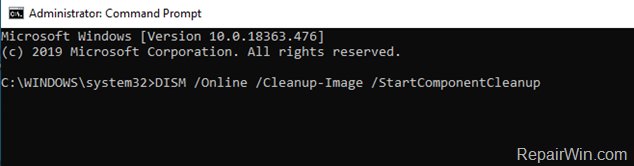
3. When the process is completed, give the following command:
- DISM.exe /Online /Cleanup-image /Restorehealth
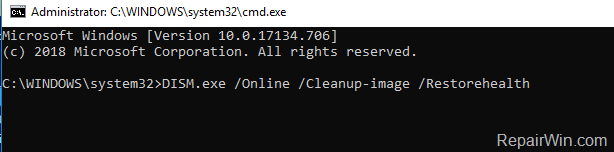
4. When the DISM operation is completed, type the following command and hit Enter:
- sfc /scannow

5. Now wait until the System File Checker (SFC), repairs the Windows System Files.
6. When this done, restart your computer.
7. Open Windows Update and try to install the failed update(s).
Method 9. Repair Windows 10.
The final method to resolve the "No Internet" error in MS Store or in Windows Update, is to repair Windows 10 with In-Place Upgrade, or to perform a clean Windows installation by following the instructions on these articles:
That’s all folks! Did it work for you?
Please leave a comment in the comment section below or even better: like and share this blog post in the social networks to help spread the word about this solution.
Frequently Asked Questions
What causes the "We couldn't connect to the update service" error in Windows Update?
This error is generally caused by external DNS service providers when their servers have not yet updated with the correct Windows Update DNS entries. It may also impact Windows Defender updates and Microsoft Store functionality.
How do I change DNS settings to fix Windows Update issues?
To change the DNS settings, open the Run command box with Windows + R, type 'ncpa.cpl', right-click the active network adapter, select Properties, choose 'Internet Protocol Version 4 (TCP/IPv4)', and enter Google's DNS servers: 8.8.8.8 and 8.8.4.4. Then restart your computer and check for updates.
How can I disable Internet Protocol Version 6 (TCP/IPv6) to help resolve update errors?
Follow steps 1-3 from the DNS settings method to open the network adapter properties. Scroll down, uncheck 'Internet Protocol Version 6 (TCP/IPv6)', click OK, restart your PC, and attempt to install updates again.
What is the process to clear the DNS cache for fixing Internet connectivity errors during updates?
Type 'cmd' in the search box, press Enter to open Command Prompt, and execute the command 'ipconfig /flushdns'. Close the Command Prompt window and then check if this resolves the update issue.




December 16, 2019 @ 2:26 pm
It only worked after I got it out from domain. So, it was a domain policy that prevent update.
October 21, 2020 @ 6:31 pm
This tutorial was helpful. Thanks