
How to FIX Microsoft Teams error "We Weren't Able to Connect. Sign in and We'll Try Again".
If you're encountering the error "We weren't able to connect. Sign in and we'll try again" while trying to log into Microsoft Teams, this guide will help you troubleshoot and resolve the issue.
Microsoft Teams is a vital tool for communication and collaboration in both personal and professional settings. However, connectivity issues can disrupt its functionality, displaying the error: "We weren't able to connect to Teams. Sign in and we'll try again."

This comprehensive guide provides multiple methods to resolve Microsoft Teams sign-in issues effectively.
How to FIX: Cannot Connect to Teams. Sign-in to try again on Windows 10/11.
Method 1. Clear the Microsoft Teams Cache.
Clearing the cache can resolve various issues by removing outdated or corrupted files that might be causing the connectivity problem.
1. Right-click the Microsoft Teams icon in the Taskbar and select Quit. This ensures that Teams is completely closed, allowing for a clean cache deletion.
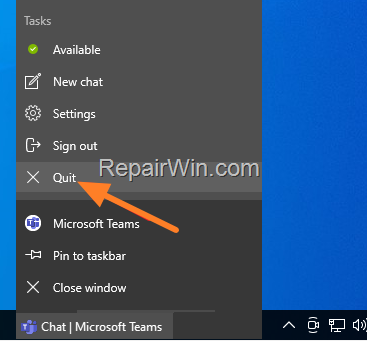
2. Press Windows  + R to open the Run dialog box.
3. Type %appdata%\Microsoft\Teams and press Enter to navigate to the Teams data directory.

4. Delete the following folders to clear the cache:*
blob_storagecachedatabasesGPUcacheIndexedDBLocal Storagetmp
* Removing these folders forces Teams to recreate them, eliminating any corrupted data.

5. Reopen Teams and check if the issue is resolved.
Method 2. Run Microsoft Teams in Compatibility Mode for Windows 8.
Running the application in compatibility mode can resolve issues related to system compatibility by emulating an older version of Windows.
1. Right-click the Microsoft Teams icon in the Taskbar and select Quit.
2. Search for "teams" in the Start menu, then click Open file location for the Microsoft Teams app.

2. Right-click the Microsoft Teams shortcut and select Properties.

3. Under the Compatibility tab, check Run this program in compatibility mode for: and select Windows 8. Click Apply and OK.

4. Open MS Teams to see if the problem persists.
Method 3. Enable TLS 1.0, 1.1 & 1.2 Protocols.
Enabling these protocols ensures that your system can communicate securely with Teams servers, which might be required for authentication and data exchange.
1. Press Windows + R to open the Run dialog box.
2. Type control inetcpl.cpl and press OK to open Internet Options.

3. In the Advanced tab, scroll to the Security section and check Use TLS 1.0, Use TLS 1.1, and Use TLS 1.2. Click OK.

4. Attempt to log in to Teams again.
Method 4. Remove and Reinstall Microsoft Teams.
If the issue persists, reinstalling Teams can resolve deeper application-level issues by ensuring a fresh installation.
1. Press Windows + R to open the Run dialog box.
2. Type control appwiz.cpl and press OK to open Programs and Features.

3. Select Microsoft Teams and click Uninstall.

4. Restart your PC to ensure all components are removed.
5. After restarting, press Windows + R and type %appdata%\Microsoft to open the directory.

6. Delete the Teams folder to remove residual data.

7. Download and install Microsoft Teams for desktop again.
Method 5. Use the Web Version of Microsoft Teams.
If none of the above methods work, consider using the MS Teams for web as a temporary workaround. This can bypass local application issues.
Additional Method: Check Network Connectivity
Ensure that your network connection is stable and not blocking Microsoft Teams. A simple way to verify this is to connect from a different network.
Summary
To resolve the "We weren't able to connect" error in Microsoft Teams, try clearing the cache, running Teams in compatibility mode, enabling TLS protocols, reinstalling the application, or using the web version. Each method addresses different potential causes, ensuring a comprehensive approach to troubleshooting.
We hope this guide has been helpful. Which method worked for you? If you have any questions or feedback, please leave a comment below. Don't forget to share this article with others who might benefit from it!
Frequently Asked Questions
What is causing the 'We weren't able to connect. Sign in and we'll try again' error in Microsoft Teams?
The error often occurs due to issues with the application's cache, compatibility mode settings, outdated TLS protocols, or a corrupted installation of Microsoft Teams.
How can I resolve Microsoft Teams sign-in issues by clearing the Teams cache?
To clear the Teams cache, quit Microsoft Teams, open the Run command box by pressing Windows + R, type '%appdata%\Microsoft\Teams', and delete the following folders: blob_storage, cache, databases, GPUcache, IndexedDB, Local Storage, and tmp. Then reopen Teams to see if the issue is resolved.
What should I do if Microsoft Teams is not working after trying various fixes?
If Teams is still not connecting, consider uninstalling and reinstalling the application. Uninstall Teams, restart your PC, delete the remaining Teams folder located in %appdata%\Microsoft, and then download and reinstall Microsoft Teams.
Is there a workaround if I'm unable to fix the Teams connection issue on the desktop app?
Yes, if the connection issue persists, you can use the web version of Microsoft Teams as an alternative solution.



