
How to Resolve "Windows was Unable to Open Service Control Manager on Remote Computer" Error
If you encounter the error "Windows was unable to open service control manager on database on remote computer-name. Error 5: Access is denied", this guide will help you resolve the issue. This error typically arises in network environments where administrators need to remotely manage services on other computers. If you're receiving the "Error 5: Access is denied" message, follow the steps below to fix the problem.

How to FIX: Cannot Open Services on Remote Computer. "Error 5: Access is denied" on Windows 10/11
The "Error 5: Access is denied" when trying to open the Services console on a remote computer may appear for the following reasons:
-
The user you're using to connect to the remote computer doesn't have administrative privileges on the remote computer.
-
The Windows Firewall on the remote computer doesn't allow remote service management.
If you're using an account with administrative rights and still encounter the error, proceed with the following steps.
Step 1. Allow 'Remote Service Management' on Remote Computer's Firewall.
On the target computer, ensure that the 'Remote Service Management' and "File & Print Sharing" features are allowed through the Windows Firewall. This configuration enables the necessary ports for remote management and file sharing, which are crucial for accessing and managing services remotely.
- Press Windows
 + R keys to open the Run command box.
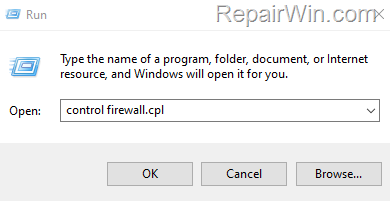
 - Type
control firewall.cpland press OK (or Enter) to open the Windows Defender Firewall settings.

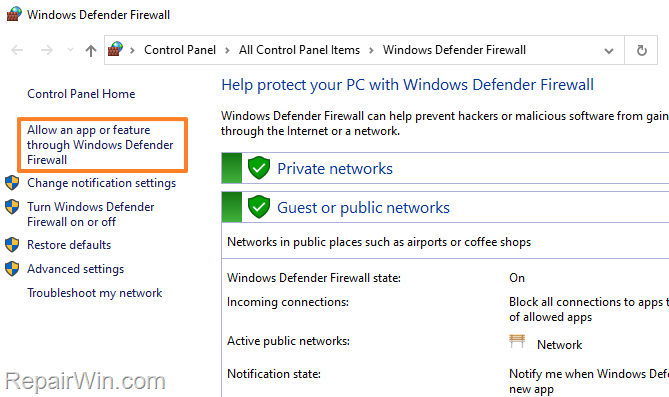
- Click Allow an app or feature through Windows Defender Firewall.
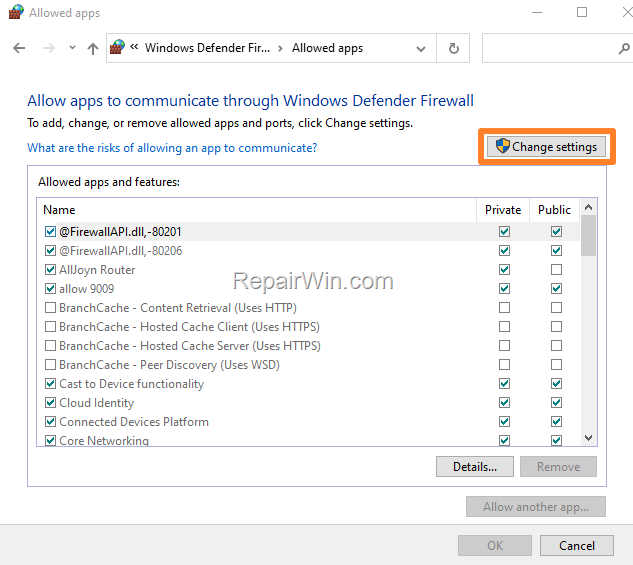
- Click Change settings.
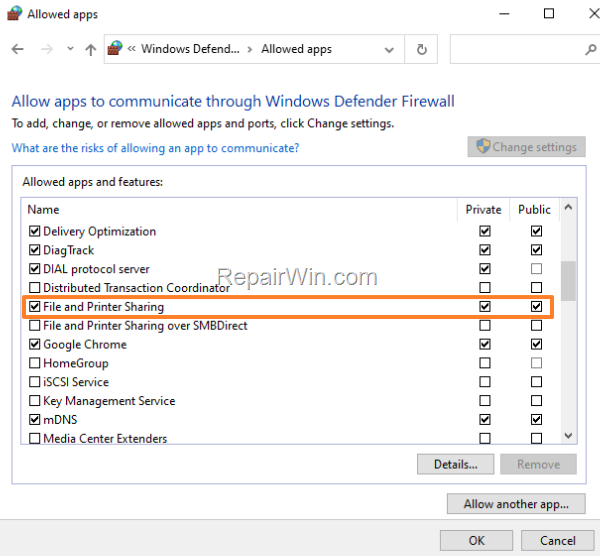
- Ensure the "File and Printer Sharing" feature is checked and allowed in Windows Firewall for Private and Public networks.
- Scroll down and check the Remote Service Management box. Also, ensure the Private and Public checkboxes are selected. Click OK when done.

- Restart the remote computer to apply the changes.
Step 2. Connect to Remote Computer's Services Console.
* Note: After restarting the remote PC, it's advisable to restart your local PC as well before proceeding with the connection steps below:
- Press Windows + R keys to open the Run command box.
- Type
services.mscand press OK (or Enter) to open the Services console.

- On the Action menu, click Connect to another computer…

- In the Select Computer window, click Browse. *
* Important: Click "Browse" here and avoid typing the name or IP of the remote computer if you need to connect using different credentials.

- Type the name of the remote computer and click Check Names

- Enter the Administrator credentials for the remote computer and click OK.

- Click OK twice to close the "Select Computer" windows.

- You should now be able to manage the services on the remote computer from your local PC.

Summary
To resolve the "Error 5: Access is denied" issue when accessing the Services console on a remote computer, ensure that the user has administrative privileges and that the Windows Firewall is configured to allow remote service management. Restart both the remote and local computers to apply changes effectively. Additionally, verify Group Policy and DCOM settings to ensure they are correctly configured for remote access.
We hope this guide has been helpful. If you have any questions or feedback, please leave a comment below. Don't forget to share this article to help others facing similar issues.
Frequently Asked Questions
Why am I seeing 'Error 5: Access is denied' when trying to open Services on a remote computer?
This error could occur due to two main reasons: 1) The user doesn't have administrative privileges on the remote computer. 2) The Windows Firewall on the remote computer is blocking remote service management.
How can I allow 'Remote Service Management' on the remote computer's firewall?
To allow 'Remote Service Management', open the Windows Defender Firewall settings through control firewall.cpl, click on 'Allow an app or feature through Windows Defender Firewall', change settings, check 'File and Printer Sharing' for Private and Public networks, and then check 'Remote Service Management' for both types of networks. Finally, restart the remote computer.
What should I do after allowing 'Remote Service Management' to access a remote computer's services console?
After allowing 'Remote Service Management', restart both your local and the remote PC. Then, open the Services console using services.msc, click on 'Connect to another computer…' from the Action menu, browse to select the remote computer, and enter the Administrator credentials of the remote computer. This should allow you to manage the services.



