
FIX: Outlook .OST file is corrupted over and over again. (Solved).
If you have repaired a damaged Outlook .OST file and Outlook still cannot open because the .OST file is corrupted, or if Outlook .OST file is corrupted over and over again, continue reading below to fix the problem.
Problems in details:
1. After recreating or repairing a corrupted OST file, Outlook still does not open and still reports that "Errors have been detected in the file 'user@example.com.ost' (or 'user@example.com.ost.CORRUPT'). Then prompts you to select the OST file even if is selected and if you choose "Dismiss" Outlook shuts down.
2. The Outlook OST file is often corrupted without apparent reason.
This tutorial contains instructions to fix the following problems in Outlook 365, 2019, 2016, 2013, or 2010:
- Errors have been detected in the file <path to OST>.
- Outlook displays that OST file is damaged even after repairing and recreating it.
- Outlook OST file its getting corrupted frequently.
- Outlook OST filename is renamed to 'user@example.com.ost.CORRUPT' instead of 'user@example.com.ost'
FIX: Outlook OST Frequent Corruption / OST File Keeps Getting Corrupted. *
* Attention: Follow the steps of this guide only if you have already tried to fix the corrupted OST file and the problem persists or the OST corruption recurs frequently.
Step 1. Delete LastCorruptStore value data in Registry.
When Outlook detects that the .OST file is corrupted and has errors, it cannot be opened until you fix it and records this information in the registry as well. But unfortunately sometimes this information (in the registry), is not removed automatically after fixing the OST file and so Outlook still does not open.
1. Close Outlook.
2. Open the Registry Editor. To do that:
-
- Press Windows
 + R keys to open the run command box.
 - Type regedit & click OK.
- Press Windows
![image_thumb[27]](https://www.repairwin.com/wp-content/uploads/2022/05/image_thumb27.png "image_thumb[27]")
3. Navigate to the following location in Registry:
- HKEY_CURRENT_USER\SOFTWARE\Microsoft\Office\16.0\Outlook\PST
4. At the right-pane open the LastCorruptStore REG_SZ value.

5. Delete the Value data and click OK.
![image_thumb[33]](https://www.repairwin.com/wp-content/uploads/2022/05/image_thumb33-1.png "image_thumb[33]")
6. Now navigate to the following path in registry: *
-
HKEY_USERS\S-1-5-21-XXXXXXXXXX-XXXXXXXXXX-XXXXXXXXXX–1001\SOFTWARE\Microsoft\Office\16.0\Outlook\PST
* Note: The "XXXXXXXXXX-XXXXXXXXXX-XXXXXXXXXX" number varies from PC to PC.
7. At the right-pane open the LastCorruptStore REG_SZ value and delete the value data.
![image_thumb[35]](https://www.repairwin.com/wp-content/uploads/2022/05/image_thumb35.png "image_thumb[35]")
6. Close Registry Editor and restart your computer.
7. Try to open Outlook. If Outlook opens without a problem, you're done here. If not, continue to the next steps.
Step 2. Increase Outlook OST Size.
If the Outlook OST file size is close to 50GB go ahead and set a larger size for it:
1. Close Outlook.
2. Go to Control Panel, set the View by to Small icons and open the Mail applet.

3. Choose Data files and then click Open file location.

2. Check if the OST file size is close to 50GB (exceeds 49GB). If so, follow the instructions in this tutorial and maximize the Outlook size limit. Then check if Outlook opens.
Step 3. Run Outlook without Add-Ins.
In some cases, a third-party plugin in Outlook may cause the .PST/.OST file to become corrupted. So proceed and check if Outlook opens with Add-ons disabled.
1. Press Windows  + R keys to open the run command box.
2. Type: outlook /safe and click OK.
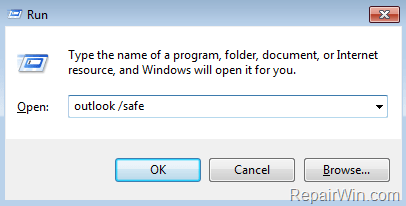
3. If Outlook open without problem, proceed and disable add-ins as instructed below. (otherwise proceed to next step).
To Disable Outlook Add-ins:
a. Click the File menu and select Options.
b. Select Add-ins at the left pane.
c. At the right pane, select COM Add-ins and click Go…
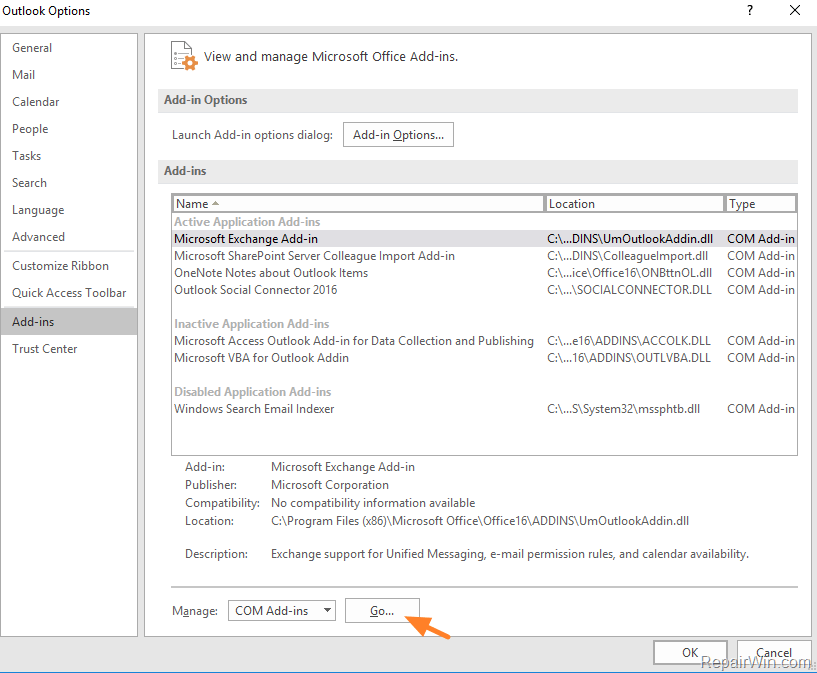
d. Uncheck all the checkboxes to disable all the Add-ins and click OK

e. Restart Outlook.
Step 4. Check your PC for Malware.
Many viruses or malicious programs can cause problems in Windows and other programs. So use this Malware Scan and Removal Guide to check and remove viruses or/and malicious programs that may be running on your computer. In addition, if you are running a third-party antivirus program, uninstall it and check if the problem reappears.
Step 5. Delete the .OST file and Create a New One with Another filename.
1. Close Outlook.
2. Go to Control Panel, open the Mail applet and choose Data files -> Open file location.
3. Select and delete the corrupted .OST file.

4. Now open Outlook and normally it will re-create the OST file. If not, and you receive again the message that the OST file is corrupted:
- Click Browse
- Τype a new filename for the OST file (e.g. "user@example.com.new.ost", click Open and then OK. Outlook should open now without problem.*
* Note: If after applying the above steps, you still can't open Outlook because the OST file is still reported as corrupted or or if the OST file its getting corrupted frequently, I suggest you to check your hard disk for problems and if your HDD is okay, do the following:
-
Create a new Outlook profile and and re-add your email account.
-
Change the Outlook sync settings to only keep a limited amount of mail off-line to reduce the OST size. (eg. 6 months).
-
(For Exchange Admins): Create a second mailbox and move all the old emails there.
That’s all folks! Did it work for you?
Please leave a comment in the comment section below or even better: like and share this blog post in the social networks to help spread the word about this solution.




July 19, 2023 @ 6:45 am
Thanks for this wonderful infromation