
FIX: The PIN or Password is Incorrect after Windows 11 Update (Solved)
If you've recently updated your Windows 11 PC and are now facing difficulties logging in due to an "Incorrect Password/PIN" error, you're not alone. This guide will walk you through several effective solutions to regain access to your account. Whether you're using a Microsoft Account or a Local Account, these steps will help you troubleshoot and resolve the issue.
* Important: If you cannot see the login screen to enter your password/PIN, please refer to this tutorial: FIX: Windows 11 Black Screen with Cursor.
Many users have reported being unable to log into Windows 10/11 after updates due to "PIN IS INCORRECT" or "PASSWORD IS INCORRECT" errors. This problem can affect both Microsoft and Local Accounts.
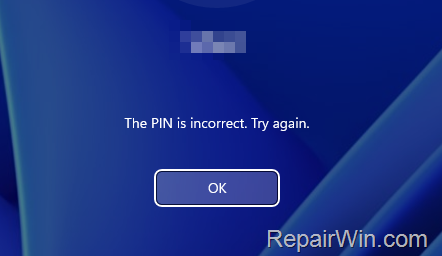
Typically, the "Unable to login to Windows 11" issue arises after installing updates or due to mistyped login credentials. Although it's frustrating, you can try several solutions to resolve it. Start by verifying your login details and ensuring you have internet connectivity, especially if you're using a Microsoft account.
How to FIX: Cannot Sign in to Windows 11 because the PIN or Password is incorrect.
If you're unable to sign in to your Microsoft or local account in Windows 10/11 due to incorrect pin/password issues, follow these steps in order to resolve the problem.
Step 1. Restart your PC.
Sometimes, a simple restart can resolve login issues. To restart your PC:
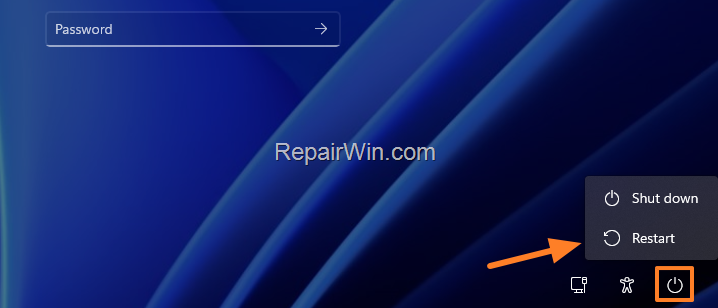
1. Click the Power  icon in the bottom-right corner and select Restart.
2. After your PC restarts, enter your PIN or password and attempt to log in.*
* Notice: Make sure you have selected the correct input language when typing your PIN/password.
Step 2. Full Shutdown your PC.
Performing a full shutdown can often resolve login issues. Follow these steps:
1. Press and hold the SHIFT key on your keyboard, then click the Power button and select Shut down.
2. Once the computer shuts down, press the power button to turn on your PC and try logging in again.

Step 3. Type your PIN or Password with the Virtual Keyboard.
If login issues persist, use the virtual keyboard to ensure you're entering your credentials correctly:
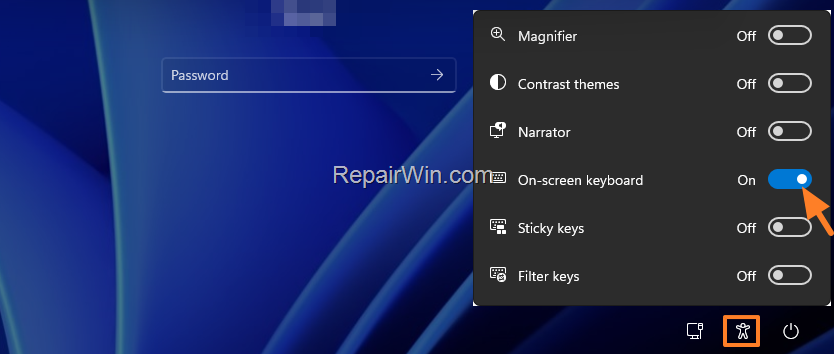
1. Click the Ease of access  button (also known as the "Accessibility"
  button on Windows 11) and activate the On-screen keyboard.
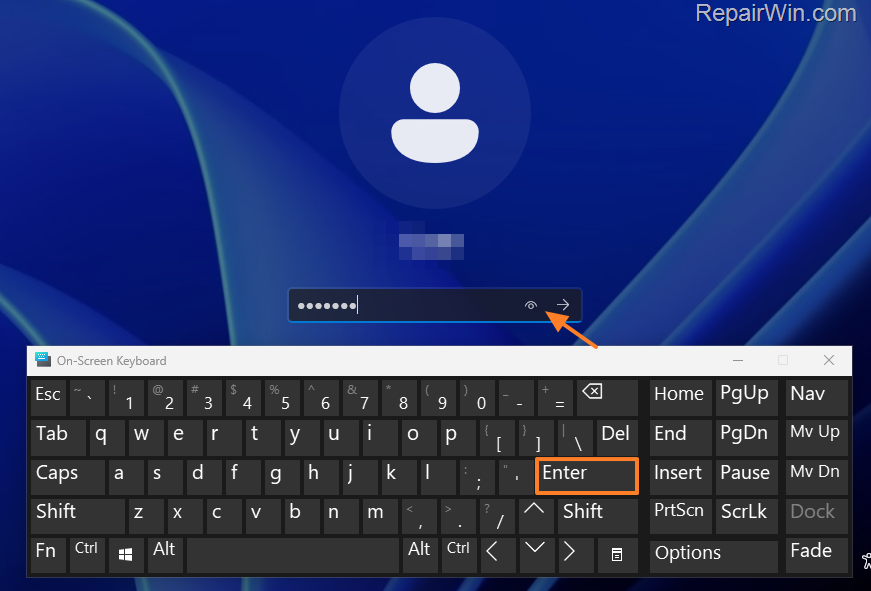
2. Click in the PIN/password box, then click the corresponding keys on the virtual keyboard to type your PIN/Password.
3. When finished, click the Show (Eye)  icon to verify that the PIN/password you typed is correct. If it is, click the Enter key to see if you can log in to Windows.
* Notes:
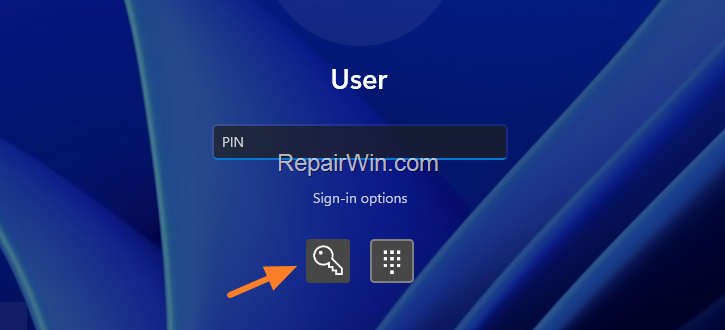
- If you cannot log in using your PIN due to the "PIN is incorrect" error, click the Key icon and attempt to log in using your Microsoft Account password.
- If you don't remember your Microsoft Account password, visit the Microsoft Account Reset Password page from another device and follow the prompts to reset it. Then restart your PC and log in to Windows using the new password.
Step 4. Restart your PC in Safe Mode.
Some users have successfully signed in to their accounts after entering safe mode. To do this:
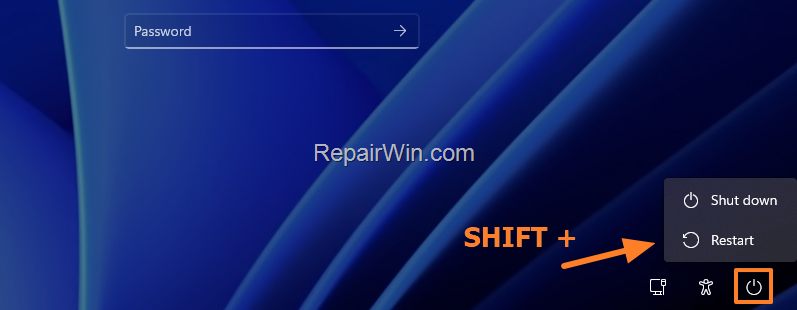
1. Press and hold the SHIFT key on your keyboard, then click the Power button and select Restart to open the Windows Recovery Environment options (WinRE).
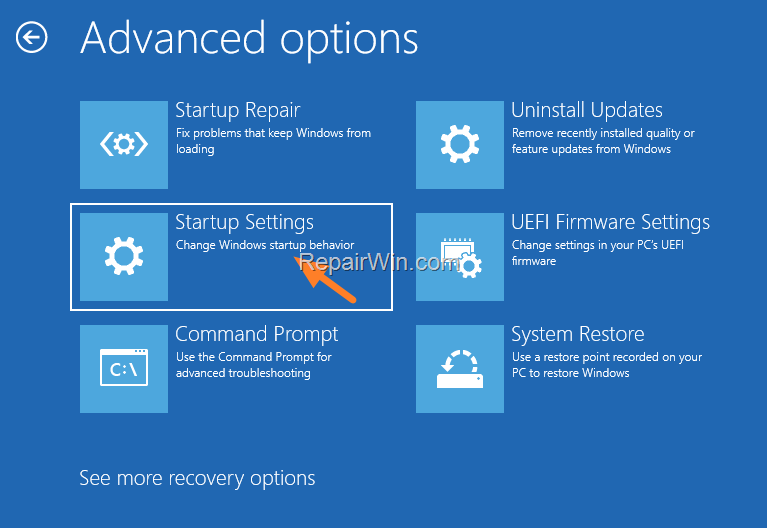
2. After restarting, choose Troubleshoot > Advanced Settings and click on Startup Settings.
3. Then hit Restart again.
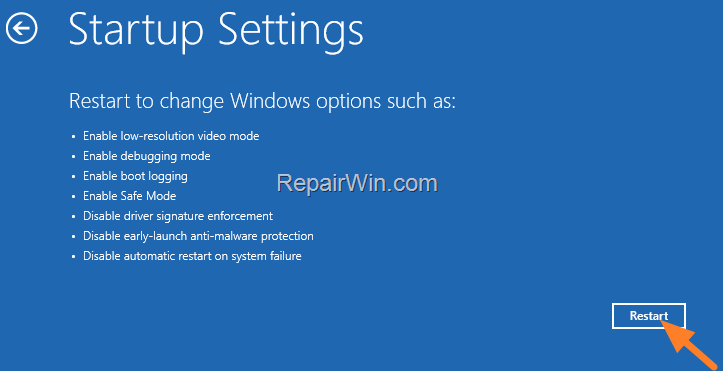
4. At the Startup Settings screen, press 4 or F4 to start Windows in Safe Mode.
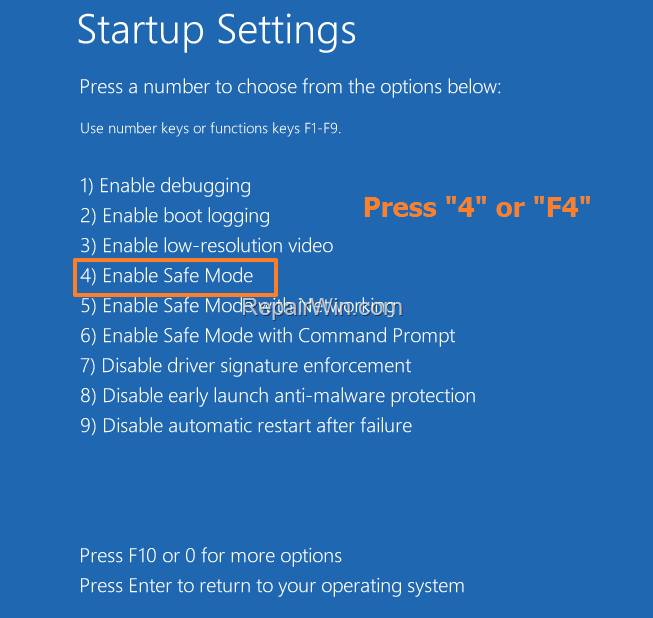
5. At the login screen, enter your password and attempt to log in to your PC. If successful, restart Windows normally to see if the problem is resolved. If not, continue to the next step.
Step 5. Restore your PC to a Previous Working State.
1. At the login screen, press and hold the SHIFT key on your keyboard, then click the Power button and select Restart.
2. After restarting, choose Troubleshoot > Advanced Settings and click System Restore.
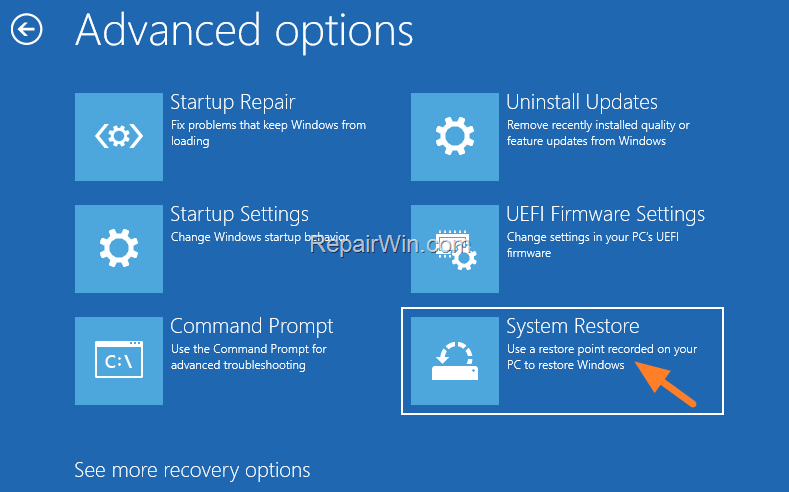
3. At the System Restore screen, click Next.
* Note: If you see a message indicating that there are no restore points available, click Cancel and proceed to the next step.

4. Choose a previous restore point, then click Next and Finish.
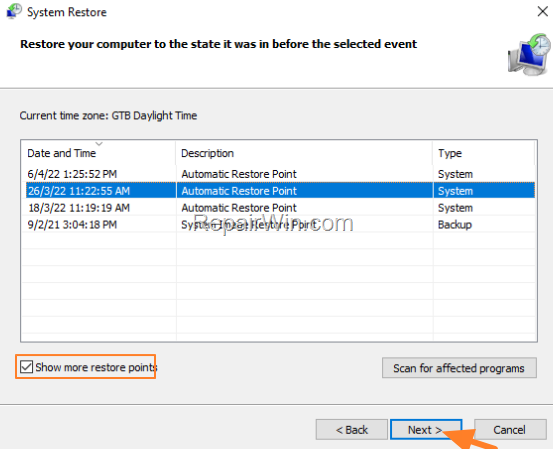
5. Wait for the System Restore process to complete, then check if the problem is fixed.
Step 6. Uninstall the Latest Update.
1. At the login screen, press and hold the SHIFT key on your keyboard, then click the Power button and select Restart.
2. After restarting, choose Troubleshoot > Advanced Settings > Uninstall Updates.
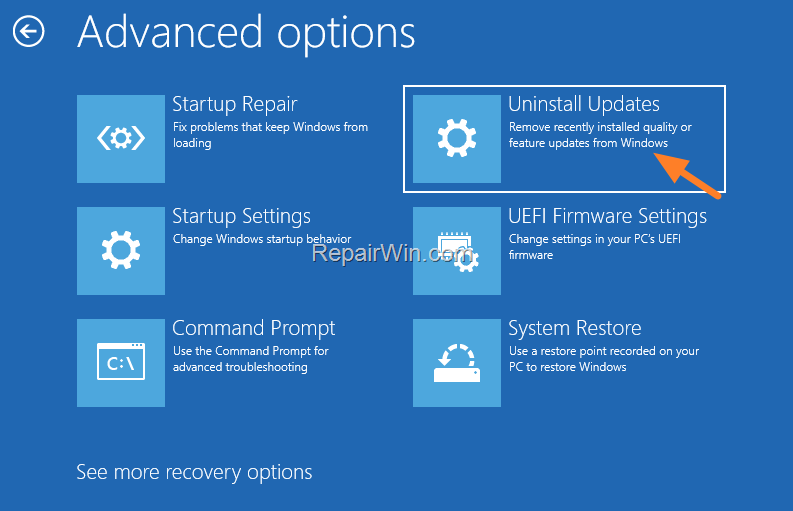
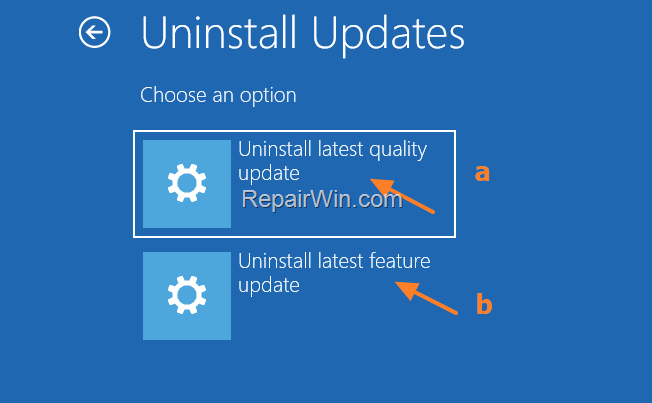
3. At the 'Uninstall Updates' screen, proceed as follows:
a. Click Uninstall latest quality update and wait for Windows to uninstall the update. Once completed, click Done and then Continue to Windows 10. Attempt to log in to your account. If unsuccessful…
b. Follow the same steps (1-2), but this time click Uninstall latest feature update.
Step 7. Enable and Log in to Windows with the Built-in Administrator Account.
1. At the login screen, press and hold the SHIFT key on your keyboard, then click the Power button and select Restart.
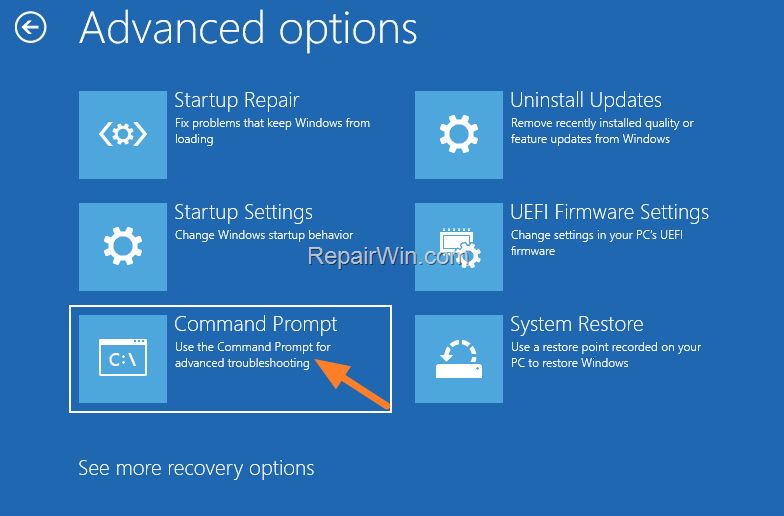
2. After restarting, choose Troubleshoot > Advanced Settings > Command Prompt.
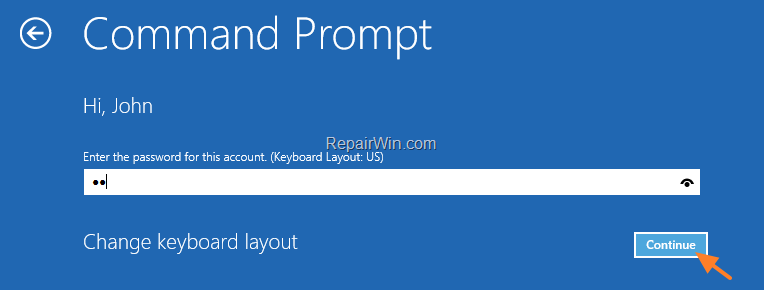
3. At the next screen, click your Username, enter your password (if any), and click Continue.
* Note: If you still receive an incorrect password message, boot your PC from a USB Windows Installation media, click Next at 'Language options, then select Repair your computer > Troubleshoot > Advanced Options > Command Prompt. Follow the steps below to enable the hidden Administrator account in Windows Registry.
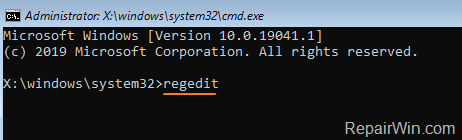
4. In the command prompt, type regedit and press Enter.
5. In Registry Editor, highlight the HKEY_LOCAL_MACHINE key.

6. From the File menu, select Load Hive.

7. At the "Load Hive" screen:
a. Locate the Windows drive (where Windows is installed) and navigate to the folder: Windows\System32\config
b. Explore the contents of the config folder, select the SAM file, and click Open.

8. Type a new Key Name (e.g., "Repair") and press OK.

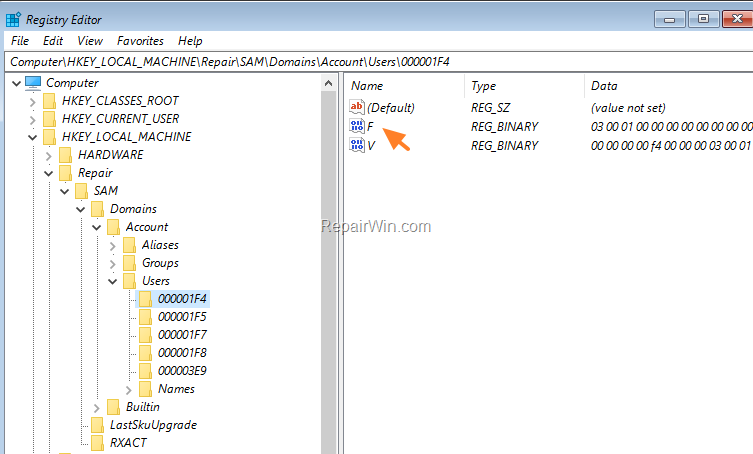
9. Navigate to the following key (on the left side):
- HKEY_LOCAL_MACHINE\Repair\SAM\Domains\Account\Users\000001F4
10. Double-click the F value on the right.
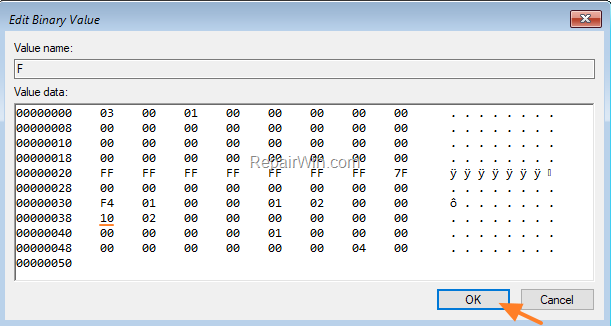
11. Press the Down Arrow key and navigate to the line 0038.
12. Press the Delete key once to delete the number 11.

13. Type 10 and click OK.
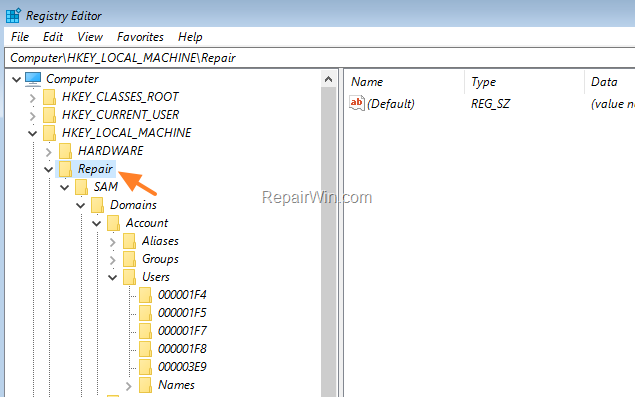
14. Highlight the New Key you created earlier under HKEY_LOCAL_MACHINE (e.g., the "Repair" key in this example)…
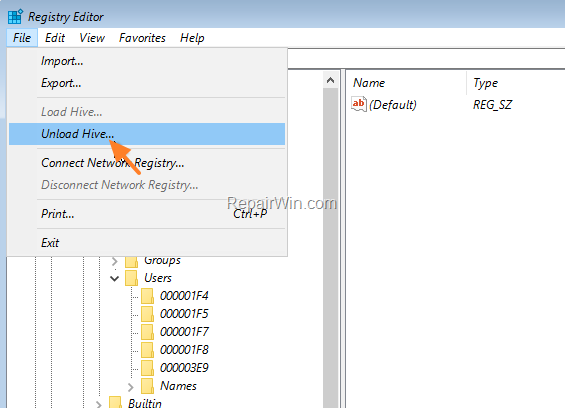
…and from the File menu, click Unload Hive and then…
…click Yes to confirm.

15. Close the Registry Editor & the Command Prompt windows.
16. Click Exit and continue to Windows 10.

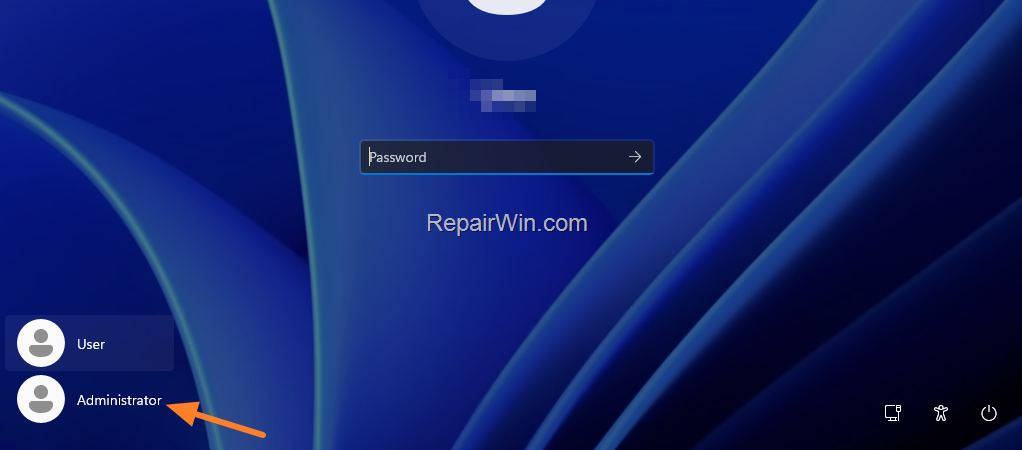
17. At the Login screen, click the Administrator Account to log in.
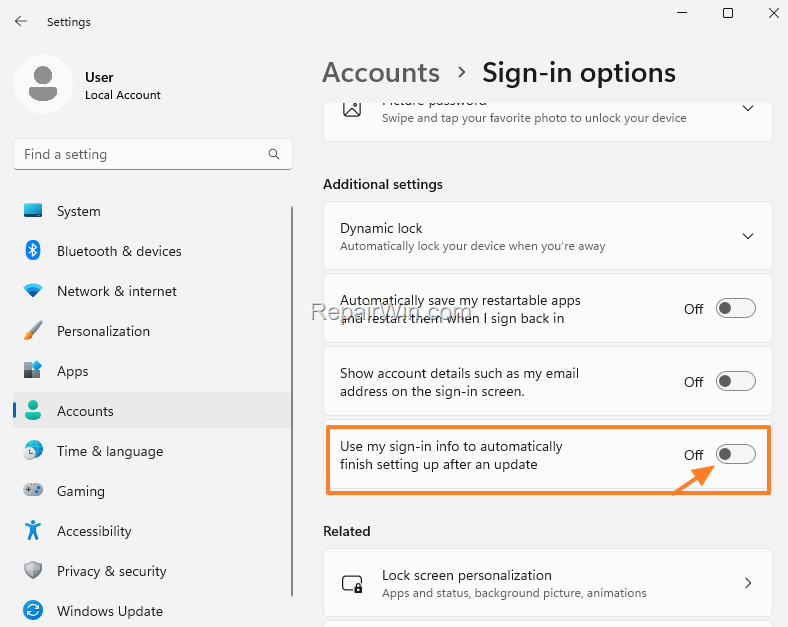
18. After logging into Windows, go to Start > Settings > Accounts > Sign-in options and turn off the Use my sign-in info to automatically set up my device after update or restart option.
19. Now Sign out from the Administrator account and try logging into your normal account.
* Note: If you still can't log in to your normal account, proceed with the following instructions based on your account type (Local or Microsoft account):
Local account:
If you're using a local account in Windows 10/11 (not a Microsoft account), follow these steps:
1. Log in to Windows using the Administrator account.
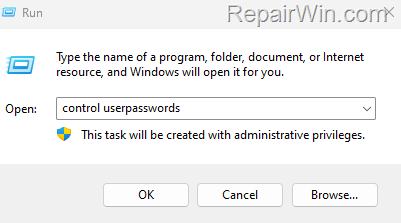
2. Press Windows  + R keys to open the Run command box.
3. Type control userpasswords and press OK (or Enter).
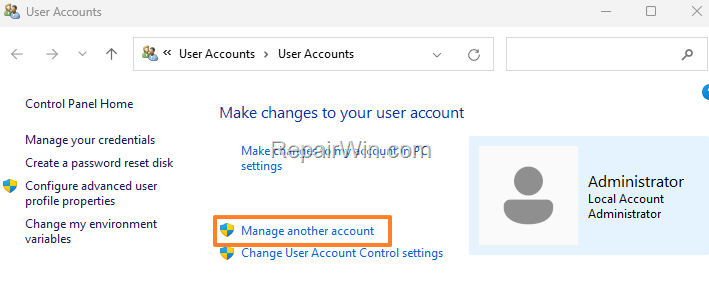
4. Click Manage another account.
5. Select the account that you can't sign in to and click Change the password.
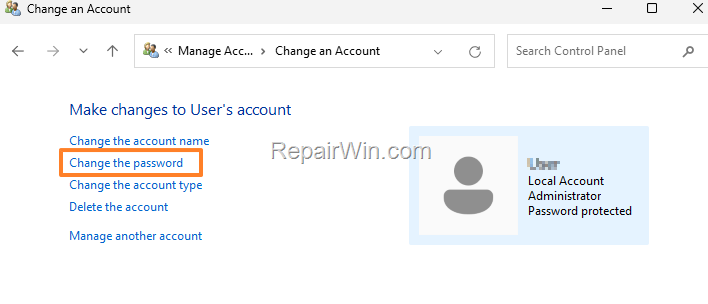
6. Type a new password (twice to confirm it) and click Change password.

7. Sign out from the Administrator account and log in to your normal account.
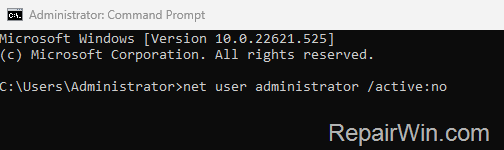
8. Finally, disable the "Administrator" account by entering the following command in Command Prompt (Admin):
- net user administrator /active:no
Microsoft account:
If you cannot sign in to Windows 10/11 using your Microsoft Account, apply the following steps:
1. Log in to Windows using the Administrator account.
2. Open a web browser and sign in to your Microsoft Account.
3. Click the Security tab and enter your password to verify your identity.
* Note: If you cannot remember the password, go to the Reset your Microsoft Account password page and follow the prompts to reset it.
4. In the Password security section, click Change my password and specify a new password.

5. After changing your password, restart the computer and log in to Windows using your Microsoft Account and the new password.
* Note: If after following the above steps you still cannot log in to your Microsoft Account in Windows, proceed as follows:
1. Log in again to Windows using the Administrator account.
2. Create a new local account on your PC with administrative privileges.
3. Then, sign in with the new account.
4. Finally, transfer all your files and settings from your old account to the new one.
That’s all! Which method worked for you? Please leave a comment in the comment section below or even better: like and share this blog post on social networks to help spread the word about this solution.
Frequently Asked Questions (FAQs)
1. Why can't I log in to Windows 11 after an update?
After a Windows update, login issues can arise due to corrupted system files, changes in system settings, or conflicts with the update itself. It is crucial to ensure that your login credentials are correct and to try restarting your device. If the issue persists, try the troubleshooting steps outlined above.
2. How do I reset my Microsoft Account password if I can't log in?
If you cannot log in to your Microsoft Account, you can reset your password by visiting the Reset your Microsoft Account password page from another device. Follow the prompts to reset your password, then try logging in with the new credentials.
3. Can I bypass the login screen on Windows 11?
You cannot bypass the login screen without entering your credentials for security reasons. However, you can simplify the login process by using a PIN or a picture password. To enable these options, go to Settings > Accounts > Sign-in options and choose your preferred method.
4. What should I do if I don't have a restore point?
If you don't have a restore point, you won't be able to use System Restore to revert to a previous state. In this case, try other troubleshooting steps, such as using Safe Mode, uninstalling recent updates, or enabling the built-in Administrator account to regain access to your system.
Summary
In this guide, we covered various methods to troubleshoot and resolve login issues in Windows 11 after an update. From restarting your PC to using the virtual keyboard, entering Safe Mode, restoring your system, uninstalling updates, and enabling the built-in Administrator account, these steps should help you regain access to your account. If you continue to experience issues, consider reaching out to Microsoft Support for further assistance.
Frequently Asked Questions
What should I do first if I can't log into Windows 11 due to the 'Incorrect Password/PIN' error?
First, try restarting your PC. Click the Power icon in the bottom-right corner and select Restart. After your computer restarts, enter your PIN or password and attempt to log in.
How can a full shutdown help resolve Windows 11 login issues?
Performing a full shutdown can help resolve login issues by refreshing the system state. To do this, press and hold the SHIFT key, click the Power button, and select Shut down. Then, reboot your PC and try logging in again.
If I keep mistyping my password, is there an alternative way to enter it?
Yes, you can use the virtual keyboard to enter your password correctly. Click the Ease of access button to activate the On-screen keyboard, then click the keys to type your PIN or password. This helps ensure you're entering the credentials correctly.
Can I try logging in using Safe Mode if normal login attempts fail?
Yes, you can restart your PC in Safe Mode, which can sometimes bypass login issues. Press and hold the SHIFT key, click the Power button, and select Restart. Navigate to Troubleshoot > Advanced Settings > Startup Settings, and press 4 or F4 to enter Safe Mode. Try logging in again from there.



