
FIX: ERR_NAME_RESOLUTION_FAILED in Chrome (Solved)
This tutorial contains instructions to fix the Chrome error: "ERR_NAME_RESOLUTION_FAILED" (or Error Code 137): "This site can't be reached. The webpage might be temporarily down or it may have moved permanently to a new web address". The "ERR NAME RESOLUTION FAILED" Chrome error, means that your browser cannot establish a connection with the website you try to reach. The error can be due to several reasons, (e.g. Internet connection is lost, the website doesn't exist, Network problems, etc.), so in this tutorial you will find various methods to fix the issue.
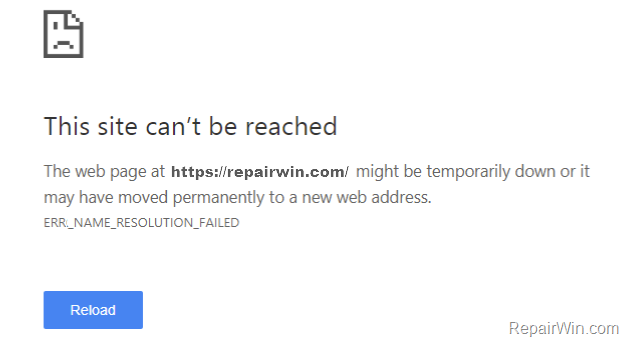
To resolve the Chrome error 137 "ERR_NAME_RESOLUTION_FAILED" follow the instructions below:
How to FIX: "ERR_NAME_RESOLUTION_FAILED" in Google Chrome.
Advice: Before proceeding to apply the methods below try the following:
1. Restart your Internet Router.
2. Try to visit other websites, to make sure that your Internet connection is working.
3. If you own another computer/device in your place, try to visit the website where your receive the "ERR_NAME_RESOLUTION_FAILED" error, in order to make sure that the site you 're trying to visit is not blocked from your ISP.
4. If you have setup a VPN connection, then disconnect from it.
5. Temporarily disable the Firewall application (if you have one).
Method 1. Reset TCP/IP Settings & WINSOCK.
1. Open Command Prompt in Administrative mode. To do that:
1. At Search box, type cmd or command prompt
2. Right click at Command Prompt result and select Run as Administrator.

2. In Command Prompt, type the following command and press Enter.
- ipconfig /release
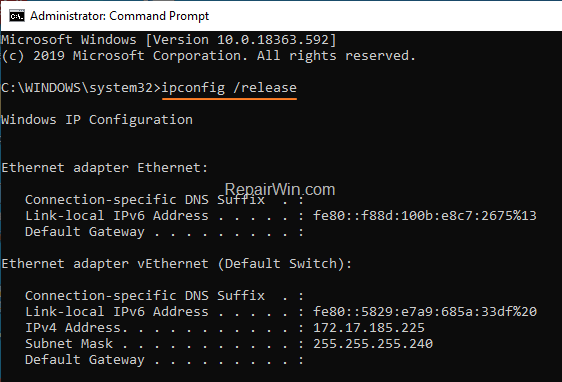
3. Now type the following commands in order (press Enter after each command).:
- ipconfig /flushdns
- ipconfig /renew
- netsh winsock reset
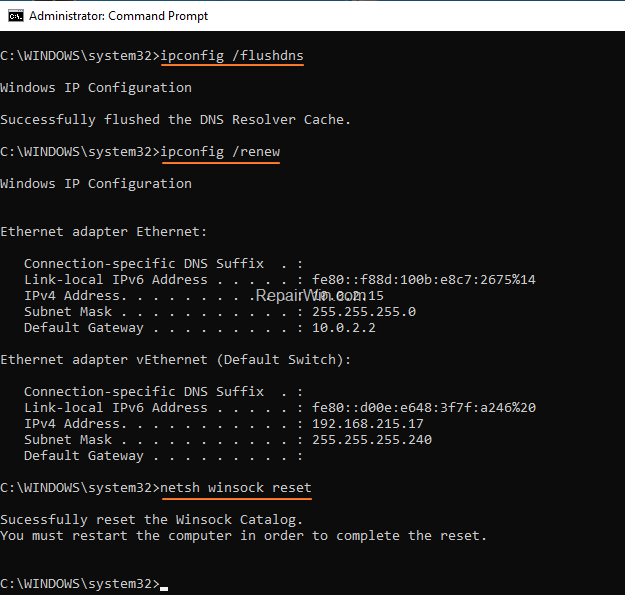
3. Restart your computer.
Method 2. Change DNS settings.
The next method to resolve the Google Chrome error "ERR_NAME_RESOLUTION_FAILED" is to change the DNS Settings and to use Google's Public DNS Servers. To do that:
1. Right click on the active Network icon in Taskbar (or go to to Windows Control Panel) and click Network and Sharing Center
![image_thumb[14]](https://www.repairwin.com/wp-content/uploads/2018/11/image_thumb14-1.png "image_thumb[14]")
2. Select the active Network Card and then click Change adapter options.
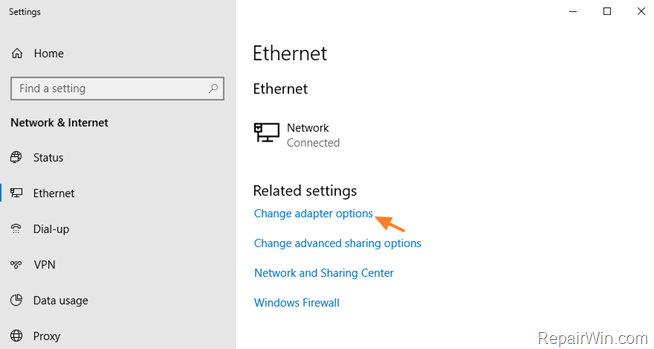
3. Right click on your active Network Adapter and select Properties.
4. Select the 'Internet Protocol Version 4 (TCP/IPv4)' and click Properties
![image_thumb[18]](https://www.repairwin.com/wp-content/uploads/2018/11/image_thumb18-1.png "image_thumb[18]")
5a. Check the "Use the following DNS server addresses:" radio button.
5b. Type the following DNS server addresses (Google's public DNS Servers) and click OK.
- 8.8.8.8
- 8.8.4.4
![image_thumb[20]](https://www.repairwin.com/wp-content/uploads/2018/11/image_thumb20-1.png "image_thumb[20]")
6. Restart your computer.
Method 3. Reset Chrome Settings.
To reset Chrome to the default installed settings:
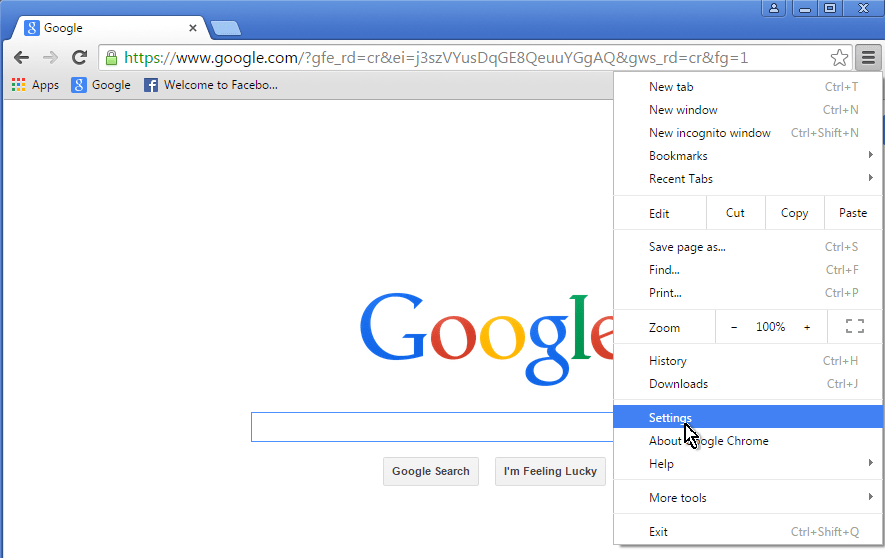
1. Click on Chrome's menu  icon at the upper right corner) and choose Settings.
2. At Settings page, scroll down and click to Show Advanced Settings.
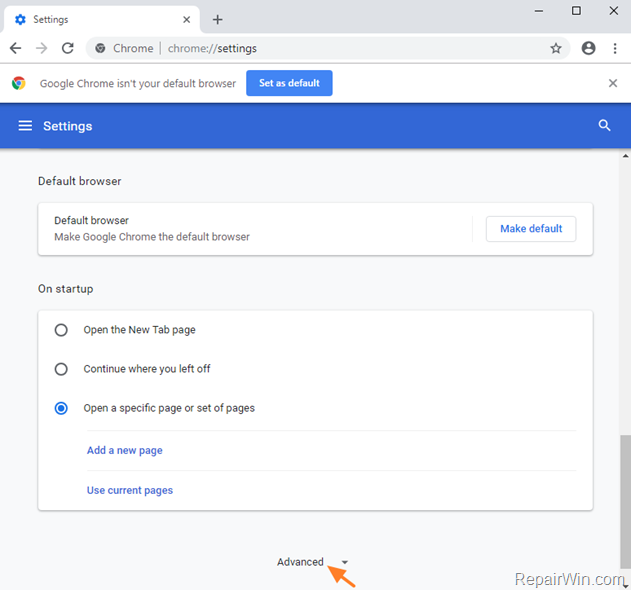
3. At end of the page, click Restore settings to their original defaults.
![image_thumb[5]](https://www.repairwin.com/wp-content/uploads/2018/11/image_thumb5.png "image_thumb[5]")
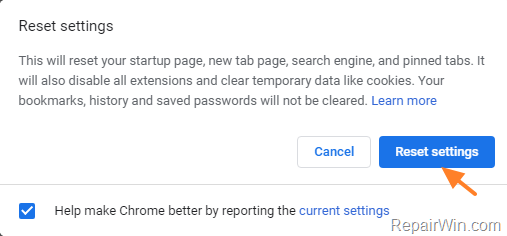
4. Finally click Reset settings.
5. Restart Chrome.
Method 4. Scan your computer for Malware & Viruses.
The last method to fix the error ERR_NAME_RESOLUTION_FAILED in Chrome, is to ensure that your system is virus/malware free. For that task follow the instructions in this guide: How To Scan Your Computer for Viruses and other Malicious Programs.
That's all folks! Did it work for you?
Please leave a comment in the comment section below or even better: like and share this blog post in the social networks to help spread the word about this solution.
Frequently Asked Questions
What does the Chrome error "ERR_NAME_RESOLUTION_FAILED" mean?
This Chrome error indicates that your browser cannot establish a connection with the website you are trying to access. It can be caused by various issues such as Internet connection problems, a non-existent website, or network issues.
What are the first steps I should try to fix the "ERR_NAME_RESOLUTION_FAILED" error?
Before trying specific methods, you should restart your Internet router, check if other websites are accessible, ensure the site is not blocked by your ISP, disconnect any VPN, and temporarily disable your firewall.
How do I reset TCP/IP settings and WINSOCK to resolve this error?
Open Command Prompt in Administrative mode and execute the following commands one by one, pressing Enter after each: 'ipconfig /release', 'ipconfig /flushdns', 'ipconfig /renew', and 'netsh winsock reset'. Then restart your computer.
How can I change DNS settings to fix the error in Chrome?
Right-click on the active Network icon in the Taskbar, go to Network and Sharing Center, select your active network card, click Change adapter options, select Properties for the active Network Adapter, choose 'Internet Protocol Version 4 (TCP/IPv4)', and enter Google's public DNS servers: '8.8.8.8' and '8.8.4.4'. Finally, restart your computer.




November 20, 2020 @ 11:03 am
Thank for your good suggestions.