
FIX: Cannot Sign-in to Office Desktop Apps – Credentials window Does Not Appear (Solved)
A few days ago, I fixed the following problem on a Windows 10 computer running Microsoft Office: the user cannot log in to any Office application (Word, Outlook, etc.), because the system never displays the credentials window to enter the Office 365 password. So, if you cannot sign-in to Office Desktop Apps, because the password box never pops up, continue reading below.
Problem description: After opening any Office desktop app (Word, Excel, etc.), the system prompts you to sign-in by using your Microsoft Account credentials. However, after entering your username, the login window closes and the password prompt is never displayed. As a result of that, you cannot use the Office application or you face other problems. The mentioned problem can appear in Microsoft Office 2013 & Office 2016.
This tutorial contains instructions to resolve the following problem in Windows 10: Cannot Sign-in to Microsoft Office's desktop applications, by using the Office 365 credentials, because the credentials window does not appear.
How to FIX: Unable to Sign-in with your MS Account to any Office Desktop Application. (Office 2013/2016/2019).
Method 1. Remove the Stored Office Credentials from Control Panel.
The first method to solve the Sign-in problem in Office desktop apps, is to remove the stored Microsoft credentials from your PC. To do that:
1. Close all Office Programs.
2. Navigate to Windows Control Panel, and open the Credential Manager.

3. At Windows Credentials, remove any credentials for the Microsoft Office.

4. Open any Office app and try to sign-in with your Microsoft account again. If you still can't log in to your account, then apply the steps in method-2 below.
Method 2. Disable the Modern Authentication.
The second method, to solve the Sign-in problem in Office applications, is to disable the Modern Authentication in Office. To do that:
1. Open the Registry Editor and navigate to this key:
- HKEY_CURRENT_USER\Software\Microsoft\Office\16.0\Common\Identity
2. At the right pane, check if you can see a value with name: EnableADAL. If not, then…
a. Right-click at an empty space, and select New > DWORD (32-bit) Value.

b. Name the new value: EnableADAL and press Enter.
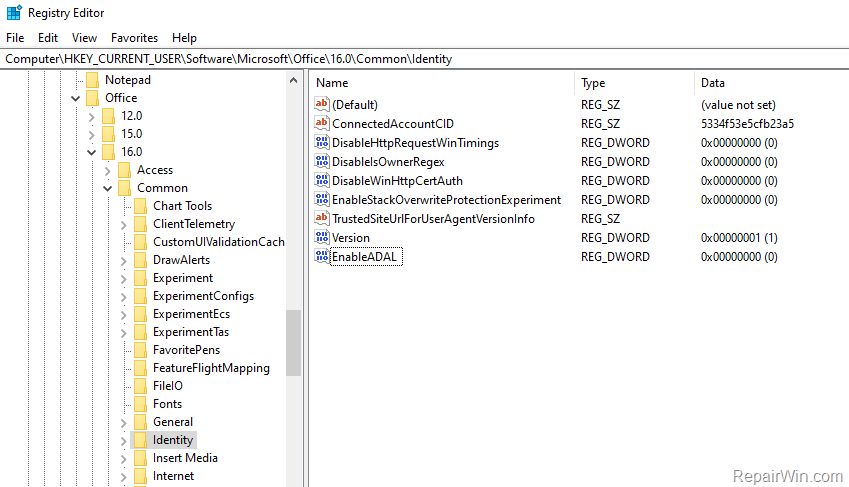
3. Double click at the EnableADAL value, set the Value Data to 0 and click OK.

4. Close the Registry Editor and restart the PC.
5. Open any Office application and try again to Sign-in again.
That’s all folks! Did it work for you?
Please leave a comment in the comment section below or even better: like and share this blog post in the social networks to help spread the word about this solution.
Frequently Asked Questions
What should I do if I can't sign-in to Microsoft Office apps on Windows 10 because the credentials window doesn't appear?
Try removing the stored Microsoft credentials from the Credential Manager in the Control Panel. Close all Office programs, open Credential Manager, and remove any credentials for Microsoft Office. Then, attempt to sign-in again.
How can I disable Modern Authentication in Office to resolve sign-in issues?
Open the Registry Editor and navigate to HKEY_CURRENT_USER\Software\Microsoft\Office\16.0\Common\Identity. If a value named EnableADAL isn't there, right-click an empty space, select New > DWORD (32-bit) Value, name it EnableADAL, and set its value data to 0. Then, restart your PC and try signing in again.
What Office versions are affected by the sign-in issue where the credentials window does not appear?
This issue can appear in Microsoft Office 2013, Office 2016, and potentially Office 2019.
What are the potential solutions to fix the sign-in problem with Microsoft Office desktop applications?
Two potential solutions are removing stored Office credentials via the Credential Manager and disabling Modern Authentication by editing the registry.




February 3, 2021 @ 9:43 am
Unfortunately it didnt work for me. :( Password window once appeared after first method but it didnt let me in.
May 6, 2021 @ 6:05 am
try renaming HKEY_CURRENT_USER\Software\Microsoft\Office\16.0\Common\Identity to .OLD
July 27, 2021 @ 2:18 pm
Worked perfecty for outlook
August 12, 2021 @ 11:48 am
When you cannot login on Office/Outlook connection problems in Windows 10 try:
Add-AppxPackage -Register "C:\Windows\SystemApps\Microsoft.AAD.BrokerPlugin_cw5n1h2txyewy\Appxmanifest.xml" -DisableDevelopmentMode
December 15, 2021 @ 11:04 pm
Did not work for me. What DID work was this:
Change this step:
3. Double click at the EnableADAL value, set the Value Data to 0 and click OK.
to this:
3. Double click at the EnableADAL value, set the Value Data to 1 and click OK.
September 5, 2022 @ 2:29 pm
THanks a LOT, this solved it for me too, changed the ADAL to 1, and it worked…. :-)