
How to FIX: Chrome Remote Desktop Connection Issues (A Comprehensive Guide)
If you are experiencing difficulties connecting to Chrome Remote Desktop, this guide provides detailed instructions to resolve the issue effectively.
Chrome Remote Desktop is a free tool from Google that facilitates secure remote access and control of a computer from another device. However, some users encounter issues connecting to their devices using Chrome Remote Desktop, often receiving the error message: "Hmmm… This is taking longer than expected. You may have a browser extension installed that is blocking automatic playing of videos. Try disabling all extensions or try connecting in incognito/private browser mode."

How to FIX: Chrome Remote Desktop Not Working.
Step 1. Check Internet Connection.
Ensure both the computer you are connecting from and the target computer have a stable and active internet connection. Network instability or disruptions can prevent Chrome Remote Desktop from establishing a successful connection.
Step 2. Sign-in with the Same Google Account.
Verify that you are signed in with the same Google account on both computers. Chrome Remote Desktop uses Google account credentials for authentication, and mismatched accounts can lead to connection failures.
Step 3. Remove VPN Extensions from Chrome.
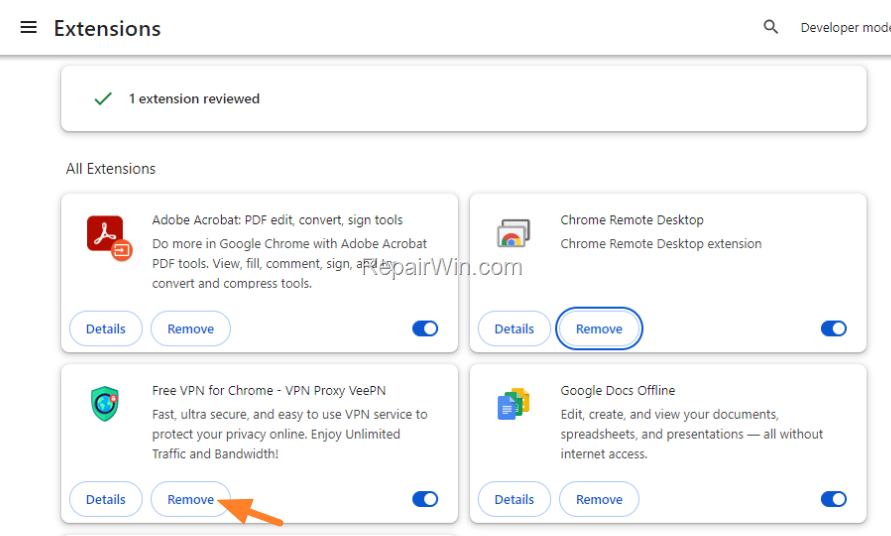
If you have installed a VPN plugin or extension in Google Chrome, remove it from both the remote and client PCs. VPNs can interfere with network traffic, potentially disrupting Chrome Remote Desktop connections. Additionally, remove any other extensions that might affect your internet connection.
To remove Chrome Extensions:
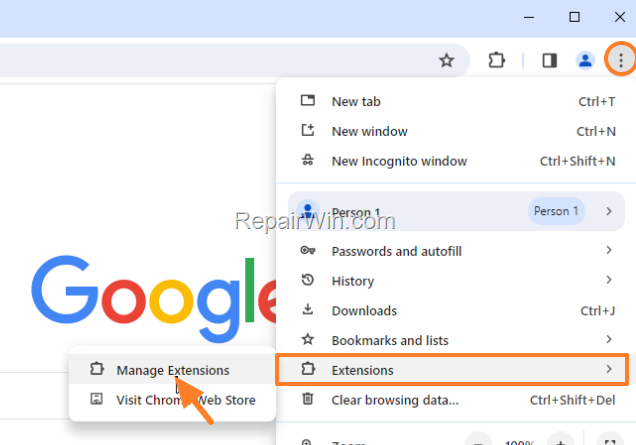
- From the three dots menu in the top right corner of your browser, navigate to Extensions > Manage Extensions.
- Find the extension you want to remove from Chrome and click the Remove button.
Step 4. Disable IPv6 Internet Protocol.
On the remote computer (the one you're trying to connect to), disable IPv6 to prevent potential conflicts with Chrome Remote Desktop's network communication. IPv6 can sometimes cause issues with certain network configurations.
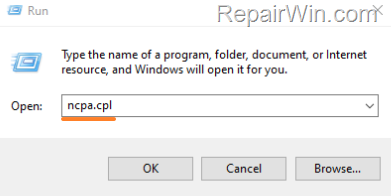
- Press Windows
 + R keys to open the run command box.
 - Type
ncpa.cpland press Enter to open Network Connections.

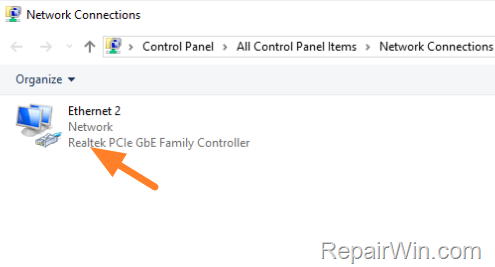
- Double click on your active Network Adapter.
- Click Properties.
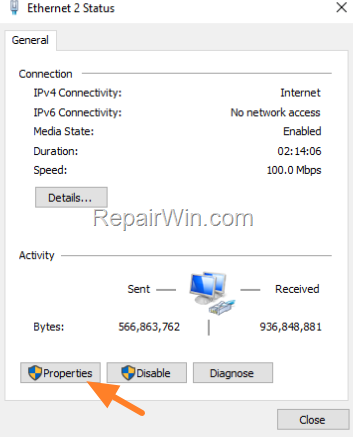
- Uncheck the Internet Protocol Version 6 (TCPIP/IPv6) checkbox and click OK.
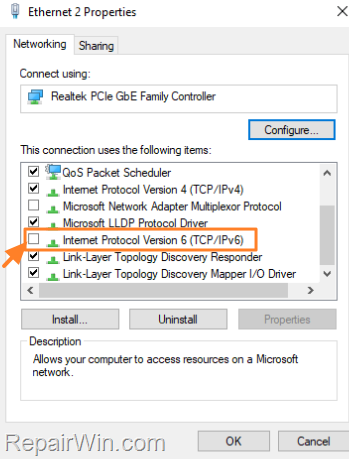
- Try to connect with Chrome Remote Desktop on the remote computer.
Step 5. Allow Chrome Remote Desktop Traffic in Firewall
If you are using a third-party antivirus or firewall program, temporarily disable it and check if the connection issue resolves. If it does, you need to allow outbound traffic on the following ports in your antivirus or firewall settings:
- 5222 TCP
- 5223 TCP
- 5269 TCP
- 5280 TCP
- 5281 TCP
- 5298 TCP/UDP
- 3478 TCP/UDP
Step 6. Uninstall and Re-Install Chrome Remote Desktop.
If the problem persists after trying the above steps, uninstall and reinstall Chrome Remote Desktop on both PCs. This process ensures that any corrupted files or settings are reset to their default state.
- Type "control panel" in the Search bar and open the Control Panel app.
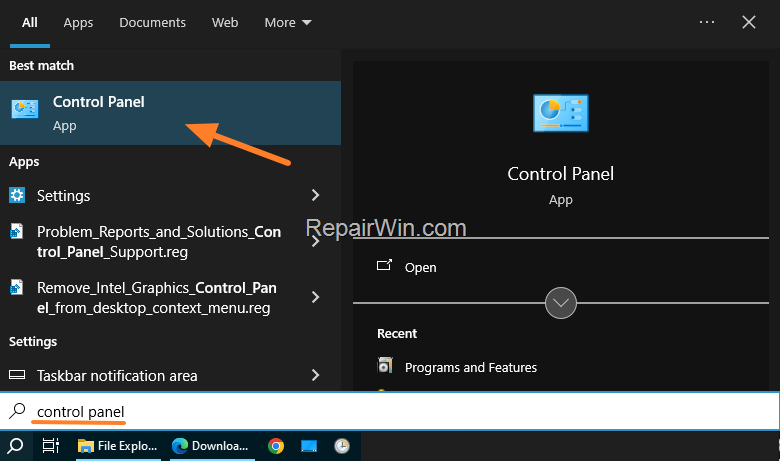
- Click Uninstall a program.
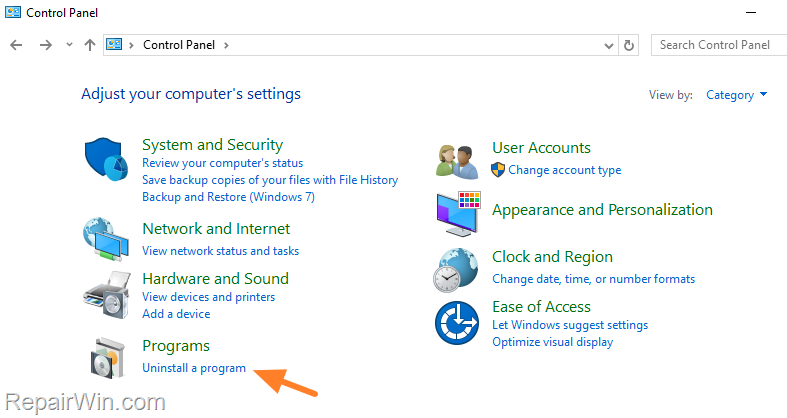
- Select the Chrome Remote Desktop Host and click Uninstall.
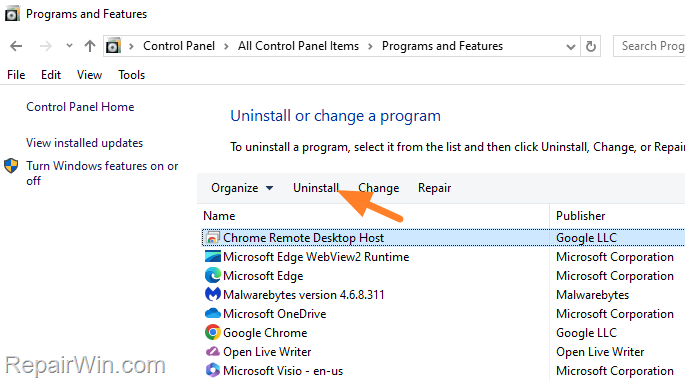
- After uninstallation, open Chrome, navigate to Extensions, and click Remove on the Chrome Remote Desktop extension.
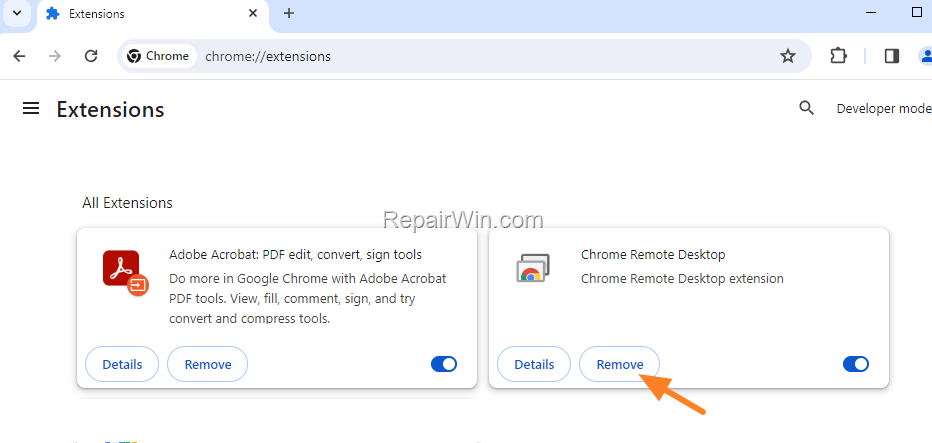
5. After completing these steps, go to https://remotedesktop.google.com/access to download and install the Chrome Remote Desktop Host on the computer you want to access remotely. From the client computer, visit https://remotedesktop.google.com/support to download and install the Chrome Remote Desktop extension in your Chrome browser.
Additional Solutions
Step 7. Clear DNS Cache
Clearing the DNS cache can resolve network-related issues that might be affecting Chrome Remote Desktop. Open a Command Prompt as an administrator and execute the following command:
ipconfig /flushdns
This command will clear the DNS resolver cache, potentially resolving connectivity issues caused by outdated or incorrect DNS entries.
Step 8. Update Network Drivers
Outdated network drivers can cause connectivity issues. Ensure your network adapter drivers are up to date by visiting your device manufacturer's official website or using Windows Device Manager:
- Press Windows + X and select Device Manager.
- Expand the Network adapters section.
- Right-click your network adapter and select Update driver.
- Select Search automatically for updated driver software.
Summary
In summary, resolving Chrome Remote Desktop connection issues involves ensuring stable internet connections, verifying Google account sign-ins, removing interfering extensions, disabling IPv6, configuring firewall settings, and reinstalling the application if necessary. Additional steps include clearing the DNS cache and updating network drivers. By following these comprehensive solutions, users can effectively troubleshoot and resolve connectivity issues with Chrome Remote Desktop.
We hope these solutions help you restore your Chrome Remote Desktop functionality. Please share your experience in the comments section below or share this guide to assist others facing similar issues.
Frequently Asked Questions
What should I check first if Chrome Remote Desktop isn't connecting?
First, ensure that both the computer you are trying to connect from and the target computer have a stable and active internet connection. An unstable network can prevent a successful connection.
Why is it important to sign in with the same Google account on both devices?
Chrome Remote Desktop relies on Google accounts for authentication. Signing in with the same Google account on both computers is crucial for the remote connection to work properly.
How can browser extensions affect Chrome Remote Desktop?
Certain extensions, especially VPN plugins, can disrupt the connection. It is recommended to remove such extensions from Chrome on both the remote and client devices to ensure a smooth connection.
What should I do if disabling extensions isn't helping?
If disabling extensions doesn't resolve the issue, consider checking other factors such as your firewall settings. You may need to allow specific outgoing ports in your AV/Firewall settings and ensure IPv6 is disabled on the remote computer. As a last resort, uninstall and reinstall the Chrome Remote Desktop application.



