
FIX: Outlook emails or folders are missing. (Solved)
If you are using Microsoft Outlook and one or more Outlook folders are missing, continue reading below to find out how you can fix the problem to restore the lost messages or folders.
There could be several reasons why an Outlook folder may be missing and some of them are listed below:
- Folder Deleted or Moved: Users sometimes accidentally delete or move folders. So, before you continue troubleshooting the problem with the following methods of this article, check the Deleted Items folder to check if the missing Outlook folder has been deleted and then check all other Outlook folders to see if the missing folder is there.
- Sync Issues: If you are using Outlook with an Exchange or IMAP account, there might be synchronization issues that cause certain Outlook folders to disappear.
- Data file corruption: Outlook stores all its data in a PST or OST file and if this file is corrupted this can cause the disappearance of folders or emails in Outlook.
How to FIX: Microsoft Outlook folders or messages have been lost (Outlook 2019, 2016, 2013, etc.)
Method 1. Subscribe the Missing IMAP Folder.
* Note: This method applies only for IMAP Accounts.
If you are using an IMAP account with Outlook, first ensure that you have subscribed to the missing folder. This ensures that Outlook is properly synchronizing all folders from the server. To do that:
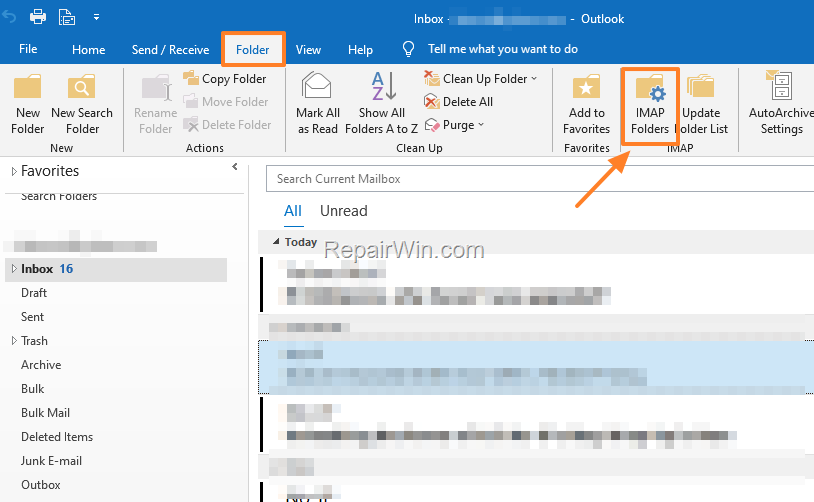
- Choose any other Outlook folder (e.g. the "Inbox"), then select the Folder tab in the Outlook menu and click IMAP Folders.
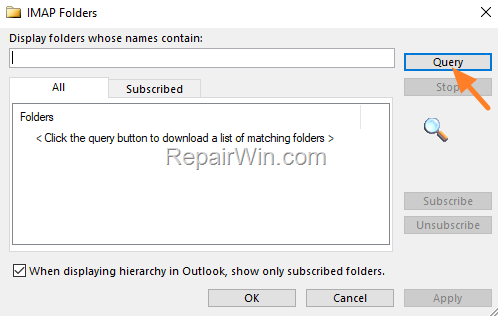
2. At the 'IMAP Folders' window, click the Query button to view all the IMAP folders on the mail server. This action retrieves the list of all folders available on the server, allowing you to manage your subscriptions effectively.
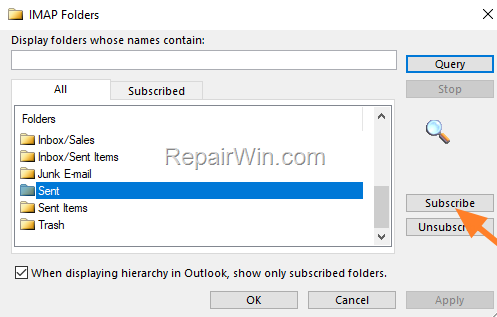
3. Find the missing folder in the list and click Subscribe. Then click Apply > OK. This ensures that the folder is included in the synchronization process.
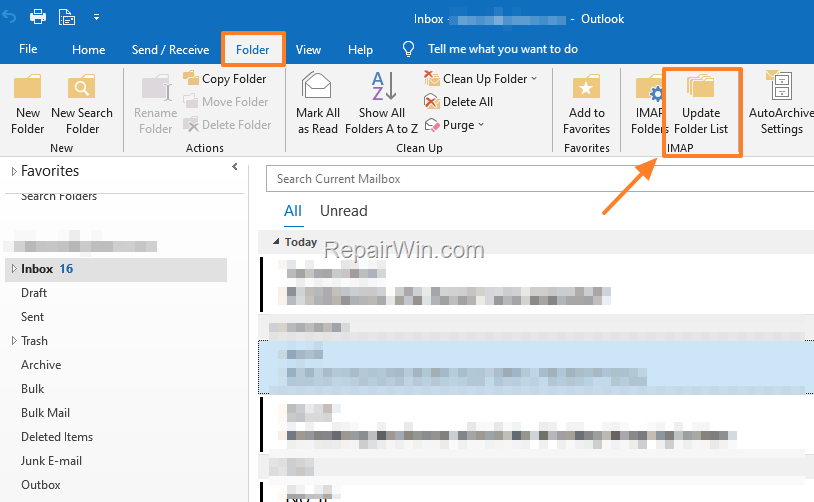
4. Now at the Folder tab click Update Folder List IMAP. This action refreshes the folder list in Outlook, ensuring all subscribed folders are displayed.
5. Now check if the missing folder has appeared in Outlook.
Method 2. FIX "Outlook Folder is Missing" by Resetting Outlook Navigation Pane.
The Outlook navigation pane displays a list of all email folders. However, in some cases, the navigation pane becomes corrupted, resulting in an Outlook folder not being displayed.
To reset the navigation pane to its default settings and force Outlook to show all folders, do the following:
- Close Outlook.
- Press Windows
 + R keys to open the run command box.
 - Type the following command and press Enter (OK).

outlook.exe /resetnavpane
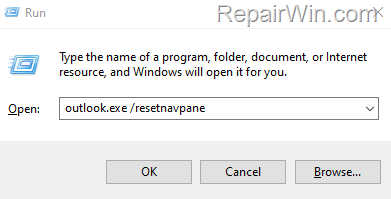
4. Now see if the missing folder has appeared.
Method 3. Restore Missing Folder or Emails in Outlook by Repairing Outlook Data File.
The next method to fix the "Outlook folders or emails missing" issue is to repair the Outlook Data File. (PST or OST). This process involves using the Inbox Repair Tool to scan and repair errors in the Outlook data files, which can restore missing folders or emails.
Step 1. Locate the Outlook Data File on Disk.
- Close Outlook.
- Navigate to Control Panel and open the Mail applet. (If you don't see the "Mail" item, change the View By: to Small Icons)
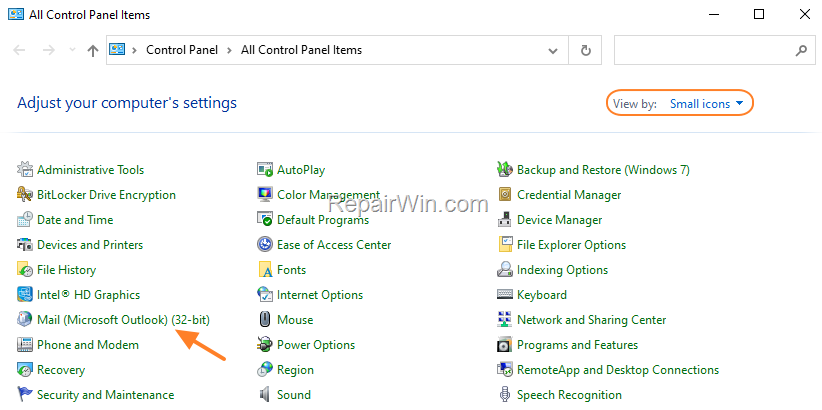
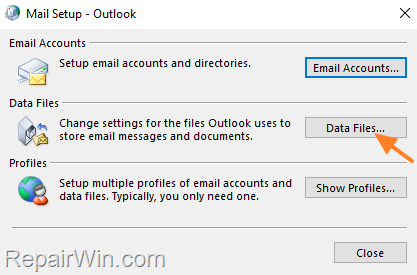
- At 'Mail Setup – Outlook' window, click the Data Files button.
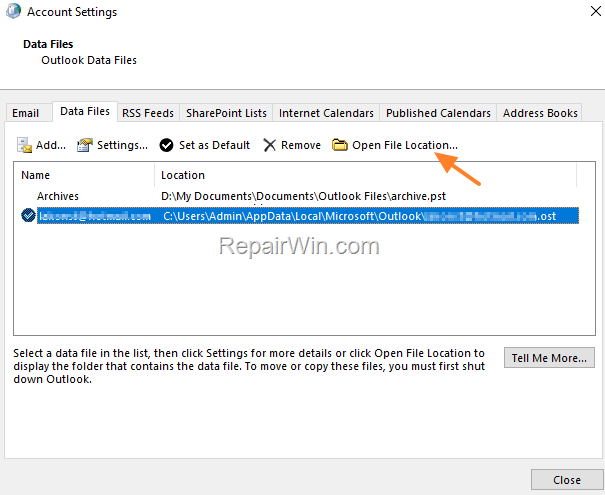
- Select your email account and then note the path where the Outlook Data File (.PST or .OST) is stored on your computer, or click Open file location to navigate to that location.
Step 2. Repair Outlook Data File.
1. Open a new Explorer window and locate the "SCANPST.EXE" application at the locations mentioned below, according to your Windows architecture (32-bit or 64-bit) and Outlook (Office) version. This tool is specifically designed to diagnose and repair errors in the Outlook data files.
Office 2019 & 2016 & Office 365:
Windows 32-bit >C:\Program Files\Microsoft Office\Office16
Windows 64-bit & Office 32-bit >C:\Program Files (x86)\Microsoft Office\Office16
Windows 64-bit & Office 64-bit >C:\Program Files\Microsoft Office\Office16
Click-to-Run Office 32-bit >C:\Program Files (x86)\Microsoft Office\root\Office16
Click-to-Run Office 64-bit >C:\Program Files\Microsoft Office 16\root\office16Office 2013:
Windows 32-bit >C:\Program Files\Microsoft Office\Office15
Windows 64-bit & Office 32-bit >C:\Program Files (x86)\Microsoft Office\Office15
Windows 64-bit & Office 64-bit >C:\Program Files\Microsoft Office\Office15
Click-to-Run Office 32-bit >C:\Program Files (x86)\Microsoft Office\root\Office15
Click-to-Run Office 64-bit >C:\Program Files\Microsoft Office 15\root\office15Office 2010:
Windows 32-bit >C:\Program Files\Microsoft Office\Office14
Windows 64-bit & Office 32-bit >C:\Program Files (x86)\Microsoft Office\Office14
Windows 64-bit & Office 64-bit >C:\Program Files\Microsoft Office\Office14Office 2007:
Windows 32-bit >C:\Program Files\Microsoft Office\Office12
Windows 64-bit >C:\Program Files (x86)\Microsoft Office\Office12Outlook 2003
32-bit Windows >C:\Program Files\Common Files\System\MSMAPI\<locale ID>
64-bit Windows >C:\Program Files (x86)\Common Files\System\MSMAPI\<locale ID>Outlook 2002/XP
C:\Program Files\Common Files\System\MAPI\<locale ID>\scanpst.exeOutlook 2000
C:\Program Files\Common Files\System\MAPI\<locale ID>\NT\scanpst.exe
2. Double-click to open the SCANPST.EXE

3. At Microsoft Outlook Inbox Repair tool, click Browse and select the Outlook Data File (.PST or .OST) from the location you noted in step-1 above.

4. After selecting the Data file, press Start to begin the repair process. This process will scan the file for errors and attempt to fix any issues found.
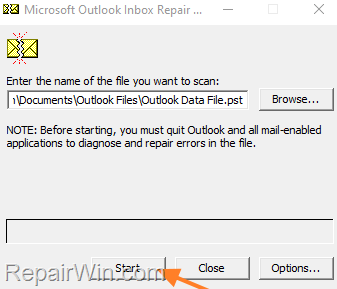
5. When prompted to make a backup, click Repair. *
* Note: If you don't have enough storage space to store the backup of the data file, uncheck the option Make backup of scanned file before repairing.

6. Wait until the Outlook data archive repair is complete, and then click OK to close the Inbox Repair Tool utility.

7. Open Outlook and check if the problem is solved.
Method 4. Recreate Outlook OST file.
* Note: This method applies only for Exchange & IMAP Accounts.
The next method to fix the "Outlook Folder Missing" issue is to force Outlook to re-download and save all your emails from the Exchange/IMAP server to a new OST file. This ensures that any synchronization issues are resolved by creating a fresh data file.
- Close Outlook.
- Go to Control Panel, open the Mail applet, and choose Data files -> Open file location. (see Steps 1 on Method-3 above).
- Right-click and Rename the corrupted OST file by adding the extension ".OLD" at the end of its name. This action effectively removes the old data file from Outlook's consideration, prompting it to create a new one.
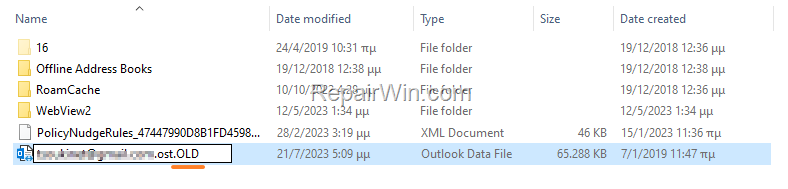
4. When you are done, open Outlook and let it download and synchronize all your folders and emails from the mail server. This process will take some time, depending on the size of your mailbox and the speed of your internet connection.
Final Note: If after applying the above instructions, the Outlook folder is still missing, I suggest you create a new Outlook profile and re-add your email account in the new profile.
Additional Method: Check Outlook Rules
Sometimes, Outlook rules can inadvertently move emails to different folders, causing them to appear missing. To verify and modify your rules:
- Open Outlook and go to the File tab.
- Select Manage Rules & Alerts.
- Review each rule to ensure none are misconfigured or moving emails unexpectedly.
- Disable or modify any rules that might be causing issues.
Summary
In summary, missing emails or folders in Outlook can often be resolved by ensuring IMAP folders are subscribed, resetting the navigation pane, repairing the Outlook data file, or recreating the OST file. Additionally, checking Outlook rules can prevent emails from being inadvertently moved. If these solutions do not work, creating a new Outlook profile may be necessary.
That’s all folks! Which solution/method worked for you? Please leave a comment in the comment section below or even better: like and share this blog post in the social networks to help spread the word about this solution.
Frequently Asked Questions
Why are my Outlook folders or emails missing?
There could be several reasons for missing Outlook folders or emails, including accidental deletion or movement, synchronization issues with Exchange or IMAP accounts, or data file corruption.
How can I recover a missing IMAP folder in Outlook?
To recover a missing IMAP folder in Outlook, ensure that you have subscribed to the missing folder. Go to any Outlook folder, select the Folder tab, click IMAP Folders, use the Query button to view all IMAP folders, find the missing one, click Subscribe, and then update the folder list.
What should I do if the Outlook navigation pane is corrupted?
If the Outlook navigation pane is corrupted, reset it to force Outlook to display all folders. Close Outlook, open the run command box with Windows + R, type 'outlook.exe /resetnavpane', and press Enter.
How do I repair a corrupted Outlook data file to restore missing messages?
To repair a corrupted Outlook data file (PST or OST), locate the Outlook Data File through the Control Panel's Mail applet, find the SCANPST.EXE application based on your Windows and Office version, and use it to scan and repair the data file.



