
FIX: Mac OS Remote Desktop Connection cannot verify the identity of the computer that you want to connect to. (Solved)
In this tutorial you 'll find instructions to resolve the problem "Remote Desktop connection cannot verify the identity of the computer that you want to connect to. Try reconnecting to the Windows-based computer, or contact our administrator.", when you try to connect through RDP from a Mac OS based computer to a Windows RDSH Server 2016.
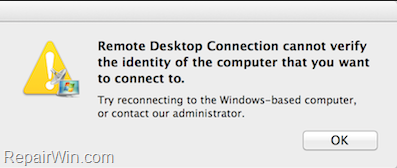
How to FIX: MacOSX Remote Desktop connection cannot verify the identity of the computer that you want to connect to.
Method 1. Download the latest RDP Client from MAC App Store.
1. Download and install and latest Microsoft Remote Desktop client on your MAC. (If you 're using an IOS device then download the RDP client from here.)
2. After installation, try to connect again to the Windows RDP Server. If the problem persists, then continue to method-2 below.
Method 2. Modify Group Policy Settings on the Windows RDSH Server.
On the Remote Desktop Session Host Server (RDSH) 2016, modify the group policy as follows:
1. Press simultaneously the Windows  + R keys to open the run command box.
2. Type gpedit.msc & Press Enter.
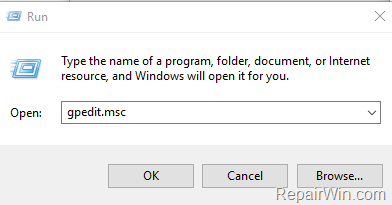
3. At the left pane navigate to:
- Computer Configuration > Administrative Templates > Windows Components > Remote Desktop Services > Remote Desktop Session Host > Security
4. At the right pane open the Require use of specific security layer for remote (RDP) connections setting.

4a. Check Enabled, set the 'Security Layer' to RDP and click OK.

5. Now, open the Require user authentication for remote connections by using Network Level Authentication setting, set it to Disabled and click OK.
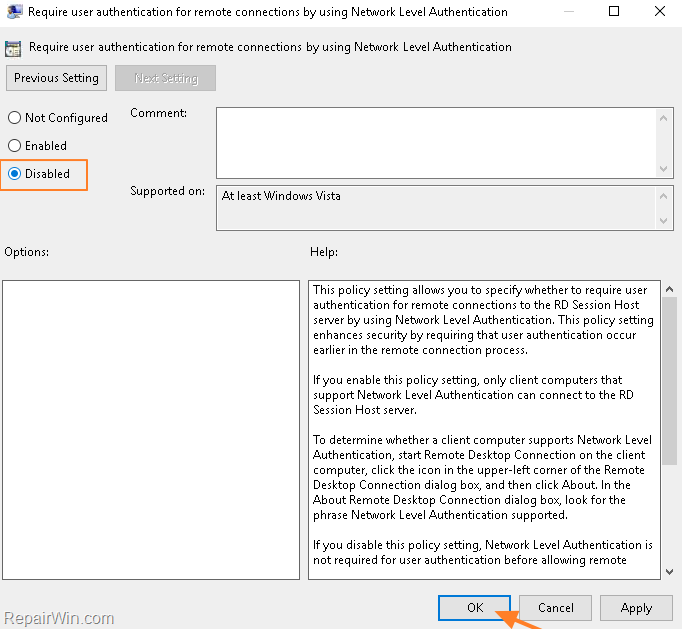
6. Close the Group policy Editor.
7. Restart the computer to apply changes or open an elevated command prompt and give the following command:
- gpupdate /force
That's it! Which method worked for you?
Let me know if this guide has helped you by leaving your comment about your experience. Please like and share this guide to help others.
Frequently Asked Questions
Why am I receiving an identity verification error when using Remote Desktop from MacOS to Windows RDSH Server 2016?
The error occurs because the Remote Desktop connection cannot verify the identity of the computer you want to connect to, potentially due to outdated software or security settings.
What is the first step to resolve the RDP identity verification issue on Mac OS?
Download and install the latest Microsoft Remote Desktop client from the Mac App Store. After installation, attempt to reconnect to the Windows RDP Server.
How can I modify Group Policy settings to fix the RDP connection issue on Windows RDSH Server 2016?
Access the Group Policy Editor on the RDSH Server by pressing Windows + R keys, typing gpedit.msc, and navigating to: Computer Configuration > Administrative Templates > Windows Components > Remote Desktop Services > Remote Desktop Session Host > Security. Enable 'Require use of specific security layer for remote (RDP) connections', set the 'Security Layer' to RDP, disable 'Require user authentication for remote connections by using Network Level Authentication', and apply changes.




March 11, 2020 @ 10:22 am
Method 2 worked for me, many thanks.
April 29, 2020 @ 7:57 am
Method 2 fixed my problem like a charm. It is so good to have remote desktop access from my Mac to my PC again. Thank so much for this fix.
September 15, 2020 @ 12:55 am
Brilliant. Thanks so much!