
How to FIX 'Script cannot be loaded because running scripts is disabled on this system' on Windows 10/11
In Windows 10 and 11, encountering the error message "script cannot be loaded because running scripts is disabled on this system" is a common issue when attempting to execute PowerShell scripts. This error arises due to the operating system's security feature that restricts script execution to prevent potential malicious activity. However, if you are confident that the script you intend to run is safe, you can modify the execution policy to allow it.
The PowerShell execution policy is a crucial security measure that controls the conditions under which PowerShell loads configuration files and runs scripts. Understanding the different execution policies is essential before making any changes:
- Restricted: This is the default policy for Windows client systems, which prohibits the execution of all scripts.
- RemoteSigned: Permits scripts created on the local machine to run, but requires that scripts downloaded from the internet be signed by a trusted publisher.
- AllSigned: Only scripts signed by a trusted publisher are allowed to run, whether they are local or downloaded.
- Unrestricted: Allows all scripts to run, regardless of their origin or signature, but this increases security risks.
- Default: Resets to the default execution policy, which is "Restricted" for Windows clients and "RemoteSigned" for Windows servers.
Source: Microsoft: About Execution Policies.
How to Enable Scripts Execution on Windows 10/11
On a Windows computer, you can modify the default execution policy for a specific session or script, for all scripts, for the current user, or for all users on the computer using Windows Settings, PowerShell, or Group Policy.
- Allow Scripts to Run in Windows 11 Settings.
- Allow Scripts Execution in PowerShell.
- Permit Scripts to Run in Group Policy.
- Check Current Execution Policy in PowerShell.
- Reset Execution Policy to Default from PowerShell.
Method 1. FIX "Running Scripts is Disabled" in Windows 11 Settings
Note: This method applies only to Windows 11. For Windows 10, proceed to the next methods.
1. Navigate to Start > Settings and open Privacy and security.
2. In Privacy and Security settings, click For developers.
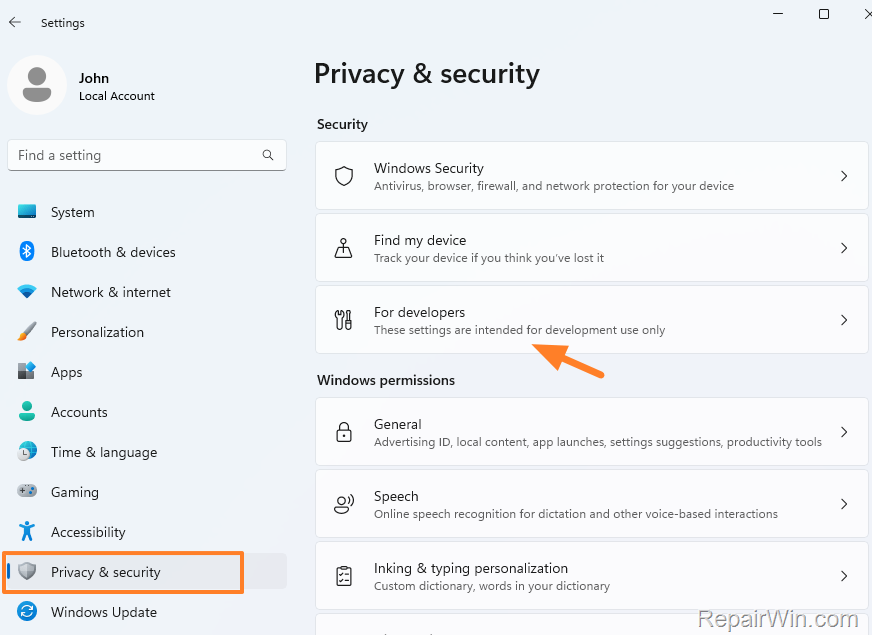
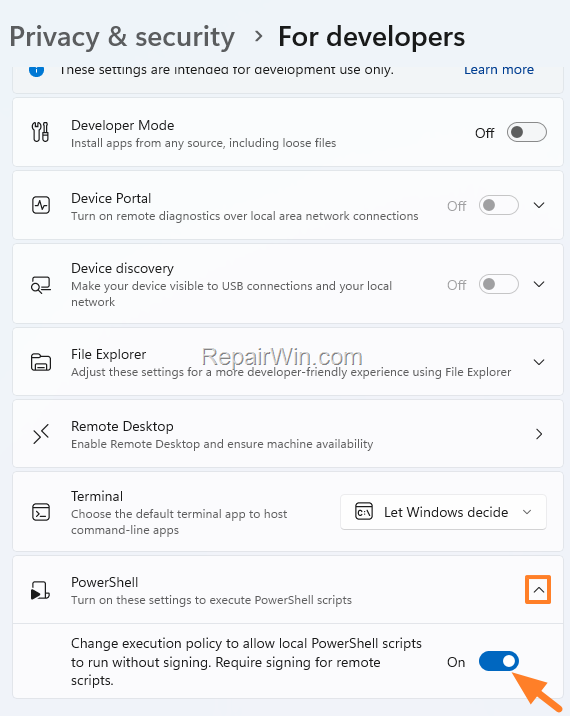
3. Scroll down and expand the PowerShell options.
4. Enable Change the execution policy to allow local PowerShell scripts to run without signing. Require signing for remote scripts.
Method 2. FIX: Running Scripts is Disabled in PowerShell (Windows 10/11)
To modify the execution policy through PowerShell, follow these steps:
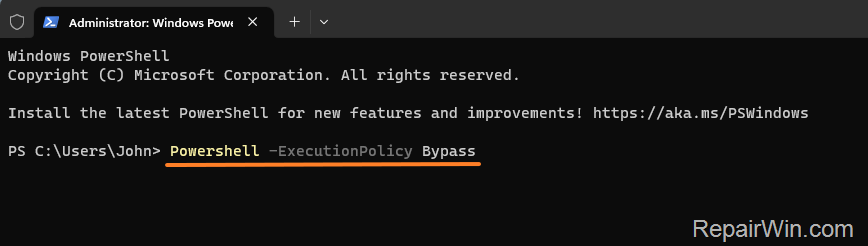
1. Bypass "Running scripts is disabled" error for the current session.
If you wish to bypass the default script execution policy for a specific session only, execute the following command and then run your script:
Powershell -ExecutionPolicy Bypass
2. Bypass "Running scripts is disabled" error for the current script:
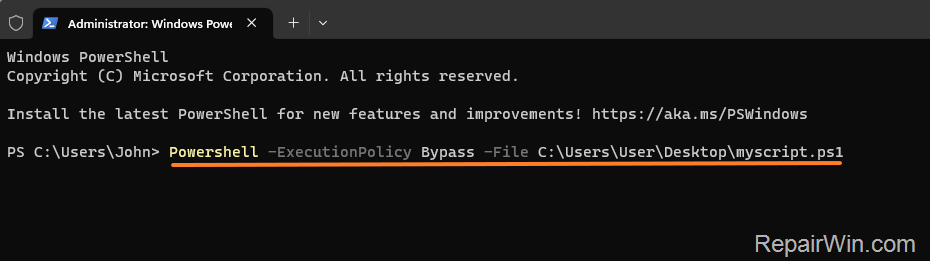
To bypass the default script execution policy for a specific script, use this command:
Powershell -ExecutionPolicy Bypass -File script.ps1
3. Change the Execution Policy for All Users.
To allow script execution for all users on the PC, open PowerShell or Terminal as Admin and use one of the following commands depending on your needs:
A. To permit locally-created scripts to run (even unsigned), or scripts downloaded from the Internet but signed by a trusted publisher, execute one of these commands:
Set-ExecutionPolicy -ExecutionPolicy RemoteSigned

Set-ExecutionPolicy -ExecutionPolicy RemoteSigned -Scope LocalMachine

B. To allow all scripts to run, including unsigned scripts downloaded from the Internet, use the following command:
Set-ExecutionPolicy -ExecutionPolicy Unrestricted
Important: This command increases security risks as it allows all scripts to run, including potentially malicious ones.

4. Set Execution Policy for the Current User.
A. To allow locally generated scripts (even unsigned) or downloaded signed scripts to run only for the currently logged-in user, execute this command in PowerShell (Admin):
Set-ExecutionPolicy -ExecutionPolicy RemoteSigned -Scope CurrentUser

B. To allow all scripts to run (including unsigned scripts downloaded from the Internet) for the currently logged-in user, use this command:
Set-ExecutionPolicy -ExecutionPolicy Unrestricted -Scope CurrentUser
Important: This command increases security risks as it allows all scripts to run, including potentially malicious ones.

Method 3. Allow Scripts to Run in Group Policy
If you're using Windows 10/11 Pro, you can change the Execution Policy in Group Policy as follows:
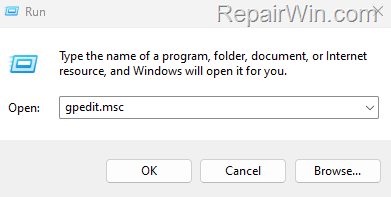
1. Press Windows  + R keys to open the run command box.
2. Type gpedit.msc and press Enter to open the Group Policy Editor.
3. In Policy Editor, navigate to the following path from the left:
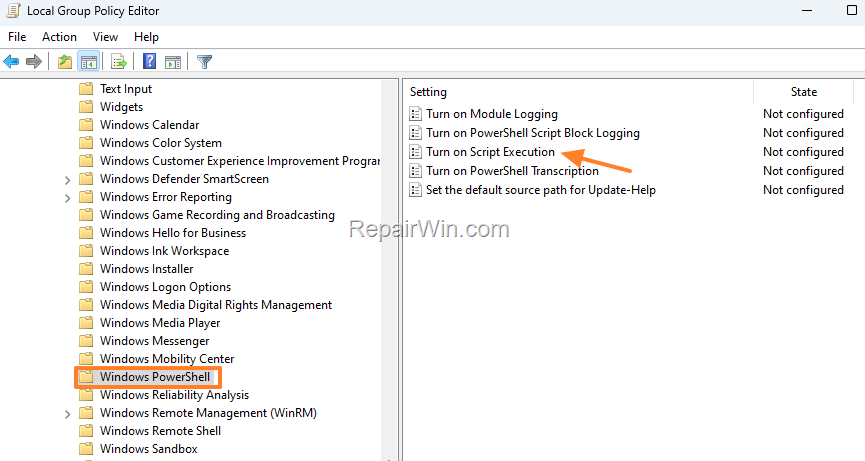
Computer Configuration > Administrative Templates > Windows Components > Windows PowerShell
4. In the right pane, double-click to open the Turn on Script Execution policy.
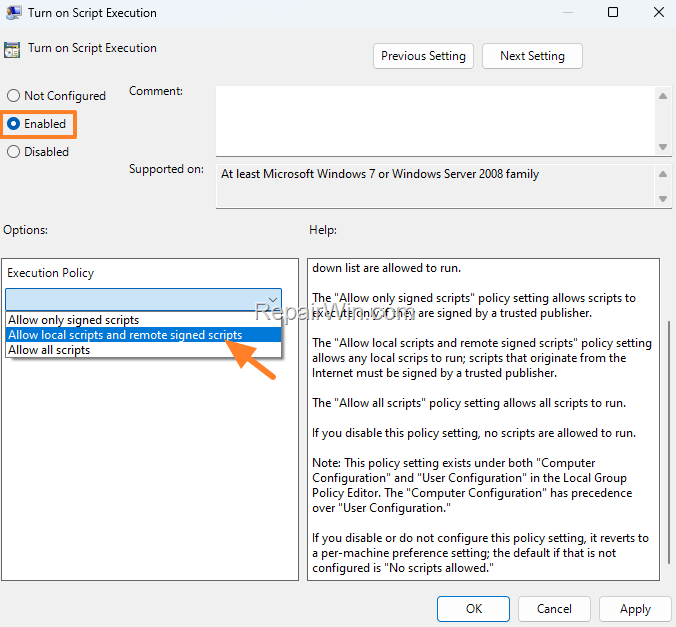
5. Set the Policy to Enabled and from the 'Execution Policy' drop-down menu, select Allow local scripts and remote signed scripts. Then click Apply & OK to save your settings.
Note: To disallow scripts from running, set this policy back to Not Configured.
How to Check the Current Execution Policy
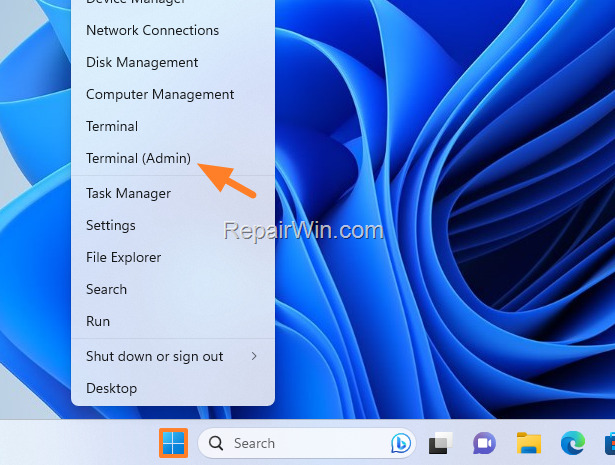
1. Open PowerShell or Windows Terminal as Administrator:
2. To view the current execution policy on a Windows 10/11 machine, use this command:
-
-
Get-ExecutionPolicy
-
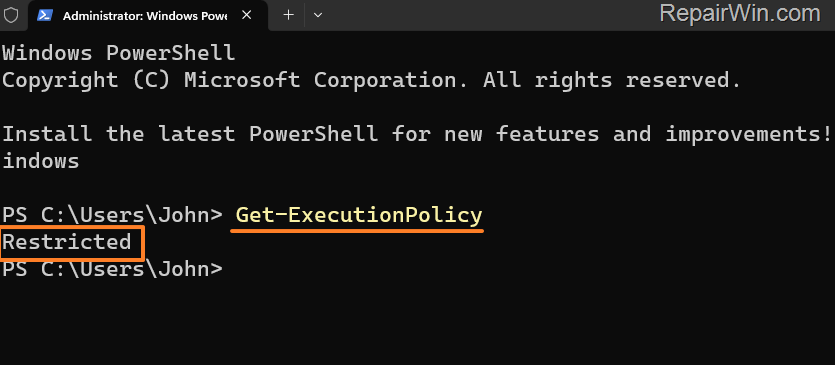
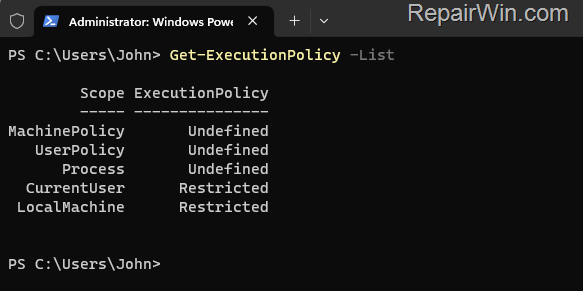
3. To get all of the execution policies that affect the current session, issue this command:
-
-
Get-ExecutionPolicy -List
-
How to Set the Default Execution Policy on Windows 10/11
If you wish to reset the execution policy back to its default setting after running your scripts, follow these steps:
1. Open PowerShell or Windows Terminal as Administrator and execute the following command:
-
-
Set-ExecutionPolicy Default
-

Additional Method: Use the Registry Editor to Modify Execution Policy
For advanced users, modifying the Windows Registry can be an alternative method to change the execution policy. This method should be used with caution as incorrect changes can affect system stability.
- Press Windows + R, type
regedit, and press Enter to open the Registry Editor. - Navigate to the following path:
HKEY_LOCAL_MACHINE\SOFTWARE\Microsoft\PowerShell\1\ShellIds\Microsoft.PowerShell
- Find the
ExecutionPolicyentry. If it doesn't exist, create a newString Valuewith this name. - Set the value to one of the following according to your preference:
Restricted,RemoteSigned,AllSigned, orUnrestricted. - Close the Registry Editor and restart your computer to apply the changes.
Summary
In summary, Windows 10/11's security features can prevent scripts from running to protect your system. However, by adjusting the execution policy through Windows Settings, PowerShell, Group Policy, or the Registry Editor, you can enable script execution for trusted scripts. Always exercise caution when changing execution policies, as allowing all scripts to run can expose your system to security risks.
That’s all folks! Please leave a comment in the comment section below or even better: like and share this blog post on social networks to help spread the word about this solution.
Frequently Asked Questions
What does the error message 'script cannot be loaded because running scripts is disabled on this system' mean in Windows 10/11?
This error occurs when you try to run a PowerShell script, but the operating system's default execution policy restricts script execution for security reasons.
What are the different PowerShell execution policies available?
The PowerShell execution policies include: Restricted (default for Windows clients, prevents all scripts), RemoteSigned (allows locally created scripts), AllSigned (allows only signed scripts), Unrestricted (allows all scripts), and Default (sets to Restricted or RemoteSigned based on the system).
How can I allow scripts to run on Windows 11 using the settings?
Go to Start > Settings > Privacy and security. Click on 'For developers' and scroll to expand PowerShell options. Turn on 'Change the execution policy to allow local PowerShell scripts to run without signing' to allow script execution.
How can I change the PowerShell execution policy for all users on a Windows PC?
To allow script execution for all users, open PowerShell or Terminal as Admin and execute commands like 'Set-ExecutionPolicy -ExecutionPolicy RemoteSigned' for locally-created scripts or 'Set-ExecutionPolicy -ExecutionPolicy Unrestricted' for all scripts. Be cautious, as 'Unrestricted' increases security risks.



