
FIX: Chrome High CPU Usage problem (Solved)
If your system works with high CPU usage when you open Chrome, then probably an installed Chrome extension or a malware program is the culprit. To easy fix the high CPU usage issues on Google Chrome follow the steps below.
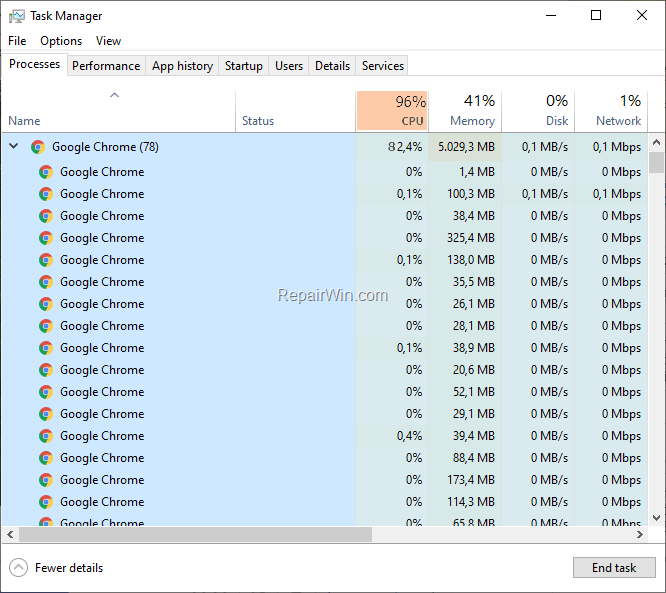
How to FIX the High CPU Usage in Google Chrome.
Step 1. Scan your computer for Malware & Viruses.
The first step before troubleshooting the error "ERR_CONNECTION_CLOSED" in Chrome, is to ensure that your system is virus/malware free. For that task follow the instructions in this guide: How To Scan Your Computer for Viruses and other Malicious Programs.
Step 2. Disable Unwanted Chrome Extensions.
1. From Chrome's menu  , go to More Tools -> Extensions
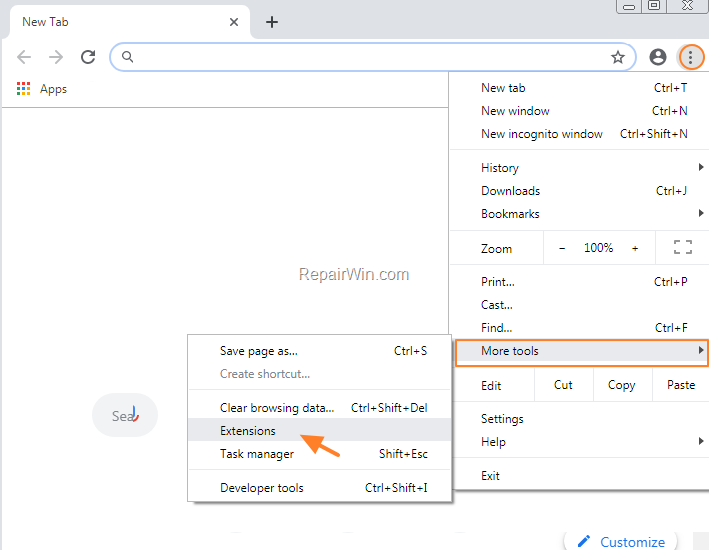
2. Remove (or disable) any extension that you don't need or you don't recognize.
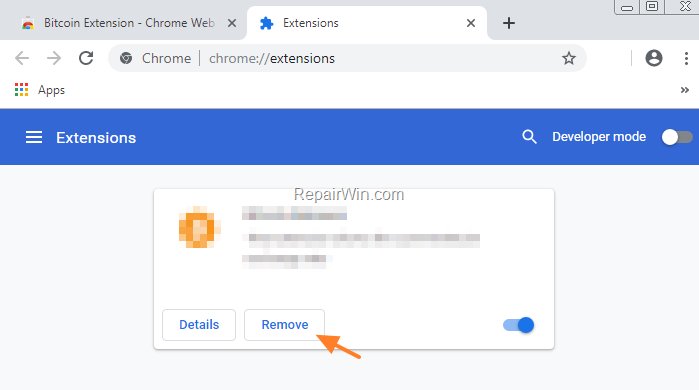
3. Restart Google Chrome and see if the high CPU usage problem, when running Chrome has resolved. If the problem persists, then disable or – better – remove all the installed extensions and restart Chrome again.
Step 3. Create a new Chrome Profile.
1. Close Chrome.
2. Navigate to the below location (according your OS).
A. If you use Windows 10, 8, 7 or Vista navigate to:
- C:\Users\%Username%\AppData\Local\Google\Chrome\
* e.g. If your username is “User1” then the Chrome profile folder "User Data", is stored at "C:\Users\User1\AppData\Local\Google\Chrome\User Data"
B. If you use Windows XP navigate to:
- C:\Documents and Settings\\%Username%\Local Settings\Application Data\Google\Chrome\
* e.g. ‘If your username is “User1” then the Chrome profile folder "User Data" is stored at "C:\Documents and Settings\User1\Local Settings\Application Data\Google\Chrome\User Data"
3. Rename the "User Data" folder to "User Data.OLD".

4. Open Google Chrome and check if the problem persists. If Chrome is working properly* and does not cause the CPU to run at high levels, then close Chrome and copy the "Bookmarks" file from the "User Data.OLD\Default" folder to the "User Data\Default\" folder, to restore your bookmarks.
* Note: If Google Chrome still causes the CPU to work at 100%, then completely uninstall and re-install Chrome.
That’s all folks! Did it work for you?
Please leave a comment in the comment section below or even better: like and share this blog post in the social networks to help spread the word about this solution.
Frequently Asked Questions
What should I do if my Chrome is causing high CPU usage?
Start by scanning your computer for malware and viruses. Once your system is clean, disable or remove unwanted Chrome extensions. If the issue persists, create a new Chrome profile.
How can I disable Chrome extensions to reduce CPU usage?
Go to Chrome's menu, select More Tools, then Extensions. Remove or disable any extension you don't need or recognize. Restart Chrome to see if this resolves the high CPU usage issue.
What steps should I follow to create a new Chrome profile?
First, close Chrome. Then navigate to the Chrome profile folder location based on your OS and rename the 'User Data' folder to 'User Data.OLD'. Open Chrome to check if the issue is resolved. If it is, restore bookmarks by copying the 'Bookmarks' file from 'User Data.OLD\Default' to 'User Data\Default'.
What if creating a new Chrome profile doesn't solve the issue?
If the CPU continues to run at high levels, consider completely uninstalling and then reinstalling Chrome.



