
How to Resolve TPM Clearing Errors: 0x80284001, 0x80290300 and 0x80290304 Windows 10/11.
If you are unable to clear the TPM on Windows 10/11 and encounter error codes 0x80284001, 0x80290300, or 0x80290304, this comprehensive guide will help you troubleshoot and resolve the issue effectively.
Understanding the Problem
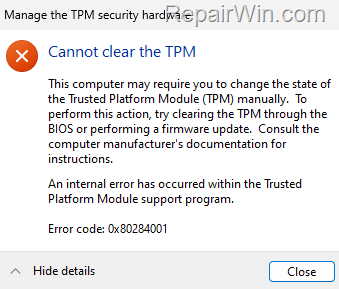
When attempting to clear the keys on the TPM module via the TPM management console (tpm.msc), you may receive one of the following errors:
- Cannot clear the TPM.
The computer may require you to change the state of the Trusted Platform Module (TPM) manually. To perform this action, try clearing the TPM through the BIOS or performing a firmware update. An internal error has occurred within the Trusted Platform Module support program.
Error code: 0x80284001
- Cannot clear the TPM.
The TPM may not be in the correct state to perform this action. Try refreshing the TPM Management console screen to see whether the action is still available.
A general error was detected when attempting to acquire the BIOS's response to a Physical Presence command. Error Code 0x80290300 (or 0x80290304)
How to FIX: Unable to Clear TPM with Error 0x80284001, 0x80290300, or 0x80290304 on Windows 10/11
Step 1. Allow TPM Management from the Operating System in BIOS
Some systems have BIOS settings that restrict the Operating System from managing or resetting TPM keys. Follow these steps to adjust these settings:
- Shutdown your computer.
- Power On your computer and, when the manufacturer's logo appears, press the designated key (e.g., Del, F2, F10) to enter the BIOS Setup Utility.
- Navigate to the Security settings. Look for a setting named RESET of TPM from OS or OS Management of TPM. If available, Enable it to allow the OS to manage the TPM Module.
- Boot into Windows and attempt to reset the TPM again. If the error persists, proceed to the next step.
Step 2. Clear the TPM from BIOS
If resetting the TPM keys within Windows fails, you can clear them directly from the BIOS. Here’s how:
- Boot into Windows and disable device encryption (e.g., BitLocker encryption) if it is enabled.
- For safety, backup your data to an external USB drive to prevent data loss.
- Ensure you have a password set for your account in Sign-in options. Navigate to
Start > Settings > Accounts > Sign-in options, click Password, and then Add a password. This is crucial as deleting TPM keys will remove your PIN information. - Shutdown your computer.
- Power On your computer and enter the BIOS Setup Utility as described in Step 1.
- In the BIOS setup, locate the Secure Boot option and ensure it is Enabled.
- Navigate to the Security settings page to confirm that a TPM Device is Available and the TPM State is Enabled. If not, enable it, save, exit BIOS, boot into Windows, and try to clear the TPM via
tpm.msc. - To clear the TPM keys from BIOS, do one of the following:
- Select Clear TPM and press Enter, then Yes to reset the TPM to default settings.
- Select Restore Security settings to Factory Defaults and press Enter.
- After resetting the TPM, Save and Exit from BIOS setup.
- Upon restart, you may need to confirm the change by pressing a designated key. Do so to reset the TPM and clear all security keys.
- Allow your computer to boot into Windows, sign in with your account password, and update your PIN if prompted.
- Finally, re-enable device encryption, and you're done!
![image_thumb[16]](https://www.repairwin.com/wp-content/uploads/2023/10/image_thumb16.jpg "image_thumb[16]")
Additional Troubleshooting Steps
If the above steps do not resolve the issue, try the following:
- Enter BIOS setup and Disable the TPM. Save and exit BIOS. Without booting into Windows, re-enter BIOS and Enable the TPM again. Save, exit, and attempt to clear the TPM once more.
- Visit your device manufacturer's support website to download and install the latest Firmware/BIOS update for your device. This can address compatibility issues and enhance TPM functionality.
- Update TPM Drivers: Sometimes, outdated or corrupt TPM drivers can cause issues. Use
Device Managerto update the TPM driver. Navigate toDevice Manager > Security Devices > Trusted Platform Module, right-click, and select Update driver. - Check Windows Updates: Ensure that your Windows operating system is up-to-date. Navigate to
Settings > Update & Security > Windows Updateand check for updates. Microsoft frequently releases patches that may resolve TPM-related issues.
Summary
In summary, resolving TPM clearing errors involves enabling OS management of TPM in BIOS, clearing TPM from BIOS, and ensuring all related settings are correctly configured. Additional steps include updating drivers and firmware, which can further ensure system stability and security. By following these detailed steps, you can effectively manage and resolve TPM-related issues on your Windows 10/11 system.
We hope this guide has been helpful. Please leave a comment below or share this article to assist others facing similar issues.
Frequently Asked Questions
What does TPM error code 0x80284001 indicate?
TPM error code 0x80284001 suggests that an internal error has occurred within the Trusted Platform Module support program, and you may need to change the TPM state manually, possibly through BIOS or a firmware update.
How can I resolve the TPM error codes 0x80290300 or 0x80290304?
These error codes indicate that the TPM may not be in the correct state to perform the action. Try refreshing the TPM Management console or attempting to clear the TPM through BIOS as a solution.
What steps should I follow if I can't clear the TPM on Windows 10/11?
First, check your BIOS settings to ensure that TPM management from the operating system is allowed. If not, enable it. If the issue persists, attempt to clear the TPM directly from the BIOS, ensuring device encryption is disabled first and data is backed up.
Why is it important to disable device encryption before resetting the TPM?
Disabling device encryption is crucial because resetting the TPM might cause your system to lose encryption keys, potentially resulting in data loss. Backing up data is also recommended before this procedure.



