
How to Fix "We Can't Sign Into Your Account" Error in Windows 10/11
On a Windows 10-based computer, you may encounter the error message "We can't sign into your account" after logging in, with all user files and settings missing. This issue often arises when Windows creates a new temporary profile due to the corruption of the user's original profile. This corruption can be caused by various factors, such as Windows Updates, malware attacks, or hardware issues like damaged RAM or HDD.
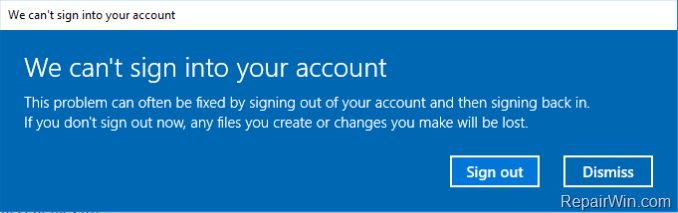
The most common trigger for the "We can't sign into your account" problem is the installation of a significant Windows 10 update, such as the Windows 10 FALL Creators Update Version 1709. These updates can sometimes interfere with user profiles, leading to corruption or misconfiguration.
In this tutorial, you will find instructions to resolve the following problem in Windows 10 OS: "We can't sign into your account. This problem can often be fixed by signing out of your account and then signing back in. If you don't sign out now, any files you create or changes you make will be lost."
How to FIX: We can't sign into your account (Windows 11, 10 & 8.1 OS).
To fix a corrupted profile in Windows 10, 8 & 8.1 OS:
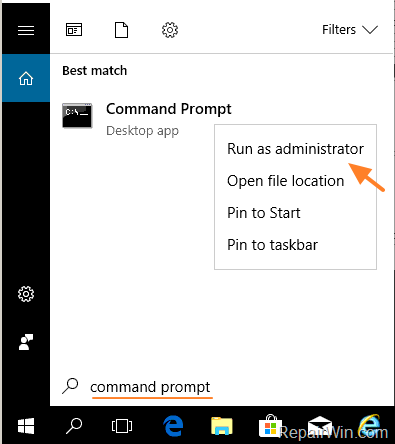
- Open Command Prompt as Administrator. To do that:
- At the search box, type: command prompt or cmd
- Right-click on the Command Prompt result and select Run As Administrator.
Running the Command Prompt as an Administrator allows you to execute commands that modify system settings and configurations, which are necessary for troubleshooting and fixing profile-related issues.
- At the command prompt, type the following command to enable the hidden "Administrator" account and press Enter.
net user administrator /active:yes
This command activates the built-in Administrator account, which can be used to perform advanced troubleshooting and repairs without the restrictions of a standard user account.
- Restart your computer.
- Sign-Out from the current user (temporary profile) and login as Administrator.
- Open Registry Editor: To do that:
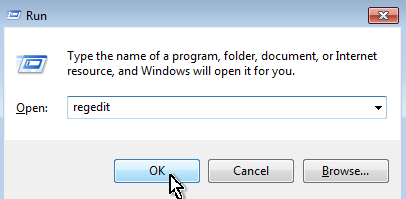
- Press simultaneously the Windows
 + R keys to open the run command box.
 - Type regedit & Press Enter.
The Registry Editor allows you to access and modify the Windows Registry, which stores critical configuration settings for the operating system and installed applications.
- Press simultaneously the Windows

- Navigate to the following key in the left pane:
HKEY_LOCAL_MACHINE\SOFTWARE\Microsoft\Windows NT\CurrentVersion\ProfileListThis registry path contains subkeys for each user profile on the system. By examining these keys, you can identify and correct issues related to user profile paths.
- Double-click on the ProfileList registry key to view its contents.
- Click on each "S-1-5-21-xxx…" registry key and see which one contains the value "C:\Users\%AccountName%" at ProfileImagePath *
* e.g., If your Account name is "John", then see which "S-1-5-21-xxx…" registry key contains the "C:\Users\John" value.
- When you find that "S-1-5-21-xxx…" key, select it (in the left pane) and delete it. *
* Attention: Delete the "S-1-5-21-xxx…" which contains only your account name at "ProfileImagePath".

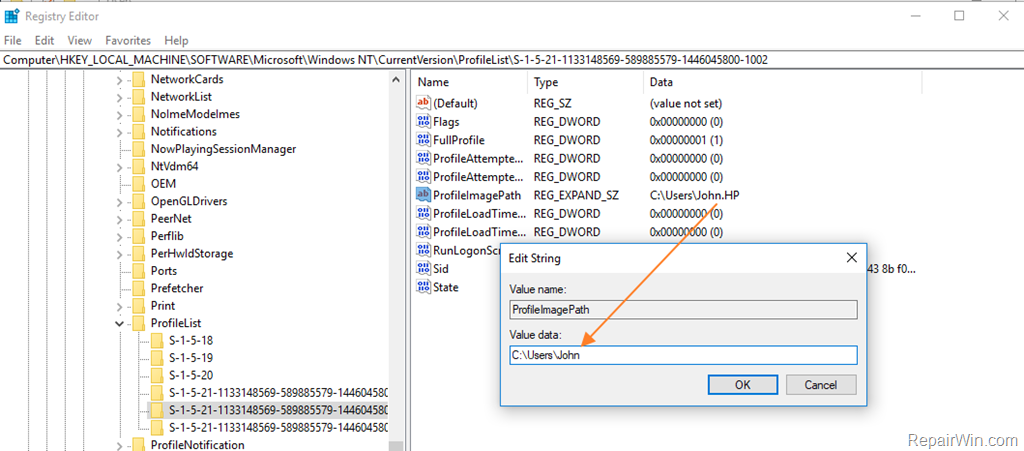
- Now find which "S-1-5-21-xxx…" subkey contains at "ProfileImagePath" the value: "C:\Users\%AccountName.ComputerName%" *
* e.g., If your Account name is "John" and the Computer Name is "HP", then see which "S-1-5-21-xxx…" registry key contains the "C:\Users\John.HP" value.
- When you find that value, double-click on "ProfileImagePath" and remove the dot (.) and the computer name from the value data box. Then click OK. *
* e.g., Rename the value from "C:\Users\John.HP" to "C:\Users\John" and click OK.
- Close Registry Editor.
- Open Windows Explorer and from the View tab, click Options.
- Enable the "Show Hidden Files" option and unhide the "Protected operating system files".

- Then from the "C:\Users\%AccountName.ComputerName%" folder (e.g., from "C:\Users\John.HP") copy and paste the following four (4) files to the "C:\Users\%AccountName%" folder (e.g., to "C:\Users\John"): *
- NTUSER.DAT
- NTUSER.DAT.LOG1 & NTUSER.DAT.LOG2
- NTUSER.INI
* Note: Replace the files in the destination.
These files contain user-specific settings and data necessary for loading a user's profile correctly. By copying them to the correct profile folder, you ensure that your settings and preferences are restored.

- Restart your computer.
- Sign-Out from the Administrator account and log in with your Account (e.g., John). Your account profile should be back!
Additional Solutions to Resolve "Cannot Sign in to Your Account" in Windows 10/11
1. Uninstall your Antivirus Security Program. This can sometimes interfere with user profiles and system updates.
2. Uninstall Windows 10 Updates to revert any changes that might have caused the issue.
3. Restore Windows 10 to an earlier build to undo recent updates that may have corrupted the profile.
4. Use System Restore to revert your computer to a previous state where the profile was functioning correctly.
5. Scan your system for Virus and Malware to ensure that no malicious software is affecting the user profiles.
Summary
In summary, the "We can't sign into your account" error in Windows 10 can be addressed by enabling the hidden Administrator account, modifying the registry to correct profile paths, and restoring user profile files. Additional solutions include uninstalling recent updates, using System Restore, and ensuring that your system is free from viruses and malware. These steps should help restore access to your original user profile and settings.
That’s all folks! Did it work for you? Please leave a comment in the comment section below or even better: like and share this blog post on social networks to help spread the word about this problem.
Frequently Asked Questions
What causes the "We can't sign into your account" error on Windows 10?
This error often occurs due to a corrupted user profile, which can be caused by Windows Updates, malware attacks, or hardware issues like damaged RAM or HDD. A common trigger is the installation of critical Windows 10 Updates, such as the Fall Creators Update Version 1709.
How can I fix the "We can't sign into your account" error on Windows 10?
To fix this error, you can follow steps to enable the hidden 'Administrator' account, modify registry settings, and transfer necessary user profile files. The process involves using the Command Prompt, Registry Editor, and File Explorer to correct the profile path.
What should I do after modifying the registry keys to fix my user profile?
After modifying the registry keys, you should copy key files from the temporary profile folder to the original profile folder, restart your computer, and sign back into your regular account to check if the issue is resolved.
Are there alternative methods if modifying the registry doesn't fix the issue?
Yes, other methods include uninstalling your antivirus software, removing recent Windows 10 updates, restoring Windows to an earlier build, using System Restore, and scanning your system for viruses and malware.




October 11, 2019 @ 2:52 am
Awesome guide, was very easy to understand and follow. I have only one issue, the last step. I attempted multiple times to copy the 4 files NTUSER.DAT, ntuser.dat.LOG1, ntuser.dat.LOG2 and lastly ntuser.ini but the files were in use. I also used programs like teracopy and the built in robocopy feature in CMD/Powershell but to no avail. Is there a fix for this?
October 11, 2019 @ 10:07 am
You have to sign out from all accounts. Restart the PC and login as Administrator to copy the files.
March 30, 2020 @ 7:14 pm
I restarted my pc and logged in as administrator and I tried to copy the files and still can't copy them
March 30, 2020 @ 7:19 pm
not all of them just (ntuser.dat.LOG1)
December 29, 2022 @ 2:22 am
Did you find any fix for this? I’m stuck at the same problem.
May 14, 2020 @ 12:06 pm
Probably your hard drive is damaged.
October 20, 2019 @ 6:14 am
That was AWESOME!!! Thanks so much for this article! I was redoing the default profile on a windows 10 pc to and decided to delete my domain's user profile to test if the changes were applied. This used to work just fine in windows 7. Upon trying to login again the dreaded "we can't sign you in" came up. Shot through at least 20 other articles with all sorts of suggestions. Turns out you also need to delete the registry key in addition to delete the profile.
October 24, 2019 @ 11:45 pm
I found the first file but the file for step #11, I could not find another file that contained my account name. Under profilelist each s folder contains one profile connected to the computer. Once I deleted the folder that held my name, I found no other files similar in that set of folders. In the step where you copy files from the c drive. I could not find a ntuser.ini file anywhere. I even did a c drive search for it. Any suggestions?
October 25, 2019 @ 9:16 am
1. Restart your PC and login as Administrator.
2. Create an new user account and set him as administrator, by following one of these methods in this article.
3. Restart the PC again and login to the new account.
4. Navigate to C:\Users folder and locate the user folder which contains your files.
5. Finally, transfer the files to the new account.
December 13, 2019 @ 5:00 pm
This guide works, thx. Theres one more step not mentioned and thats the Username.ComputerName profile do not exist on its own – its recreated profile, to create this one you have login to your corrupted account after you delete record in profileList, so after Step 9 restart computer try login to you account that will create new profile Username.ComputerName then restart and continue with Step 10
May 9, 2020 @ 6:59 pm
I restarted but now computer is stuck on a black screen and not starting. What do i do?
June 10, 2022 @ 5:23 pm
Thank you so much for the guide, I was so confused in that step. And to anyone who get the black screen, just press Windows Icon on your keyboard and the taskbar should show.
January 18, 2020 @ 12:03 pm
Tnx alot that worked
February 12, 2020 @ 4:34 pm
Awesome, thank you! I backed up the old profile directories I needed then just deleted both keys for that id. Worked great for a problem which was extremely frustrating.
March 15, 2020 @ 4:31 am
Can not find the .INI file. The other 3 were there and I was able to copy/paste into my user name folder
March 15, 2020 @ 12:14 pm
Skip the .INI file and continue at the rest steps.
April 2, 2020 @ 4:06 pm
I did that same and mu pc screen got blank and black nothing is working,,,, help me
May 14, 2020 @ 12:06 pm
Hold down the SHIFT key and then click Power > Shutdown. Then power on the PC again and see if the problem has resolved.
April 11, 2020 @ 8:26 pm
Hello
By mistake I deleted the folder S-1-5-21-xxx…" after changing to the user name, (step 11)
are there any hope?
Thank You
April 12, 2020 @ 9:53 am
Try to repeat the procedure…
April 13, 2020 @ 4:24 pm
Hello, i follow all your step but at the last step when i go back to my accout, its all blank.. there are no icons or task bar, do you know what happen?
May 14, 2020 @ 11:07 am
Hold down the SHIFT key and then click Power > Shutdown. Then power on the PC again and see if the problem has resolved.
April 23, 2020 @ 11:27 am
Will this recover all files.
I am getting this issue kindly help me to solve this.
April 23, 2020 @ 2:56 pm
YES. 1. Enable the Administrator account. 2. Login with the Administrator Account 3. Explore the C:\Users folder to find your files…
April 24, 2020 @ 7:39 am
Thank you so much. I found but couldn't found my database software on which I've to work
May 9, 2020 @ 7:34 pm
Awesome i got everything back but i can't sign back in to my Microsoft account. If i try a dialogue box comes up that says, "Something Went Wrong". How can i fix this?
May 11, 2020 @ 2:58 pm
Remove and re-add your MS account
May 26, 2020 @ 11:03 am
hello, by mistake I deleted the user with my computer name. what to do now?
May 28, 2020 @ 9:41 am
Restart your PC sign out from the Administrator account and try to login to your old account. Normally you will not be able to connect and you will receive the message "We can't sign into your account…". After that, login again with the Administrator account and follow the steps in the tutorial.
July 25, 2020 @ 2:11 pm
Hi what if after I signed in to my old account i didn't get the "we can't sign in" message, is it still okay??
July 29, 2020 @ 9:12 am
OF course its OK. This means that the problem has solved.
June 4, 2020 @ 5:40 am
Awesome! Thank you for this! It worked for me!
May 16, 2021 @ 3:20 pm
Damn,thanks for this hint.Spent almost the whole day trying to figure out how to resolve this.U have saved me alot.Thanks big man
May 16, 2021 @ 6:35 pm
Yey!!!! It worked 💞💞 Thank you so much.. just repeated the entire process since the 1st time i did i wasnt the administrator and at the second time.. i skipped the restart… And continue till step 16 😆😆
I have blackscreen but have its cursor.. so… I just Ctrl+Alt+delete and choose sign out… And doneeee.. and thank you so much 💞💞
June 30, 2021 @ 5:56 pm
Whoever wrote this article should let themselves be known. If I ever win the lottery I am buying you a Ferrari. This was clear and worked first time. I've been battling this issue for almost a year and was about to give up. Now I am sorted and my laptop is finally updated too. Can I delete the temp user profiles that were created by this issue somehow?
May 6, 2022 @ 4:03 pm
Would caution that, while you are saving almost all the user's data this way, you will still see loss. While most are like commonly opened files (MUI), the big one is that you will loose the registry entries for applications installed per-user. While most environments try to avoid this, many recent installations are practically force per-user. (MS Teams, Adobe Cloud based applications… Acrobat DC that is subscription based, as examples. This will likely make those still installed programs up in the AppData folders, fail to run and possibly have difficulty reinstalling.
May 18, 2022 @ 8:19 pm
Thank you it worked for me!!
June 10, 2022 @ 5:18 pm
Thank you so much for this. I tried various other solutions but only this helps! Although, I cannot find the .ini file so I skipped copy paste it in the last step. Will it cause any harm?
October 26, 2022 @ 9:58 am
There are only two S-1-5-21-xxx… files for me and I deleted the one that had my username in its value. The other S-1-5-21-xxx… file didn't have *my username.HP*. It had something similar (C:/Users/TEM). What should I do?
October 27, 2022 @ 8:44 am
Nothing….
November 25, 2022 @ 1:42 pm
Correction to my comment. I missed a quote mark after (e.g. from "C:\Users\John.HP").
Plus there is also a folder TEMP.
Sorry for the errors.
Also, I tried installing the second printer again by diconnecting the USB to the computer and plugging it back in again and this has caused my first printer to come back again
November 25, 2022 @ 5:55 pm
Copy the files mentioned from the "C:\Users\Admin" folder
November 29, 2022 @ 11:34 am
Thank you. There is only NTUSER DAT there.
November 29, 2022 @ 7:20 pm
Copy only it and continue to next step.
November 29, 2022 @ 12:20 pm
I can't get to command prompt because the search box is not working and I have windows power shell instead. I cannot change this to command prompt via a right click on start and then settings because clicking setting produces nothing. Left click on start doesn't work. Would you please explain how to do this via windows power shell from a right click on start?
November 29, 2022 @ 7:23 pm
No problem. Open PowerShell as Admin and run the commands.
March 26, 2023 @ 12:17 am
It worked great. Thanks very much for the post. And thanks to Jayden Kemara for pointing out the crucial missing step! I have a question. This procedure leaves a folder called c:\users\John.HP (using the same example names as the post), but no associated user because we changed the profile list to eliminate it. Is it safe to remove that folder?
June 7, 2023 @ 10:29 pm
This worked for me and all we had to do was delete registry keys mentioned in steps 7,8,9 and then rebooted. Thank you
September 4, 2023 @ 7:37 am
Thanks for the great solution! unfortunately I am unable to do step 15 because when I try to replace the files it says "The action can't be completed because the file is open in system Close the file and try again.
Any suggestions?
June 25, 2024 @ 10:18 pm
Thank you for this article. Help me solve a frustrating issue.