
How to Resolve a Corrupted Recycle Bin on Windows 11/10/8/7
If you receive the message "The Recycle Bin on drive C:\ is corrupted. Do you want to empty the Recycle Bin for this drive?", continue reading to learn how to fix a corrupted Recycle Bin.
The Recycle Bin in Windows is a special hidden folder on every connected hard drive that temporarily stores any folder or file you delete from that drive, allowing you to recover the folder or file if you accidentally delete it. Items in the Recycle Bin still take up space on the hard drive and can be permanently deleted to free up space if you empty the Recycle Bin.
However, sometimes the Recycle Bin on a disk drive can become corrupted and cannot be repaired by simply emptying it. This tutorial will show how to fix a corrupted Recycle Bin in such cases.
How to FIX a Corrupted Recycle Bin on Windows 11/10/8/7 OS
Method 1. FIX Corrupted Recycle Bin using Command Prompt
1. In the message "The Recycle Bin on drive letter: is corrupted. Do you want to empty the Recycle Bin for this drive?", note the drive letter of the drive whose Recycle Bin is corrupted.
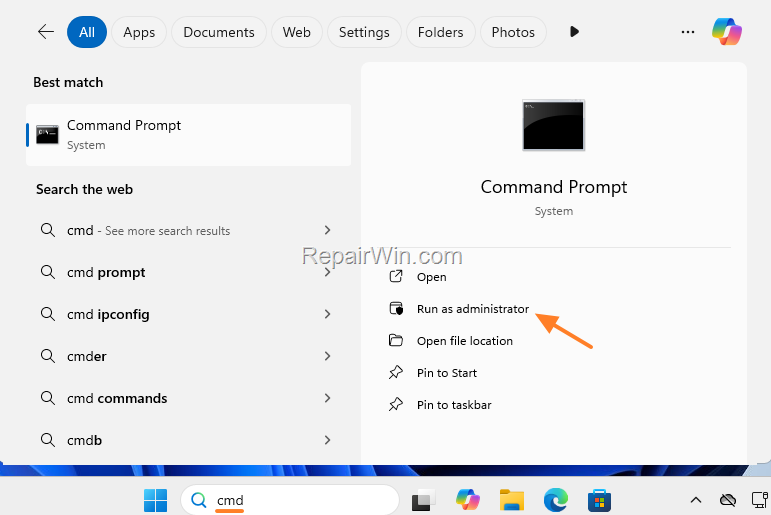
2. Then type "cmd" in search and then open Command Prompt as Administrator.
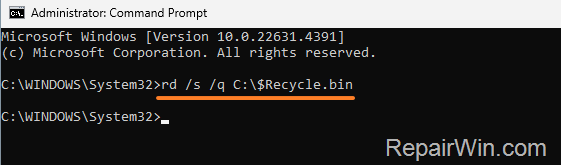
3. In the Command Prompt window, type the following command and press Enter:
-
rd /s /q drive letter:\$Recycle.bin
* Note: Replace the drive letter with the letter of the drive whose Recycle Bin is corrupted. For example, if the corrupted Recycle Bin is on drive "C", type:
-
rd /s /q C:\$Recycle.bin
4. Restart the PC to force Windows to create a new Recycle Bin and you're done!
Method 2. FIX Corrupted Recycle Bin using File Explorer
1. In the message "The Recycle Bin on drive letter: is corrupted. Do you want to empty the Recycle Bin for this drive?", note the drive letter of the drive whose Recycle Bin is corrupted.
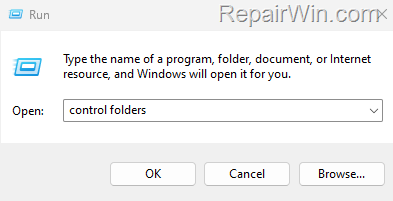
2a. Press the Windows + R keys to open the "Run" command box.
2b. Type "control folders" and press OK to open the File Explorer Options.
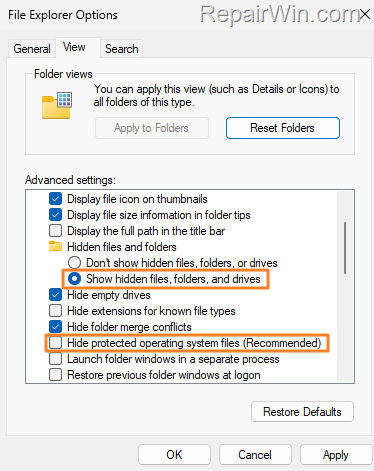
3. In the View tab, do the following and then click OK:
- Check the option Show hidden files, folders, and drives.
- Uncheck the option Hidden protected operating system files (Recommended) and click Yes when prompted.
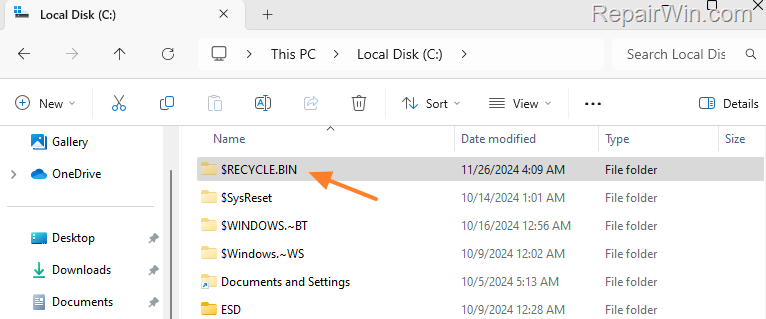
4. Open File Explorer and navigate to the drive whose Recycle Bin is corrupted (e.g., the "C:\ drive" in this example).
5. Select the $RECYCLE.BIN folder, hold down the SHIFT key, and press Delete.
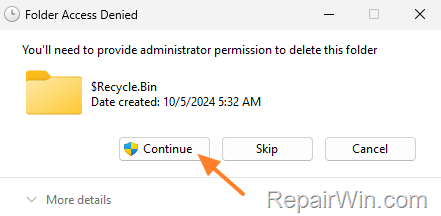
6. Click Continue on the Folder Access Denied message.
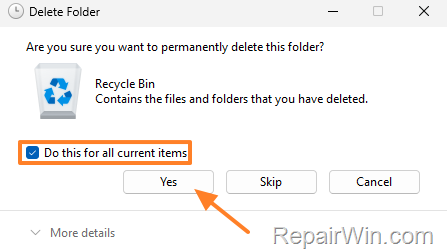
7. Then, select Do this for all current items and click Yes.
8. Restart the PC to force Windows to create a new Recycle Bin.
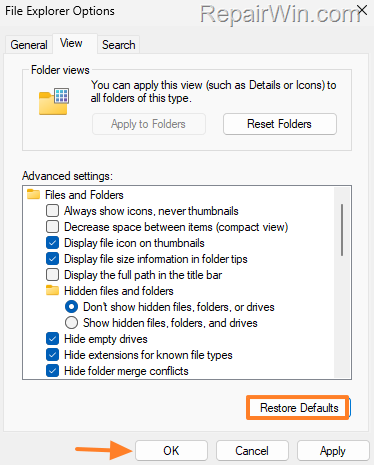
* Note: If everything is fine, open File Explorer Options again and on the View tab click Restore Defaults, then click OK to reset the Explorer view settings to default.
Method 3. FIX Corrupted Recycle Bin using Disk Cleanup
1. Type "disk cleanup" in search and then open Disk Cleanup.
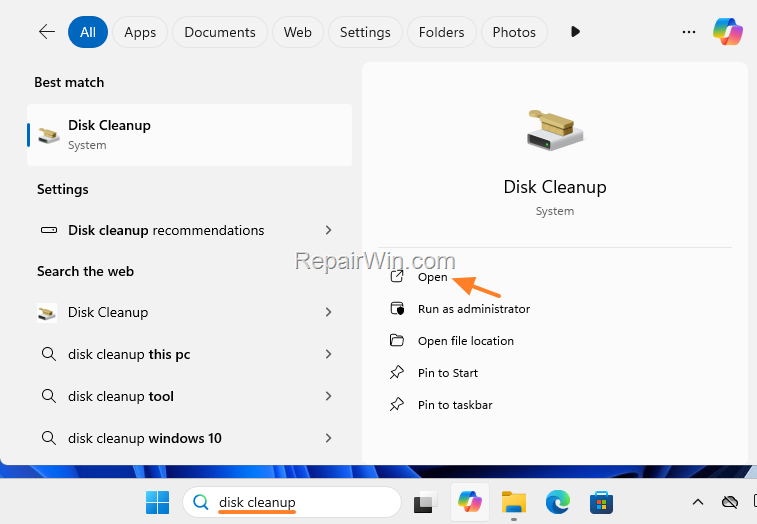
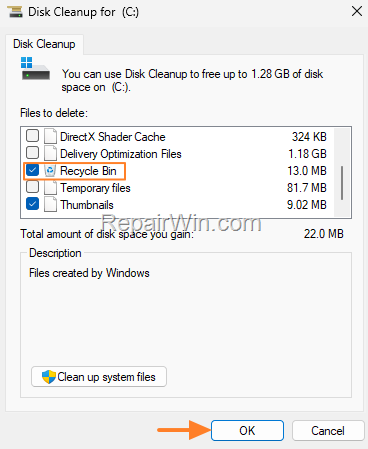
2. In Disk Cleanup options, check the Recycle Bin and click OK. Then select Delete Files and let Windows clean up the drive.
Method 4. Check Drive for Errors
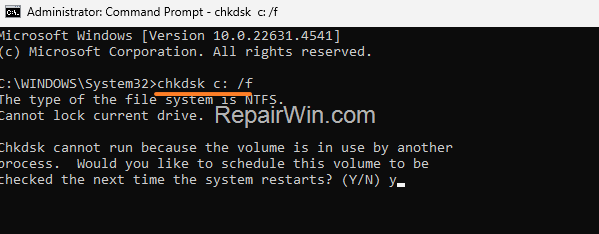
Another method to fix the corrupted Recycle Bin is to check and repair the drive using the "chkdsk" command. To do that:
1. Open Command Prompt as Administrator and give the following command:
- chkdsk drive letter: /f
* Notes:
1. Replace the drive letter with the letter of the drive whose Recycle Bin is corrupted. For example, if the corrupted Recycle Bin is on drive "C", type:
- chkdsk C: /f
2. If you receive the message "Chkdsk cannot be run because the volume is in use…", press the "y" key to check the drive the next time the system restarts. Then, restart the computer and wait while chkdsk checks and repairs the selected drive.
Method 5. Repair Windows System Files with DISM & SFC Tools
The next method to fix the corrupted Recycle Bin is to check and repair the Windows system files using the DISM and SFC tools. To do this:
1. Open Command Prompt as Administrator.
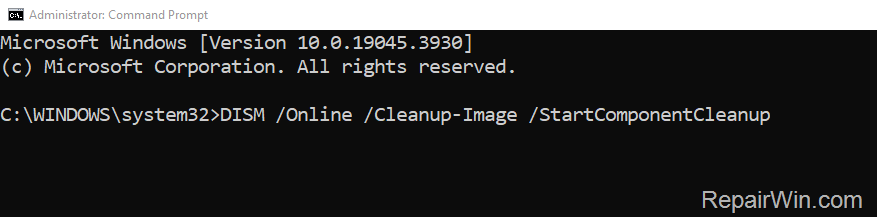
2. In the command prompt, give the following command and press Enter:
- DISM /Online /Cleanup-Image /StartComponentCleanup
3. When the process is completed, give the following command:
- DISM.exe /Online /Cleanup-image /Restorehealth
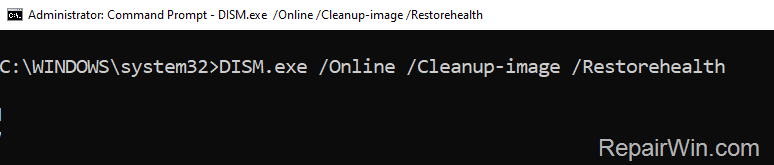
4. When the DISM operation is completed, type the following command and hit Enter:
- sfc /scannow
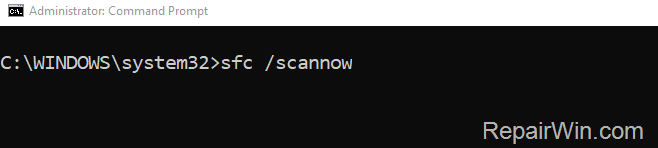
5. Now wait until the System File Checker (SFC) repairs the Windows System Files.
6. When this is done, restart your computer.
Method 6. Check your PC for Viruses & Malware
Some viruses or malicious programs can cause the Recycle Bin to become corrupted. Use this Malware Scan and Removal Guide to check and remove viruses or malicious programs that may be running on your computer. Additionally, if you are running a third-party antivirus program, uninstall it and check if the problem persists.
Method 7. Repair Windows with an In-Place Upgrade
If, after following the methods above, you are unable to fix the reported problem, then depending on your operating system version, follow the instructions in one of the following articles to repair Windows:
Method 8. Check Hard Disk's Health
If none of the above methods helped you, then your hard drive probably has a problem and needs to be replaced. To diagnose your hard drive's health:
1. Download and install CrystalDiskInfo application.
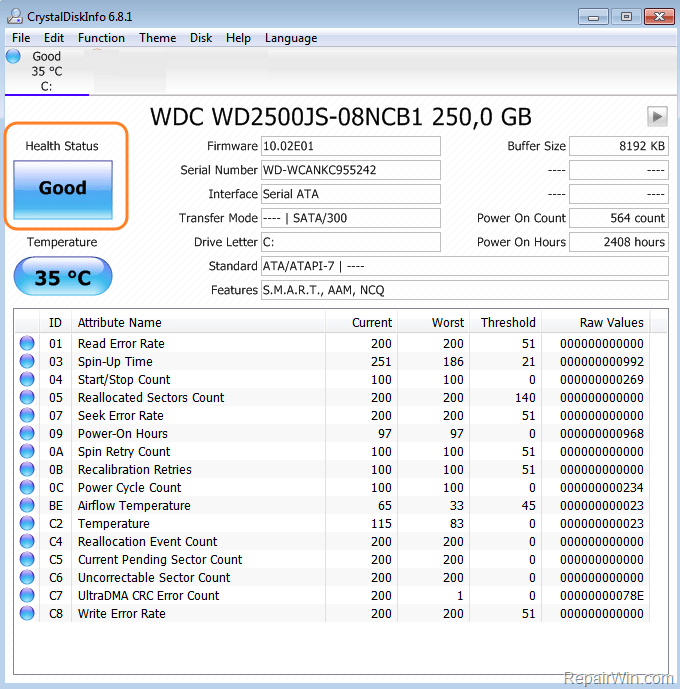
2. Launch CrystalDiskInfo, select the drive whose Recycle Bin is corrupted and note under "Health Status" its condition. Then according to the result, do one of the following:
- If the Health Status is "Good", then the hard drive is OK. In this case, continue to the next method.
- If the Health Status is "Caution", then the hard drive is not healthy and you should replace it.
Method 9. Perform a Clean Windows Installation
The final step to resolve the "Recycle Bin is corrupted" issue is to back up your files and perform a clean install of Windows 10/11 using the instructions in one of the articles below.
Summary
In summary, fixing a corrupted Recycle Bin on Windows can be achieved through several methods, including using the Command Prompt, File Explorer, Disk Cleanup, and checking the drive for errors. Advanced solutions involve repairing system files with DISM and SFC tools, scanning for malware, and performing in-place upgrades or clean installations of Windows. If hardware issues are suspected, checking the hard disk's health is recommended. Always ensure you back up important data before proceeding with major repairs or installations.
Frequently Asked Questions
What causes a Recycle Bin on Windows to become corrupted?
A Recycle Bin can become corrupted due to file system errors, unexpected shutdowns, or hard drive issues. This leads to the inability to access or empty the bin normally.
How can I fix a corrupted Recycle Bin using Command Prompt?
Open Command Prompt as Administrator and execute the command 'rd /s /q drive letter:\$Recycle.bin', replacing 'drive letter' with the appropriate drive. Restart your computer to let Windows create a new Recycle Bin.
Is it possible to fix a corrupted Recycle Bin using File Explorer?
Yes, enable 'Show hidden files' and disable 'Hide protected operating system files' in File Explorer Options. Locate the $RECYCLE.BIN folder on the drive, delete it by holding SHIFT and pressing Delete, and then restart your PC.
What other methods can be used to address a corrupted Recycle Bin?
You can use Disk Cleanup to empty the Recycle Bin or run 'chkdsk drive letter: /f' from the Command Prompt to check for and repair any drive errors. Additionally, you can repair Windows system files with DISM and SFC tools.



