
How to Fix Slow or Freezing File Explorer on Windows 11.
Several users have reported that File Explorer is slow, hangs, or freezes after upgrading their system to Windows 11 from Windows 10 or after installing Windows updates. As you know, File Explorer is one of the most frequently used Windows tools for accessing and working with files and folders. However, this essential tool in Windows 11 can lag, freeze suddenly, and become unresponsive.
In this article, we will list all possible reasons and solutions for the slow operation or freezing of Windows 11 File Explorer. So, if you are facing similar issues in File Explorer, follow the instructions below to regain efficiency and responsiveness of File Explorer on your Windows 11 PC.
How to FIX Windows 11 File Explorer Slowness and Freezing issues.
Method 1. Restart Windows Explorer Task.
Before proceeding with more advanced methods to fix File Explorer problems, try restarting the File Explorer task and see if that fixes the problem(s). Restarting the Windows Explorer task can clear temporary glitches and refresh the user interface, potentially resolving issues caused by memory leaks or resource conflicts.
1. Press Ctrl + Alt + Del to open Task Manager.
2. At the Processes tab, highlight the Windows Explorer process and click Restart task.

3. Now, check if the problem has been resolved and if not, continue to the methods below.
* Note: Some users claim that File Explorer's slow speed and "stuck" problems disappear when they open the File Explorer in full screen. So, give it a try.
Method 2. Quit OneDrive, Google Drive or Dropbox.
If you're using a cloud-based file hosting and synchronization app, like OneDrive, Google Drive or Dropbox, then this can cause your File Explorer to lag or crash. These applications continuously sync files, which can consume significant system resources, leading to performance degradation.
1. Press Ctrl + Alt + Del to open Task Manager.
2. At the Processes tab, locate and select the cloud synchronization app you're using (e.g., "Microsoft OneDrive"), and then click End Task.
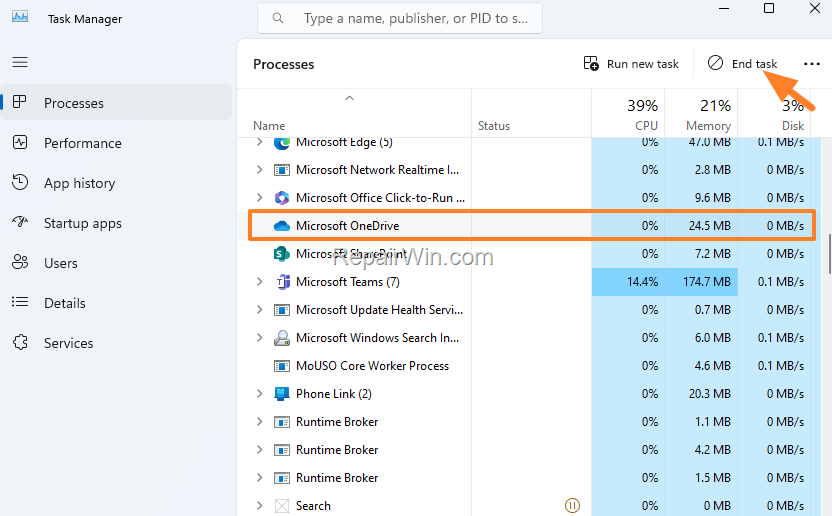
3. When done, proceed and restart also the Windows Explorer task (see method-1 above), and then check if the problem is fixed.
Method 3. Fix Slow File Explorer on Windows 11 by Uninstalling Last Update(s).
The slow performance of Windows Explorer in Windows 11 is usually caused after installing updates. Updates can sometimes introduce new bugs or compatibility issues that affect system performance. So, if your File Explorer becomes slow after installing an update, proceed to uninstall it.
1. From the Start  menu choose Settings
  .
.
2. Select Windows Update on the left and then on the right click Update history.
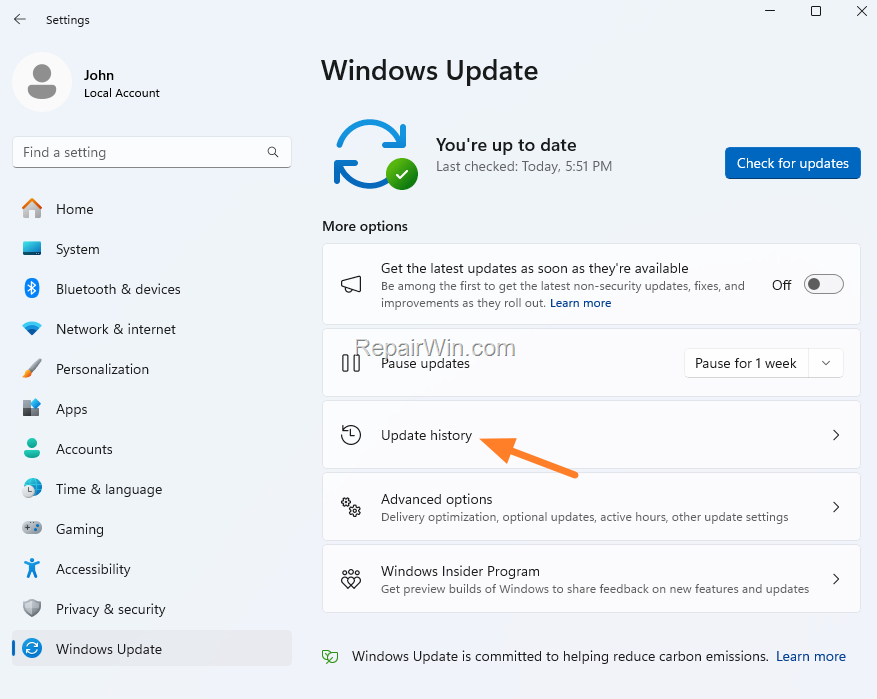
3. In Update history, scroll down and click Uninstall Updates under the "Related settings".
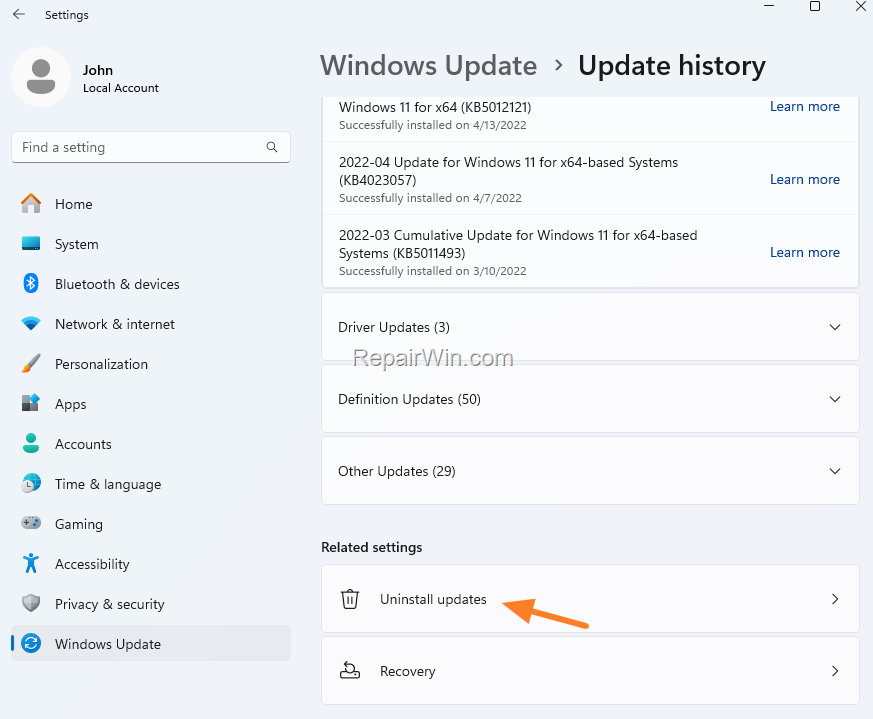
4. In the list of installed updates, select the latest installed update and click the Uninstall button to remove it.
* Note: If you see more than one update installed on the same date, then uninstall all of them.
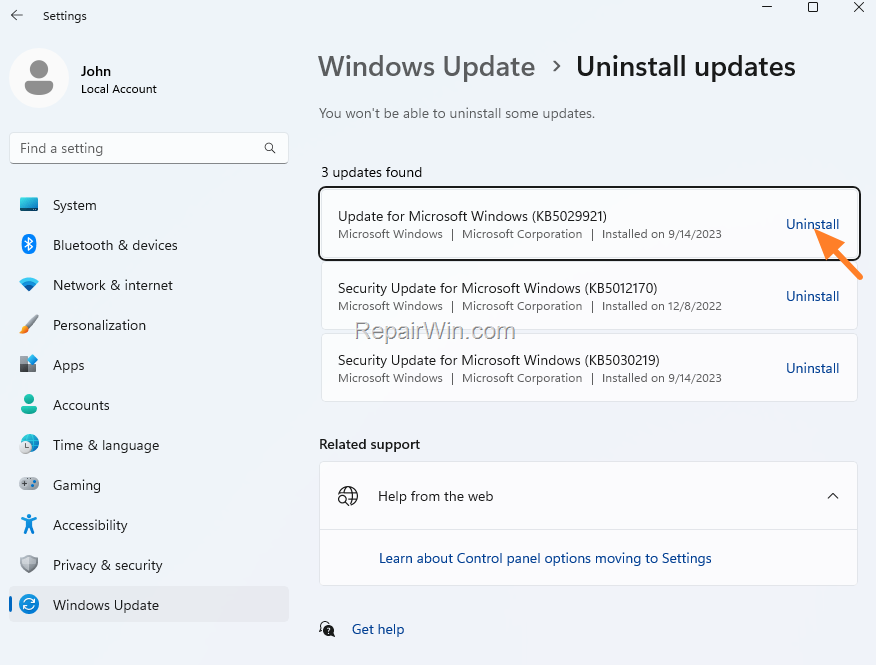
5. Finally, restart your PC and check if the problem is solved.
Method 4. Install KB5030310 Cumulative Update.
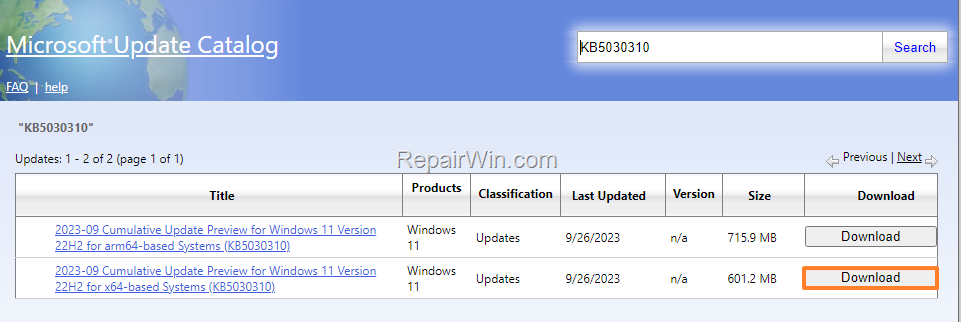
Some users reported that the slow operation of File Explorer was eliminated after installing the September 26, 2023—KB5030310 Update. Cumulative updates often contain numerous bug fixes and performance improvements that can resolve issues introduced by previous updates.
1. Proceed and download the 2023-09 Cumulative Update Preview for Windows 11 Version 22H2 for x64-based Systems (KB5030310) from the Microsoft Update Catalog.
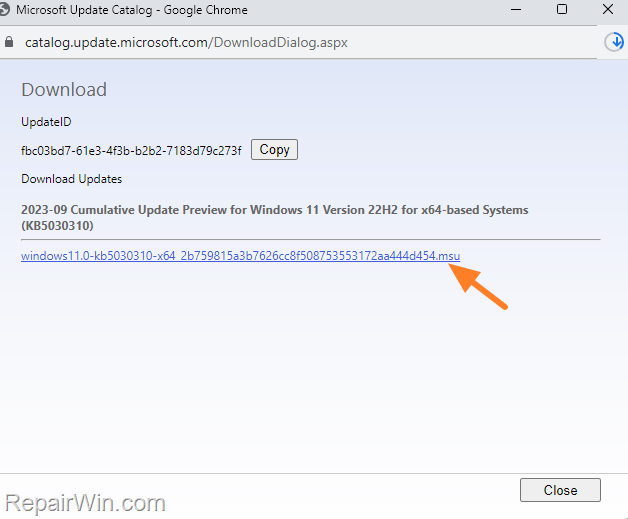
2. In the window that opens, click on the ".msu" file to download the update.
3. When the download is complete, double-click on the downloaded file and follow the on-screen instructions to install the update.
* Note: If you receive the error message: "The update is not applicable to your computer", proceed and install the KB5031354 update.
4. When the installation is complete, restart the computer and check if the problem is solved.
Method 5. Clear Recent Items History.
Clearing the history of recent items can resolve issues related to File Explorer's performance by removing corrupted or excessive entries that may slow down the system.
1. Open Windows Explorer.
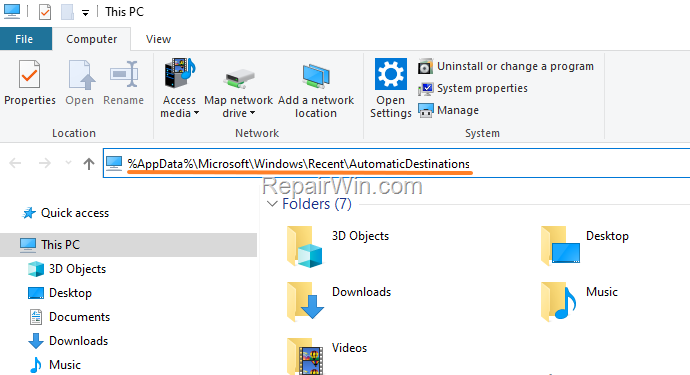
2. Copy and paste the following address in the address bar and press Enter:
- %AppData%\Microsoft\Windows\Recent\AutomaticDestinations
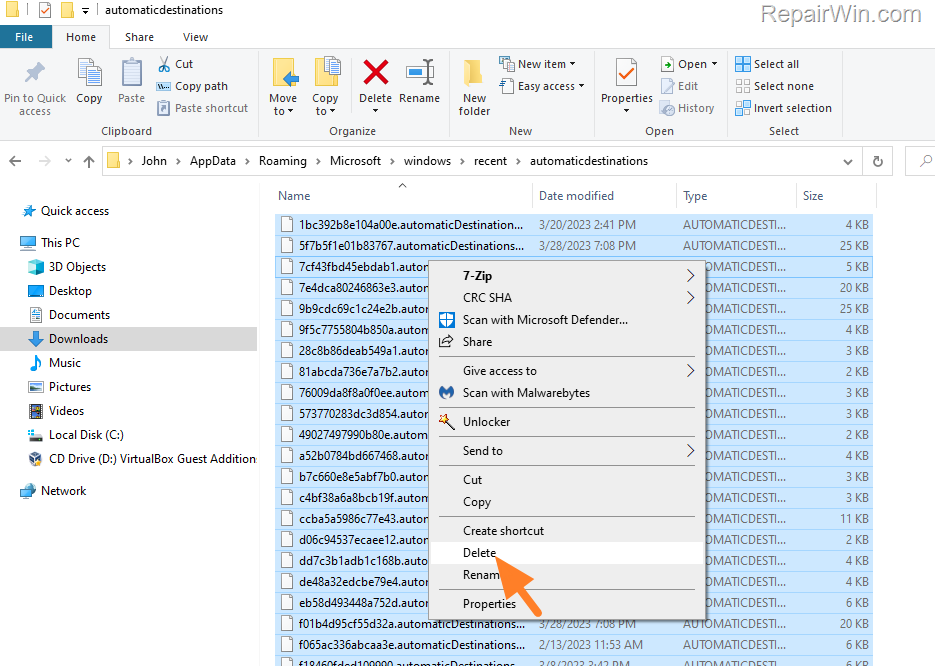
3. Press Ctrl + A (to select all items) and hit Delete (or right-click > Delete).
4. Then copy & paste the following address in the address bar and press Enter.
- %AppData%\Microsoft\Windows\Recent\CustomDestinations
5. Press Ctrl + A again (to select all items) and hit Delete.
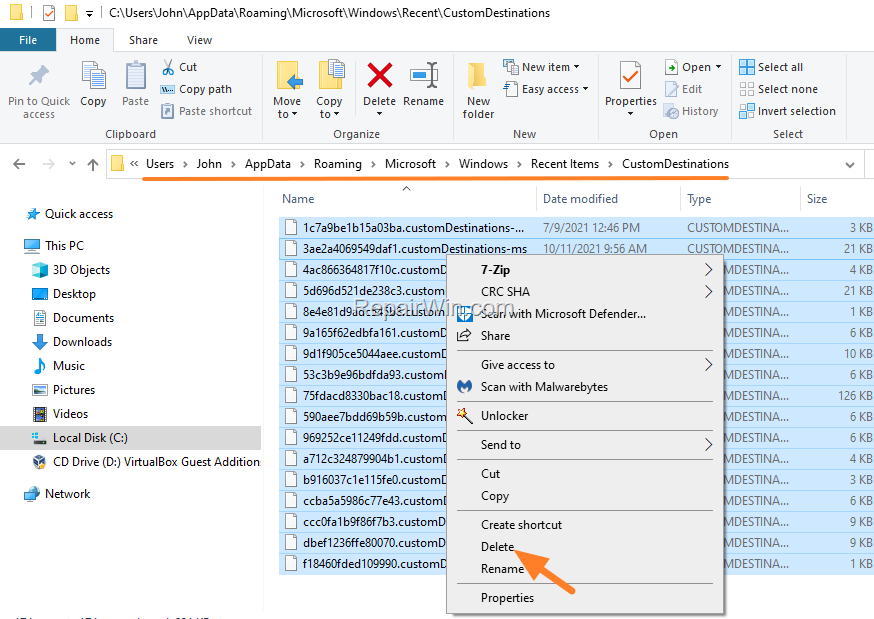
6. Now press Ctrl + Alt + Del to open Task Manager.
7. At the Processes tab, highlight the Windows Explorer process and click Restart.
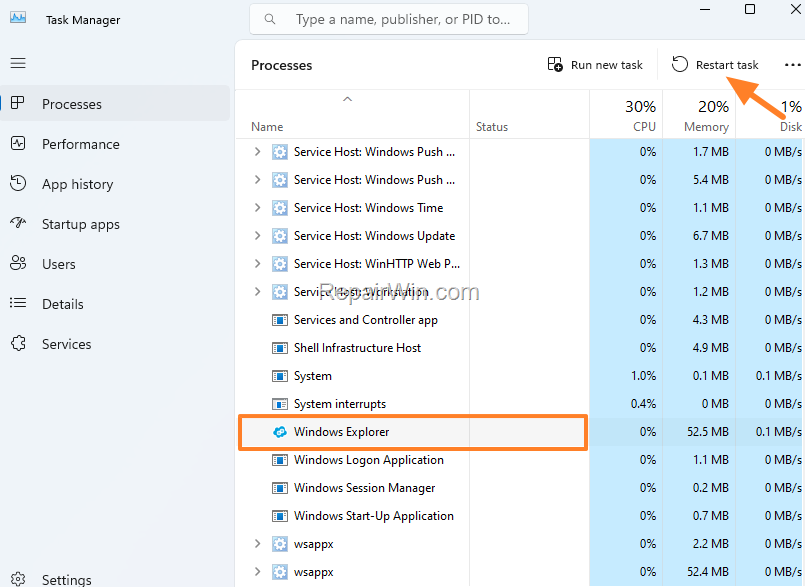
8. Now, check if the problem has been resolved.
Method 6. Disable Third-party Shell extensions in File Explorer's Right-click Context menu.
Shell extensions are all the additional commands that are added to the right-click context menu of File Explorer to extend its functionality. Because many third-party programs (such as WinRAR, WinZip, etc.), add their own commands to the right-click menu, this may cause a problem with the functionality and performance of File Explorer on Windows 11.
To find out if a Shell extension is the culprit for the slow performance of File Explorer, do the following:
1. Download Download ShellExView for x64 utility in a ZIP file and extract it to a folder.
2. From the extracted folder run the shexview.exe application as administrator.
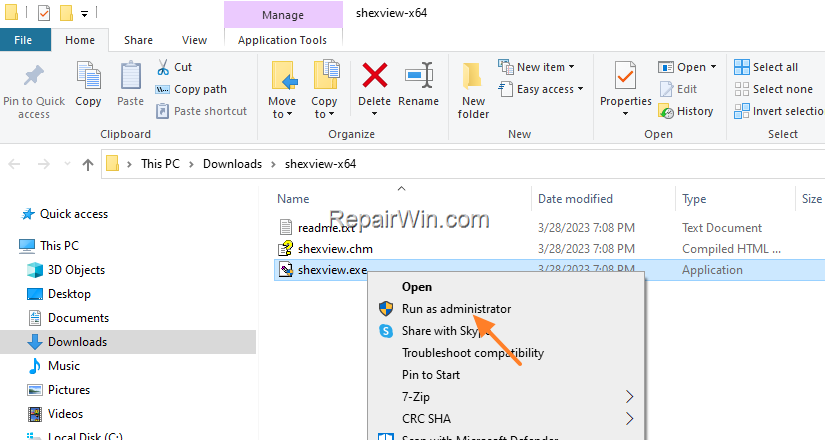
3. At the Options menu, click on Hide All Microsoft Extensions.
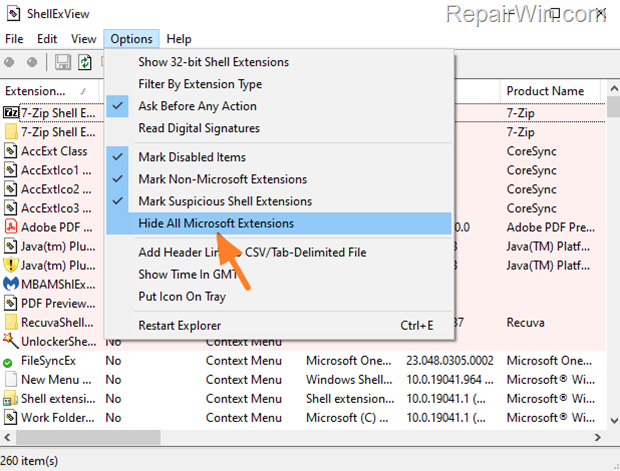
4. Now press CTRL + A to select all the third-party extensions and then right-click and select Disable Selected items (or press "F7").
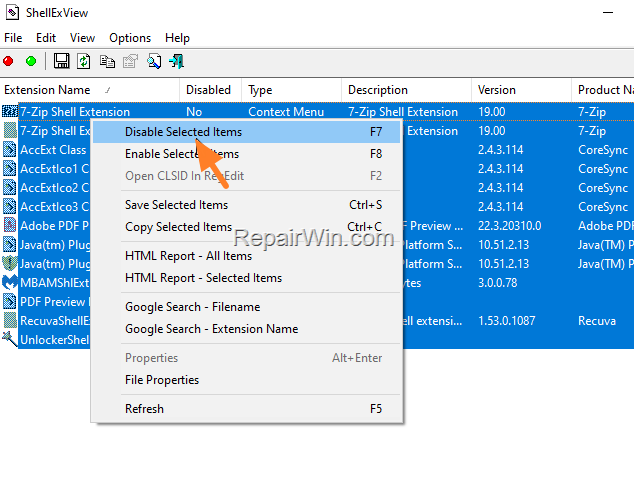
5. Restart your computer and check if the problem persists. If not, then one of the installed third-party shell extensions is the culprit. In such a case, open the ShellExView utility again and enable one by one the disabled extensions and restart your PC, until you find which one causes the problem.
* Notes:
1. If the problem persists with all the third-party shell extensions disabled, then re-enable all of them and continue to the next method.
2. To re-enable a shell extension, right-click on it and select "Enable Selected items", or simply click on it and press "F8"

Method 7. FIX Slow File Explorer by Repairing Windows System Files.
Another method to fix the slowness of Windows 11 File Explorer continues is to repair the Windows system files. Corrupted system files can lead to various performance issues, including a slow or unresponsive File Explorer.
1. Open Command Prompt as Administrator. To do that:
1. Press the Windows
+ R keys to open the 'Run' command box
2. Type CMD and then press CTRL + SHIFT + ENTER.
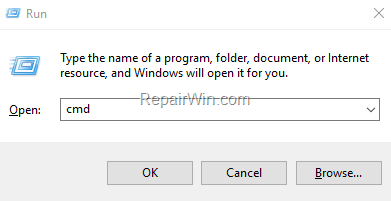
2. In command prompt give the following dism command and press Enter:
- DISM.exe /Online /Cleanup-image /Restorehealth
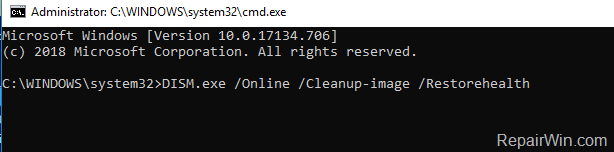
3. When the DISM operation is completed, type the following command and hit Enter:
- sfc /scannow

4. Now wait until the System File Checker repairs the Windows System Files.
5. When this is done, restart your computer.
Method 8. Perform a Windows 11 Repair/Upgrade.
If, after following the above methods, File Explorer is still slow, try to repair Windows by using the instructions mentioned in this article: How To Repair Windows 11 With In-Place Upgrade. This process reinstalls Windows without affecting your personal files, potentially resolving deep-seated system issues.
New Method 9. Disable Quick Access
Quick Access can sometimes slow down File Explorer if it tries to load recent files and folders that are no longer available. Disabling it can improve performance.
1. Open File Explorer and click on the View tab.
2. Click on Options and then select Change folder and search options.
3. In the General tab, set Open File Explorer to to This PC instead of Quick Access.
4. Uncheck both Show recently used files in Quick access and Show frequently used folders in Quick access.
5. Click OK to save changes.
New Method 10. Adjust Visual Effects for Best Performance
Visual effects can consume system resources. Adjusting them for best performance can free up resources for File Explorer.
1. Press Windows + R to open the Run dialog, type sysdm.cpl, and press Enter.
2. Go to the Advanced tab and click on Settings under Performance.
3. In the Performance Options window, select Adjust for best performance.
4. Click Apply and then OK.
Summary
In summary, resolving File Explorer slowness or freezing on Windows 11 involves a series of troubleshooting steps. Start by restarting the Windows Explorer task, then check for interference from cloud services like OneDrive. Consider uninstalling recent updates or installing the KB5030310 cumulative update. Clear recent items history and disable third-party shell extensions if necessary. Repair Windows system files using DISM and SFC commands, or perform a Windows 11 repair/upgrade. Additionally, try disabling Quick Access and adjusting visual effects for improved performance. These steps should help restore File Explorer's efficiency and responsiveness.
We hope this guide has been helpful. If you have any questions or feedback, please leave a comment below. Don't forget to share this article with others who might benefit from it!
Frequently Asked Questions
Why is my File Explorer slow after upgrading to Windows 11?
The slowness of File Explorer after upgrading to Windows 11 could be due to various reasons, including recently installed updates, issues with cloud synchronization apps, or accumulated recent items history.
How can I fix File Explorer slowness related to updates on Windows 11?
If File Explorer becomes slow after installing updates, you can resolve it by uninstalling the latest updates. Go to Settings > Windows Update > Update history, then click on Uninstall Updates under 'Related settings' and remove the latest installed updates.
Could cloud synchronization apps be causing File Explorer to lag?
Yes, cloud-based file hosting and synchronization apps like OneDrive, Google Drive, or Dropbox can cause File Explorer to lag or crash. Try ending the task for these apps in Task Manager and restart Windows Explorer to see if it solves the issue.
What should I do if my File Explorer in Windows 11 still runs slowly after basic fixes?
If basic fixes don't resolve the issue, you can try more advanced solutions such as installing the KB5030310 Cumulative Update, which was reported to improve File Explorer performance. Additionally, clearing recent items history may help resolve the slowness.



