
How to FIX: Windows Won't boot. A Step-by-Step Guide to Fix Boot Problems on Windows 11/10.
If you find yourself in the frustrating situation where "Windows 10/11 won't boot," fear not, you're not alone. This issue is a common and disruptive problem where a computer running Windows 10 or Windows 11 fails to start up properly. When this issue occurs, the computer may display various error messages, a blank screen, or simply get stuck during the boot process.
The Windows 10/11 won't boot problem can be due to various reasons, but the most common one is a corrupted boot configuration. To troubleshoot this problem, follow the instructions in this guide, and hopefully, you will fix the Windows 10/11 not booting problem in no time. This solution works almost 100% of the time.
How to Resolve Windows 10/11 Boot Issues,
Step 1. Enter Automatic Repair Options
1. Turn off your PC by pressing the power button for 5-10 seconds. This action forces a hard shutdown, interrupting any processes that might be causing the boot issue.
2. Turn on your PC again, and when you see the spinning dots, press the power button again for 5-10 seconds to terminate its operation. Repeating this step forces Windows to recognize a boot failure and triggers the Automatic Repair mode.
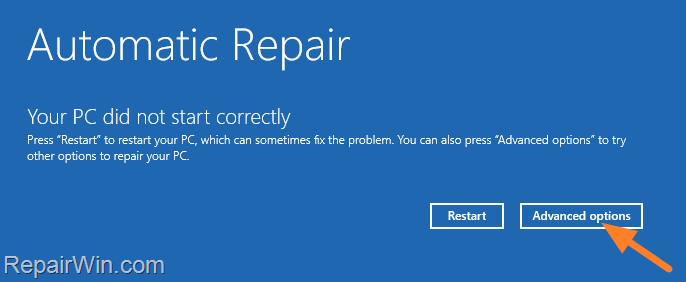
3. Repeat the above step one more time and then leave Windows to enter Automatic Repair mode. Click Advanced options to access troubleshooting tools that can help resolve boot issues.
Step 2. Repair the Boot Configuration
Now proceed to fix the Boot Configuration of Windows 10/11 using the following steps:
- At the 'Choose an option' screen, click Troubleshoot and then click Advanced Options again. This provides access to advanced recovery methods.
- At Advanced Options, select Command Prompt. This tool allows you to execute commands that can repair the boot configuration.

- In the command prompt, give the following command and press Enter:
diskpart
This command starts the DiskPart utility, which is used to manage disk partitions.
- Then issue this command and press Enter:
list volume
This command lists all the volumes on your disks, helping you identify the type of system (UEFI or Legacy) you are using.
- Now, look at the results of the "list volume" command and determine your system type:
- If you see a FAT32 (FS) partition in the list of volumes, then you own a UEFI based system. Follow the instructions in Part 1 to repair the BCD on UEFI-based systems.
- If you don't see a FAT32 (FS) partition, and all partitions are NTFS, then you own a BIOS/MBR/Legacy based system. Follow the instructions in Part 2 to repair the BCD on Legacy-based systems.
e.g., In the example screenshot below, the system is UEFI based.

Part-1. How to Repair the Boot Configuration on a UEFI Based System
- If your system is UEFI, note the Volume number of the FAT32 partition and the drive Letter of the Operating System (OS) partition, also known as the "OS drive".
- Now select the FAT32 volume with the following command and press Enter:
select volume 2
Note: Replace the number "2" with the volume number of the FAT32 partition.
- Assign the drive letter “Z” to the selected volume with this command:
assign letter=Z
- Type
exit& press Enter to close the DISKPART utility.

- Now give the following command to format the Z: drive:
format Z: /fs:fat32
Note: Press the "Y" key when asked to delete the drive and after the format press "Enter" at the 'Volume label' prompt.
- Finally, give the following command to fix the boot configuration data and press Enter:
bcdboot C:\windows /s Z: /f UEFI
Note: Replace the letter "C" with whatever drive letter is the OS drive.
- When you receive the message "Boot files successfully created", type
exit& press Enter to close the command prompt. - Then, click Turn off your PC.
- Turn on your PC again and let Windows boot normally. If Windows starts normally, then you're done! If not, follow the instructions in this comprehensive guide to get Windows back up and running: How To Repair Windows 11/10 If Windows Cannot Start Normally (All Methods).
Part-2. How to Repair Boot Configuration on a LEGACY Based System
- Type
exitto close the DISKPART utility. - Then give the following commands in order:
bootrec /fixmbrbootrec /rebuildbcd
- If after executing the last command, you receive that “Total Windows installations: 0”, then continue to the next step (4), otherwise skip to step 5.
- If you receive that “Total Windows Installations=0” then give the following commands in order:
bcdedit /export C:\BCD_BackupC:cd bootattrib bcd -s -h -rren C:\boot\bcd bcd.oldbootrec /rebuildbcd
- Press “A” to add the installation to the boot list and press Enter.
- Close the command prompt window and then click Turn off your PC.
- Turn on your PC again and let Windows boot normally. If Windows starts normally, then you're done! If not, follow the instructions in this comprehensive guide to get Windows back up and running: How To Repair Windows 11/10 If Windows Cannot Start Normally (All Methods).
Additional Solutions
In addition to the steps above, consider the following methods to resolve boot issues:
Check for Hardware Issues
Sometimes, hardware failures such as a faulty hard drive or RAM can prevent Windows from booting. Run a diagnostic test on your hardware components to ensure they are functioning correctly. Most modern PCs have built-in diagnostics accessible via the BIOS/UEFI firmware.
Use System Restore
If you have previously set up system restore points, you can use this feature to revert your system to a previous state where it was functioning correctly. Access System Restore from the Advanced Options menu in the Automatic Repair environment.
Summary
Resolving boot issues in Windows 10/11 involves entering Automatic Repair mode and using Command Prompt to repair the boot configuration. For UEFI systems, assign a drive letter to the FAT32 partition and use bcdboot to repair the boot files. For Legacy systems, use bootrec commands to fix the master boot record and rebuild the boot configuration data. Additionally, checking for hardware issues and using System Restore can further aid in resolving boot problems.
We hope this guide has been helpful. If you have any questions or feedback, please leave a comment below. Don't forget to share this article with others who might benefit from it!
Frequently Asked Questions
What is the 'Windows 10/11 won't boot' issue?
The 'Windows 10/11 won't boot' issue is a problem where a computer running Windows 10 or 11 fails to start up properly, often displaying error messages, a blank screen, or getting stuck in the boot process. This is often due to a corrupted boot configuration.
How can I access the Automatic Repair options in Windows 10/11?
To enter Automatic Repair, turn off your PC by holding the power button for 5-10 seconds. Turn it back on and, when you see the spinning dots, turn it off again using the same method. Repeat this one more time to allow Windows to enter Automatic Repair mode. Then, click Advanced options.
How do I determine if my system is UEFI or LEGACY?
You can determine if your system is UEFI or LEGACY by checking the partition type using the Command Prompt. Enter 'diskpart' followed by 'list volume'. If you see a FAT32 partition, your system is UEFI. If all partitions are NTFS, your system is LEGACY.
What steps should I follow to repair the boot configuration on a UEFI system?
For a UEFI system, select the FAT32 volume, assign it a drive letter (e.g., Z), and format it. Then use the command 'bcdboot C:\windows /s Z: /f UEFI' to repair the boot configuration data. Finally, reboot your PC to see if Windows starts normally.



