How to FIX: "Computer Cannot Be Connected" Error in Remote Event Viewer Access.
If you're encountering the "Computer cannot be connected" error while attempting to access event viewer logs on a remote computer, this guide will help you resolve the issue effectively.
Problem Description
When trying to connect to another computer to view its event logs, the connection fails with the following error message:
"Computer "%name-of-remote-pc%" cannot be connected. Verify that the network path is correct, the computer is available on the network, and that the appropriate Windows Firewall rules are enabled on the target computer. To enable the appropriate Windows Firewall rules on the remote computer, open the Windows Firewall with Advanced Security snap-in and enable the following inbound rules:
COM+ Network Access (DCOM-In) All rules in the Remote Event Log Management group"
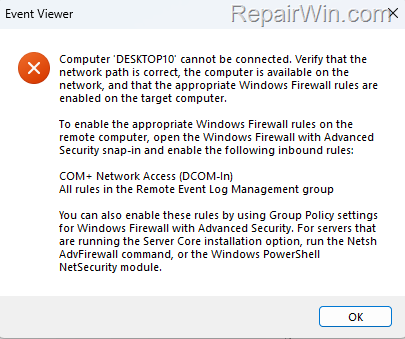
How to FIX: Computer cannot be connected – Unable to Access Event Viewer Logs on a Remote PC on Windows 10/11
To successfully connect to the remote computer's event viewer, you must enable specific firewall rules on the remote system. The error message refers to "COM+ Network Access (DCOM-In)", which has been updated to "Windows Management Instrumentation (WMI)" in Windows Firewall.
Step 1. Allow Required Features on Remote Computer's Firewall
On the remote computer, enable the 'Remote Event Log Management' and 'Windows Management Instrumentation (WMI)' features in the Windows Firewall as follows:
1. Press Windows  + R keys to open the Run command box.
2. Type control firewall.cpl and press OK (or Enter) to open the Windows Defender Firewall settings.
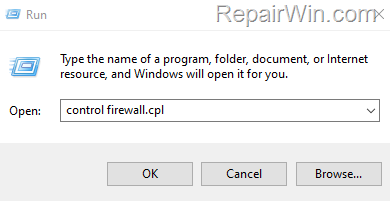
3. Click Allow an app or feature through Windows Defender Firewall.
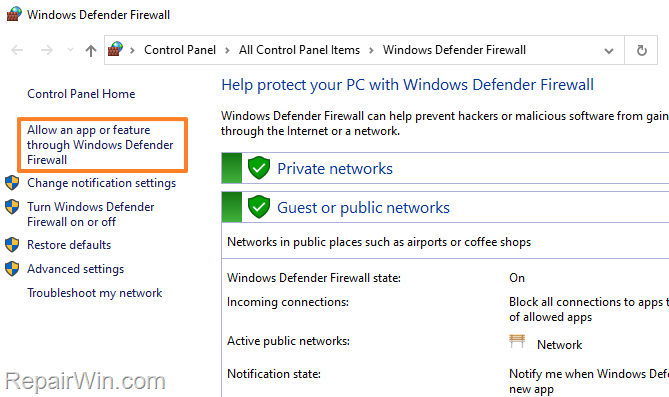
4. Click Change settings.
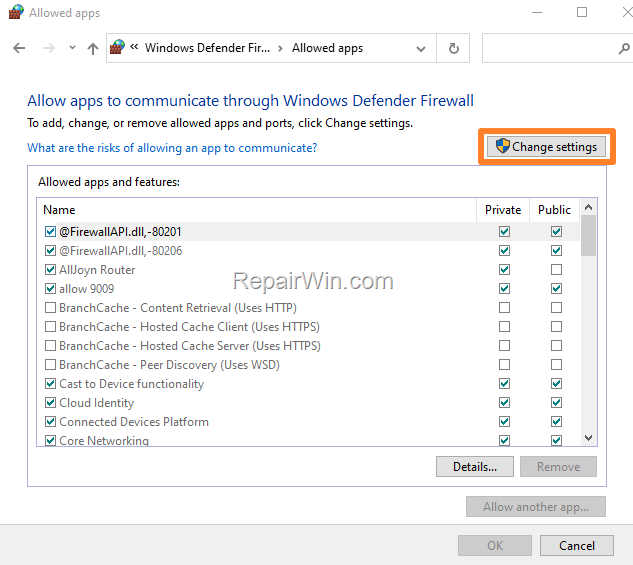
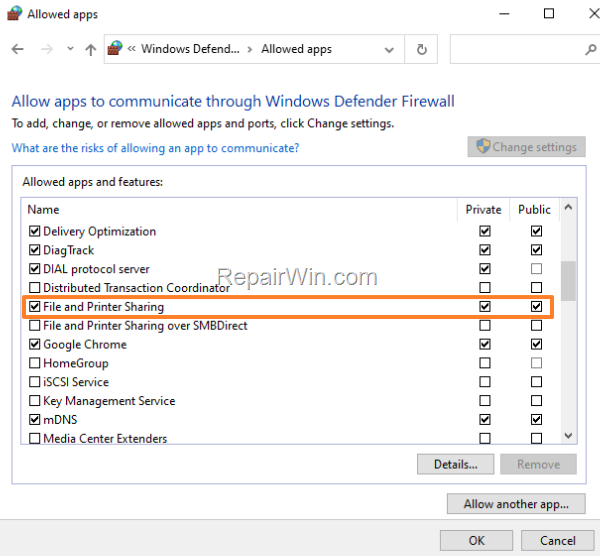
5. Ensure that the "File and Printer Sharing" feature is checked and allowed in Windows Firewall for both Private and Public networks.
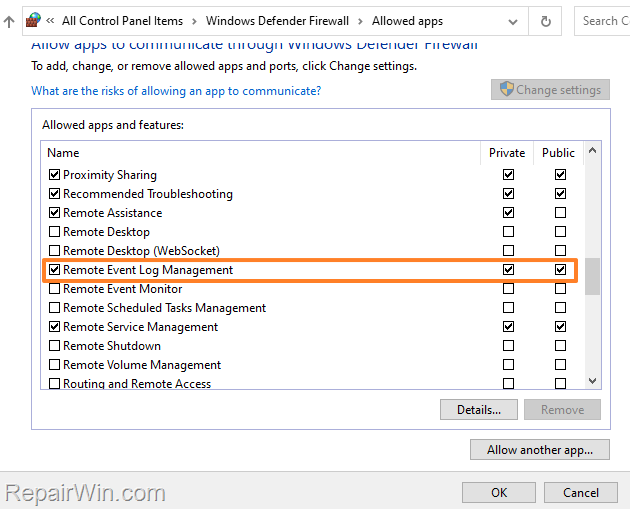
6. Scroll down and check the Remote Event Log Management box and also check the Private and Public checkboxes.
7. Perform the same actions to allow the "Windows Management Instrumentation (WMI)" in Windows Firewall.
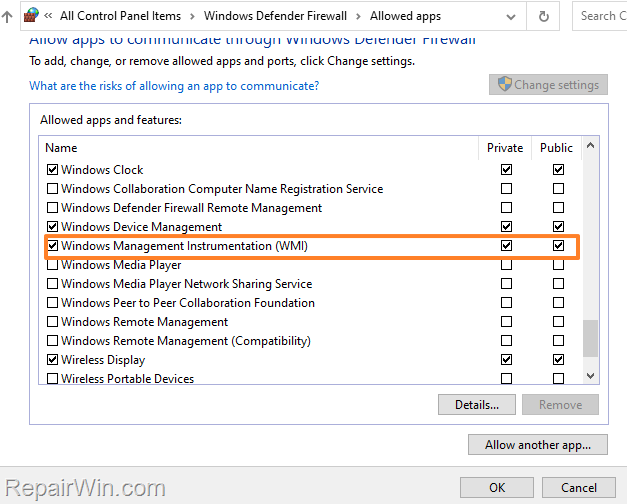
8. Restart the remote computer to apply the changes.
Step 2. Access Remote Computer's Event Logs
Note: After restarting the target PC, it is advisable to restart your local PC as well. Follow these steps to connect to the remote PC:
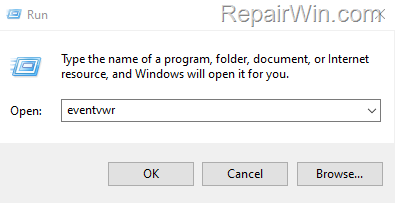
1. Press Windows + R keys to open the Run command box.
2. Type eventvwr and press OK (or Enter) to open the Event Viewer console.
3. On the Action menu, click Connect to another computer…

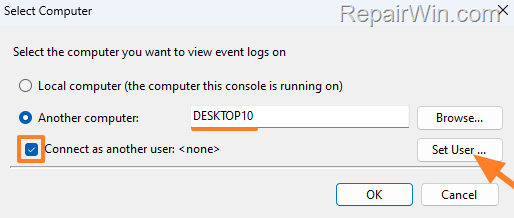
4. In the Select Computer window:
-
-
- Type the Computer Name of the target PC. (e.g., "Desktop10")
- Select the Connect as another user box.
- Click Set User
-
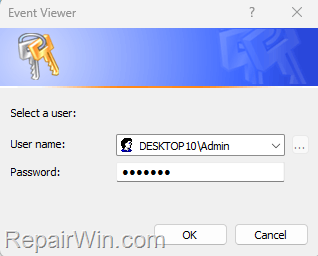
5. Enter the administrative credentials for the remote PC, formatting the username as "Name-of-Remote-PC\Username", then click OK.
6. Finally, click OK again to connect to the remote computer's event viewer.

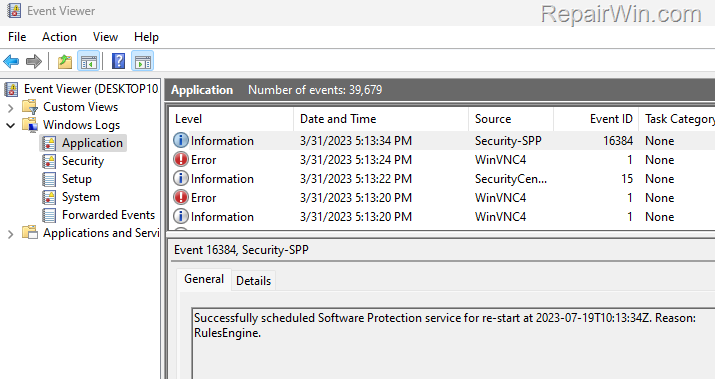
7. Now you should be able to view the event logs on the target computer from your local PC.
Additional Solutions
Solution 1: Enable Remote Administration
Ensure that the remote computer allows remote administration by enabling the following firewall rule:
- Open the Windows Defender Firewall settings as described in Step 1.
- Click on Advanced settings to open the Windows Firewall with Advanced Security window.
- In the left pane, select Inbound Rules.
- Find and enable the rule named Remote Administration (RPC) by right-clicking it and selecting Enable Rule.
Solution 2: Verify Network Discovery Settings
Ensure that network discovery is enabled on both the local and remote computers:
- Open Control Panel and navigate to Network and Sharing Center.
- Click on Change advanced sharing settings.
- Ensure that Turn on network discovery is selected under both Private and Public network profiles.
Summary
To resolve the "Computer cannot be connected" error when accessing remote event logs, ensure that the necessary firewall rules are enabled, such as "Remote Event Log Management" and "Windows Management Instrumentation (WMI)". Additionally, consider enabling remote administration and verifying network discovery settings to facilitate connectivity. Following these steps should help you successfully access the event viewer on a remote machine.
That’s all folks! Did it work for you? Please leave a comment in the comment section below or even better: like and share this blog post in the social networks to help spread the word about this solution.
Frequently Asked Questions
What should I do if I'm unable to connect to a remote computer's event viewer logs due to a network path error?
Ensure that both 'Remote Event Log Management' and 'Windows Management Instrumentation (WMI)' are enabled in the Windows Firewall on the remote computer. Allow these features by accessing the firewall settings through Control Panel and checking the appropriate boxes.
Is there a specific rule called 'COM+ Network Access (DCOM-In)' in Windows Firewall?
No, the 'COM+ Network Access (DCOM-In)' rule no longer exists. Instead, enable 'Windows Management Instrumentation (WMI)' in Windows Firewall.
How can I enable the necessary features for accessing remote event logs?
Open the Windows Defender Firewall settings and allow 'Remote Event Log Management' and 'Windows Management Instrumentation (WMI)' features by ensuring they are checked for both Private and Public networks.
What steps should I follow after enabling the required firewall rules to connect to a remote PC's event logs?
Restart both the remote and local computers. Then, use the Event Viewer to connect by selecting 'Connect to another computer' from the Action menu, entering the target computer's name, providing administrative credentials, and clicking OK.