
How to FIX "Publisher could not be verified" error on Windows 10/11 (Solved)
If you encounter the "Publisher could not be verified" warning message when attempting to open a trusted file or program, continue reading to learn how to resolve this issue effectively.
The security warning "Could not verify the publisher" appears when Windows is unable to locate a valid digital signature in the file to authenticate the publisher, thus categorizing the file as potentially harmful to Windows 10/11.
In essence, the "Publisher could not be verified" error typically arises when you attempt to install or open a program or file that Windows perceives as potentially malicious and harmful to your computer.
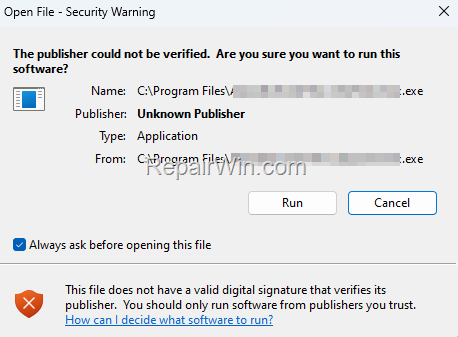
How to Remove "Publisher could not be verified" Security Warning on Windows 10/11
If you receive the "Publisher cannot be verified" warning and you are confident that the program or file originates from a trusted source, follow the steps below to eliminate the security warning.
Method 1. Unblock the File/Program
The initial method to address this issue is to unblock the program or file.
1. Uncheck the "Always ask before opening this file" checkbox and then click Run to open the program or file. This action informs Windows that you trust the file, allowing it to bypass the security prompt.
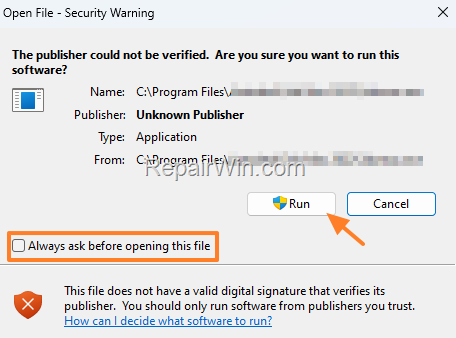
2. Close and reopen the program or file to see if the warning persists. If the warning no longer appears, the issue is resolved. If it persists, proceed to the next step.
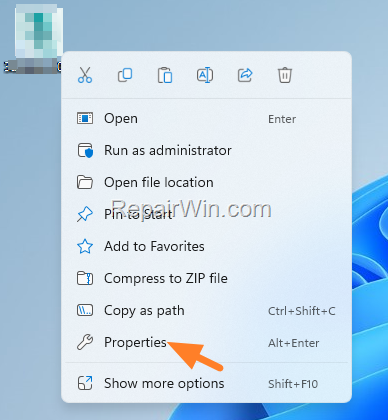
3. Right-click on the program or file and select Properties. This allows you to access the file's properties to adjust its security settings.
4. In the General tab, check the Unblock checkbox and click OK. This action modifies the file's properties to recognize it as safe.
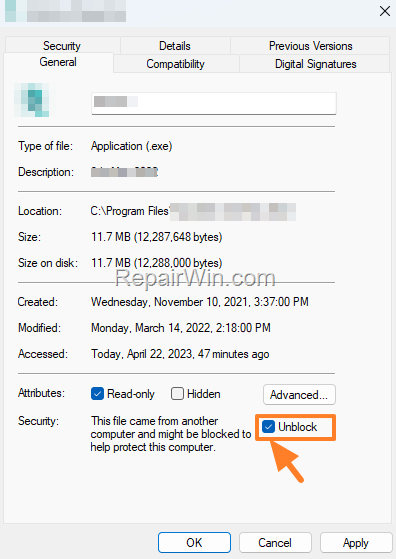
5. Attempt to open the program or file again. The issue should now be resolved.
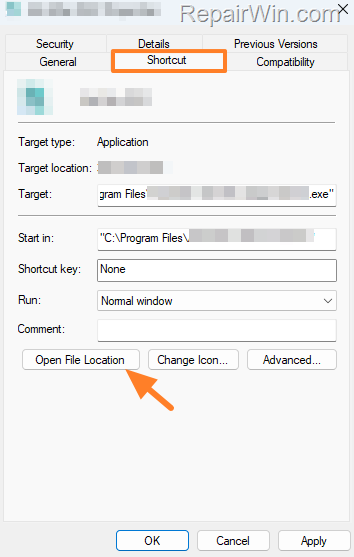
* Note: If the "Unblock" option is not visible on the "General" tab, you are likely attempting to modify the properties of a shortcut. If this occurs and you see the "Shortcut" tab, click the "Open File Location" button, then follow the above steps to "Unblock" the original program (.exe) or file.
Method 2. Disable Windows Defender SmartScreen for Apps
The SmartScreen Filter is a specialized security feature in Windows 10/11 that prevents the execution of applications or files from untrusted publishers. To disable the SmartScreen filter:
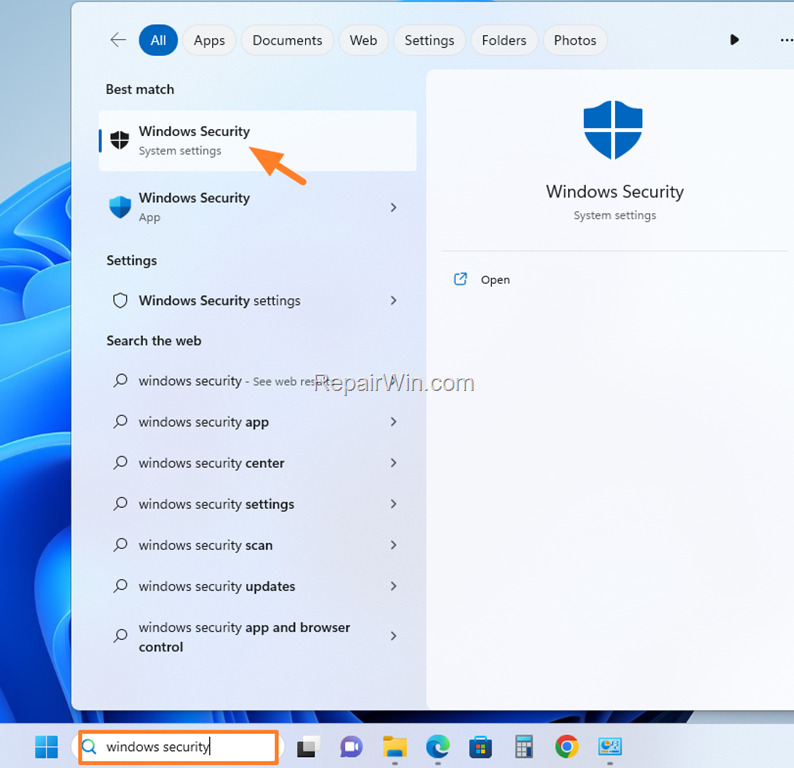
1. Type "windows security" in the search bar and then open the Windows Security settings from the results. This action allows you to access security settings to manage application restrictions.
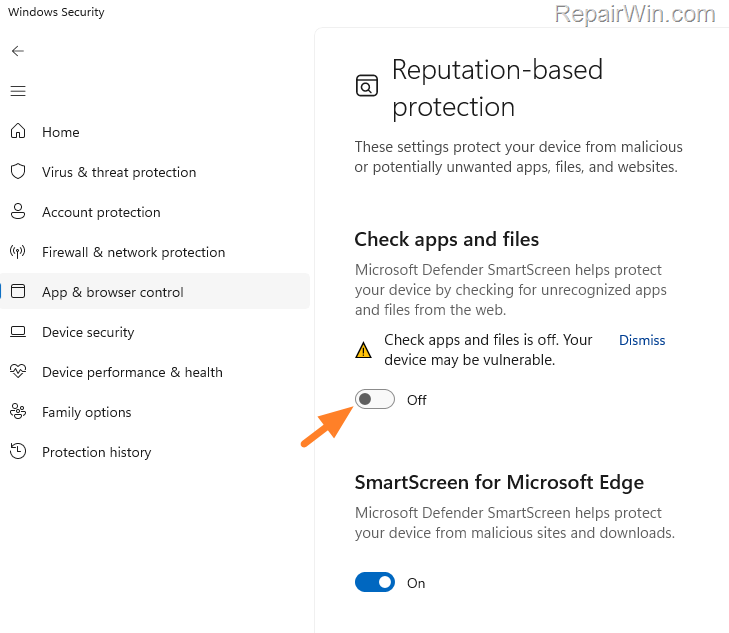
2. In Windows Security, select App & browser control on the left, then open the Reputation-based protection settings on the right. This step allows you to adjust settings related to application reputation and security.

3. Set the Check apps and files switch to Off, and then click Yes to the User Account Control (UAC) warning. This action disables the SmartScreen filter, allowing applications to run without verification.
Method 3. Modify Security Settings in Internet Options
Another method to remove the Security Warning is to enable the execution of unsafe applications and files in Internet settings.
* Important: Please note that applying this method will expose your computer to risks by reducing protection against malicious applications. Proceed with caution.
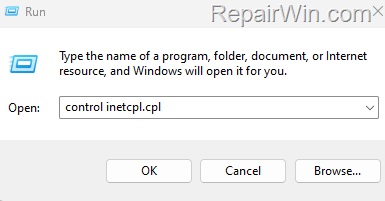
1. Press Windows  + R keys to open the Run command box.
2. Type control inetcpl.cpl and press OK (or Enter) to open the Internet options. This command opens the Internet Properties dialog where you can adjust security settings.
3. In Internet Properties, select the Security tab and click Custom level. This action allows you to customize security settings for different zones.
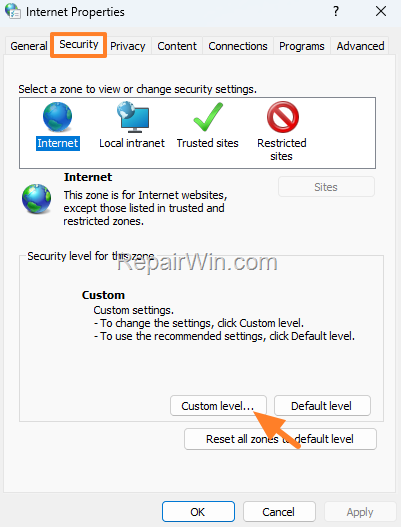
4. Scroll down to the Miscellaneous section, set the Launching applications and unsafe files to Enable, and click OK. This setting allows potentially unsafe files to be executed, bypassing certain security checks.

5. Click Yes at the Security warning and OK to close the Internet properties. This confirms the changes and exits the settings dialog.

6. Try opening the application or file again.
Summary
In summary, resolving the "Publisher could not be verified" error can be achieved through various methods, including unblocking files, disabling the Windows Defender SmartScreen and modifying Internet Options. Each method provides a unique way to manage security settings, ensuring trusted files and programs can run without unnecessary interruptions.
We hope this guide has been helpful. If you have any questions or feedback, please leave a comment below. Don't forget to share this article with others who might benefit from it!
Frequently Asked Questions
Why do I receive the 'Publisher could not be verified' warning on Windows 10/11?
The 'Publisher could not be verified' warning appears when Windows cannot find a valid digital signature to verify the publisher of a file or program, marking it as untrustworthy and potentially harmful.
How can I unblock a file or program to bypass the 'Publisher could not be verified' warning?
Right-click the file or program, select Properties, and in the General tab, check the Unblock checkbox, then click OK. If the Unblock option isn't visible, ensure you're navigating to the original program file and not its shortcut.
What risks are associated with disabling the Smart Screen Filter?
Disabling the Smart Screen Filter may expose your computer to potential threats from untrusted files as this feature is designed to prevent opening applications or files from unknown publishers.
Can I modify Internet Options to eliminate the security warning?
Yes, by enabling the execution of unsafe applications and files in the Security tab under Internet Options. However, this may place your computer at risk of exposure to malicious software.



