
How to View and Export Chrome Passwords.
In this tutorial I 'll show you how to view, manage or export to a file, the saved passwords for every website you visit in Google Chrome. As you already know, the Chrome browser asks you to save your login credentials (username and password) at the first time when you visit a website.
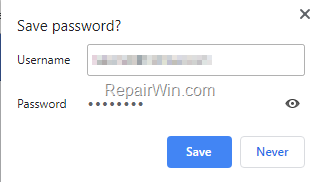
By allowing Chrome to save your credentials, the next time you'll sign in to the website, the Chrome browser will auto fill the sign-in fields. But by doing that, many users (including me), forget their login credentials over time, so in this tutorial you 'll find out the way to view, manage or save to a file the Chrome saved passwords.
How to Manage, Show and Export the Saved Passwords in Google Chrome.
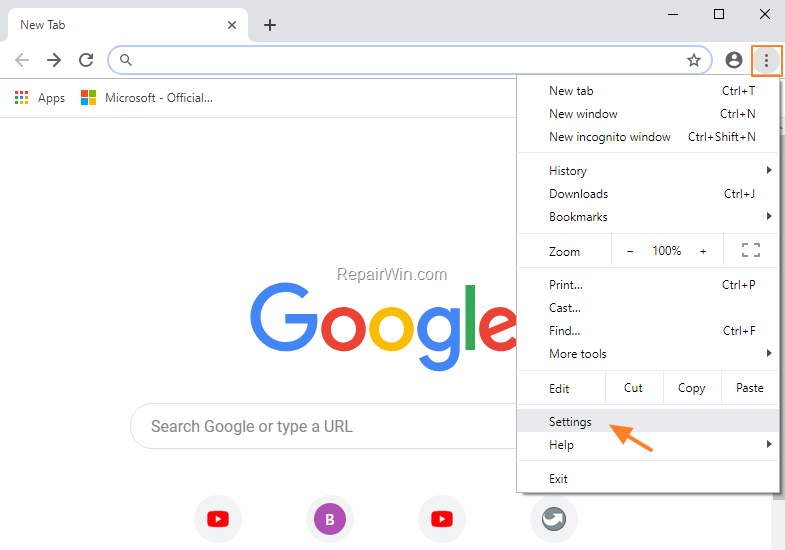
1. From the Chrome menu  select Settings.
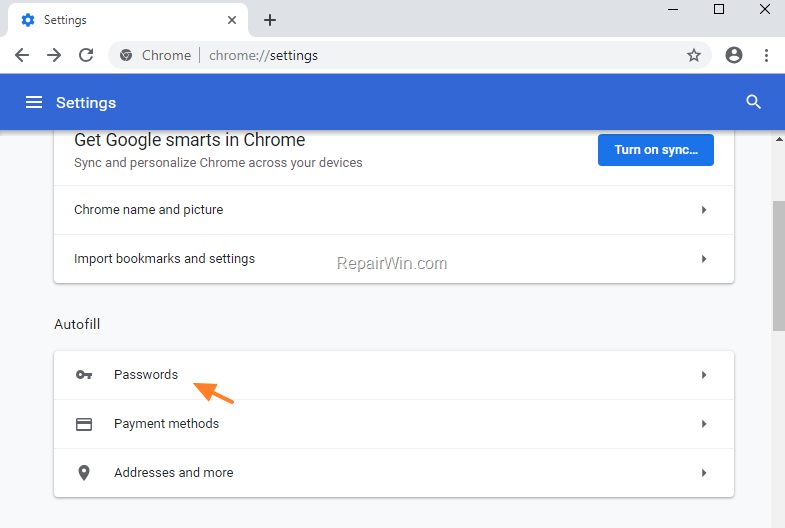
2. At AutoFill options, click Passwords.
How to View Chrome Passwords.
1. To view the Chrome stored password for a specific site, click the Show Password icon.
icon.

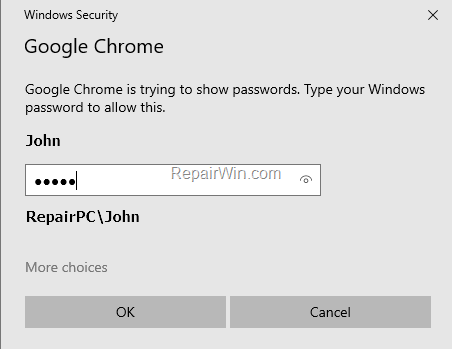
2. Type the Windows login password when asked and click OK to reveal the saved password for the site.
3. To remove the saved password for the site, click the three dots menu  next to the site name, and click Remove.
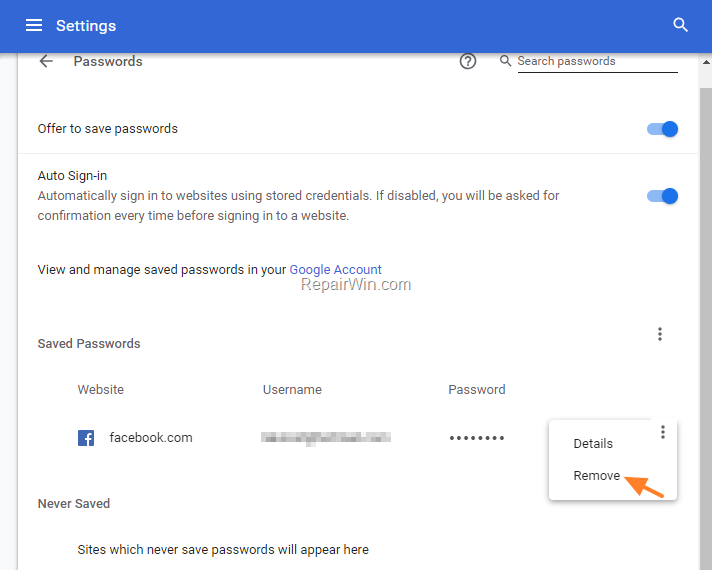
How to Save All Chrome Passwords to a File.
1. To save on a Excel (.csv) file, all the saved login usernames and passwords for all the websites, click the three dots menu  next to 'Saved Passwords' and click Export.
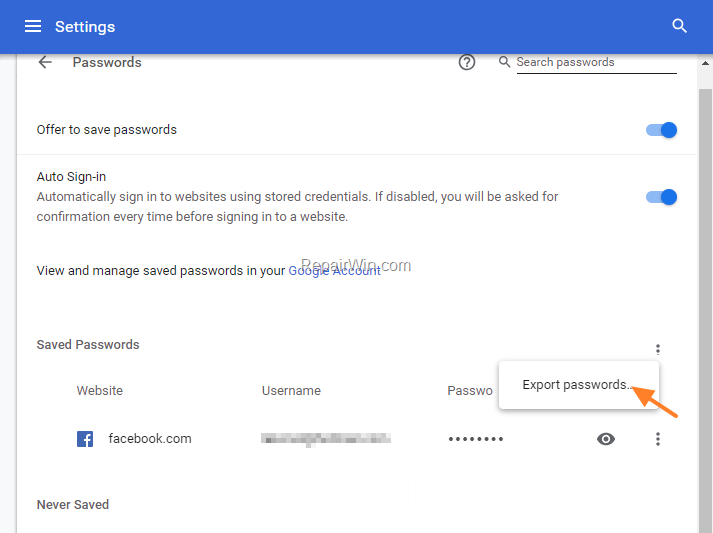
2. At the next window click Export passwords.
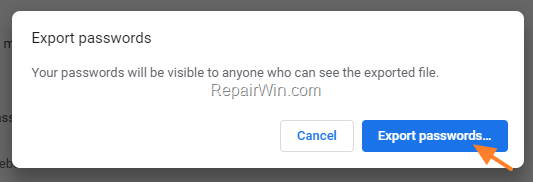
3. Type your Windows login password when asked and click OK.

4. Save the "Chrome Passwords.csv" on your computer.

That’s all! Did it work for you?
Please leave a comment in the comment section below or even better: like and share this blog post in the social networks to help spread the word about this solution.
Frequently Asked Questions
How do I view my saved passwords in Google Chrome?
To view your saved passwords in Google Chrome, go to Settings > AutoFill > Passwords. Click the 'Show Password' icon next to the website for which you want to view the password, then enter your Windows login password when prompted.
Can I remove a saved password from Google Chrome?
Yes, you can remove a saved password by going to Settings > AutoFill > Passwords, clicking the three dots menu next to the site name, and selecting 'Remove'.
How can I export my saved passwords from Google Chrome?
To export your saved passwords, go to Settings > AutoFill > Passwords, click the three dots menu next to 'Saved Passwords', and select 'Export'. Follow the prompts to save your passwords as a CSV file on your computer.
Will I need to enter my Windows password to view or export passwords from Chrome?
Yes, Chrome will ask for your Windows login password for security reasons when you attempt to view or export saved passwords.



