
How to Monitor All Devices on Your Network: A Comprehensive Guide
Whether you want to ensure your home network is secure or troubleshoot connectivity and speed issues, knowing how to view all the connected devices on your network can be invaluable. This guide will show you various methods and tools to view all connected computers, smartphones, printers, and other devices on your Wi-Fi and wired network, whether you're tech-savvy or a complete novice.
How to Find All Connected Devices on Your Network in Windows 10/11
Note: If you want to see who is connected to your Wi-Fi and LAN network from your smartphone, install one of these popular apps from Google Store or the App Store: Fing, Network Scanner, Network Analyzer.
Method 1. View Connected Devices in Router's Web Interface
The first method to find out all the connected devices on your network is from your router's web interface. This method is the most reliable because it allows you to see all the connected devices on your router/network, along with details of those devices, so you can locate them.
Step 1. Find Out the Router's IP Address
- Press the Windows
 + R keys to open the 'Run' command box.
 - Type
CMDand then press ENTER or OK.
 + R keys to open the 'Run' command box.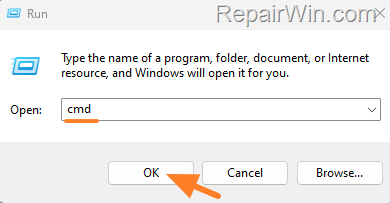
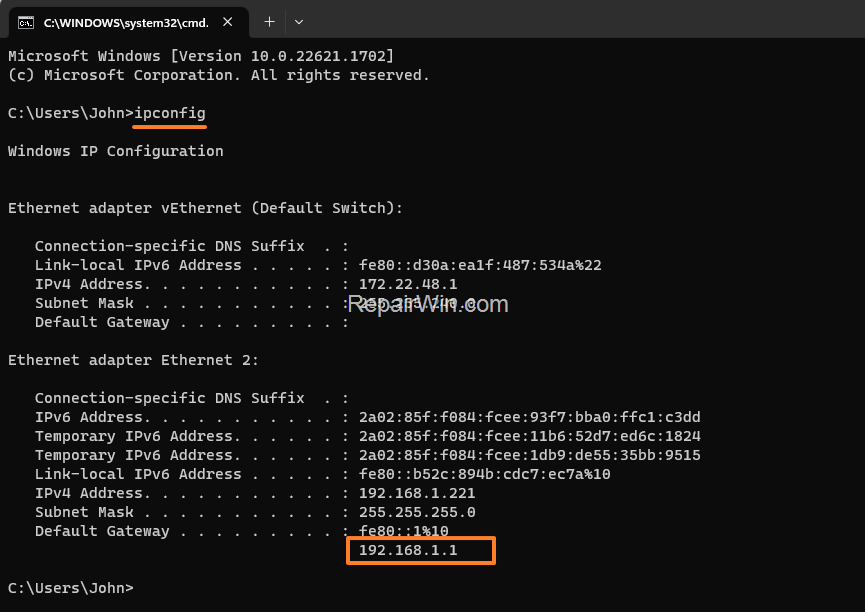
- In Command Prompt, type the following command and press Enter.
ipconfig
- Notice the number next to Default Gateway on the active network adapter (Ethernet or Wi-Fi) to find out the IP Address of your router.
e.g., In this example, the computer is connected wired to the network, so the Router's IP Address is "192.168.1.1".
Step 2. View Connected Devices in Router
Once you find out the IP Address of your router, log in to the router's web interface to see who is connected to your network using the steps below:
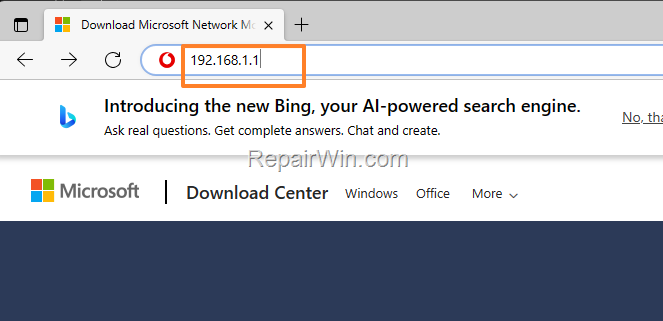
- Open your web browser and type in the address bar the IP address of your router. (e.g., "192.168.1.1" in this example). Then hit Enter.
- Type the admin username and password to log in to the router. (If you do not know the login credentials to the router and you haven't changed them, look for a label on the router device, or in the router manual or on the manufacturer's website).
- Once you have logged in to the router's settings, navigate to the section that displays the connected devices. Typically, it is labeled as "Device List," "Connected Devices," or "DHCP Client List."
Method 2. View the IP Addresses of Network Connected Devices Using Command Prompt
Another method to find out how many devices are connected to your local network is by using the command prompt. This method allows you to count how many devices are connected to your network and their IP addresses, but you won't be able to tell what kind of devices they are. If you wish to identify the connected devices on your network, use the above or one of the next methods below.
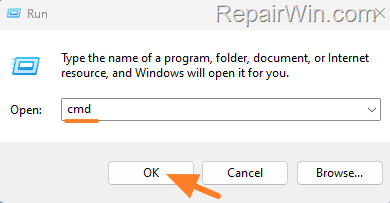
- Press the Windows + R keys to open the 'Run' command box.
- Type
CMDand then press ENTER or OK.
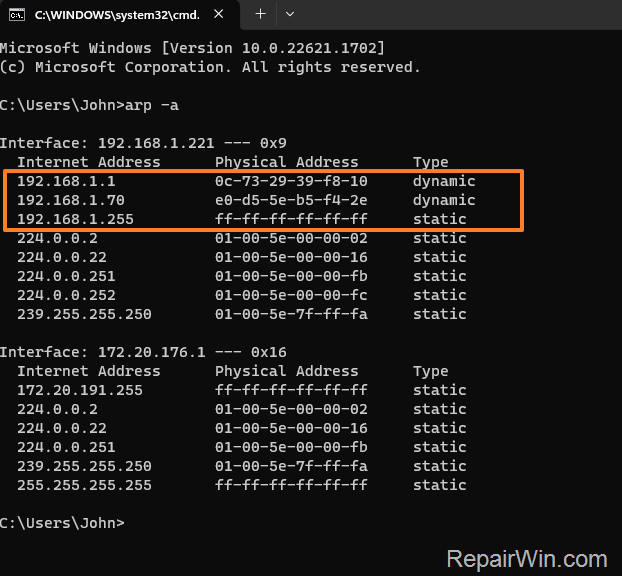
- In the command prompt window, type the following command and press Enter.
arp -a
- After executing the above command, you'll see the IP address of any device connected to your local network. These IP Addresses will start with the same numbers as your router's IP Address. (e.g., "192.168.1.x" in this example).
Method 3. View All Devices Connected to Your Network with Wireless Network Watcher
One of my favorite methods to find out which devices are connected to the network is by using the Wireless Network Watcher from NirSoft, because it quickly scans and displays all devices that are wired or wirelessly connected to your network, with some basic information to identify them.
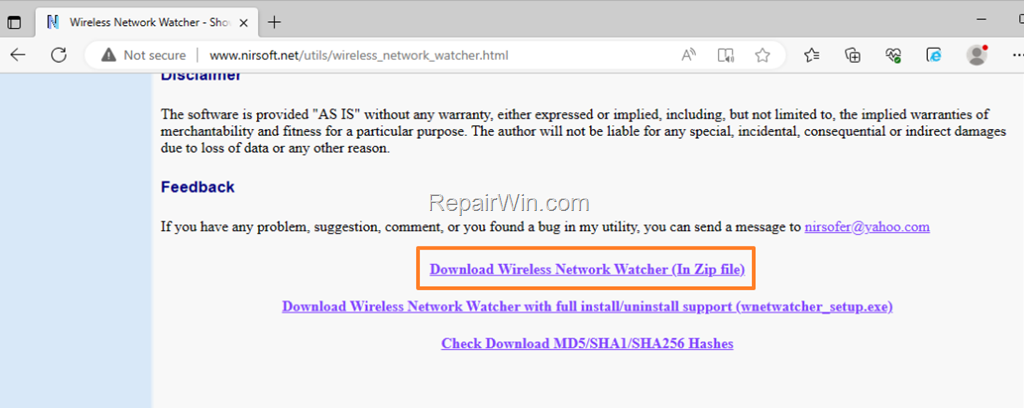
- Download Wireless Network Watcher. (Scroll the page down and click "Download Wireless Network Watcher (In Zip file)"). *
* Note: Alternatively, if you want to install the program, click "Download Wireless Network Watcher with full install/uninstall support").
- When the download is completed, extract the contents of the zip file and run "WNetWatcher.exe".
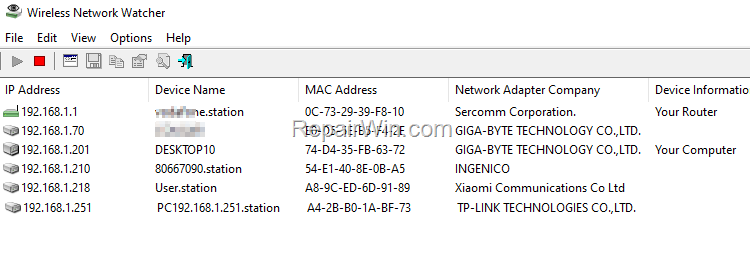
- After a few seconds, you will see all the connected devices on the network, connected either wired or wirelessly, along with some information about each device (such as the name of the device on the network or the manufacturer of the device's network card).
Method 4. Find Out All Connected Devices to Your Network with Advanced IP Scanner
Another reliable program to find out what devices are connected to your wireless or wired network is the Advanced IP Scanner.
- Download and then install Advanced IP Scanner.
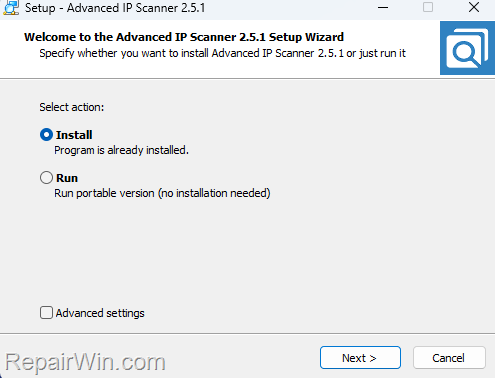
- Then run the program and apply the following settings:
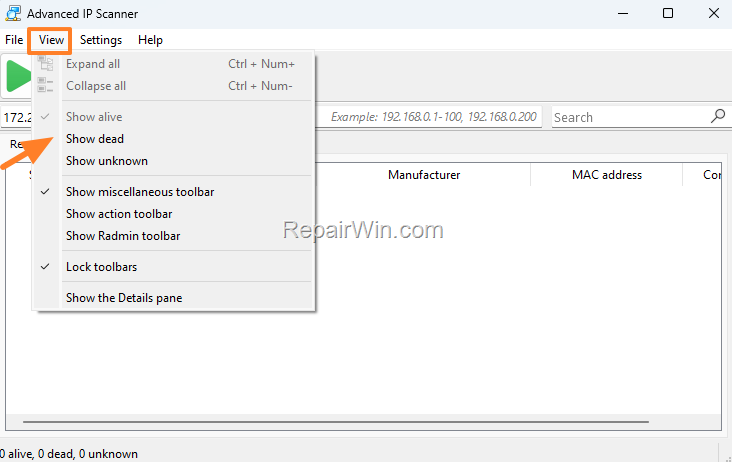
- a. In the View menu, uncheck the "Show dead" option to display only the currently connected devices on your network.
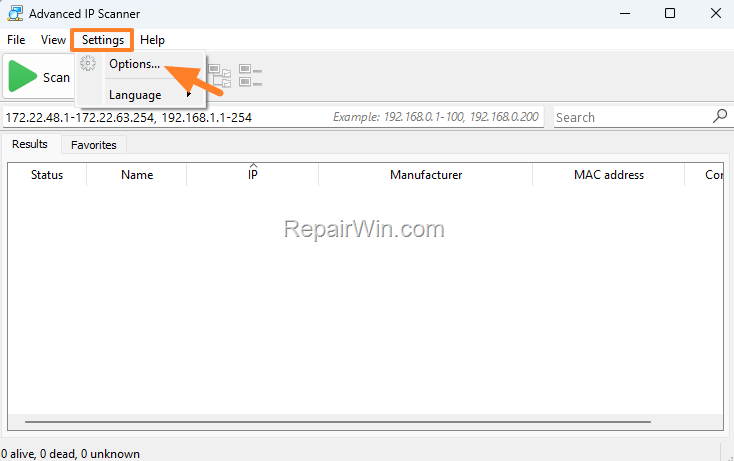
- b. Next, click the Settings menu and choose Options.
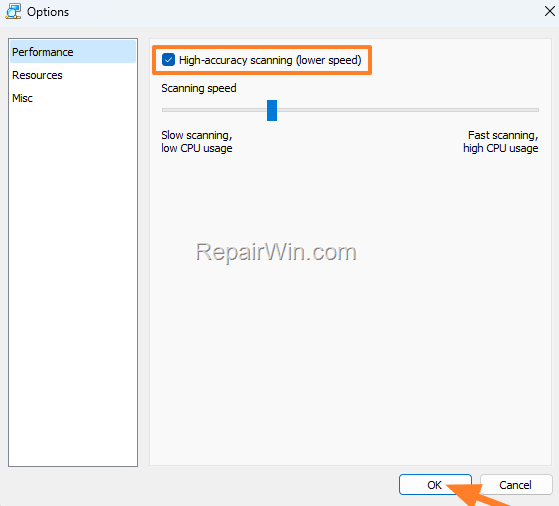
- c. In Performance options, check the option High-accuracy scanning (lower speed) and click OK.
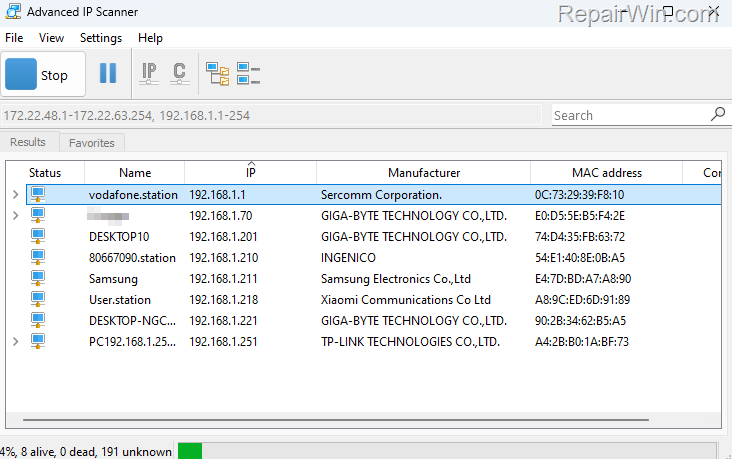
- Now click Scan and let the program find all the network-connected devices.

- After a while, you'll see a list of the connected devices on your network, along with their Device name, IP Address, and Manufacturer, so you can identify them.
Summary
Monitoring the devices connected to your network is crucial for maintaining security and optimizing performance. This guide outlined several methods, including accessing your router's web interface, using command prompt commands, and employing third-party tools like Wireless Network Watcher and Advanced IP Scanner. Additionally, the built-in Windows Network and Sharing Center offers a straightforward way to view connected devices without additional software. Choose the method that best suits your technical comfort level and network needs.
We hope this guide has been helpful. If you have any questions or feedback, please leave a comment below.
Don't forget to share this article with others who might benefit from it!
Frequently Asked Questions
How can I view all the devices connected to my network using my router's web interface?
To view all connected devices via your router's web interface, first find your router's IP address by typing 'ipconfig' in the command prompt and noting the Default Gateway. Access the router interface by entering the IP address in a web browser, login with admin credentials, and navigate to the section labeled 'Device List,' 'Connected Devices,' or 'DHCP Client List.'
Is there a way to find connected devices on my network using the command prompt?
Yes, you can use the command prompt by typing the command 'arp -a' to view IP addresses of devices connected to your local network. However, this method won't provide detailed information about the device types.
What tool can I use to easily identify all devices connected to my network?
You can use the Wireless Network Watcher from NirSoft. Download the tool, run 'WNetWatcher.exe,' and it will scan and display all devices connected to your network with basic identifying information.



