
How to Install Windows 11 24H2 on Unsupported Hardware.
If your PC doesn't meet the Windows 11 system requirements, this guide provides detailed instructions to install the 24H2 update or perform a clean installation of Windows 11 version 24H2 on unsupported hardware.
As you may know, to install Windows 11, Microsoft requires a [supported processor](https://learn.microsoft.com/en-us/windows-hardware/design/minimum/windows-processor-requirements) and your system must support TPM & Secure Boot. (See all the [Windows 11 hardware requirements](https://docs.microsoft.com/en-us/windows/whats-new/windows-11-requirements).) To bypass these restrictions and install Windows 11 24H2 on an unsupported computer, continue below to resolve the problem.

How to Install or Upgrade to Windows 11 24H2 in Unsupported Hardware. *
* Important: Windows 11 version 24H2 has an additional requirement: The CPU must support SSE4.2 instructions, which are not supported on processors made before 2010-2011. If you have a CPU made before 2010-2011, you will not be able to install Windows 11 24H2 because there is no way to bypass the SSE4.2 requirement.
To verify that your CPU supports SSE4.2 (Intel) or SSE4A (AMD) instructions, download and run [CPU-z](https://www.cpuid.com/softwares/cpu-z.htm).

Step 1. Download Windows 11 24H2 ISO File
* Note: If you have already downloaded the latest version of Windows 11 in an ISO file, skip to the next step.
1. Navigate to the [Windows 11 download page](https://www.microsoft.com/en-gb/software-download/windows11) and download the [Windows 11 Media Creation Tool](https://go.microsoft.com/fwlink/?linkid=2156295).
2. Run the downloaded file "mediacreationtool.exe" and when prompted, Accept the license terms. This tool helps create installation media or download the ISO file directly.
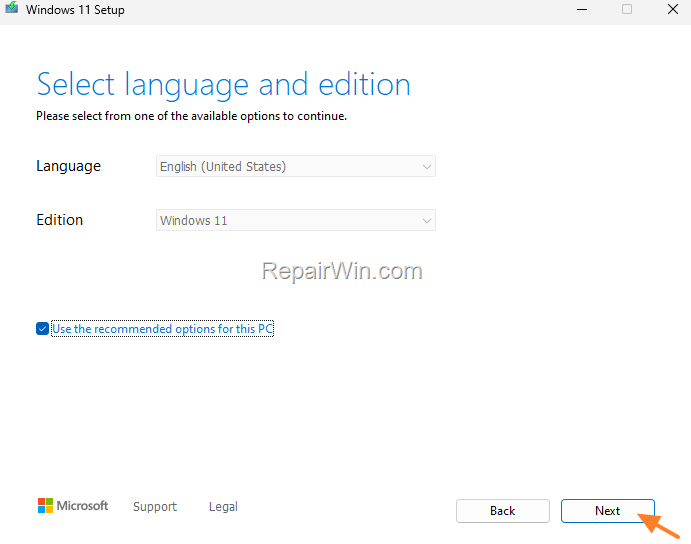
3. At Windows 11 edition and language options, click Next. This step ensures that you download the correct language and edition for your needs.
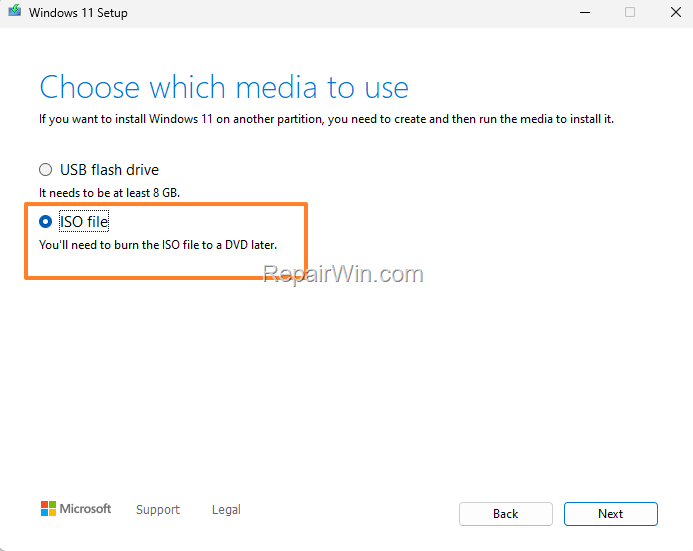
4. Choose ISO File and click Next. This selection will download the ISO file, which can be used for installation on multiple devices.
5. Save the Windows.ISO file to disk (e.g., to the 'Downloads' folder).

6. When the download of the "Windows.iso" is completed, close the Media Creation Tool and proceed to the corresponding part below according to what you want to do:
- Part 1. Upgrade Windows 11 to version 24H2 on unsupported hardware.
- Part 2. Clean Install Windows 11 v24H2 on unsupported hardware.
Part 1. How to Update Windows 11 23H2 to 24H2 on an Unsupported PC
Method 1. Install Windows 11 24H2 Update Using "setup.exe /product server" Command
1. Double-click on the Windows.iso file to mount/open it. This action will make the ISO file accessible as a virtual drive.

2. Now notice in the File Explorer navigation pane with which drive letter the ISO is mounted (e.g., with the letter "E:\" in this example). This drive letter is crucial for executing the installation command.

3. Now press the Windows + R keys to open the RUN command box, type the following command, and press Enter:
X:\setup.exe /product server
* Note: Replace "X" in the above command with the drive letter of the mounted ISO file. This command initiates the installation process by tricking the system into treating it as a server installation.

4. At the "Install Windows Server" screen, choose Next.
* Note: Don't worry because it says "Install Windows Server". The Windows 11 24H2 will be installed. This method bypasses certain hardware checks that are enforced during a standard Windows 11 installation.

5. When prompted, accept the license terms to continue.
6. Finally, ensure that the "Keep files, settings, and apps" option is checked and click Next to upgrade your system to Windows 11 24H2. This option ensures that your existing data and applications are preserved during the upgrade.

Method 2. Upgrade Windows 11 to Version 24H2 by Modifying the Registry
1. Open Command Prompt as Administrator. This step is crucial as it allows you to make system-level changes to the Windows registry.
2. Enter the following five (5) commands in order (press Enter after typing each one) to modify the registry so that you can upgrade to Windows 11 24H2:
reg.exe delete "HKLM\SOFTWARE\Microsoft\Windows NT\CurrentVersion\AppCompatFlags\CompatMarkers" /f 2>NULreg.exe delete "HKLM\SOFTWARE\Microsoft\Windows NT\CurrentVersion\AppCompatFlags\Shared" /f 2>NULreg.exe delete "HKLM\SOFTWARE\Microsoft\Windows NT\CurrentVersion\AppCompatFlags\TargetVersionUpgradeExperienceIndicators" /f 2>NULreg.exe add "HKLM\SOFTWARE\Microsoft\Windows NT\CurrentVersion\AppCompatFlags\HwReqChk" /f /v HwReqChkVars /t REG_MULTI_SZ /s , /d "SQ_SecureBootCapable=TRUE,SQ_SecureBootEnabled=TRUE,SQ_TpmVersion=2,SQ_RamMB=8192,"reg.exe add "HKLM\SYSTEM\Setup\MoSetup" /f /v AllowUpgradesWithUnsupportedTPMOrCPU /t REG_DWORD /d 1
These commands remove compatibility checks and set registry values that allow the upgrade on unsupported hardware.

3. When done, close the command prompt window and double-click on the Windows.iso file to mount/open it.
4. Double-click at setup.exe to start the installation of Windows 11. This will initiate the upgrade process with the new registry settings applied.

5. Click Next on the "Install Windows 11" screen, and then click Accept the license terms.

6. Finally, make sure that "Keep personal files, and apps" is checked and then click Install to start the Windows 11 24H2 installation. This ensures your personal data is retained.

Part 2. How to Clean Install Windows 11 v24H2 on an Unsupported PC by Bypassing TPM, Secure Boot & CPU Requirements with RUFUS.
If you want to perform a fresh installation of Windows 11 24H2 on an unsupported computer, use the RUFUS USB creator utility to create a Windows 11 USB installation media that bypasses the TPM, Secure Boot, and CPU requirements.
1. Download the latest version of [RUFUS](https://rufus.ie/downloads/) USB creator.
2. Plug an EMPTY USB flash drive into your computer. Ensure the USB drive has no important data as it will be formatted.
3. Run the "rufus-x.exe" file you downloaded.
4. Choose the empty USB drive under "Device". This selection specifies the target device for the installation media.
5. Click Select and then open the Windows.iso file you downloaded in step 1.

6. After selecting the "Windows.iso" file, click START. This begins the process of creating the bootable USB drive.

7. At Windows User Experience options, check the following option and click OK:
- Remove requirement for 4GB+ RAM, Secure Boot, and TPM 2.0
* Notes: Here you can also select the following options:
- Remove requirement for an online Microsoft Account: if you want to run Windows 11 with a local account.
- Create a local account with username…: If you want to specify a standard user account for all new installations (This is helpful if you want to install many PCs with the same account).
- Set regional options to the same values as this user's.
- Disable data collection to skip privacy questions.
- Disable BitLocker automatic device encryption.
These options allow you to customize the installation process according to your preferences and bypass unnecessary requirements.

8. Read the security warning carefully, and if you don't have files you need on the USB, click OK to proceed. This warning is to ensure you are aware that the USB will be formatted.

9. When the Windows 11 Installation media is created, close RUFUS and boot from the created USB disk on any computer with unsupported hardware to install Windows 11 version 24H2.
Summary
In this guide, we've explored various methods to install Windows 11 24H2 on unsupported hardware. From using the "setup.exe /product server" command to modifying the registry and creating a bootable USB with Rufus, each method offers a unique approach to bypassing Microsoft's hardware restrictions. Ensure your CPU supports SSE4.2 instructions before proceeding, and always back up important data before attempting these installations.
Frequently Asked Questions
What are the minimum requirements to install Windows 11 24H2 on a PC?
To install Windows 11 24H2, your PC must have a supported processor, TPM support, Secure Boot capability, and the CPU should have SSE4.2 instructions for Intel or SSE4A for AMD. PCs made before 2010-2011 may not support these requirements.
How can I bypass hardware requirements to install Windows 11 24H2 on an unsupported PC?
You can bypass the TPM, Secure Boot, and CPU requirements by using methods like running 'setup.exe /product server' or modifying certain registry entries to allow installation on unsupported hardware.
Is there a method to upgrade Windows 11 23H2 to 24H2 on unsupported hardware?
Yes, you can upgrade by either mounting the ISO and running the 'setup.exe /product server' command or modifying registry entries to trick the system into disregarding hardware check requirements.
How can I verify if my CPU supports SSE4.2 or SSE4A instructions required for Windows 11 24H2?
You can check if your CPU supports SSE4.2 (Intel) or SSE4A (AMD) instructions by downloading and running the CPU-z software.



