
FIX: YouTube Not Working on Chrome (Solved)
A few days before, I encountered the following problem on a Windows computer: YouTube is not working in Chrome (Videos don't play). If you cannot watch videos on YouTube or other websites with Google Chrome, because the video window is black then read this tutorial to fix the issue.
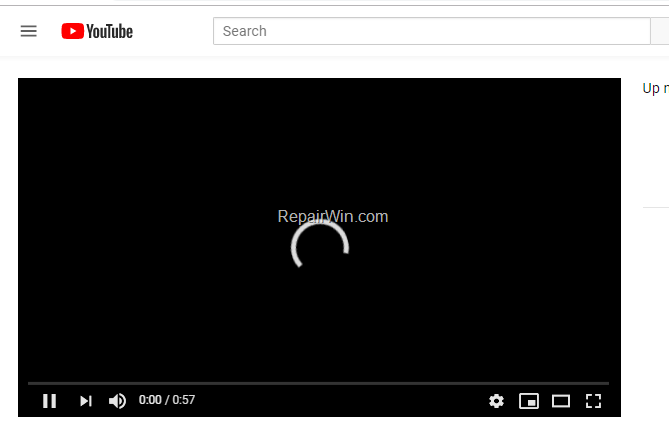
How to FIX: YouTube or Online Videos Not Loading in Chrome browser.
When YouTube videos won't load in Chrome, then proceed to resolve the issue by following the steps below.
Step 1. Check if You Can Watch Videos with Another Browser.
The first step, is to determine if the "YouTube Not Working" issue is resides only on Google Chrome or in all other installed browsers. So, open any other web browser (e.g. the 'Internet Explorer') and check if you can watch YouTube videos. If you face the same problem, then check you Internet Connection and if it's OK, update the drivers on your Display Adapter. If you can watch YouTube videos, with another browser, then continue to next step.
Step 2. Disable the Hardware Acceleration in Chrome.
The next step to resolve the "YouTube videos not loading in Chrome" issue, is to turn off the hardware acceleration in Chrome browser. To do that:
1. From the Chrome menu  select Settings.
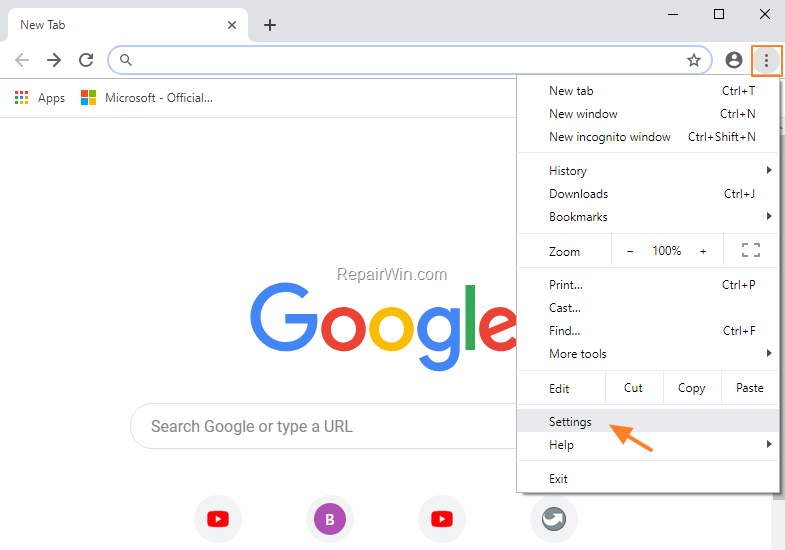
2. At Settings page, scroll down and click Advanced.

4. Drag the Use hardware acceleration when available switch to OFF and then click Relaunch.
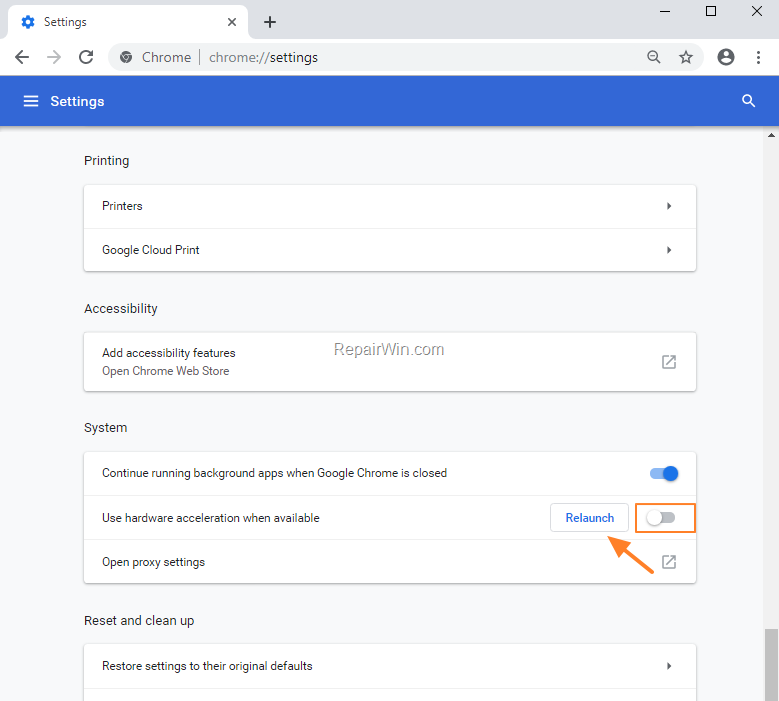
5. Check if you can watch YouTube videos now. If not, then continue to step 3.
Step 3. Clear Browsing Data (Cookies, Cache, etc.).
The next step to resolve the 'YouTube video not loading" problem in Chrome, is to delete the browsing data. To do that:
1. From the Chrome menu select More tools > Clear browsing data.

2. At Clear browsing data options, select All time (at 'Time range') and then click Clear Data.

3. Restart Chrome and try to watch a YouTube video. If the problem persists then continue to next solution.
Step 4: Delete your Chrome's Profile stored settings and data.
Sometimes, the Chrome browser doesn't work normally if the Chrome profile is damaged. So, an easy method to resolve Chrome problems is to recreate the Chrome profile folder. To do that:
1. Simultaneously press “Windows” + “R” keys to open the RUN window.
2. In RUN window copy and paste the following command according your Windows Operating System & press OK:
- Windows 10, 8, 7 or Vista:
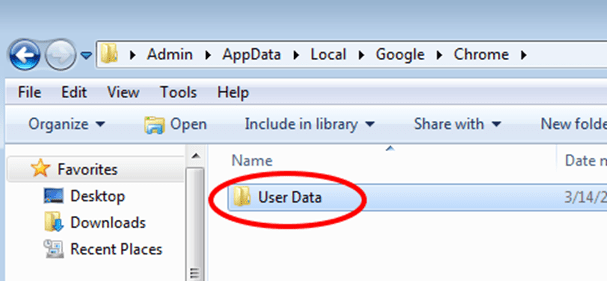
- %LOCALAPPDATA%\Google\Chrome\

- Windows XP:
- %USERPROFILE%\Local Settings\Application Data\Google\Chrome\
3. Rename the 'User Data' folder to "User Data.OLD", or delete* the 'User Data' folder.
* Important Note: Keep in mind that, by deleting your Chrome profile storage folder you delete all the stored data (Bookmarks, Passwords, Settings, Extensions, History, etc.). So prior deleting your profile, take a backup of your Chrome bookmarks and store your Chrome Passwords.
3. Open Google Chrome, try to view a YouTube video.
Other Solutions to Resolve the "YouTube Videos Does Not Open in Chrome" problem.
1. Update Google Chrome. (From Chrome menu
click Help and then select About Google Chrome.)
2. Check your computer for viruses, malware, etc.
3. Update the Display Adapter's drivers.
4. Completely uninstall and re-install Chrome.
5. Use another Web browser.
That's all folks! Did it work for you?
Please leave a comment in the comment section below or even better: like and share this blog post in the social networks to help spread the word about this solution.
Frequently Asked Questions
What should I do first if YouTube videos are not playing in Chrome?
First, check if the issue is only with Chrome by trying to watch YouTube videos in another browser, like Internet Explorer. If the problem persists across browsers, check your internet connection and update your Display Adapter drivers.
How can I disable hardware acceleration in Chrome to fix video playback issues?
Go to the Chrome Settings menu, click 'Advanced', and turn the 'Use hardware acceleration when available' switch to OFF. Then, click 'Relaunch' to restart Chrome and check if videos play correctly.
What are the steps to clear browsing data in Chrome?
From the Chrome menu, select 'More tools' and then 'Clear browsing data'. Choose 'All time' for the 'Time range' and click 'Clear Data'. Restart Chrome and see if the video issue is resolved.
What should I do if clearing browsing data and disabling hardware acceleration doesn't work?
If the problem persists, try deleting your Chrome's Profile stored settings and data. Rename or delete the 'User Data' folder, but remember to backup your bookmarks and passwords first.




July 16, 2021 @ 3:52 am
I've been stressing about it since yesterday, I can't even download YouTube videos on Chrome using videohunt.net. Thankfully, found this article and clearing browser's cache and cookies works.