
How to Resolve Network Connection Issues in Windows 11 After Update.
If you are experiencing network connectivity issues after updating to Windows 11 25H2/24H2, then in this guide you will find several solutions to fix them.
Symptoms: After installing the latest Windows 11 feature update, some users reported that they could not connect to the Network/Internet either with Wi-Fi or Ethernet (cable), with one of the following symptoms:
- The Network reports "Connected" but "Unidentified" because the network card (Wi-Fi or Ethernet) is not receiving a correct IP address from the DHCP server (the IP address begins with "169…").
- The Wireless connecting capability is completely missing (Wi-Fi capability is unavailable).
- Wi-Fi is displayed as "Disconnected" and cannot be selected to connect to the Network.
- Unable to Enable the Wi-Fi or the Ethernet (LAN) adapter.
- The network card has stopped working.
How to Fix: Network Connectivity problems on Windows 11 24H2/25H2.
Method 1. Uninstall & Reinstall Network Adapters.
The first step to resolve the network connection problems after installing Windows 11 24H2 or 25H2 update is to uninstall and reinstall the Network adapter(s). This process forces Windows to remove corrupted driver instances and reinstalls fresh copies, potentially resolving driver-related conflicts.
1. Press Windows  + R keys to open the run command box.
2. Type: devmgmt.msc & click OK.
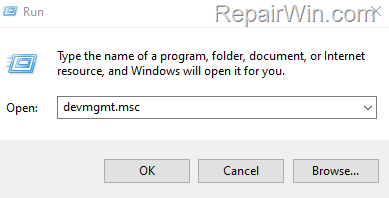
3. In Device Manager expand Network Adapters.
4. Right-click and select Uninstall Device to uninstall the Wireless and Ethernet adapters.*
* Note: At the 'Uninstall Device – Warning message', click Uninstall.

6. Restart your computer, wait a few minutes for Windows to reinstall the network adapters, and then check if the problem is resolved.
Method 2. Disable and Re-Enable Network Adapter(s).
This method involves disabling and then re-enabling the network adapter, which can refresh the network stack and resolve temporary glitches.
1. Press Windows + R keys to open the run command box.
2. Type: ncpa.cpl & click OK to open network connections.

3. Right-click on your network adapter and select Disable.

4. Now right-click on the network adapter again and select Enable. *
* Note: If after enabling the network adapter, it automatically returns to the "Disabled" state, then check your network adapter manufacturer's site to see if there is a newer driver version for your network adapter and install it, or go to method 7, because there is no other way to fix this problem.
5. Wait a few seconds, and then check if you can connect to the network.
Method 3. Reset Network.
Resetting the network settings will revert all network configurations to their default state, which can resolve issues caused by incorrect settings or corrupted configurations.
1. Navigate to Start > Settings > Network & Internet > Advanced network settings and click Network Reset.

2. Then click Reset now and choose Yes to reset your network settings.

3. Finally click Close on the "You're about to be signed-out out" notification message, close all your open programs, and restart the computer.

Method 4. Reset Winsock & TCP/IP.
Resetting Winsock and TCP/IP stack can resolve network issues by restoring network components to their default state, eliminating any corruption or misconfiguration.
1. Open Command prompt as Administrator. To do that:
-
- At Search box, type cmd or command prompt.
- Right click at Command Prompt result and select Run as Administrator.

2. In Command Prompt, type the following commands in order (press Enter after each command).
netsh winsock resetnetsh int ip reset

3. Restart your computer to apply the change.
Method 5. Disable TCP/IP v6 Protocol & Set Static IP Address.
Disabling IPv6 and setting a static IP address can help resolve conflicts and ensure stable network connectivity, especially in environments where IPv6 is not supported or configured.
1. Press Windows + R keys to open the run command box.
2. Type: ncpa.cpl & click OK.

3. Right-click on your network adapter and select Properties.

4. Here, uncheck the Internet Protocol Version 6 (TCP/IPv6) to disable it, then select the Internet Protocol Version 4 (TCP/IPv4) protocol and click Properties.

5. Here, select Use the following IP Address & Use the following DNS server addresses and then specify manually the IP addresses.*
* Note: If you don't know your network IP settings, leave these settings intact and click OK twice to apply only the TCP/IP protocol selection. Then check if the problem is resolved and if not, proceed to the next method.

Method 6. Fix Windows 11 Network Connection problems using Registry.
Editing the registry can resolve network issues by removing dependencies that may cause network services to fail.
1. Press Windows + R keys to open the run command box.
2. Type regedit & click OK.

3. Now, navigate to the following path in registry
HKEY_LOCAL_MACHINE\SYSTEM\CurrentControlSet\Services\Wcmsvc
4. At the right-pane open the DependOnService value.

5. Delete the "WinHttpAutoProxySvc" and click OK.

6. Close the registry editor, reboot your computer and check if the problem is solved.
Method 7. Rollback Windows 11 to previous version.
If the above methods did not help you fix the problem, roll back your system to the previous version of Windows 11 until Microsoft fixes the problem in a future release of Windows 11 24H2.
1. Navigate to Start > Settings > System > Recovery and click Go back.

2. On "Go back to earlier build" window, click Next.

3. When prompted to "Check for updates?" click No, thanks.

4. Then click Next and then Go back to earlier build to restore your system to the previous version of Windows 11.

5. After you restore your system to previous Windows, check if everything works, then block the automatic upgrade to Windows 11 24H2 until Microsoft fixes the issues.
Method 8. Update Network Drivers.
Updating your network drivers can resolve compatibility issues introduced by new Windows updates. Visit the official website of your network adapter manufacturer to download and install the latest drivers.
1. Open Device Manager by pressing Windows + X and selecting Device Manager.
2. Expand Network Adapters, right-click your network adapter, and select Update driver.
3. Choose Search automatically for updated driver software and follow the prompts.
Summary
In this guide, we explored several methods to resolve network connection issues in Windows 11 24H2/25H2, including reinstalling network adapters, resetting network settings, and editing the registry. If these solutions do not work, consider rolling back to a previous Windows version or updating network drivers. Always ensure your drivers are up-to-date to maintain optimal system performance.
Frequently Asked Questions
What issues might you face after updating to Windows 11 24H2/25H2 related to network connectivity?
After updating to Windows 11 24H2/25H2, users might encounter issues where the network reports as 'Connected' but 'Unidentified', the Wi-Fi capability goes missing, Wi-Fi is shown as 'Disconnected', or they can't enable the Wi-Fi or Ethernet adapter. Additionally, the network card might stop working.
How can uninstalling and reinstalling network adapters help resolve connectivity issues in Windows 11 24H2/25H2?
Uninstalling and reinstalling network adapters can help by removing corrupted driver instances and reinstalling fresh copies, which may resolve driver-related conflicts and restore connectivity.
What is the process to reset a network in Windows 11, and why is it useful?
To reset a network in Windows 11, navigate to Start > Settings > Network & Internet > Advanced network settings and click Network Reset, then choose 'Reset now'. This process is useful because it reverts all network configurations to their default settings, potentially fixing issues caused by incorrect settings or corrupted configurations.
Why might disabling TCP/IP v6 protocol and setting a static IP address improve network connectivity in Windows 11?
Disabling TCP/IP v6 and setting a static IP address can resolve conflicts and ensure stable connectivity, particularly in environments that do not support or are not configured for IPv6. This can lead to more reliable network connections.



