
FIX: VIDEO MEMORY MANAGEMENT INTERNAL error on Windows 10/11.
If your computer crashes with the blue screen error "VIDEO MEMORY MANAGEMENT INTERNAL" and then restarts, continue reading to fix the problem.
The error "Stop code: VIDEO MEMORY MANAGEMENT INTERNAL" is typically caused by GPU drivers, GPU overclocking, or corrupted system files. To resolve the problem, follow the instructions below.
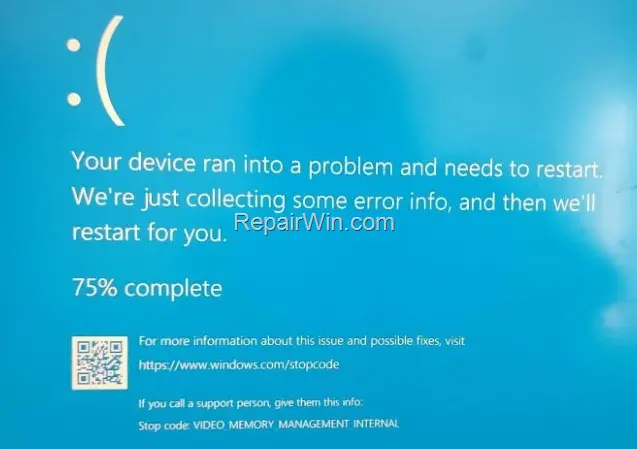
How to FIX: BSOD 'VIDEO MEMORY MANAGEMENT INTERNAL' on Windows 10/11.
Important: Before troubleshooting the reported problem using the methods below, remove any CPU or GPU overclocking as this may be the cause of the problem.
Method 1. Reinstall Graphics Drivers.
The first method for solving the "VIDEO MEMORY MANAGEMENT INTERNAL" blue screen error is to remove and reinstall the drivers for your graphics adapter. This process ensures that any corrupted or incompatible driver files are replaced with fresh copies, which can resolve conflicts causing the error.
1. Press Windows  + R keys to open the run command box.
2. Type: devmgmt.msc & click OK to open the Device Manager.

3. In Device Manager, double-click to expand the Display Adapters.
4. Right-click on the installed display adapter(s) and select Uninstall device.

5. At the next window, check the option "Delete the driver software for this device" and then click Uninstall to completely remove the display drivers.

6. Restart your PC and go to Windows Update & Check for Updates. Then, let Windows download and reinstall the display drivers and then check if the problem is fixed.
Note: If Windows doesn't automatically find the drivers, download and install them from the graphics adapter manufacturer's website.
- NVIDIA drivers
- AMD drivers
- Intel drivers
Method 2. Reinstall an Older Video Driver.
If you start receiving the error "VIDEO MEMORY MANAGEMENT INTERNAL" after updating the graphics drivers, then proceed to install an earlier version of your graphics card driver. This can resolve issues introduced by recent driver updates that are not yet stable.
Step 1. Uninstall Display Adapter Software.
1. Navigate to Control Panel and open Programs and Features, or…
- Press simultaneously the Windows
+ R keys to open the run command box.
- Type:
appwiz.cpland click OK.
 + R keys to open the run command box.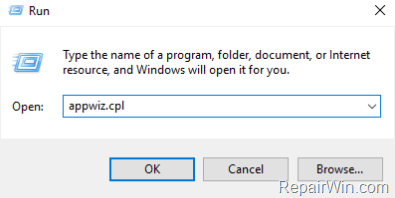
2. In Programs and Features, uninstall all the software from your graphics adapter.

3. When the uninstallation is complete, restart your PC.
Step 2. Install a Previous Version of the Display Driver.
After restart, navigate to the GPU manufacturer's support site and download an older driver for your Graphics card. This helps revert any issues caused by recent driver updates.
For NVIDIA-based GPUs:
- Go to the NVIDIA advanced driver search page and search for the corresponding driver for your display adapter.
- In the search results page, download a previous driver version.
- Install the driver you downloaded and restart your computer.
For AMD-based GPUs:
- Go to the AMD (ATI) Driver Download page and search for the corresponding driver for your display adapter.
- In the search results page, press the Previous Drivers and Software link on the right.
- Install the driver you downloaded and restart your computer.
Method 3. Disable Onboard Graphics Card.
Note: This method works only for laptops with two Display Adapters.
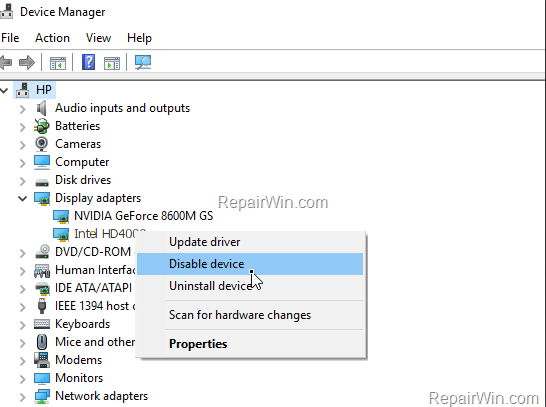
Some users reported that the BSOD error "VIDEO MEMORY MANAGEMENT INTERNAL" is resolved after disabling the onboard graphics adapter. For example, if you own a laptop with an Intel and an NVIDIA (or an AMD) display adapter, proceed and disable the onboard INTEL graphic adapter in Device Manager, with the instructions below:
Press Windows + R keys to open the run command box.
1. Type: devmgmt.msc & click OK to open the Device Manager.
2. In Device Manager, double-click to expand the Display Adapters.
3. Right-click on the Intel Display adapter and select Disable.
Method 4. Repair Windows System Files.
Another method to fix blue screen problems is to repair the Windows system using the instructions below. This process can restore any missing or corrupted system files that may be causing the error.
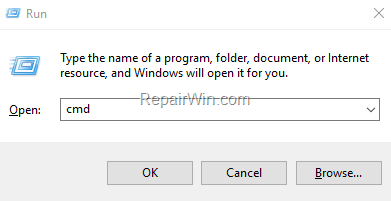
1. Open Command Prompt as Administrator. To do that:
- Press the Windows + R keys to open the 'Run' command box.
- Type CMD and then press CTRL + SHIFT + ENTER.
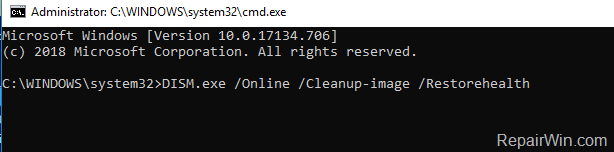
2. In the command prompt, give the following DISM command and press Enter:
-
-
DISM.exe /Online /Cleanup-image /Restorehealth
-
3. When the DISM operation is completed, type the following command and hit Enter:
-
-
sfc /scannow
-

4. Now wait until the System File Checker repairs the Windows System Files.
5. When this is done, restart your computer and check if the problem is fixed.
Method 5. Perform a Windows 10 Repair.
If your system keeps crashing after following the above methods, try to repair Windows by using the instructions mentioned in this article: How to repair-upgrade Windows 10. This method can resolve deeper system issues without losing your files.
Method 6. Clean Install Windows.
If none of the above methods helped to fix the mentioned issue, your last option is to perform a clean installation of Windows. This process will completely reset your system, which can resolve persistent errors.
Note: Some users reported the "VIDEO MEMORY MANAGEMENT INTERNAL" error is gone after installing Windows to a new SSD drive.
Important: The clean installation of Windows means that all your files and settings will be lost during the installation process. So, proceed and backup all your important files and settings to another storage media (e.g., an external USB drive) before you continue to clean install Windows.
To perform a clean installation of Windows (after backing up your files), follow the instructions on the following guides, according to your Operating System:
Additional Method: Update BIOS/UEFI Firmware
Updating the BIOS or UEFI firmware can resolve compatibility issues between your hardware and the operating system. Visit your motherboard manufacturer's website for instructions and the latest firmware updates. Ensure you follow the update process carefully to avoid potential system damage.
Summary
In summary, the "VIDEO MEMORY MANAGEMENT INTERNAL" error can be addressed through several methods, including reinstalling or rolling back graphics drivers, disabling onboard graphics, repairing system files, and performing a clean Windows installation. For persistent issues, consider updating your BIOS/UEFI firmware. Always ensure to backup your data before undertaking major system changes.
That's all folks! Did it work for you? Please leave a comment in the comment section below or even better: like and share this blog post in the social networks to help spread the word about this solution.
Frequently Asked Questions
What causes the 'VIDEO MEMORY MANAGEMENT INTERNAL' blue screen error?
The 'VIDEO MEMORY MANAGEMENT INTERNAL' error is typically caused by GPU drivers, GPU overclocking, or corrupted system files.
How can I fix the 'VIDEO MEMORY MANAGEMENT INTERNAL' error by reinstalling graphics drivers?
To fix the error by reinstalling graphics drivers, open Device Manager, uninstall the display adapters, and then let Windows re-download and install the drivers via Windows Update, or manually download them from the manufacturer's site.
What should I do if updating my graphics drivers caused the error?
If the error appeared after updating the graphics drivers, uninstall the current software through 'Programs and Features' and then install a previous version of the driver from the GPU manufacturer's website.
How can disabling the onboard graphics card help resolve the error?
Disabling the onboard graphics card can resolve the error, especially in laptops with dual display adapters. Use Device Manager to disable the onboard Intel graphics adapter to potentially fix the issue.



