
FIX: SQL Server Polybase .DMP files taking a lot of space.
If you are encountering issues with disk space depletion due to Microsoft SQL Server Polybase dump files consuming a significant amount of space, follow the detailed instructions below to address this problem effectively.
The SQL Server PolyBase feature allows your SQL Server instance to query data using T-SQL directly from various data sources such as SQL Server, Oracle, Teradata, MongoDB, Hadoop clusters, Cosmos DB, and S3-compatible object storage without the need for separate client connection software. However, when PolyBase is not actively used or when SQL Server encounters issues, it generates log files, commonly referred to as "dump" or ".DMP" files, which can lead to disk space exhaustion.
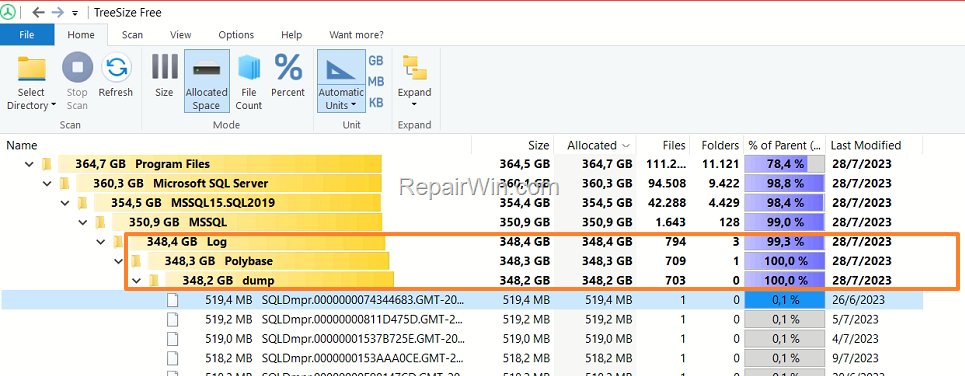
This guide provides instructions to resolve the issue in SQL Server 2019 where Polybase persistently generates dump files in the directory C:\Program Files\Microsoft SQL Server\MSSQL15.SQL2019\MSSQL\Log\Polybase\dump.
How to Resolve SQL Server Polybase .DMP Files Consuming Excessive Disk Space.
Method 1. Disable SQL Server Polybase Services & Delete .DMP Files
If you are not utilizing Polybase, you can safely stop the relevant SQL Polybase services and subsequently delete all the .DMP files. This action will prevent the generation of new dump files and free up disk space.
* Note: If you are using Polybase, proceed to Method-2.
1. Open Computer Management. To achieve this:
-
- Press Windows
 + R keys to open the Run command box.
 - In the Search box, type:
compmgmt.msc& click OK.
- Press Windows
 + R keys to open the Run command box.
2. Navigate to Services and Applications > SQL Server Configuration Manager > SQL Services.
3a. In the right pane, right-click on the SQL Server Polybase Data Movement service and select Properties.

3b. Change the Start Mode to Manual or Disabled. This adjustment ensures that the service does not start automatically, thereby preventing the creation of additional dump files. Click Apply > OK.
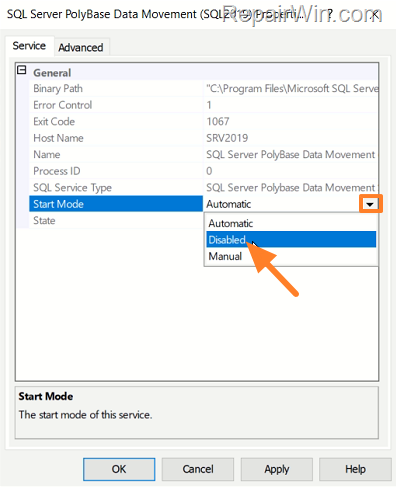
4a. Next, right-click on the SQL Server Polybase Engine and select Properties.

4b. Alter the Start Mode to Manual or Disabled and click Apply > OK. This change prevents the Polybase Engine from initiating automatically, reducing unnecessary resource consumption.
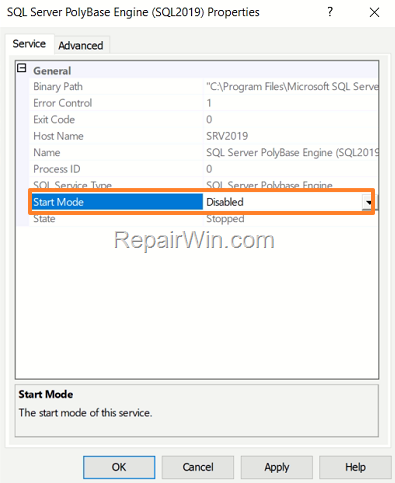
5. Finally, navigate to the following path and delete all the .DMP files:
C:\Program Files\Microsoft SQL Server\MSSQL15.SQL2019\MSSQL\Log\Polybase\dump
* Note: If Polybase is not required, you can uninstall it via Control Panel > Programs and Features > select Microsoft SQL Server 2019 (Setup) and click Uninstall. Then, choose only the Polybase component and proceed with the removal.
Method 2. Stop Polybase from Generating DMP Files by Installing the Latest Cumulative Update for SQL Server 2019
For users who need Polybase, the issue is resolved in KB5000642-Cumulative Update 9 for SQL Server 2019. To prevent the SQL Polybase engine from continuously generating .DMP files, download and install the latest SQL Server 2019 update.
Method 3. Enable TCP/IP Protocol in SQL Server
If, after updating, the issue persists with .DMP files filling up the disk, follow these steps:
1. Access SQL Server Configuration Manager > SQL Server Network Configuration > Protocols for MSSSQLSERVER.
2. In the right pane, right-click on the TCP/IP protocol and select Enable. Enabling TCP/IP ensures network protocols are correctly configured, potentially resolving underlying connectivity issues that may cause dump file generation.
3. Proceed to Windows Services and restart the following services to apply changes:
-
-
SQL Server
-
SQL Server Polybase Data Movement
-
SQL Server Polybase Engine
-
Method 4. Configure SQL Server Dump File Settings
Another approach to managing dump file creation is to configure SQL Server's dump file settings to limit the size and number of dump files generated. This can be done using SQL Server Management Studio (SSMS):
1. Open SSMS and connect to your SQL Server instance.
2. Execute the following T-SQL command to configure dump file settings:
EXEC sp_configure 'show advanced options', 1;
RECONFIGURE;
EXEC sp_configure 'max dump files', 5;
RECONFIGURE;
This command limits the number of dump files to five, ensuring that excessive disk space is not consumed by these files.
Summary
In summary, to address the issue of SQL Server Polybase .DMP files consuming excessive disk space, you can disable unused Polybase services, update SQL Server to the latest cumulative update, enable the TCP/IP protocol, and configure dump file settings. These steps will help optimize disk space usage and improve your SQL Server's performance.
That’s all folks! Please leave a comment in the comment section below or even better: like and share this blog post in the social networks to help spread the word about this solution.
Frequently Asked Questions
What causes SQL Server Polybase to fill up disk space with dump files?
SQL Server Polybase creates log files, known as dump or .DMP files, when not in use or when problems occur with SQL Server. These files can accumulate and take up significant disk space.
How can I stop Polybase from creating dump files if I am not using it?
You can stop Polybase services by going to SQL Server Configuration Manager, changing the Start Mode of 'SQL Server Polybase Data Movement' and 'SQL Server Polybase Engine' services to Manual or Disabled, and then deleting the .DMP files in the Polybase dump folder.
What should I do if I want to continue using Polybase without filling up disk space with dump files?
Install the latest Cumulative Update for SQL Server 2019, as this issue is resolved in the update KB5000642-Cumulative Update 9. Download and apply the update to resolve the problem.
What is the recommended action if dump files keep generating even after updating SQL Server 2019?
If the issue persists after updating, enable the TCPI/IP protocol in SQL Server by going to SQL Server Configuration Manager, right-clicking on the protocol, and clicking Enable. Then, restart the related SQL Server services.



