
How to Resolve 'Device is Missing Important Security and Quality Fixes' in Windows 11/10.
If you encounter the error "Your Device is Missing Important Security and Quality Fixes" with Error Code: 0x80073712 while trying to install updates through Windows Update, this guide will help you resolve the issue. This error typically indicates that your device is unable to install the required updates, potentially leaving it vulnerable to security threats.
How to FIX: Your Device is Missing Important Security and Quality Fixes on Windows 11/10
Method 1. Delete the Windows Update Store Folder
The first method to resolve the "Device is Missing Important Security and Quality Fixes" error is to force Windows to re-download all available updates from scratch.
Step 1: Stop the 'Windows Update' Service
- Open the Windows Services control panel:
- Press Windows
 + R keys to open the run command box.
 - Type
services.mscin the search box and click OK.
- Press Windows


2. In the Services control panel, locate the Windows Update service.
2a. Right-click on the Windows Update service and select Stop. Stopping the service ensures that no updates are being downloaded or installed while you perform the next steps.
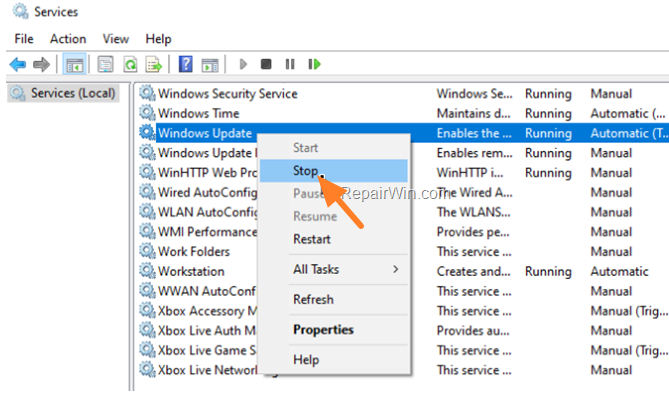
3. Without closing the Services window, proceed to Step 2 below.
Step 2: Delete the 'SoftwareDistribution' Folder
* Info: The C:\Windows\SoftwareDistribution folder is where Windows stores downloaded updates. Corruption in this folder can prevent updates from being installed. Deleting or renaming this folder forces Windows to recreate it, ensuring a fresh download of updates.
- Open Windows Explorer and navigate to the
C:\Windowsfolder. - Find and Delete the SoftwareDistribution folder (or rename it, e.g., to "SoftwareDistributionOLD").

Step 3: Start the 'Windows Update' Service
In the Windows Services control panel, apply the following actions:
- Right-click on the Windows Update service and select Start. This action restarts the service, allowing Windows to begin downloading updates again.
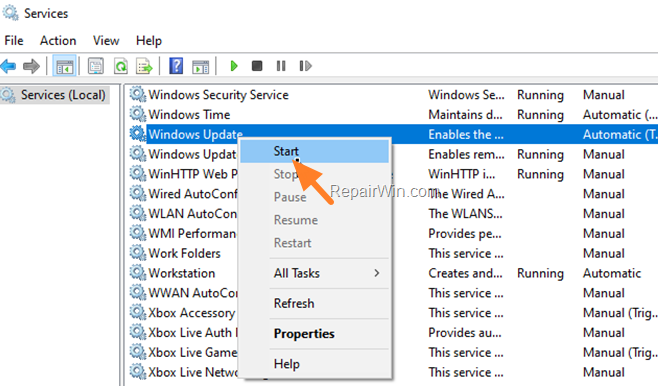
Step 4: Check and Install Windows 10 Updates
- Navigate to Settings -> Update and Security -> and click Check for Updates. This prompts Windows to search for and install any available updates.

2. After Windows finds the available updates, try to install them. If you receive the same error, proceed to Method 2 below.
Method 2. Repair Windows System Files with DISM & SFC Tools
If the above method does not resolve the problem, check and repair any errors in the Windows system files.
- Open Command Prompt as Administrator.
- In the command prompt, enter the following command and press Enter:
DISM /Online /Cleanup-Image /StartComponentCleanup
This command cleans up the component store, removing unnecessary files and potentially resolving component corruption.
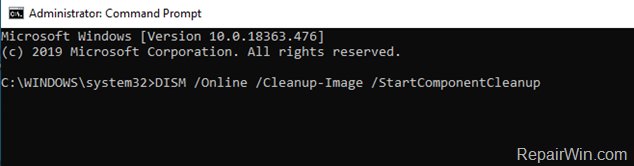
- When the process is completed, enter the following command:
DISM.exe /Online /Cleanup-image /Restorehealth
This command scans the system for corruption and repairs any issues using Windows Update as a source.
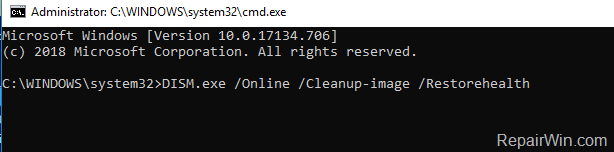
- When the DISM operation is completed, type the following command and hit Enter:
sfc /scannow
This command runs the System File Checker tool, which scans for and repairs corrupted system files.

- Wait until the System File Checker (SFC) repairs the Windows System Files.
- When done, restart your computer.
- Open Windows Update and try to install the failed updates.
Method 3. Update Windows using the Update Assistant
If Windows fails to install updates via Windows Update, use the Windows Update Assistant to update your system.
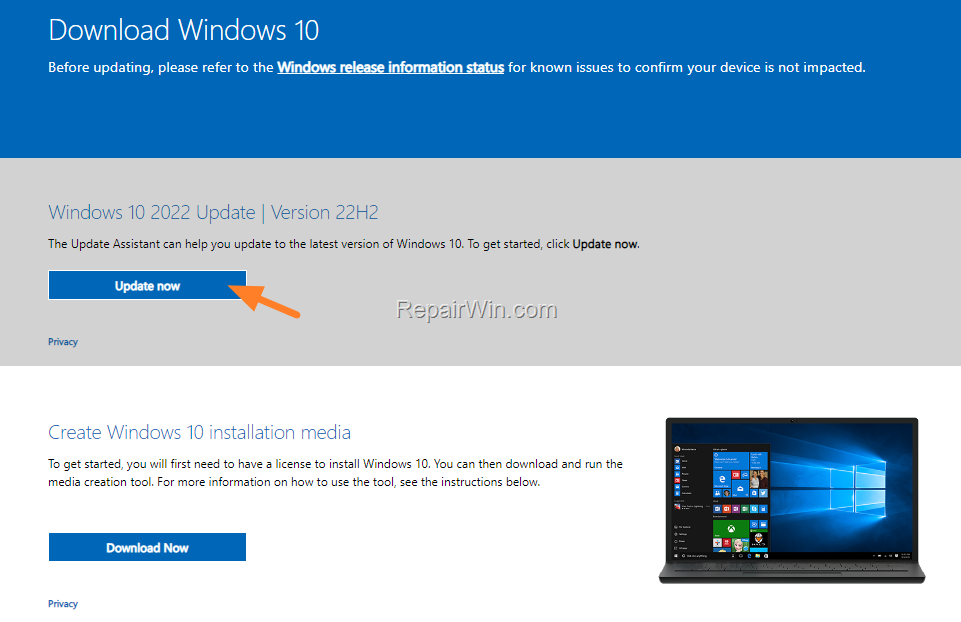
- Navigate to the Windows 10 download site and click the Update now button.Note: For Windows 11, go to the Windows 11 download page and download the Windows 11 Installation Assistant.
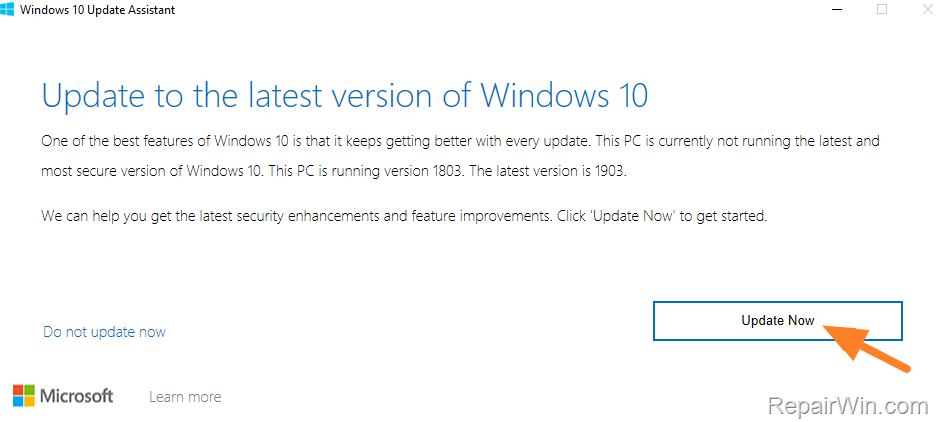
- Double-click the downloaded file to open the Windows Upgrade Assistant.
- Click Update Now to start the update process.
- Let Windows finish downloading and verifying the update files.
- When verification reaches 100%, disconnect your computer from the Internet (or set it to "Airplane mode" if you own a laptop).
- Wait for Windows to update your system.
- When prompted, restart your system to complete the update.
Method 4. Update Windows from ISO File
Another method to fix the "Your Device is Missing Important Security and Quality Fixes" error is to update Windows 10/11 using the Windows ISO file.
Step 1. Download Windows 10 in an ISO File
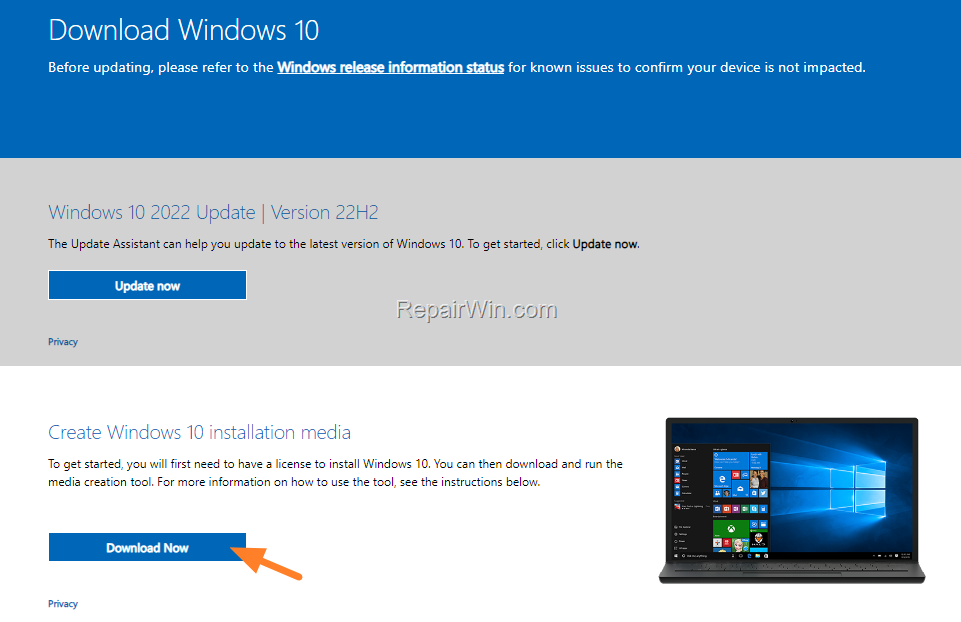
- Navigate to the Windows 10 download page and under the "Create Windows 10 installation media" section, click Download Tool now to download the Media Creation Tool.Note: For Windows 11, go to the Windows 11 download page and download the Windows 11 Installation Media tool.
- Run the downloaded file and Accept the License Terms at the first screen.
- At the "What do you want to do?" screen, select Create installation media for another PC.

- At the 'Language, architecture and edition' screen, click Next.
- Select ISO file and click Next.

- Save the 'Windows.iso' file to your desktop.
- Wait for the 'Media Creation Tool' to download Windows 10/11 to an ISO file.
- When the download is completed, close the Media Creation Tool wizard.
Step 2. Run Disk Cleanup
Clean the already downloaded update files using the Disk Cleanup tool.
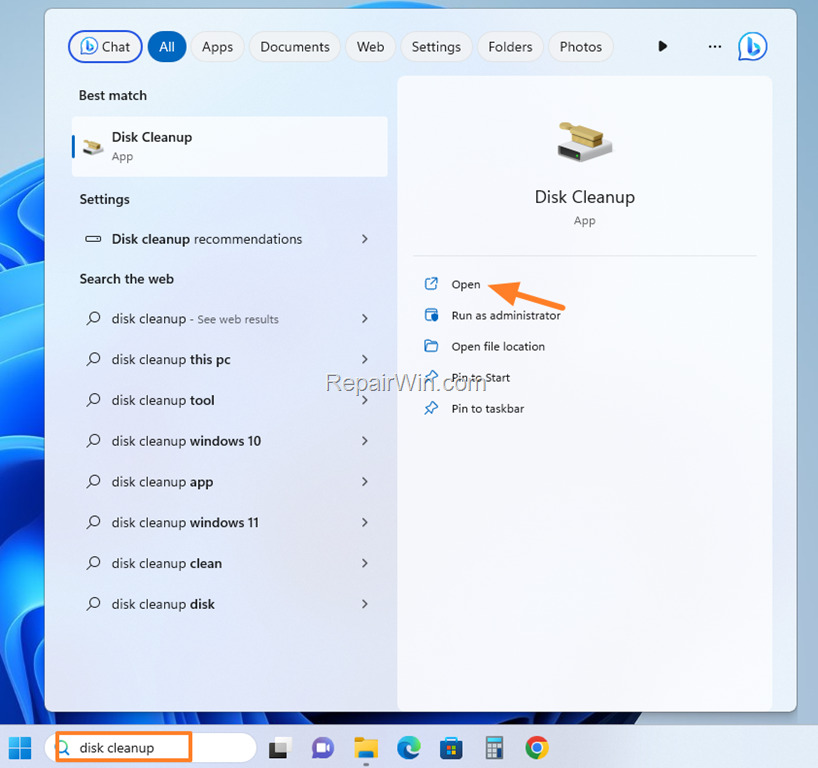
- Type "disk cleanup" in the search bar and open the Disk Cleanup App.
- In the 'Disk Cleanup' window, click Clean up system files.
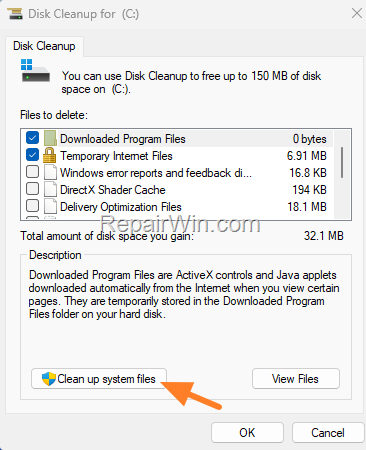
- Select the following options and click OK to delete them:
- Windows Update Cleanup
- Windows upgrade log files
- Temporary Windows installation files
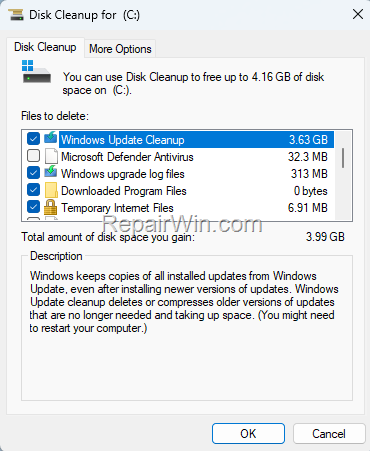
- Close the Disk Cleanup tool and continue to the next step.
Step 3. Update Windows 10 from the ISO File
- IMPORTANT: Disconnect your computer from the Internet (or set it to "Airplane mode" if you own a laptop).
- IMPORTANT: Disable or temporarily uninstall any third-party antivirus.
- Right-click on the "Windows.iso" file on your desktop and click Mount.
- Double-click the Setup application.

- Click Next to install Windows 10.

- Follow the rest of the onscreen instructions to update your system.
Method 5. Reset Windows Update Components
If the problem persists, resetting the Windows Update components can be an effective solution. This involves stopping the Windows Update services, renaming the affected folders, and restarting the services.
- Open Command Prompt as Administrator.
- Stop the BITS, Windows Update, and Cryptographic services by typing the following commands and pressing Enter after each:
net stop bitsnet stop wuauservnet stop appidsvcnet stop cryptsvc
- Rename the
SoftwareDistributionandCatroot2folders by typing the following commands:ren C:\Windows\SoftwareDistribution SoftwareDistribution.oldren C:\Windows\System32\catroot2 Catroot2.old
- Restart the BITS, Windows Update, and Cryptographic services by typing:
net start bitsnet start wuauservnet start appidsvcnet start cryptsvc
- Close the Command Prompt and attempt to update Windows again.
Summary
In summary, resolving the "Device is Missing Important Security and Quality Fixes" error involves several methods. Start by deleting the Windows Update Store folder and resetting the update components. If the issue persists, use the DISM and SFC tools to repair system files. Additionally, consider updating Windows using the Update Assistant or an ISO file. These steps should help restore your system's ability to receive important updates.
That's all folks! Which method worked for you? Please leave a comment in the comment section below or even better: like and share this blog post on social networks to help spread the word about this solution.
Frequently Asked Questions
What does error code 0x80073712 mean on Windows Update?
The error code 0x80073712 usually indicates that your device is unable to install necessary updates, potentially leaving it vulnerable to malware attacks or other security threats.
How can I fix the 'Your Device is Missing Important Security and Quality Fixes' error on Windows 10/11?
To fix this error, you can try several methods such as deleting the Windows Update Store folder, repairing Windows system files with DISM & SFC tools, updating Windows using the Update Assistant, or updating Windows from an ISO file.
How do I delete the Windows Update Store folder to fix update errors?
First, stop the 'Windows Update' service through the Windows Services control panel. Then, navigate to C:\Windows and delete or rename the 'SoftwareDistribution' folder. Finally, restart the 'Windows Update' service and attempt to check and install updates again.
What steps are involved in repairing system files with DISM and SFC tools?
First, open Command Prompt as Administrator. Run the command 'DISM /Online /Cleanup-Image /StartComponentCleanup', then 'DISM.exe /Online /Cleanup-image /Restorehealth'. After that, execute 'sfc /scannow' to repair system files. Restart your computer and try updating again.



