
How to Always Open PowerShell or Command Prompt as Administrator.
If you frequently work with PowerShell or Command Prompt, running these tools with administrative privileges can be essential for executing certain commands. Manually setting them to run as an administrator each time can be cumbersome, especially for system administrators and developers. This guide provides detailed steps to configure PowerShell, Windows Terminal, and Command Prompt to always open with elevated permissions.
How to Always Run Command Prompt, PowerShell, or Terminal as Administrator
- Always Open Windows PowerShell as Admin
- Always Open Windows Terminal as Admin
- Always Open Command Prompt as Admin
How to Always Open PowerShell As Administrator
To configure Windows PowerShell to always run as an administrator, follow these steps:
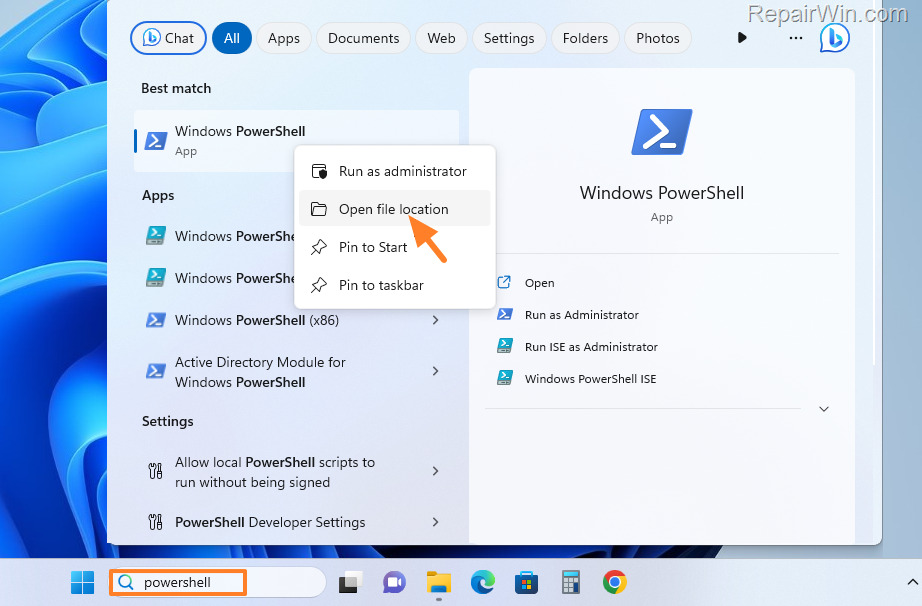
1. In the search bar, type "powershell".
2. Right-click on the Windows PowerShell app in the search results and select Open file location. This action locates the shortcut of PowerShell, allowing you to modify its properties directly.
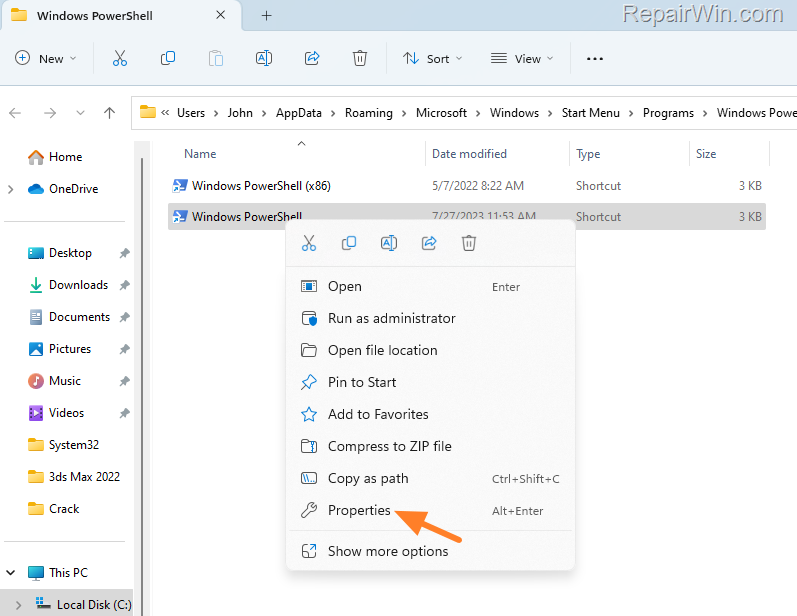
3. Right-click again on the Windows PowerShell shortcut and choose Properties.
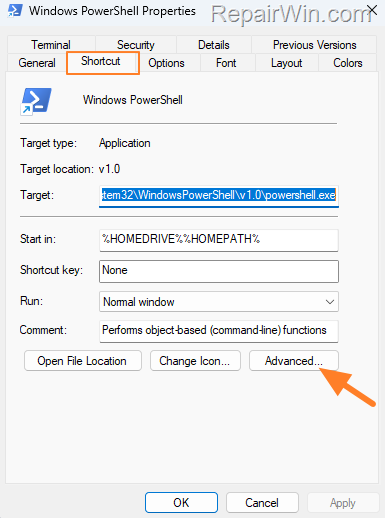
4. In the 'Shortcut' tab, click Advanced. This tab allows you to set advanced properties for the shortcut, including running it with administrative rights.
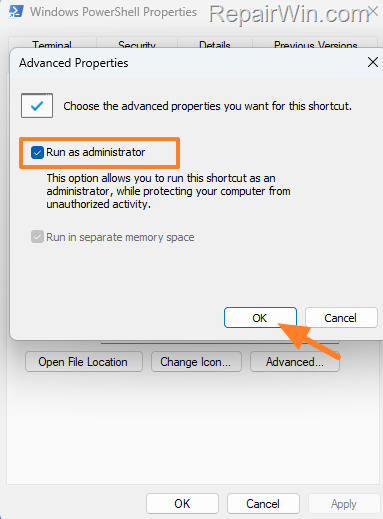
5. In the 'Advanced Properties' window, check the Run as administrator checkbox and click OK twice to apply the setting. This ensures that the shortcut will always execute with elevated permissions.
6. That's it! From now on, when you open the Windows PowerShell shortcut, it will run as an administrator.
Note: To streamline access, you can pin this PowerShell shortcut to the taskbar:
a. Right-click on the Windows PowerShell shortcut and choose Show more options.
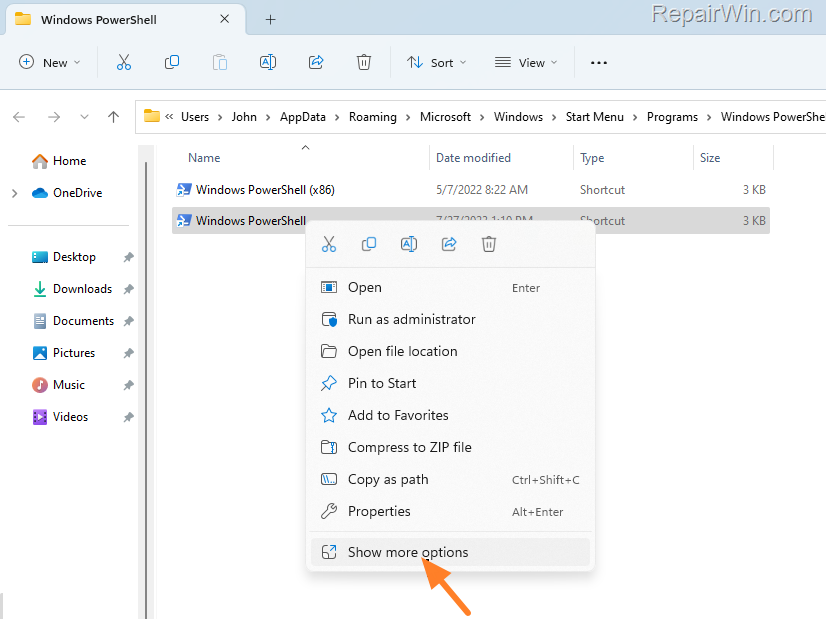
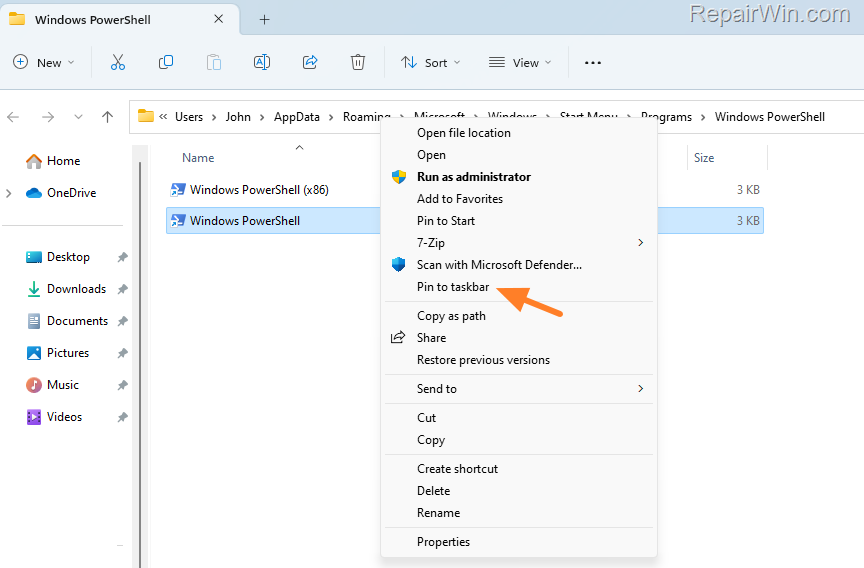
b. Click Pin to Taskbar. Now, whenever you click the PowerShell shortcut on the taskbar, it will open with administrative rights.
How to Always Open Terminal As Administrator
If you're using Windows 11 or have installed Windows Terminal on Windows 10, you can configure it to always run with administrative privileges:
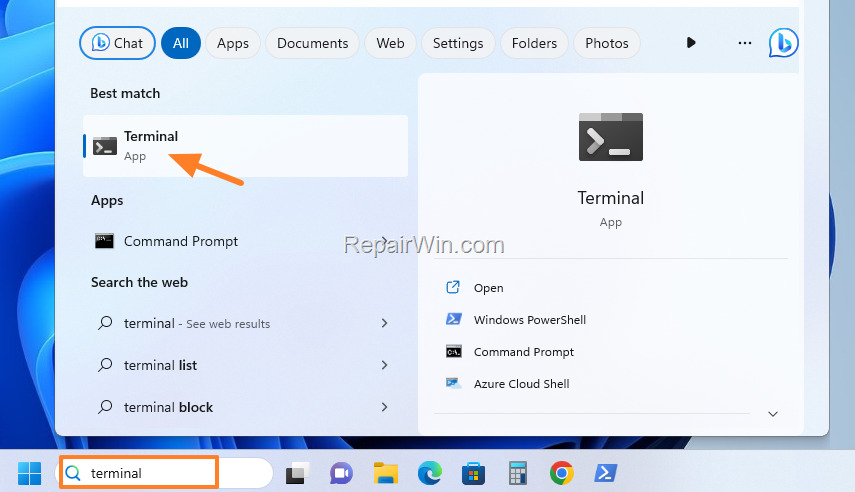
1. In the search bar, type "terminal" and open the Terminal app.
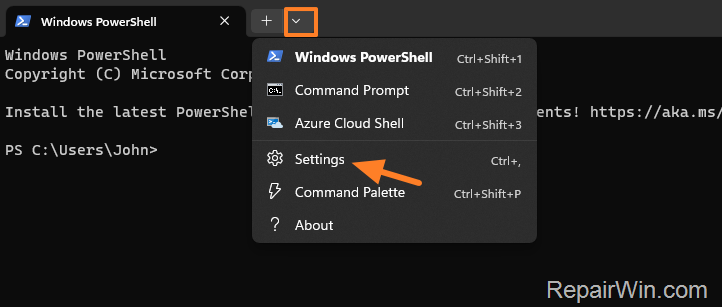
2. Click the drop-down arrow next to the new tab (+) option and select Settings from the menu. This opens the configuration settings for the Terminal app.
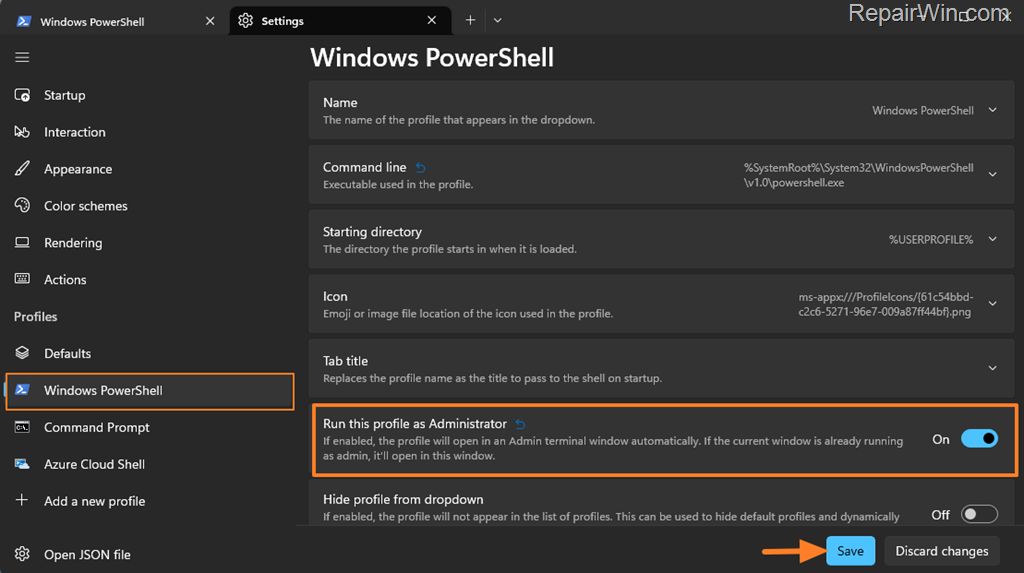
3. Choose Windows PowerShell from the left pane and enable the "Run this profile as Administrator" switch. This setting ensures PowerShell within Terminal will always start with administrative rights. Click Save to confirm.
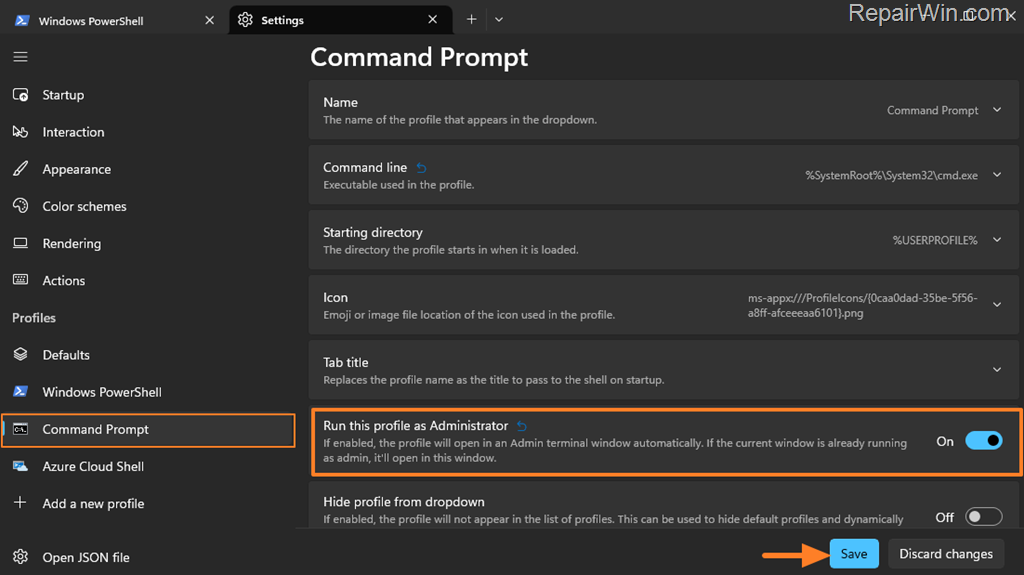
4. Select Command Prompt on the left and toggle the "Run this profile as Administrator" switch to ON if you want the Command Prompt to always open with administrative privileges in Terminal mode.
How to Always Open Command Prompt as Administrator
To ensure Command Prompt always opens with administrative permissions, follow these instructions:
1. In the search bar, type "cmd" or "command prompt".
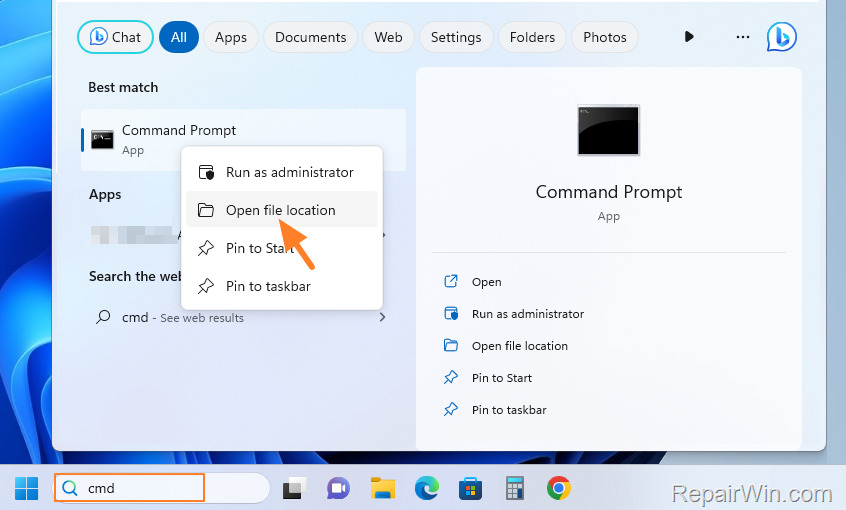
2. Right-click on the Command Prompt app in the search results and select Open file location. This step locates the Command Prompt shortcut for further modification.
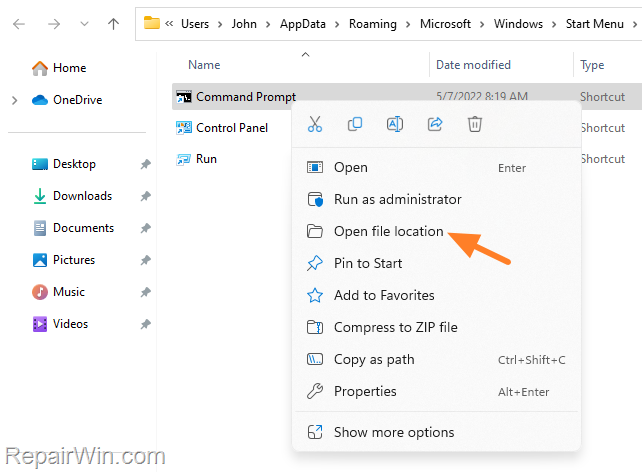
3. Right-click on the Command Prompt shortcut and select Properties.
4. In the 'Shortcut' tab, click the Advanced button. This option allows you to set the shortcut to always run with elevated privileges.
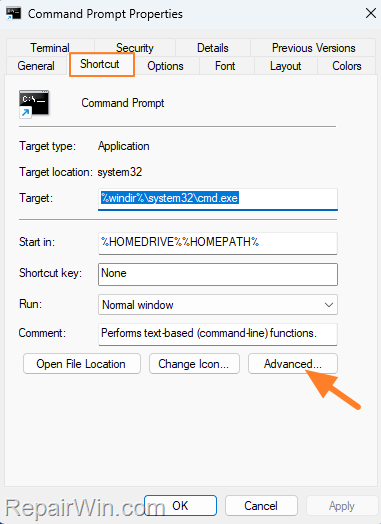
5. Check the Run as administrator checkbox and click OK twice to save the setting. This ensures that Command Prompt will always execute with administrative privileges.
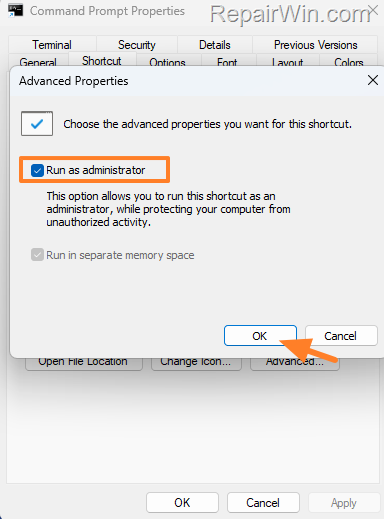
6. You're done! From now on, when you open Command Prompt, it will always run as an administrator.
Note: To make it more accessible, you can pin this Command Prompt shortcut to the taskbar:
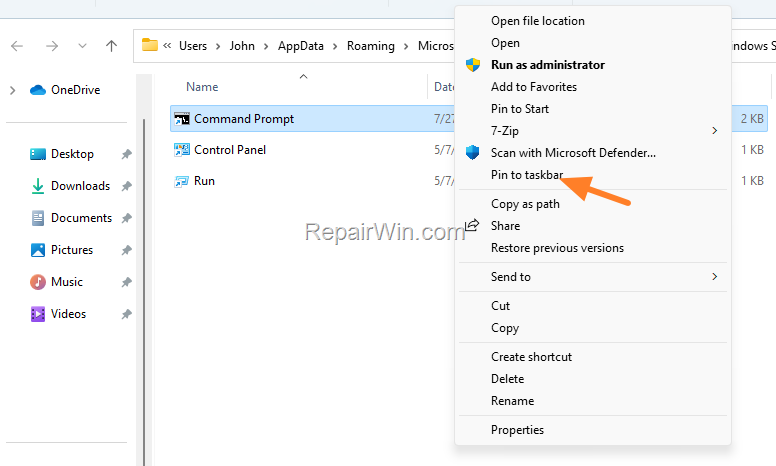
a. Right-click on the Command Prompt shortcut and choose Show more options.
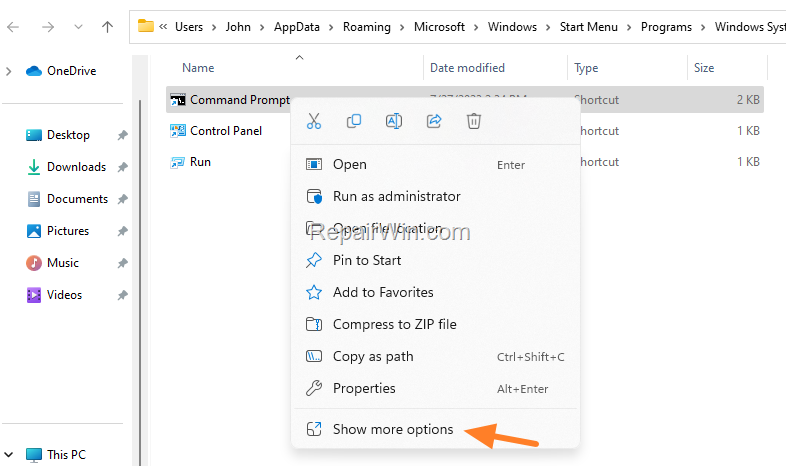
b. Click Pin to Taskbar. This ensures that whenever you click the Command Prompt shortcut on the taskbar, it will open with administrative rights.
Additional Method: Using Group Policy Editor
If you're using Windows Pro or Enterprise editions, you can enforce administrative execution through the Group Policy Editor:
1. Press Win + R, type gpedit.msc, and press Enter to open the Group Policy Editor.
2. Navigate to Computer Configuration > Windows Settings > Security Settings > Local Policies > Security Options.
3. Find the policy User Account Control: Run all administrators in Admin Approval Mode and set it to Enabled.
This method ensures that all administrative tools are executed with elevated privileges, providing a more comprehensive solution.
Summary
By following the steps outlined above, you can configure PowerShell, Windows Terminal, and Command Prompt to always open with administrative privileges. This ensures seamless execution of commands that require elevated permissions, enhancing productivity for system administrators and developers. Additionally, leveraging the Group Policy Editor offers a system-wide solution for managing administrative rights.
Frequently Asked Questions
How can I always run PowerShell as an administrator in Windows?
To always run PowerShell as an administrator, type 'powershell' in the search bar, right-click on Windows PowerShell app in the results, and select Open file location. Right-click again on the Windows PowerShell shortcut, choose Properties, navigate to the 'Shortcut' tab, click Advanced, and check the 'Run as administrator' box. Click OK twice to apply the setting.
What steps are needed to ensure Windows Terminal runs as an administrator by default?
To always run Windows Terminal as an administrator, type 'terminal' in the search bar and open the Terminal App. Click the drop-down arrow next to the new tab option and select Settings. Choose Windows PowerShell on the left pane and turn on the 'Run this profile as Administrator' switch. Repeat this for Command Prompt if needed, and click Save.
How do I configure Command Prompt to always open with administrative privileges?
To configure Command Prompt to always open as an administrator, type 'cmd' or 'command prompt' in the search bar, right-click on the Command Prompt app, and choose Open file location. Right-click on the Command Prompt shortcut, select Properties, go to the 'Shortcut' tab, click the Advanced button, check 'Run as administrator', and click OK twice to save the change.
Can I pin the PowerShell or Command Prompt shortcut to the taskbar for easy access as an administrator?
Yes, you can pin the PowerShell or Command Prompt shortcut to the taskbar for easy access. Right-click on the shortcut, choose 'Show more options', then click 'Pin to Taskbar'. From now on, opening the shortcut from the taskbar will always run it as an administrator.



