
FIX: OneDrive For Business Error 0x80004005 (Solved)
This tutorial contains instructions to fix the OneDrive for Business error 0x80004005 when you try sync files: "We couldn't sync this library. We couldn't set up this library because od a server or list configuration problem. If this keeps happening, please contact your administrator. Once this issue has been resolved you can try setup again. Unspecified error. Errol code=0x80004005; Error source=Groove".
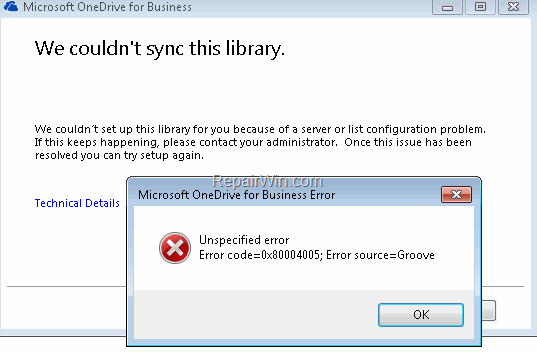
How to FIX Error 0x80004005 in OneDrive For Business.
1. Close any open Microsoft Office application (Word, Excel, OneNote, etc.)
2. Open Command Prompt as Administrator and then give the following commands in order:
- taskkill /f /im OneDrive.exe
- taskkill /f /im msosync.exe
- taskkill /f /im groove.exe
3. Backup (copy) all your files from the "C:\User\%Username%\OneDrive For Business" folder to another location (folder) on your PC.
4. Then delete all the files from the 'OneDrive For Business' folder.
5. Enable the hidden files view.
6. Open Windows Explorer and navigate to the following location:
- C:\Users\*YourUsername*\AppData\Local\Microsoft\Office\SPW
6a. Select and delete all the files inside the SPW folder.
7. Then navigate to the below location, according the installed Office version:
Office 2013:
- C:\Users\*YourUsername*\AppData\Local\Microsoft\Office\15.0\OfficeFileCache
Office 2016, 2019:
- C:\Users\*YourUsername*\AppData\Local\Microsoft\Office\16.0\OfficeFileCache
7a. Select and delete all the files inside the OfficeFileCache folder.
8. Restart your computer.
9. Start OneDrive for Business and try to sync your files. *
* Notes:
1. If some files are missing after sync, then copy the files from the backup location to the 'OneDrive For Business' folder.
2. If you still receive errors, then perform the following actions:
1. Go to Control Panel > Programs & Features and Uninstall the OneDrive for Business application.
2. Rename the "C:\User\%Username%\OneDrive For Business" folder to OneDrive For Business.OLD"
3. Then proceed to download and reinstall OneDrive for Business from here.
That’s all folks! Did it work for you?
Please leave a comment in the comment section below or even better: like and share this blog post in the social networks to help spread the word about this solution.
Frequently Asked Questions
What causes the error code 0x80004005 in OneDrive for Business?
The error code 0x80004005 in OneDrive for Business is typically due to a server or list configuration problem. It may also occur if the file cache is corrupted or if there's an issue with the sync process itself.
How do I start fixing the error 0x80004005 in OneDrive for Business?
Begin by closing any open Microsoft Office applications like Word, Excel, or OneNote. Then, use Command Prompt as an Administrator to terminate processes like OneDrive.exe, msosync.exe, and groove.exe.
Do I need to backup my files during the troubleshooting process?
Yes, it's important to backup all files from your 'OneDrive For Business' folder to another location on your PC before proceeding with the fix. This ensures you don't lose any data during the process.
What should I do if the error persists after following the initial steps?
If the error persists, uninstall the OneDrive for Business application from Programs & Features, rename the existing 'OneDrive For Business' folder, and reinstall the application to resolve any lingering issues.



