
How to Control Mouse with Keyboard in Windows 10/8/7.
This tutorial contains instructions on how to control mouse by using the keyboard, by using the 'Mouse Keys" feature in Windows. The article, may useful to people that cannot operate the mouse or in cases where the mouse stops working (or not exist) and you want to use your keyboard as a mouse. to work with your computer in order to finish an urgent work.
The Mouse Keys feature is built into Windows 10, 7, or 7 operating systems and allows you to use the numeric keypad to move the mouse pointer on the screen and make all the usual actions of a mouse (click, double-click, right-click).
How to Use your Keyboard as a Mouse.
Method 1. Enable Mouse Keys by using Keyboard Shortcut. *
The first method to move the mouse cursor [without a mouse  ], is to turn on the Mouse Keys, by using the following way:
1. Press left ALT + left SHIFT + Num Lock

2. When the Mouse Keys window appears on the screen, press ENTER to turn on MouseKeys.

3. After enabling the Mouse Keys, you can use your keyboard (numeric keypad) to perform all mouse actions (move, click, right-click, double click) as show in the figure below. *
* Note: If you want to increase or to decrease the pointer speed, read the instructions in the next method.
Mouse functions from the Numeric Keypad

Method 2. Enable Mouse Keys from Ease of Access Center.
To second method in order to be able to control the mouse pointer with your keyboard, is to turn on and configure the 'Mouse Keys' feature from the Ease Access center. To do that:
1. Navigate to Windows Control Panel, set the 'View By' to Small icons and then open the Ease of Access Center.

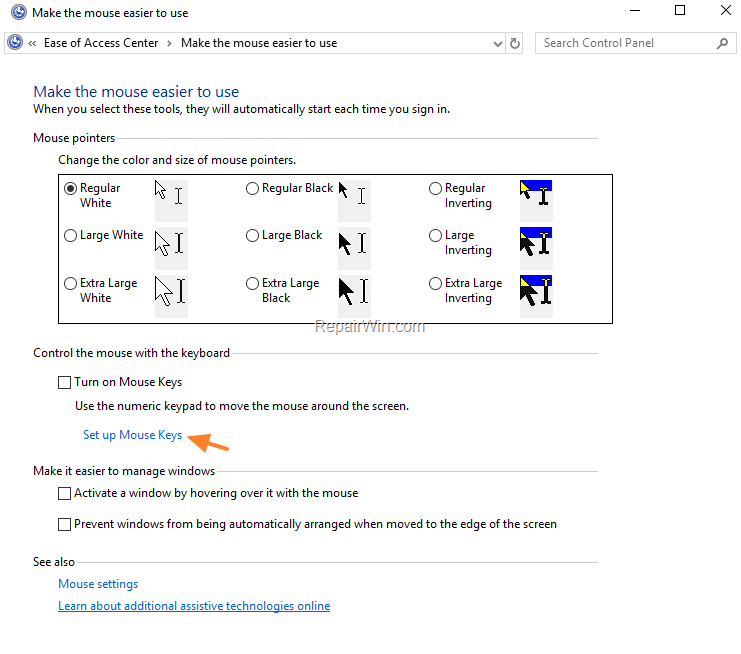
2. Click Make the mouse easier to use.

3. Then click Set up Mouse keys.
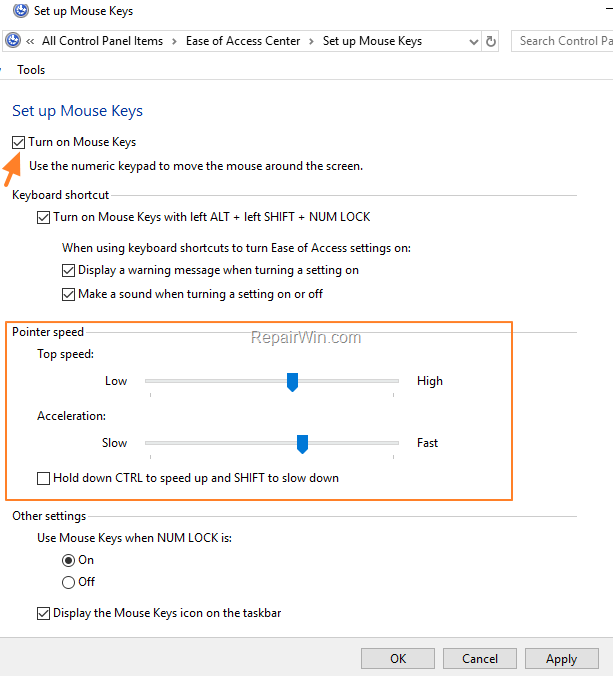
4. Now, check the Turn on Mouse Keys box and click Apply.
5. Now try to move the mouse cursor by using the numeric keypad and configure the Pointer speed as you wish. (Click 'Apply' at every change and 'OK' to close the 'Mouse Keys" options.)
That’s all! Did it work for you?
Please leave a comment in the comment section below or even better: like and share this blog post in the social networks to help spread the word about this solution.
Frequently Asked Questions
What is the purpose of the Mouse Keys feature?
The Mouse Keys feature allows you to use the numeric keypad on your keyboard to control the mouse pointer and perform mouse actions, which is useful if your mouse stops working or if you prefer using the keyboard.
How can I enable Mouse Keys using a keyboard shortcut?
You can enable Mouse Keys by pressing Left ALT + Left SHIFT + Num Lock. When the Mouse Keys window appears, press ENTER to activate the feature.
How do I enable Mouse Keys through the Ease of Access Center?
To enable Mouse Keys via the Ease of Access Center, go to the Windows Control Panel, select 'Ease of Access Center,' then click 'Make the mouse easier to use' and 'Set up Mouse Keys.' Check the 'Turn on Mouse Keys' box and click Apply.
Can I adjust the mouse pointer speed when using Mouse Keys?
Yes, you can configure the pointer speed in the Mouse Keys settings. After enabling Mouse Keys, adjust the pointer speed as desired and remember to click 'Apply' with each change.



