
Fix: Acrobat Reader prompts to Save As when Print (Problem Solved)
On a customer’s computer, Adobe Reader wouldn’t print anything when the user chooses the Print command & instead it returned a “Save As: dialog box to save the document to a printer (PRN) file. This strange "adobe reader save as when printing" problem happened only when the user was trying to print from Adobe Reader. In all other applications the printing function is working normal.
How to solve Adobe Acrobat Reader “Save As” problem when “Print”.
To fix the "Adobe Reader Save As when printing" problem, make sure that the “Print to file” option in Print dialog Advanced settings is unchecked (Disabled). To do that follow the detailed instructions below:
1. Open any Adobe PDF document from your computer.
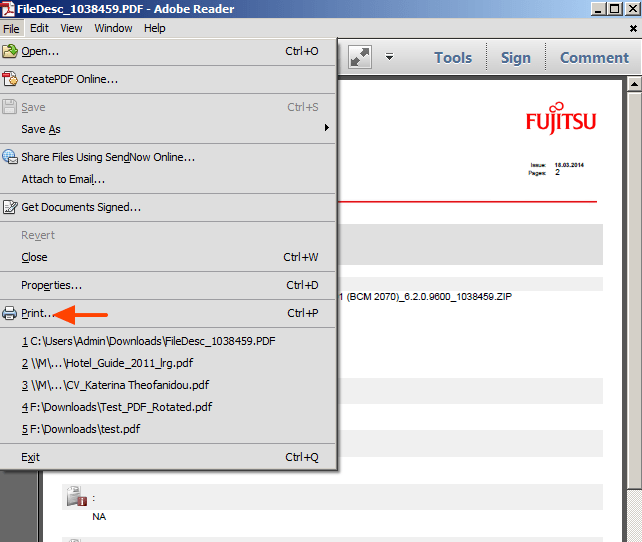
2. From Adobe Reader main menu, go to File > Print.
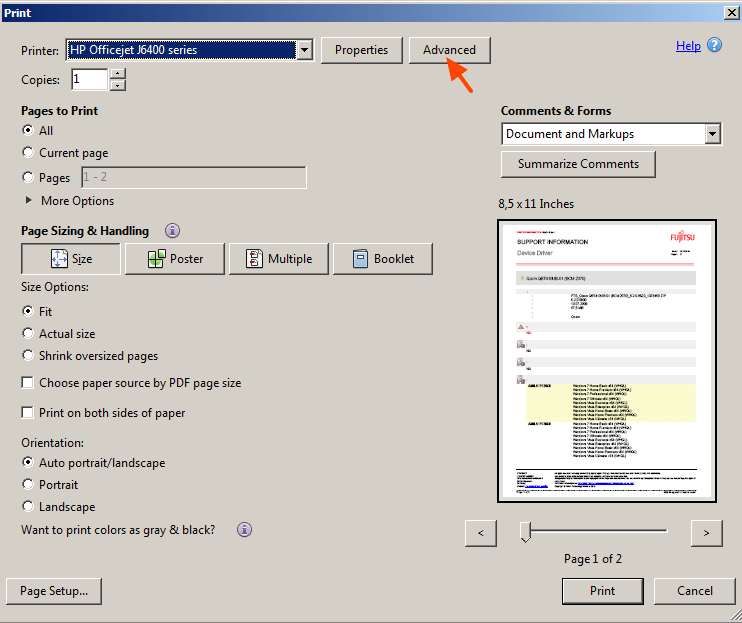
3. At Print dialog properties, make sure that your printer is selected and then click “Advanced”.
4. Uncheck the “Print to file” option & choose OK.

5. You ‘re done! *
* Note: If the "Print to File" option, is already unchecked, then check it, click OK and restart Acrobat Reader. Go again to "Advanced Print Setup" settings and uncheck again the "Print to File" option. Now try to print. If the problem persists, proceed to uninstall and re-install the Acrobat Reader to your PC.
That’s all folks! Did it work for you?
Please leave a comment in the comment section below or even better: like and share this blog post in the social networks to help spread the word about this annoying Adobe Reader problem.




February 2, 2015 @ 10:22 pm
It's really a great and helpful piece of info. I am satisfied that you just
shared this helpful information with us. Please
keep us informed like this. Thanks for sharing.
May 27, 2019 @ 4:16 pm
Sorry but this didn't work for me. Unchecked or checked it still won't print without getting me to save, which is VERY ANNOYING Help!
January 24, 2020 @ 1:26 am
Same for me. Tried several times, closing Adobe, restarting, even restarting whole computer, no luck. Cannot seem to print from Adobe anymore.
February 3, 2020 @ 7:30 pm
Did you ensure that you selected your printer vs "Adobe PDF"? This is at the very top of the dialog box that opens when you hit print. I had the same thing happen until I realized I was just telling it to create a copy of the pdf vs actually send it to my printer.
March 1, 2022 @ 11:56 am
Thanks, this stuff is usually idiot proof by default. Doh. :)
March 8, 2023 @ 3:51 pm
Thanks :)
November 22, 2018 @ 11:30 am
Thank you very much !
December 20, 2018 @ 7:00 pm
Even our techy guy didn't know to look for this, thanks
December 29, 2018 @ 12:22 am
I appreciate your making this solution to the problem available.
January 12, 2019 @ 7:18 am
THANK YOU!!
February 6, 2019 @ 3:33 am
Thank you so much. It was driving me crazy. I am not sure how I managed to set it to print to a file but I must have.
February 21, 2019 @ 2:49 am
Hi
All my files show the "save as pdf" dialog when I try to print them. My printer is connected properly and pinging successfully from my computer.
I tried printing an image file, a word file, an excel file and a pdf. They all did the same thing. Instead of printing they showed a "save as pdf" dialog.
Can someone help fix this?
Also, I noticed that the the "Print to File" option is NOT checked in the advanced printing settings.
March 13, 2019 @ 5:04 pm
great post!
April 11, 2019 @ 1:22 pm
U r great
April 23, 2019 @ 2:22 pm
Thank you so much. It was very useful. Just a small thing but hard to fix if we don't know.
May 15, 2019 @ 7:26 am
very use full.
thank you.
May 21, 2019 @ 10:32 pm
Thank you so much! This solved my problem of a PDF wanting to create another PDF even though a printer is selected
June 14, 2019 @ 4:13 pm
Hi, Thanks very much for the help. Others have said to un-check "Print to file" in the print dialog box, but they didn't specify to use the Advanced button to access that option. :-)
June 29, 2019 @ 11:25 am
Thank you very much sir!. It's works. Problem solved.
July 1, 2019 @ 3:21 pm
Hi
All my files show the "save as pdf" dialog when I try to print them. My printer is connected properly and pinging successfully from my computer.
Can someone help fix this?
Also, I noticed that the the "Print to File" option is NOT checked in the advanced printing settings.
July 29, 2019 @ 2:22 pm
Hey Cathy, did you find any solution? The same thing happens to me and is very annoying!
August 3, 2019 @ 8:20 pm
Happening to me as well. The print to file box is NOT checked. Stuck!
August 27, 2019 @ 7:03 pm
Did you find a fix for this? I can't get my printer to print, it worked yesterday??
August 28, 2019 @ 1:23 pm
I suggest to uninstall and reinstall the latest version of Acrobat reader on your PC.
July 9, 2019 @ 7:55 pm
Thanks for sharing very helpful for me
July 24, 2019 @ 1:11 pm
Yes it works. Thank You
September 17, 2019 @ 7:53 am
Only remove printer driver and Re-install it
September 17, 2019 @ 10:37 pm
Thanks for the info!
October 10, 2019 @ 1:36 pm
Thanks!!!
October 13, 2019 @ 12:36 am
I have checked and unchecked "print to file". I have uninstalled and reinstalled Adobe Acrobat Reader DC. I have started and restarted my computer. It still prints to file (.prn) every time, even when trying to print from Chrome. Very frustrating!
July 4, 2020 @ 1:25 pm
Yes its working thank u
July 11, 2020 @ 1:22 pm
Thank you for that tip. It worked after first selecting 'print to file' and then deselecting it, and then for good measure restarting the laptop.
March 29, 2021 @ 4:35 pm
After months of trying to sort this your fix worked. Thank you!
December 8, 2021 @ 3:05 pm
thanks,
I have checked and unchecked "print to file". I have uninstalled and reinstalled Adobe Acrobat Reader DC. I have started and restarted my computer. It still prints to file (.prn) every time, even when trying to print from Chrome. Very frustrating!
January 23, 2022 @ 5:58 pm
It worked perfectly, thank you. First time I had this kind of a problem, though. Don't know how the "print to file" box got checked. Maybe some automatic upgrade of adobe acrobat?
November 22, 2022 @ 7:55 pm
well done, thank you for sharing this. fixed the problem a user was having. :-)
March 2, 2023 @ 3:58 pm
I'm usually pretty computer savvy but this one has been bothering me for a while. Thank you for solving it for me.
May 25, 2023 @ 5:19 pm
Even on Windows 11 this fix helped! Thank you!!