FIX Logon failure: the user has not been granted the requested logon type at this computer (Solved)
If you are encountering the error "Logon failure: the user has not been granted the requested logon type at this computer" when attempting to log into a Windows workstation, this guide will help you resolve the issue efficiently. This error typically arises when a user is not permitted to log on locally due to specific policy settings.
The error message "The user has not been granted the requested logon type" often occurs on Active Directory computers or Domain Controllers because the user is not configured to log on locally in the system's policy settings.
- Related article: Cannot Access Shared Folder: User has not been granted the requested logon type at this computer.
How to Fix Login Error: 'User has not been granted the requested logon type' on Windows 10/11 Pro, Windows Server & Domain Controller.
Method 1. Allow User to Log On Locally on Windows PCs & Servers
To resolve this error on a Windows 10/11 Pro PC or Windows Server, follow these steps:
1. Log on to the PC using another account with Administrative rights. This is crucial as administrative privileges are required to modify system policies.
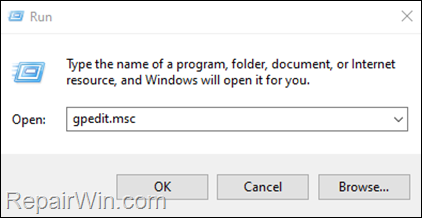
2. Press Windows  + R keys to open the Run command box. Then, type
 gpedit.msc and press Enter to open the Group Policy Editor. This editor allows you to manage and configure operating system policies.
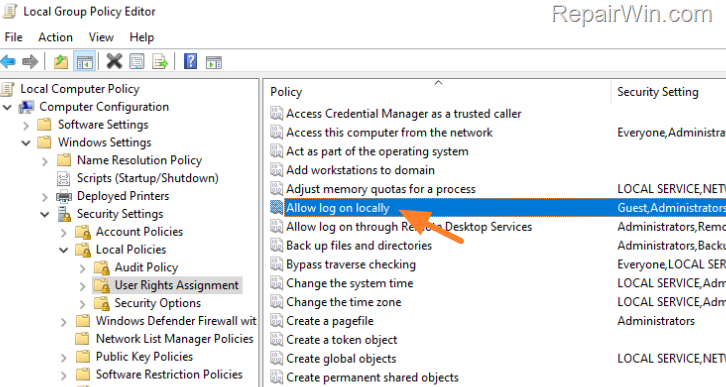
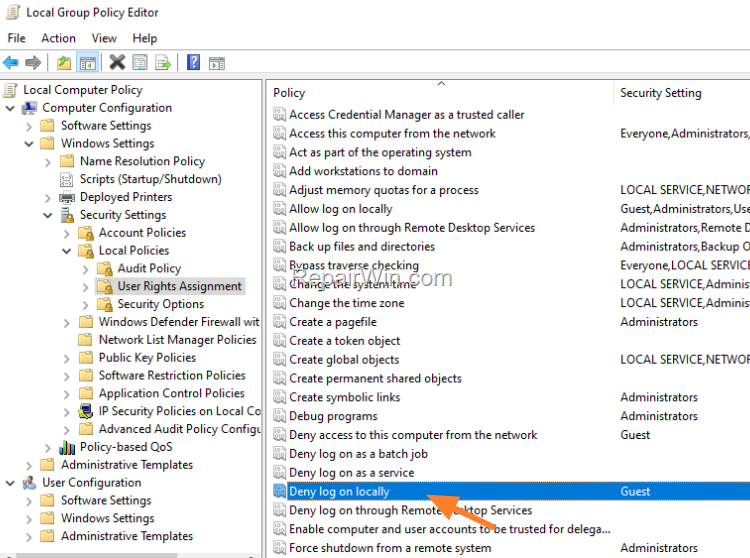
3. In the Policy Editor, navigate to the following location: Local Computer Policy\Computer Configuration\Windows Settings\Security Settings\Local Policies\User Rights Assignment. This path allows you to manage user rights and security settings on the local machine.
4. On the right side, open the Allow log on locally policy. This setting specifies which users can log on to the system interactively.
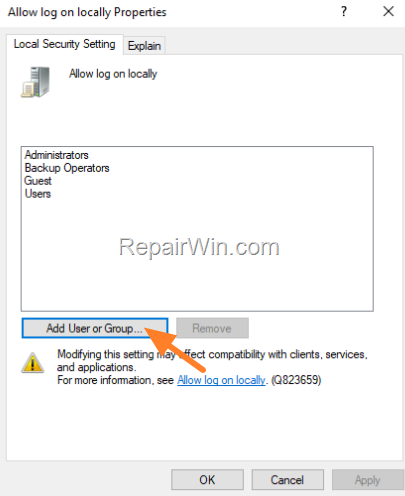
5. In the 'Allow log on locally Properties' window, click Add User or Group and add the user(s) experiencing the error. Click OK to apply the changes. This action grants the specified users the right to log on locally.
6. Next, open the Deny log on locally policy.
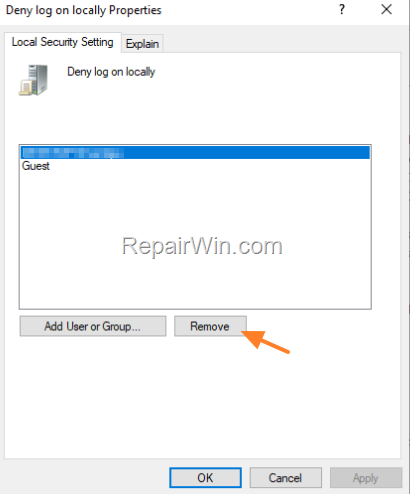
7. Ensure that the affected user is not listed. If they are, select the user and click Remove to delete them from the list. This step is necessary to prevent any conflicts with the 'Allow log on locally' policy.
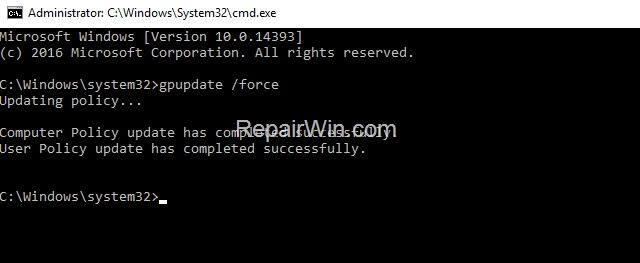
8. Close the Policy Editor and either restart the computer or run the gpupdate /force command in an Admin command prompt to apply the policy changes immediately.
9. Attempt to log on again. The error 'User has not been granted the requested logon type at this computer' should now be resolved.
Method 2. Allow User to Log On Locally on a Domain Controller
To fix the error "User has not been granted the requested logon type at this computer" when attempting to log on locally to a Domain Controller using an Active Directory user account, proceed as follows:
Note: Apply these steps only if you cannot log in to the Domain Controller from a specific domain user.
1. Log on to the Active Directory Domain Controller with an account that has domain administrator rights (e.g., the domain's "Administrator" account). This ensures you have the necessary permissions to modify domain policies.
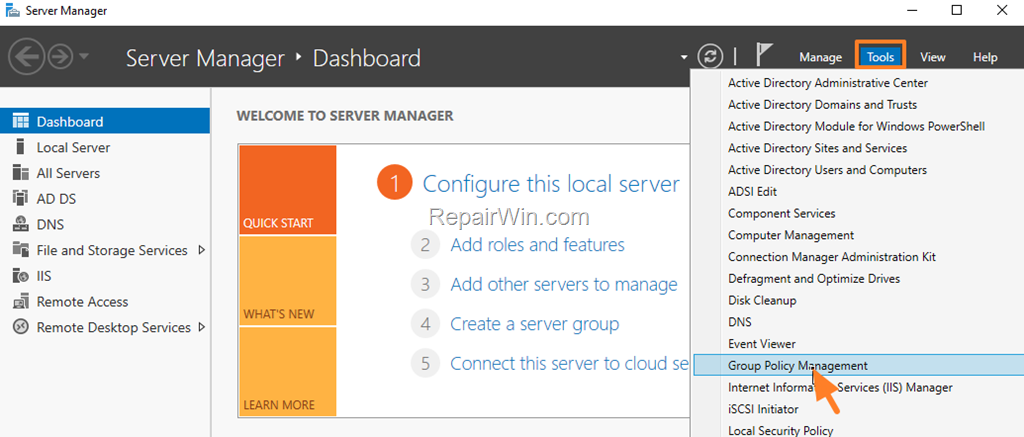
2. Open the Server Manager and from the Tools menu, open Group Policy Management. This tool is used to manage Group Policy Objects (GPOs) across the domain.
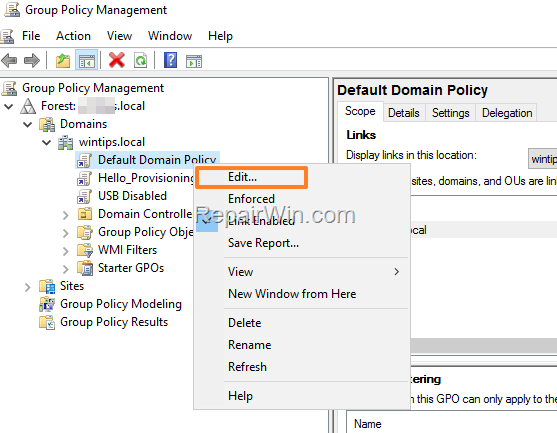
3. Right-click on Default Domain Policy and select Edit. This policy applies to all computers and users within the domain by default.
4. Navigate to: Computer Configuration\Policies\Windows Settings\Security Settings\Local Policies\User Rights Assignment
5. Open the Allow log on locally policy.
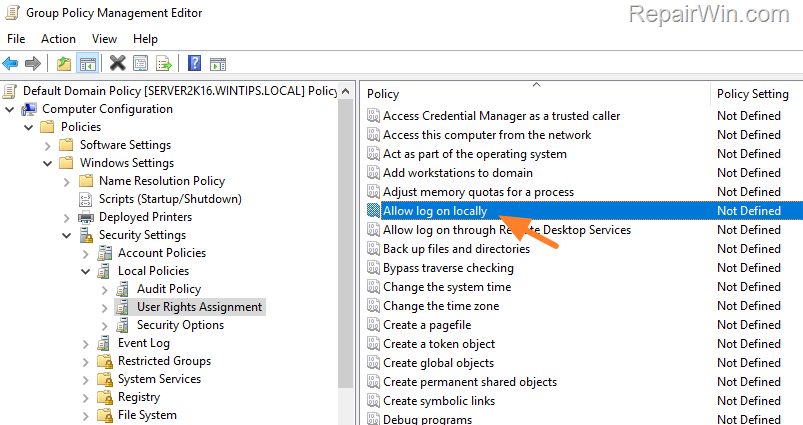
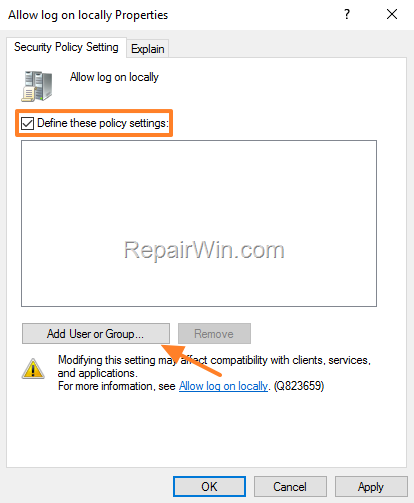
6. Check the Define these policy settings box and click Add User or Group to add the domain users allowed to log on locally to the domain controller. Click OK to confirm. This step ensures that the specified users have the necessary permissions to log on.
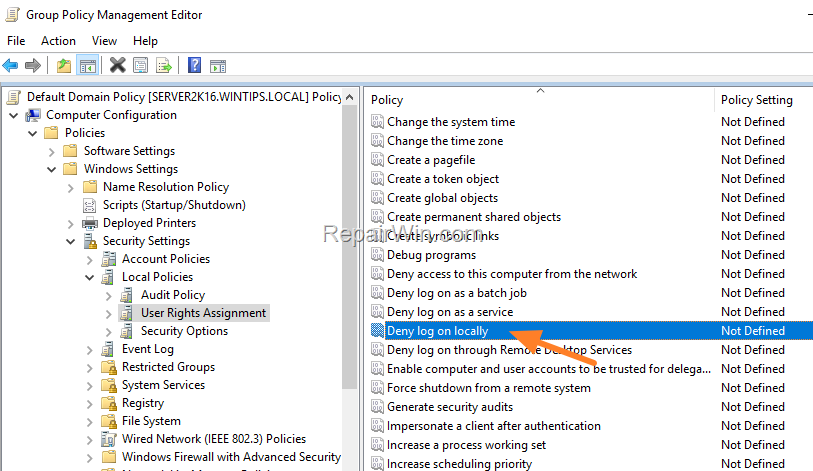
7. Open the Deny log on locally policy.
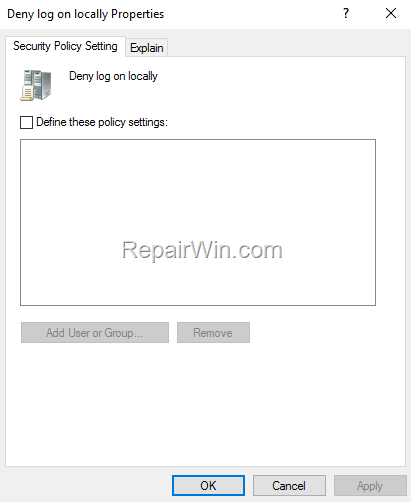
8. Ensure that the affected user is not listed. If they are, remove them from the list to prevent conflicts with the 'Allow log on locally' policy.
10. Close the Group Policy Management Editor.
11. Finally, open the command prompt and execute the following command to apply the changes: gpupdate /force. This command updates Group Policy settings immediately, ensuring that all changes take effect.
Additional Solutions
In addition to the methods above, consider checking the following:
- Audit Logon Events: Enable auditing for logon events to track and diagnose logon failures. This can be done through
Local Security PolicyunderSecurity Settings\Local Policies\Audit Policy. Monitoring these logs can provide insights into why logon attempts are failing. - Check Network Policies: If the issue persists, ensure that there are no network policies or firewall settings blocking the logon attempt. Review settings in
Windows Defender Firewalland any third-party security software.
Summary
To resolve the "User has not been granted the requested logon type" error, ensure that the user is allowed to log on locally by configuring the appropriate policies in the Group Policy Editor. For domain environments, make sure the domain policies are correctly set up in the Group Policy Management. Always verify that no conflicting policies are denying the logon and apply changes using gpupdate /force. Monitoring logon events and reviewing network policies can also aid in troubleshooting persistent issues.
Did these solutions work for you? Please leave a comment below or share this guide to help others facing similar issues.
Frequently Asked Questions
What causes the 'User has not been granted the requested logon type' error on Windows?
This error occurs because the user is not allowed to log on locally in the Policy settings.
How can I allow a user to log on locally to a Windows PC or server to fix this error?
To allow a user to log on locally, you need to access the Local Policies in the Group Policy Editor and add the user to the 'Allow log on locally' policy while ensuring they are not listed in the 'Deny log on locally' policy.
How can I resolve this logon error for a domain controller?
Log on to the domain controller with an administrator account, open Group Policy Management, edit the 'Default Domain Policy', and adjust the 'Allow log on locally' and 'Deny log on locally' settings to include or remove the necessary users. Apply changes using the gpupdate /force command.