
How to Seamlessly Map Local or Network Shared Folders in a VirtualBox VM.
In this comprehensive guide, you will learn how to map a logical drive letter inside a VirtualBox guest machine to a local folder on the host computer or a shared folder on another network machine. This functionality enhances file sharing between the host and guest machines, making VirtualBox an indispensable tool for virtualization enthusiasts and professionals.
One of the standout features of VirtualBox is its ability to facilitate file sharing between the host machine and the virtual machine (commonly referred to as the "guest" machine) by mapping disks or folders to drive letters. This guide will walk you through the process of assigning logical drive letters in the virtual machine to shared folders, thereby streamlining your file-sharing operations.
How to Map Shared Folders to a VirtualBox Guest Machine
Note: Before proceeding, ensure that "VirtualBox Guest Additions" is installed on the VirtualBox guest machine, as it is crucial for enabling shared folder functionality.
1. How to Assign a Drive Letter to a Folder on the Host Machine in VirtualBox VM
If you wish to map a drive letter in the virtual machine to a folder or drive located on the host machine, follow these steps:
1. Open the virtual machine's Settings.
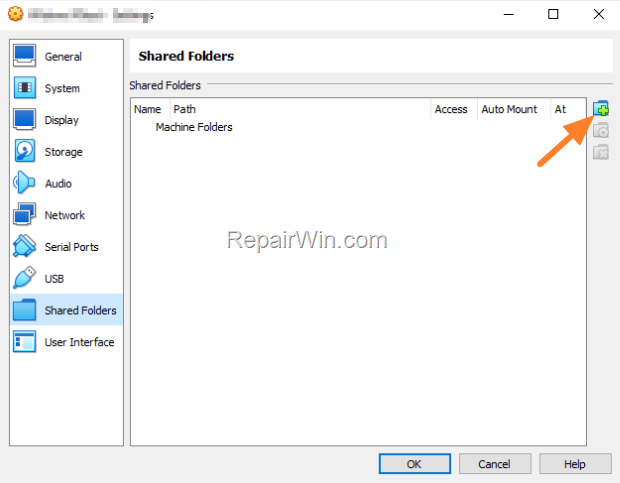
2. Select the Shared folders tab and click the plus (+) icon on the right to add a new shared folder.
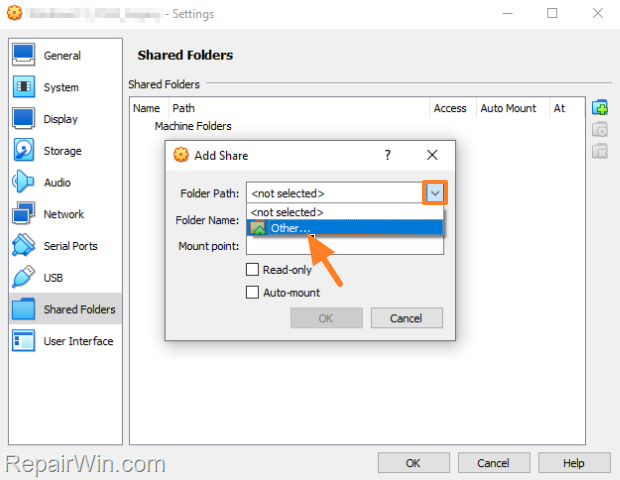
3. At Folder Path: click the drop-down menu and select Other…
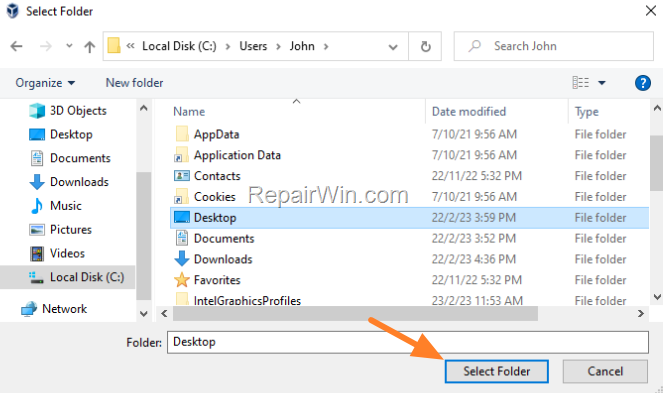
4. Browse and choose the folder (or the disk/drive) of the host computer that you want to map inside the guest machine and then click Select Folder.
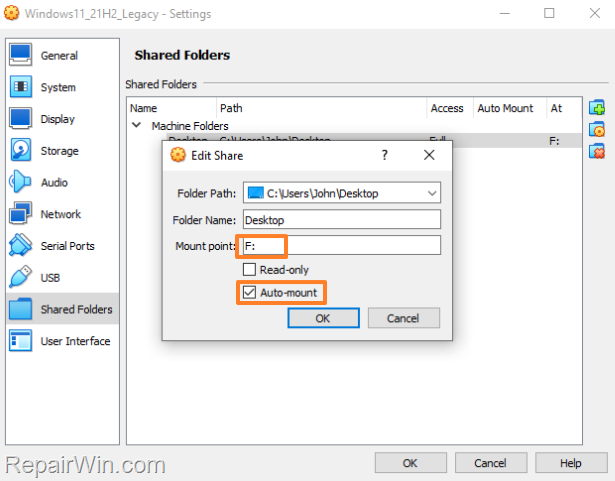
5. At Mount point: type the drive letter you want to map the selected folder to (e.g., F:).
6. By default, you'll have Full access (read/write) on the shared folder. If you prefer restricted access, check the Read-only box.
7. Check the Auto-mount box to ensure the folder is automatically mounted each time the guest machine starts.
8. When done, click OK.
9. Click OK again to save the changes.
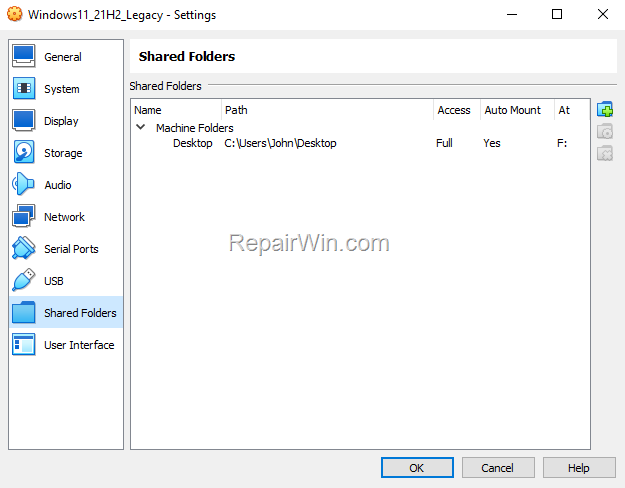
10. Start the VirtualBox machine.
11. Once you're in Windows, open Explorer and click This PC to see the selected folder mapped to the chosen drive letter.
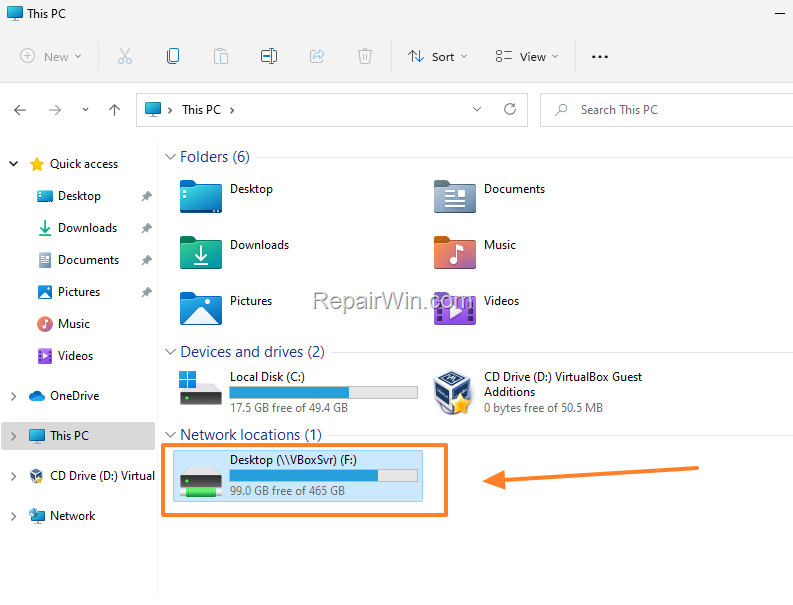
2. How to Assign a Drive Letter to a Network Shared Folder on a VirtualBox VM
If you want to map a drive letter to a network shared folder in a virtual machine, follow these steps:
Step 1. Connect to the Shared Folder on the HOST machine.
On the VirtualBox host machine, perform the following actions:
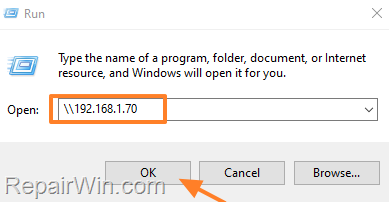
1. Press Windows  + R keys to open the run command box.
2. In the run box, type the Computer Name or the IP Address of the network machine with the shared folder, using one of the following formats, then press Enter:
-
-
\\Computer-Name\\IP-Address
-
Example: If the network machine with the shared folder is named "PC1" with IP Address "192.168.1.70", type:
-
-
- \\PC1
-
or…
-
-
- \\192.168.1.70
-
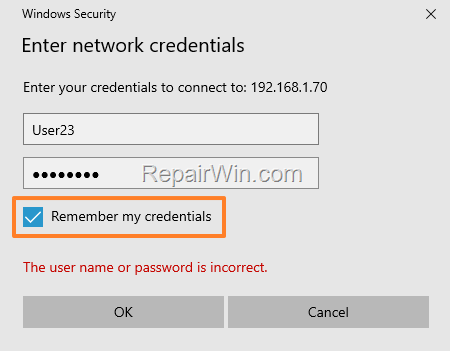
3. When prompted, enter the network credentials to access the shares on the network machine, and check the Remember my credentials checkbox for future access.
4. Now double-click to open the shared folder you want to map inside the guest machine.
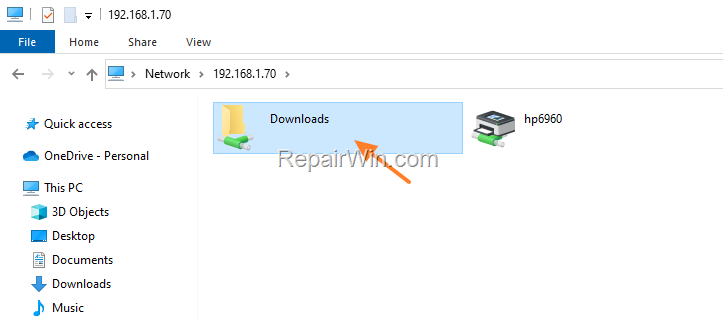
5. Select the network folder path in the address bar and then right-click > Copy.
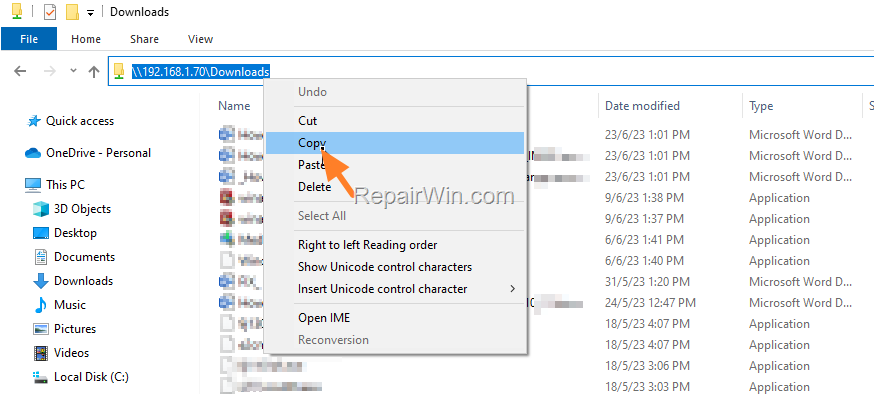
Step 2. Map Network Shared Folder to a Drive Letter in VirtualBox GUEST machine.
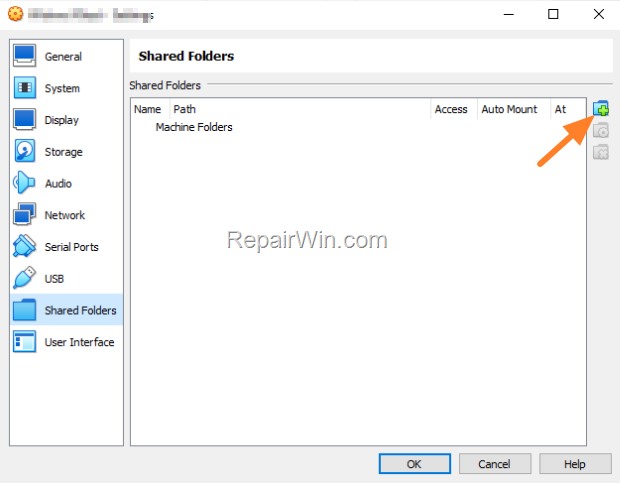
1. Open the virtual machine's Settings.
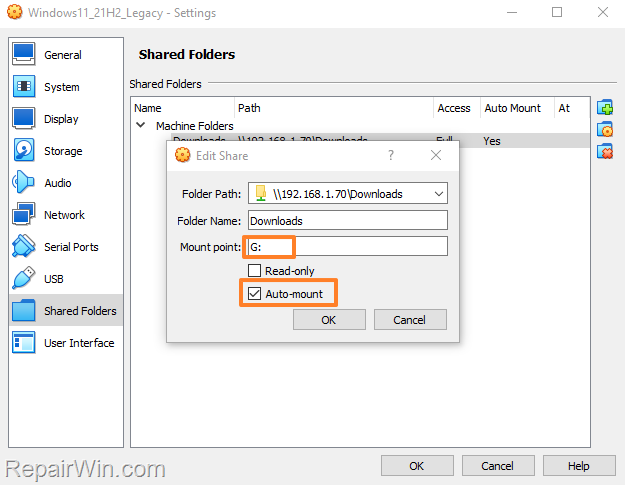
2. Select the Shared folders tab and click the plus (+) icon on the right to add a new shared folder.
3. At the Folder Path field, press CTRL + V (or right-click & Paste) to paste the copied path of the Network Shared folder.
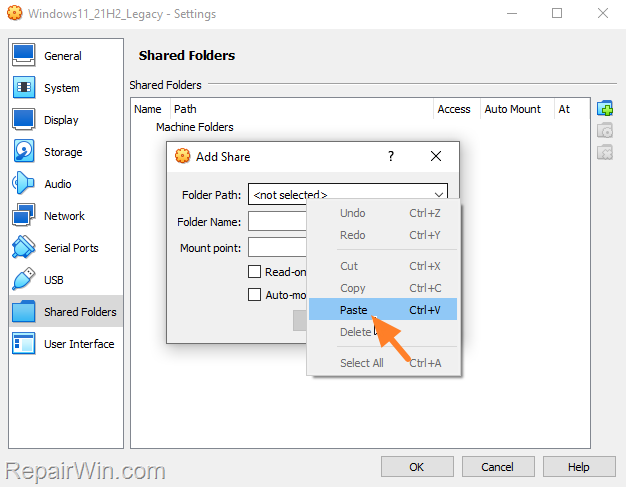
4. At Mount point: type the drive letter you want to map the selected folder to (e.g., G:).
5. If you prefer not to have Full access (read/write) on the shared folder, check the Read-only box.
6. Check the Auto-mount box to ensure the folder is automatically mounted each time the guest machine starts.
7. When done, click OK.
8. Click OK again to save the settings.
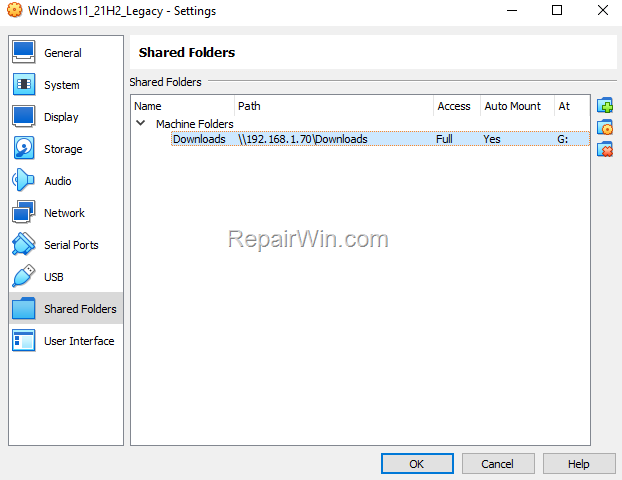
9. Start the VirtualBox machine.
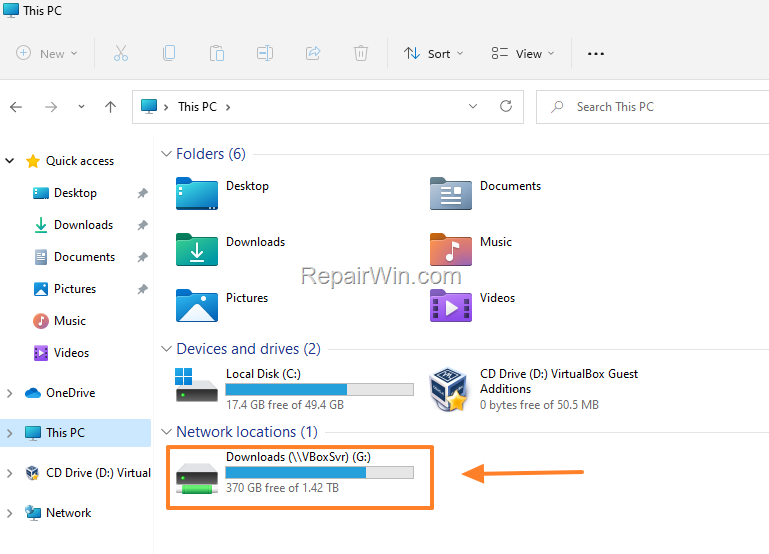
10. Once you're in Windows, open Explorer and click This PC to see the network shared folder mapped to the chosen drive letter.
Additional Methods for Mapping Shared Folders in VirtualBox
In addition to the methods outlined above, consider the following advanced techniques for mapping shared folders in VirtualBox:
Using Command Line Interface
For users comfortable with command-line operations, VirtualBox offers command-line tools to manage shared folders. Using the VBoxManage command, you can create and manage shared folders. For example, to add a shared folder, use the command:
VBoxManage sharedfolder add "VM Name" --name "ShareName" --hostpath "C:\Path\To\Folder"This command allows you to specify the virtual machine name, the shared folder name, and the host path, providing a flexible way to manage shared resources.
Using PowerShell
Windows PowerShell can also be used to automate the mapping of shared folders. By scripting the necessary commands, you can streamline the setup process across multiple virtual machines. For example, use a PowerShell script to map a network drive:
New-PSDrive -Name "Z" -PSProvider FileSystem -Root "\\Server\Share" -PersistThis command creates a new persistent network drive mapping, which can be particularly useful in environments with multiple virtual machines.
Summary
Mapping local or network shared folders in VirtualBox enhances the interoperability between host and guest machines, simplifying file sharing and collaboration. By following the detailed steps outlined in this guide, you can efficiently map drive letters to shared folders, whether they reside on the host machine or across a network. Additionally, leveraging command-line tools and scripting can further automate and optimize your VirtualBox environment.
We hope this guide has been helpful. If you have any questions or feedback, please leave a comment below. Don't forget to share this article with others who might benefit from it!
Frequently Asked Questions
How do I map a local drive to a VirtualBox guest machine?
To map a local drive to a VirtualBox guest machine, open the virtual machine's settings, select the 'Shared folders' tab, and click the plus (+) icon to add a new shared folder. Choose the folder on the host computer you want to map, select a drive letter under 'Mount point', ensure the 'Auto-mount' box is checked, and click OK to save the changes.
Can I map a network shared folder to a drive letter in VirtualBox?
Yes, you can map a network shared folder to a drive letter in VirtualBox. First, connect to the shared folder from the host machine by accessing the network path and entering the necessary credentials. Then, in the guest machine’s settings, add the shared folder under the 'Shared folders' tab, paste the network path, choose a drive letter under 'Mount point', and check 'Auto-mount' before clicking OK.
What should I do if I want only read access to a shared folder in VirtualBox?
When setting up a shared folder in VirtualBox, you can check the 'Read-only' box if you want the guest machine to have read access only, preventing any changes to the folder contents.
Is it essential to install VirtualBox Guest Additions before mapping shared folders?
Yes, it is recommended to install 'VirtualBox Guest Additions' on the guest machine before mapping shared folders, as it enhances compatibility and ensures that shared folders work properly.



