
How to Disable Windows Hotkeys on Windows 10/11
If you're looking for a comprehensive method to disable Windows hotkeys or shortcuts in Windows 10/11, such as the "Windows key  + E" to open Explorer, or "Windows key + R" to open the Run command box, continue reading below.
The Windows key is used in combination with other keyboard keys to streamline certain Windows tasks. However, accidental activation can lead to unintended program launches or feature activations. Disabling these shortcuts can be particularly useful in preventing unauthorized usage or interruptions.
In this guide, you'll discover multiple ways to deactivate keyboard shortcuts on Windows 10/11 OS.
* Notes:
1. The methods outlined below will disable the following Windows hotkeys on Windows 10/11:
- Windows key + E: Opens the File Explorer window.
- Windows key + R: Opens the Run dialog box.
- Windows key + D: Minimizes all open windows and shows the desktop.
- Windows key + S: Opens the Search bar.
Note: These methods will not disable the Windows key shortcuts: Windows + I (Settings), Windows + X (quick menu), Windows + L (Locks Computer), or Windows + Tab (shows all open windows).
2. To disable all Windows key combinations, consider disabling the Windows key entirely using the instructions in this guide: How to Disable Windows Key on Windows 10/11.
Method 1. Disable Windows Hotkeys in the Registry
The first method to deactivate Windows key shortcuts is through the Windows Registry. This approach involves editing system settings at a granular level, which can effectively prevent the execution of certain hotkeys.
1. Right-click on the Start menu and select Run.

2. Type regedit and press OK (or Enter) to open the Registry Editor.
![image_thumb[4]](https://www.repairwin.com/wp-content/uploads/2023/04/image_thumb4-1.png "image_thumb[4]")
3. In Registry Editor, navigate to the following path: HKEY_CURRENT_USER\Software\Microsoft\Windows\CurrentVersion\Policies\
-
-
-
- Right-click on the "Policies" key and choose New > Key.
- Name the new key "Explorer" and press Enter.
-
-

4. Now, right-click on the "Explorer" key and select New > DWORD (32-bit) Value.

-
- Name the new value as "NoWinkeys" and press Enter.
- Double-click to open the "NoWinkeys" value, type "1" in the value data box, and click OK.

5. Close the Registry Editor and restart your PC, or restart File Explorer using Task Manager to apply the setting. To restart Windows Explorer from Task Manager:
- a. Press CTRL + SHIFT + ESC to open Task Manager.
- b. In the Processes tab, right-click on Windows Explorer and click Restart to apply the change.

6. After restarting the computer or Windows Explorer, the Windows key hotkeys will be disabled.
To Enable the Windows Key Hotkeys: To re-enable the disabled Windows key combinations:
1. Open the Registry Editor.
2. Navigate to the following path: HKEY_CURRENT_USER\Software\Microsoft\Windows\CurrentVersion\Policies\Explorer
3. Delete the "NoWinkeys" REG_DWORD value, or change its value from "1" to "0".

Method 2. Disable Windows Key Hotkeys through Group Policy
If you're using the Windows 11/10 Pro version, you can disable Windows key combinations via Local Group Policy. This method modifies system policies to prevent the use of certain shortcuts.
1. Right-click on the Start menu and select Run.

2. Type gpedit.msc to open the Group Policy Editor.
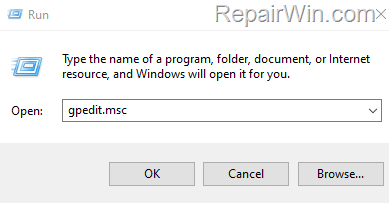
3. In the Policy Editor, navigate to the following path: User Configuration > Administrative Templates > Windows Components > File Explorer
a. In the right pane, open the Turn off Windows Key hotkeys policy.

b. Select Enabled and click Apply > OK.

4. Close the Group Policy Editor and restart your computer to apply the change.
* Note: To re-enable the Windows hotkeys, set the "Turn off Windows Key hotkeys" policy to "Disabled" or "Not Configured".
Summary
Disabling Windows hotkeys can enhance productivity by preventing accidental activations. The Registry Editor method provides a direct way to modify system settings, while the Group Policy Editor offers a policy-based approach for Pro users.
That’s all folks! Did it work for you? Please leave a comment in the comment section below or even better: like and share this blog post on social networks to help spread the word about this solution.
Frequently Asked Questions
How can I disable specific Windows key shortcuts on Windows 10/11?
To disable specific Windows key shortcuts such as 'Windows key + E' or 'Windows key + R', you can modify the Windows Registry by navigating to HKEY_CURRENT_USER\Software\Microsoft\Windows\CurrentVersion\Policies, creating a new 'Explorer' key, and adding a DWORD value 'NoWinkeys' set to '1'. Restart your computer to apply changes.
Which Windows key shortcuts remain functional after disabling certain hotkeys?
After disabling certain hotkeys using the methods described, Windows + I (Settings), Windows + X (quick menu), Windows + L (Locks Computer), and Windows + Tab (shows all open windows) will still work.
What steps can I follow to re-enable disabled Windows key hotkeys?
To re-enable disabled Windows key hotkeys, open the Registry Editor, navigate to HKEY_CURRENT_USER\Software\Microsoft\Windows\CurrentVersion\Policies\Explorer, and either delete the 'NoWinkeys' REG_DWORD value or change its value from '1' to '0'. Restart your computer to apply the changes.
How do I disable Windows key hotkeys using Local Group Policy?
To disable Windows key hotkeys using Local Group Policy on Windows 10/11 Pro, open the Group Policy Editor by typing 'gpedit.msc', navigate to User Configuration > Administrative Templates > Windows Components > File Explorer, find 'Turn off Windows Key hotkeys' policy, set it to 'Enabled', and apply the changes. Restart your computer to activate the changes.



