
FIX: CHKDSK Cannot open volume for direct access.
The error "Cannot open volume for direct access" in "chkdsk" command, usually means that the drive that you want to check for errors, is damaged and cannot be accessed. At such case, the only option, is to try to to recover your files from the damaged drive, by following the instructions below.

How to FIX CHKDSK Error: Cannot open volume for direct access.
Method 1. Run CHKDSK command in Safe Mode.
Step 1. Start Windows in Safe Mode.
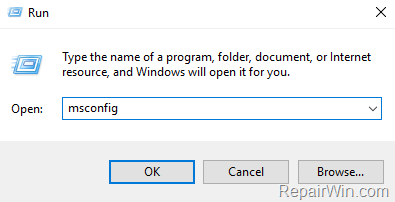
1. Press the Windows  + R keys to open the run command box.
2. Type msconfig and press Enter to open the 'System Configuration' utility.
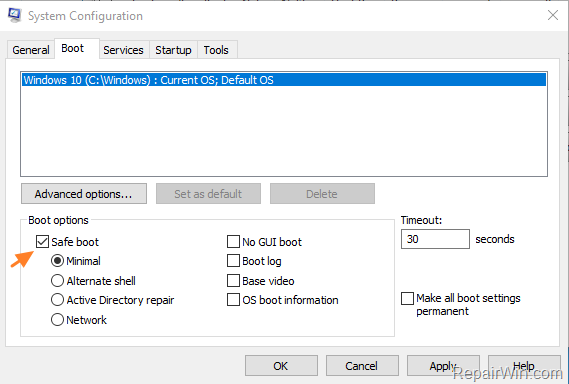
3. At Boot tab select the Safe Boot option, then click OK and restart your computer.
4. In safe mode, try to view the content's on problematic drive. If you can't continue to next step. *
* Note: If you can view the drive's contents in safe mode, then probably a running third-party program (e.g. your Antivirus) prevents the access on it.
Step 2. Run CHKDSK in Safe Mode.
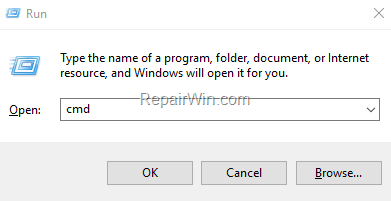
1. Open Command Prompt as Administrator. To do that:
1. Press the Windows
+ R keys to open the 'Run' command box
2. Type CMD and then press CTRL + SHIFT + ENTER.

2. At command prompt give the following command to repair your disk and press Enter. *
- chkdsk X: /R
* Note: In this example the driver letter of the damage drive is the "X". Replace the driver letter according to your case.
3. Wait until the Check Disk process fixes the errors on the drive.
4. When the process in completed, close the command prompt window.
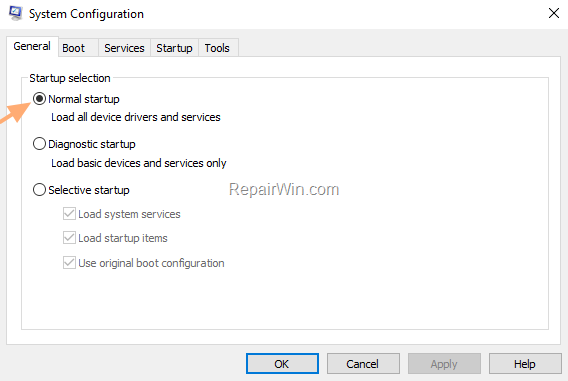
5. Run the 'System Configuration' tool again and at the General tab, check the Normal startup and click OK to exit from Safe Mode.
6. Restart your computer.
Method 2. Recover your files with PhotoRec.
Step 1. Download Photorec.
1. Download TestDisk & PhotoRec according your Windows version (32 or 64-bit)
2. Extract the downloaded "testdisk-7.x.win.zip" file and then continue to next step.
Step 2. Recover the corrupted files with PhotoRec.
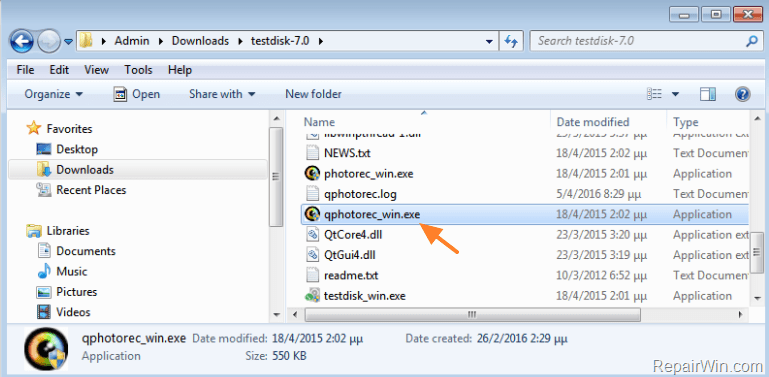
1. Explore "testdisk-7.x" folder and open the qphotorec_win application.
2. Select the damaged drive from the list.
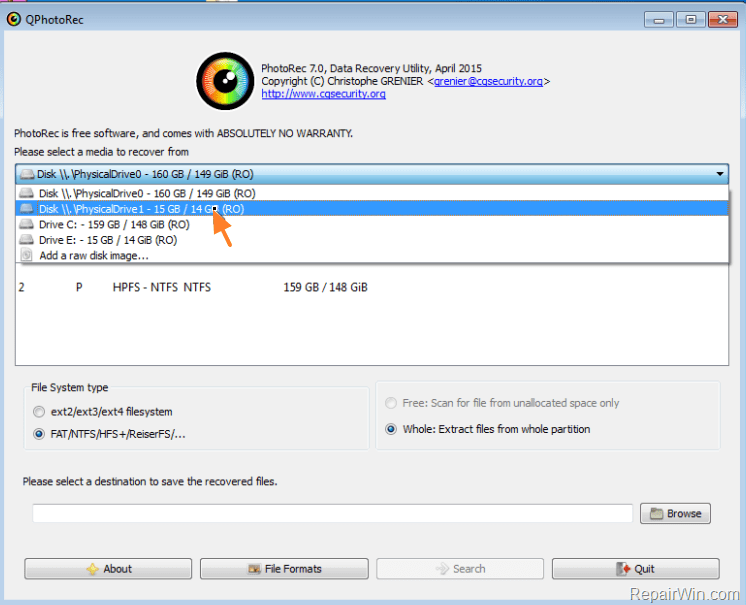
3. Then choose the whole disk or the partition to retrieve files. *
* Note: If you want to don't miss anything, select "No partition". The PhotoRec will scan the entire drive. (The scan takes more time)

4. Select: Whole: Extract files from whole partition, if you want to recover corrupted data *
* Note: If you want to recover deleted files, then select: "Free: Scan for file from unallocated space only".
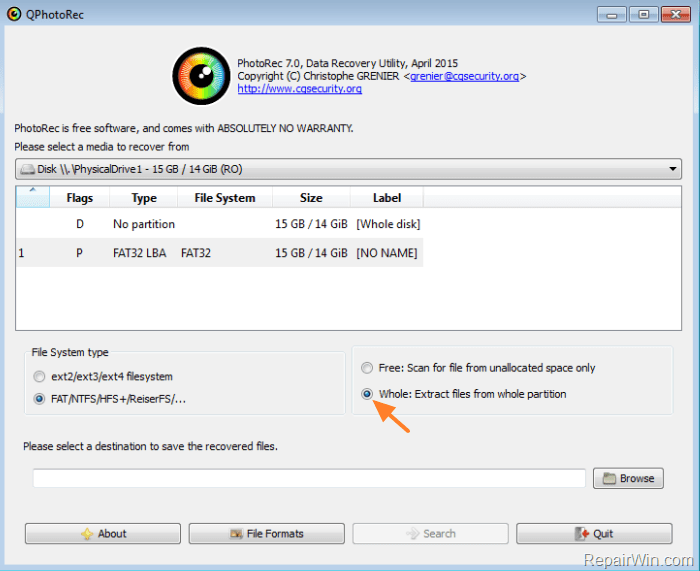
5. Then choose a destination on your disk* to save the recovered files.
* Note: Never save the recovered files, on the corrupted disk.

6. (Optional) Click the File Formats button and choose which type of files you want to recover. (e.g."jpg – JPG Picture").

7. Finally press the Search button.

8. When the scan and recovery process is completed, navigate to the folder you selected (before) to view the recovered files.
9. Don't forget to format the corrupted disk (or memory card) before using it again.
That's all! Did it work for you?
Please leave a comment in the comment section below or even better: like and share this blog post in the social networks to help spread the word about this solution.
Frequently Asked Questions
What does the error 'Cannot open volume for direct access' mean when running CHKDSK?
This error usually indicates that the drive you are trying to check for errors is damaged and cannot be accessed. In such cases, the recommended action is to attempt file recovery from the affected drive.
How can I fix the CHKDSK error 'Cannot open volume for direct access'?
To fix this error, you can try running the CHKDSK command in Safe Mode. Start Windows in Safe Mode and then run the CHKDSK command from the Command Prompt as an administrator.
What should I do if I cannot access my drive and I need to recover files?
If you cannot access the drive, consider using a file recovery tool like PhotoRec. Download and run the PhotoRec application, select the damaged drive, and follow the instructions to recover your files. Ensure you save recovered files to a different drive.
Why might Safe Mode allow me to access a drive that I can't access normally?
Safe Mode starts Windows with a minimal set of drivers and services, which may prevent third-party programs, like antivirus software, from blocking access to the drive. This allows you to troubleshoot and potentially access the drive's contents.



