
How to Uninstall OneDrive and Reinstall it on Windows 10/8.1
If you don't need OneDrive or your face problems with it, then read the below instructions to completely uninstall OneDrive from your system. Also you 'll learn how to reinstall OneDrive on your system, in case that you need it on the future.
The OneDrive app helps you to save your documents, photos or other stuff on the cloud (Microsoft OneDrive), in order to access them from any device. But, if you're already use Dropbox or Google Drive for that job, then OneDrive is not needed.
This tutorial contains instructions to uninstall or to reinstall OneDrive.
How to Completely Remove OneDrive on Windows 10, 8/8.1 or 7.
To completely remove OneDrive from Windows, you can use one of the following methods:
Method 1. Uninstall Microsoft OneDrive using a command.
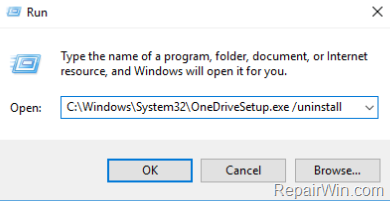
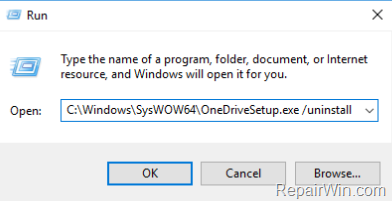
1. Press the Windows  + R keys to open the "RUN" command window.
2. Type the mentioned below OneDrive uninstall command, according your Windows version:
-
- If you 're using Windows 32bit type this command:
-
-
- C:\Windows\System32\OneDriveSetup.exe /uninstall
-
-
- If you 're using Windows 32bit type this command:
-
- If you 're using Windows 64bit type this command:
-
-
- C:\Windows\SysWOW64\OneDriveSetup.exe /uninstall
-
-
- If you 're using Windows 64bit type this command:
3. That it! Now proceed and remove OneDrive from Explorer's navigation pane.
Method 2. Uninstall Microsoft OneDrive from Control Panel.
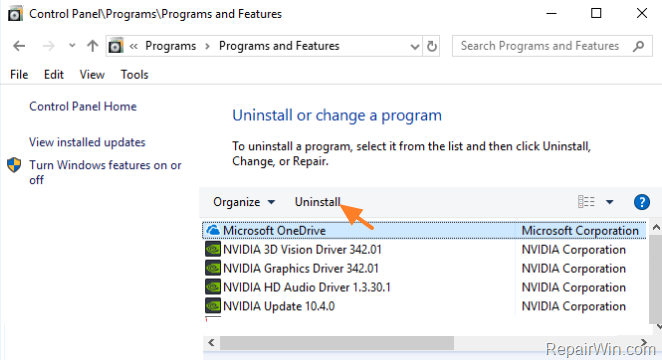
1. Open Add/Remove Programs (Programs and features) from Control Panel.
2. Select the OneDrive application and click Uninstall.
3. That it! Proceed and remove OneDrive from Explorer's navigation pane.
How to Install OneDrive on Windows 10, 8/8.1 or 7.
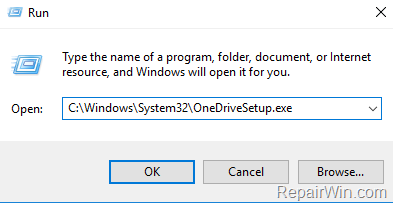
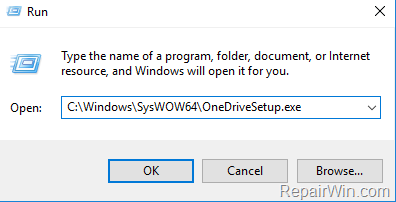
1. Press the Windows  + R keys to open the "RUN" command window.
2. Type the mentioned below OneDrive setup command, according your Windows version:
-
- If you 're using Windows 32bit type this command:
-
-
- C:\Windows\System32\OneDriveSetup.exe
-
-
- If you 're using Windows 32bit type this command:
-
- If you 're using Windows 64bit type this command:
-
-
- C:\Windows\SysWOW64\OneDriveSetup.exe
-
-
- If you 're using Windows 64bit type this command:
That's it! If you have problems installing OneDrive using the above instructions, you can download OneDrive directly from Microsoft.
That’s all folks! Did it work for you?
Please leave a comment in the comment section below or even better: like and share this blog post in the social networks to help spread the word about this solution.
Frequently Asked Questions
How do I completely uninstall OneDrive from my Windows computer?
To completely uninstall OneDrive, you can use a command based on your Windows version. If you're on Windows 32bit, use `C:\Windows\System32\OneDriveSetup.exe /uninstall`. For Windows 64bit, use `C:\Windows\SysWOW64\OneDriveSetup.exe /uninstall`. Alternatively, you can uninstall it from the Control Panel by navigating to Add/Remove Programs and selecting OneDrive to uninstall.
Can I reinstall OneDrive after uninstalling it?
Yes, you can reinstall OneDrive after uninstalling it by using a setup command suitable for your Windows version. For Windows 32bit, use `C:\Windows\System32\OneDriveSetup.exe`. For Windows 64bit, use `C:\Windows\SysWOW64\OneDriveSetup.exe`. If you encounter issues, you can also download OneDrive directly from Microsoft's website.
Why would I need to uninstall OneDrive?
You might want to uninstall OneDrive if you're already using other cloud services like Dropbox or Google Drive and find OneDrive unnecessary. Uninstalling it can help streamline your processes and free up system resources.
What should I do if I encounter problems while reinstalling OneDrive?
If you face issues reinstalling OneDrive using the command methods provided, consider downloading OneDrive directly from Microsoft's official website to resolve installation problems.



