
How To Turn On CAPS LOCK on ChromeBook.
One on the first lessons you receive when you 're using a Google Chromebook for the first time, is that the CAPS LOCK key, is not at the place where it should be. In fact, in a Google Chromebook, the CAPS LOCKS key, doesn't even have a dedicated key. So how to enable CAPS LOCK in Chromebook? The answer is easy…
To Turn On CAPS LOCK in a Google Chromebook:
- Press the ALT + Search
 keys to enable the CAPS LOCK.

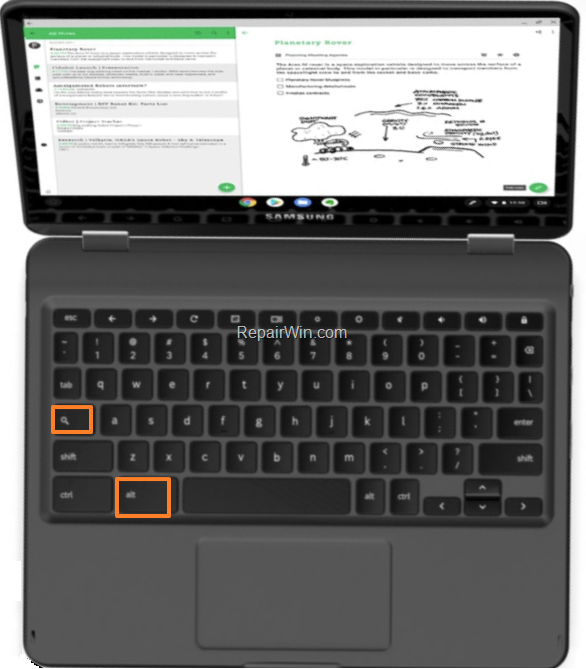
* Note: After enabling CAPS LOCK, if you click at your profile photo, you 'll see the indication: CAPS LOCK is On (ENABLED)
- To TURN OFF CAPS LOCK, just the same keys again: ALT + Search
TIP: If you want to make your life easier, you can assign your own CAPS LOCK key, by going to: Settings > Keyboard Settings > Caps Lock. Then, choose your desired Caps Lock key from the drop down menu.
That’s all folks! Did it work for you? Please leave a comment in the comment section below or even better: like and share this blog post in the social networks to help spread the word about this solution.
Frequently Asked Questions
How do I enable CAPS LOCK on a Google Chromebook?
To turn on CAPS LOCK on a Google Chromebook, press the ALT + Search keys.
How can I tell if CAPS LOCK is enabled on my Chromebook?
After enabling CAPS LOCK, clicking on your profile photo will show an indication that CAPS LOCK is On (ENABLED).
What steps should I follow to turn off CAPS LOCK on a Chromebook?
To turn off CAPS LOCK, press the ALT + Search keys again.
Can I assign a different key for CAPS LOCK on my Chromebook?
Yes, you can assign a different key by navigating to: Settings > Keyboard Settings > Caps Lock. Then, choose your preferred Caps Lock key from the drop-down menu.



