
How to Always Open Chrome in Incognito mode.
If you looking for a way to make Chrome to always open in incognito mode, then continue reading below. When you launch Chrome in incognito mode, your browser activity remains private from other users who use the same device. In incognito mode, Chrome won't save the your browsing history, cookies and the information entered in forms.
The manual way, to start a new Chrome session in incognito mode, is to go to Chrome's menu ![image_thumb[10]](https://www.repairwin.com/wp-content/uploads/2019/06/image_thumb10.png "image_thumb[10]") and to select "New incognito window", or to press CTRL + SHIFT + N.
and to select "New incognito window", or to press CTRL + SHIFT + N.
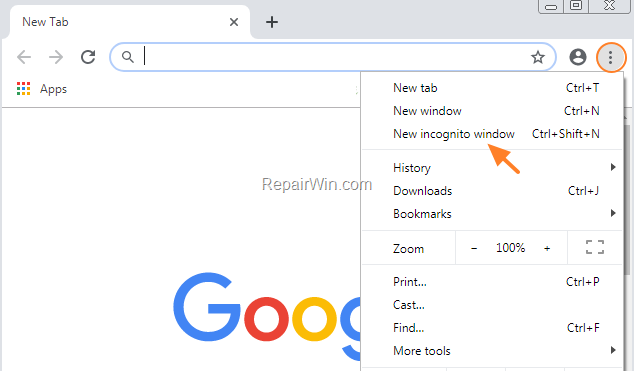
In this article you will find instructions, on how to always launch Google Chrome in incognito mode.
How to Always Start Google Chrome in incognito mode.
If you want to always start Chrome in incognito mode, then create a new Chrome shortcut and modify it's properties, as follows:
1, Right-click on Google Chrome shortcut and select Properties.
2. At General tab, add the switch "–incognito" (without quotes), at the end of the target line and click OK:
e.g. "C:\Program Files\Google\Chrome\Application\chrome.exe" –incognito
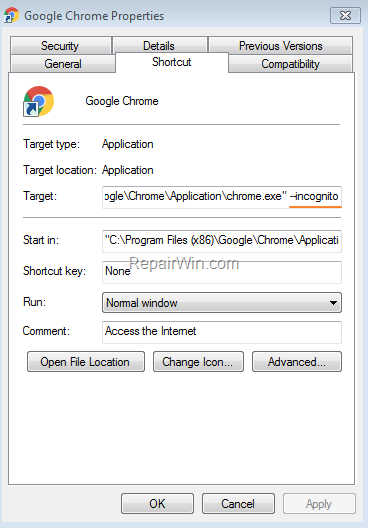
3. From now on, when you start Chrome from the modified shortcut, the Chrome will open in incognito mode. *
* TIP: If you want to open Chrome in incognito mode, when opening a hyperlink (URL) from your e-mail or other program, then you have to modify the registry. To do that:
1. Open the Registry Editor.
2. In registry, navigate to the following key:
3. At the right pane double click at the Default REG_SZ string value.
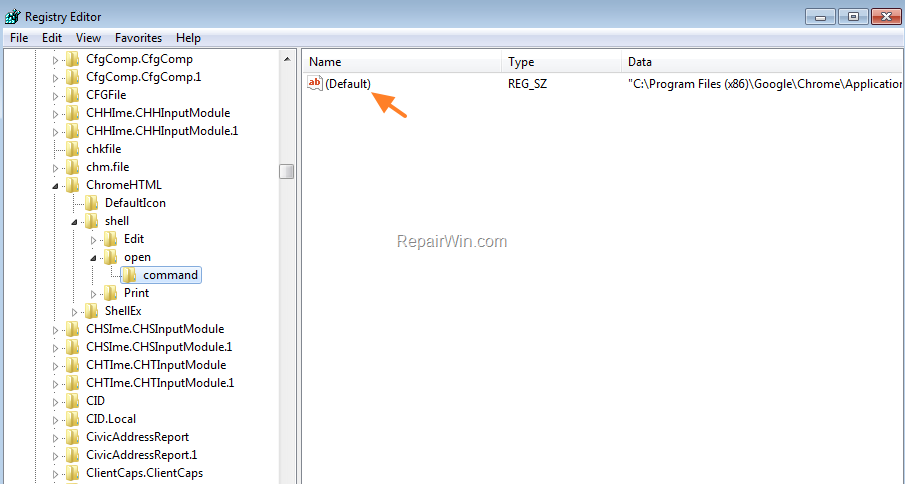
4. Add the switch add the word "incognito" (without quotes), before the "%1" and click OK.
e.g. Change the value data from:
"C:\Program Files\Google\Chrome\Application\chrome.exe" — "%1"
to:
"C:\Program Files\Google\Chrome\Application\chrome.exe" –incognito "%1"
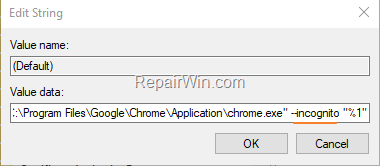
5. From now on, when clicking at a URL (HTML), Chrome will open it in incognito mode.
That’s all folks! Did it work for you?
Please leave a comment in the comment section below or even better: like and share this blog post in the social networks to help spread the word about this solution.
Frequently Asked Questions
How can I set Chrome to always open in incognito mode?
You can set Chrome to always open in incognito mode by creating a new shortcut, right-clicking on it, selecting Properties, and adding the switch '--incognito' to the target line.
What is the benefit of using Chrome's incognito mode?
Incognito mode ensures your browser activity remains private from other users on the device, as it doesn't save browsing history, cookies, or information entered in forms.
Can I make hyperlinks also open in incognito mode by default?
Yes, to do this, you need to modify the registry. Navigate to HKEY_CLASSES_ROOT\ChromeHTML\shell\open\command in the Registry Editor and add 'incognito' before '%1' in the Default REG_SZ string value.




January 2, 2022 @ 3:37 pm
really helpful article